To add EAN codes to WooCommerce products, install EAN for WooCommerce, free from WordPress.org or Pro from your WPFactory account, and activate it. An EAN field then appears in each product’s Inventory tab, below the SKU. Settings are at WPFactory > EAN (also at WooCommerce > Settings > EAN).
Can WooCommerce store EANs without a plugin? #
Partly. Recent WooCommerce versions include a single GTIN, UPC, EAN, or ISBN field in the product Inventory tab, so you can store one code per product. Core does not generate codes, print barcodes or labels, or offer the bulk tools and display options covered in the EAN guides.
Installing the EAN for WooCommerce plugin #
EAN for WooCommerce lets you save, validate, search, display, and generate product GTINs (EAN, UPC, ISBN, and more) inside WooCommerce.
Before you start #
- An active WordPress site with WooCommerce installed and active.
- Administrator access to your WordPress dashboard.
Option A: Install the free version from WordPress.org (Free) #
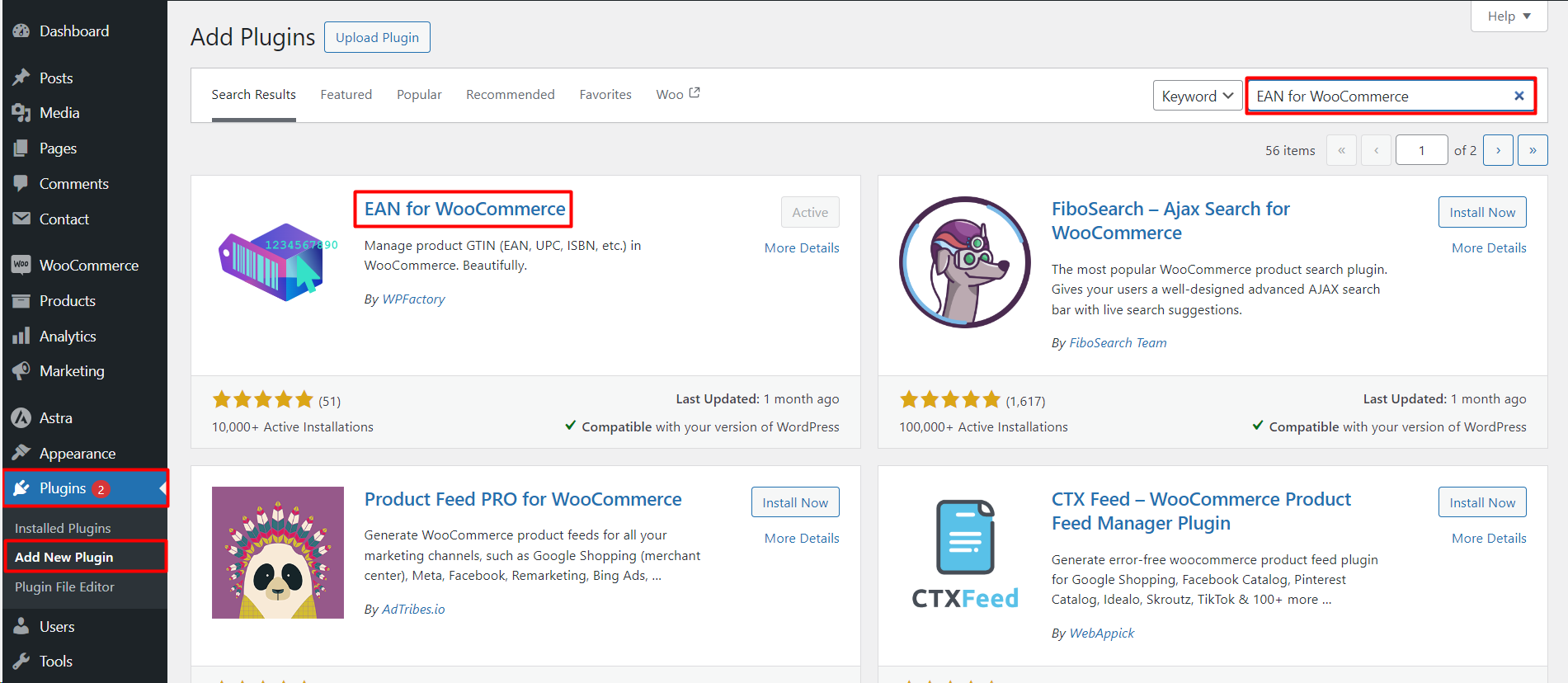
- In your dashboard, go to Plugins > Add New.
- Search for EAN for WooCommerce by WPFactory.
- Click Install Now, then Activate.
Option B: Install the Pro version (Pro) #
The Pro version adds barcodes, 2D barcodes, PDF label printing, and extra fields. To install it:
- Download the Pro ZIP from your WPFactory account.
- Go to Plugins > Add New > Upload Plugin, choose the ZIP, and click Install Now.
- Click Activate. Enter your license key when prompted so the plugin can receive automatic updates.
Note: the Pro plugin already includes everything in the free version. You do not need to keep both active.
Opening the settings #
After activation, go to WPFactory > EAN (also reachable at WooCommerce > Settings > EAN). The plugin works out of the box: the EAN field appears on the product edit screen with no extra setup. The General section is where you enable display, search, and structured data.
Next steps #
- Read Managing product EANs to learn the EAN types and where the field appears.
- Use the Tools section to generate or copy EANs across your whole catalog at once.
Frequently asked questions #
Where does the EAN field appear after installing? #
In the Inventory tab of the product data box, right below the SKU. For variable products, each variation gets its own EAN field in its pricing area. You can move the field with the Admin product edit page position option in the General section.
Which code type does the plugin use by default? #
EAN-13. The Type option also offers Automatic, EAN-8, UPC-A, ISBN-13, JAN, EAN-14 and Custom. See managing product EANs and choosing a type.
Is the EAN shown to customers? #
Yes, by default. It shows on the single product page at the start of the product meta, and it is added to the product structured data for Google. See adding EAN to product structured data.
Can I generate EANs for products I already have? #
Yes, for free. Use Generate EAN for all products in the Tools section, as explained in how to generate EANs for all products.
Are barcode images free? #
No. The Barcodes and 2D Barcodes sections, and PDF label printing, need Pro. Saving, validating, searching and displaying EANs is free.
Get more from EAN for WooCommerce #
The free version handles saving, searching, and displaying EANs. EAN for WooCommerce Pro adds 1D and 2D barcodes, PDF label printing, and multiple extra identifier fields per product. See what Pro unlocks.