Table of Contents
Email Verification Pro lets you edit the messages users see during verification: Success, Error, Failed, Already Verified and Activate. The Error, Failed and Activate messages accept the %resend_verification_url% placeholder, and you can also set the resend verification URL. Enable Clear Previous Messages to prevent duplicate messages from appearing.
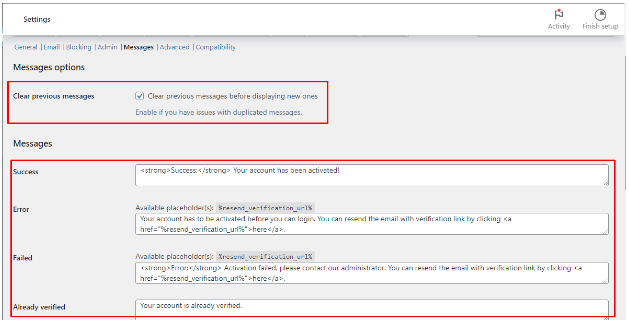
Email Verification Pro allows you to customize the messages users see during the verification process. This guide explores these message options.
Clear Previous Messages #
- Enable this option to prevent duplicate messages from appearing if you encounter technical issues.
Messages #
- Success: Craft the message displayed upon successful email verification.
- Error: Customize the message shown when verification fails (e.g., invalid verification link). You can include a placeholder %resend_verification_url% to provide a link for users to resend the verification email.
- Failed: Tailor the message displayed after failed verification attempts (e.g., too many attempts). Similar to the error message, you can use the %resend_verification_url% placeholder.
- Already Verified: Craft the message informing users their email is already verified.
- Activate: Customize the message prompting users to activate their accounts (useful when verification is not mandatory). You can include the %resend_verification_url% placeholder here as well.
- Resend Verification URL: While not a message itself, this section allows you to define the URL users will visit to resend the verification email.
By personalizing these messages, you can create a clear and informative user experience throughout the verification process.