Table of Contents
Email Verification Pro lets you control how verification emails are sent and what they say. You choose the mail function (wc_mail() is recommended), whether to delay the WooCommerce “Customer new account” email until verification, the template and wrap method, and the subject, heading and content of the activation, confirmation and admin emails.
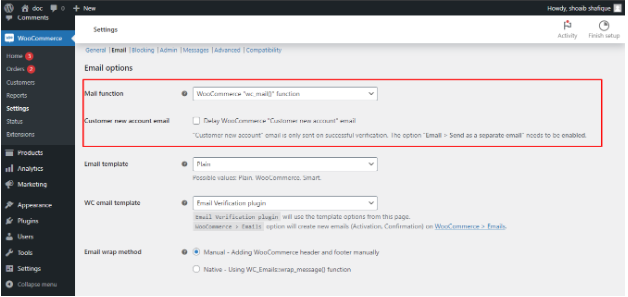
Email Verification Pro offers a robust set of options to manage email communication for user verification. This guide dives into these options, empowering you to craft a seamless user experience.
Mail Function #
- Choose the email sending method: PHP’s mail(), WooCommerce’s wc_mail(), or WordPress’s wp_mail(). WooCommerce’s wc_mail() function is generally recommended for optimal integration.
Customer New Account Email #
- Delay Email: Decide if the standard WooCommerce “Customer new account” email should only be sent after successful verification.
- Template: Select the email template format (Plain, WooCommerce, or Smart).
WC Email Template #
- Email Verification Plugin: Use the plugin’s built-in templates or create new ones in WooCommerce > Emails.
Email Wrap Method #
- Manual: Craft your own email header and footer using HTML.
- Native: Leverage WooCommerce’s WC_Emails::wrap_message() function for a consistent look.
Common Placeholders #
- Enhance your email content with placeholders like %user_email% or %site_title% to personalize communication.
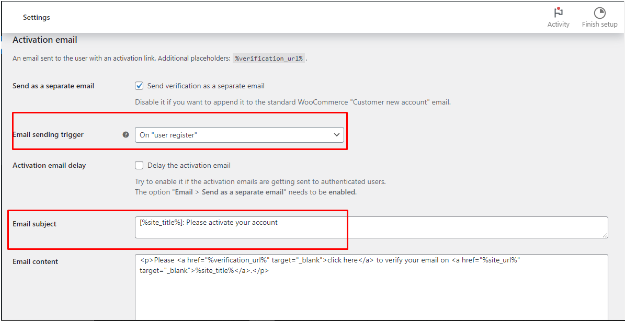
Activation Email #
This email contains a verification link and is sent upon user registration #
- Separate Email: Choose to send it independently or append it to the “Customer new account” email.
- Trigger: Specify when to send the email – on user registration or after WooCommerce creates the customer.
- Delay: Optionally delay sending the activation email to avoid reaching already authenticated users.
- Customization: Craft the email subject, content, and heading.
- Fine-Tune Placement: (For appended emails) Define where the activation content appears within the “Customer new account” email (requires code modification).
Confirmation Email #
- Send on Verification: Choose to send an email confirming successful account verification.
- Manual Verification: Optionally send confirmation when an admin manually verifies a user.
- Customization: Craft the email subject, heading, content, and delay settings.
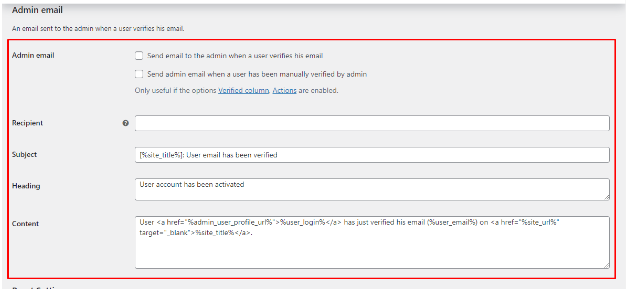
Admin Email #
- Send on Verification: Choose to send an email notification to the admin when a user verifies their email.
- Manual Verification: Optionally send an email when an admin manually verifies a user.
- Customization: Define the recipient email, subject, heading, and content.
By effectively utilizing these email options, you can build a clear and informative communication flow for user verification within your WooCommerce store.