To see and check customers’ VAT numbers on orders, open WPFactory > EU VAT (also reachable at WooCommerce > Settings > EU VAT) > Admin in EU/UK VAT Manager for WooCommerce. It adds an order meta box, an orders list column and filter, the number in the admin new order email, and validation for manual orders. All of it is free.
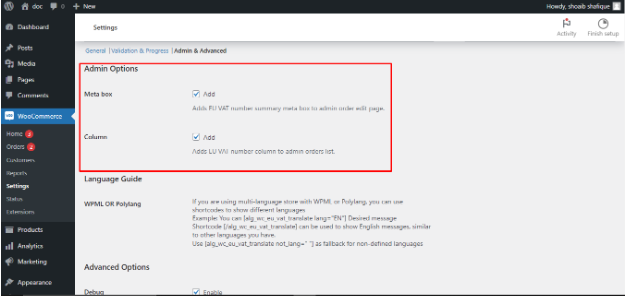
Order VAT information #
| Label | Option ID | Default | What it adds |
|---|---|---|---|
| Meta box | alg_wc_eu_vat_add_order_edit_metabox |
No | An EU VAT box on the order edit page. |
| Column | alg_wc_eu_vat_add_order_list_column |
No | An EU VAT column on the orders list. |
| VAT validation for orders created manually from the admin side | alg_wc_eu_vat_validate_vat_admin_side |
No | Validates the number on orders you create in the admin. |
| Admin new order email | alg_wc_eu_vat_admin_new_order_email |
No | The VAT number summary in the admin new order email. |
Set it up #
- Go to WPFactory > EU VAT (also reachable at WooCommerce > Settings > EU VAT) and open the Admin sub-tab.
- Tick Meta box and Column, plus the email and admin-order options if you need them.
- Click Save changes, then open WooCommerce > Orders.
What you see on orders #
- Meta box: the customer IP, country by IP, customer EU VAT number and taxes, plus the business name and address returned by VIES when available. Two links let you Validate VAT and remove taxes and Get VAT details for that order.
- Orders list: the EU VAT column, and a Select Filter EU VAT… dropdown to show only Orders with EU VAT numbers.
Multilingual support #
On WPML or Polylang stores, use the [alg_wc_eu_vat_translate] shortcode inside any text setting to show language-specific wording. See the Shortcodes guide.
Advanced tools #
The Advanced sub-tab carries Debug (logs at WooCommerce > Status > Logs), Force VAT recheck on checkout, and Manual validation of VAT numbers with the list in VAT numbers to pass validation. Reverse-charge wording is set by VAT shifted text on the Compatibility sub-tab. Full list: EU/UK VAT Manager: Advanced Settings Reference.
Reference links #
- Field ID used for EU VAT:
_billing_eu_vat_number. - Tool for adding EU country standard VAT rates: Tools > EU country VAT Rates.
- EU VAT report: WooCommerce > Reports > Taxes > EU VAT.
Note: current versions do not include a “Session type” setting. If an older guide mentions choosing between a standard PHP session and a WC session, that option has been removed.
If it does not work #
- No EU VAT box on the order: Meta box is off, or open the Screen Options tab on the order page and make sure the box is ticked.
- Column empty for an order: the customer did not enter a VAT number; the value is stored in
_billing_eu_vat_number. - Taxes not removed on a manual order: enable VAT validation for orders created manually from the admin side, or use Validate VAT and remove taxes in the meta box.
FAQ #
Where do I find a customer’s VAT number in WooCommerce? #
On the order edit page (with Meta box on) and in the orders list column. See Show VAT Numbers in Admin Orders and Reports.
Are these admin options Pro? #
No. All Admin sub-tab options are free.
Can I add the VAT number to invoices? #
Yes, see Add the VAT Number to PDF Invoices.
Get more control #
The admin options are free. EU/UK VAT Manager for WooCommerce Pro adds showing the field only for selected countries or user roles, payment methods for valid VAT only, and IP and company name checks. See what Pro unlocks.
Need a hand? Our team answers every ticket on the EU/UK VAT Manager support forum.