To show the amount left for free shipping in the WooCommerce mini cart, open WPFactory > Left for Free Shipping > Mini-cart in Free Shipping Bar: Amount Left for Free Shipping for WooCommerce, tick Enable section, write your message and pick a position. It then follows customers as they browse. This section is Pro.
Before you start #
- WooCommerce, active, with a theme that uses the standard mini cart widget.
- Amount Left for Free Shipping Pro (the Mini-cart section is Pro).
- A free shipping minimum the plugin can read: the WooCommerce Free shipping method with a minimum order amount, or a manual min amount.
Step by step #
- Go to WPFactory > Left for Free Shipping (also reachable at WooCommerce > Settings > Amount Left for Free Shipping) and open the Mini-cart section.
- Tick Enable section.
- Edit Content. For example:
Add %amount_left_for_free_shipping% more for free shipping %progress_bar%. - Choose a Position and, if other items share that spot, a Position order (priority). Lower numbers print first.
- Save changes, add a product to the cart and open the mini cart.
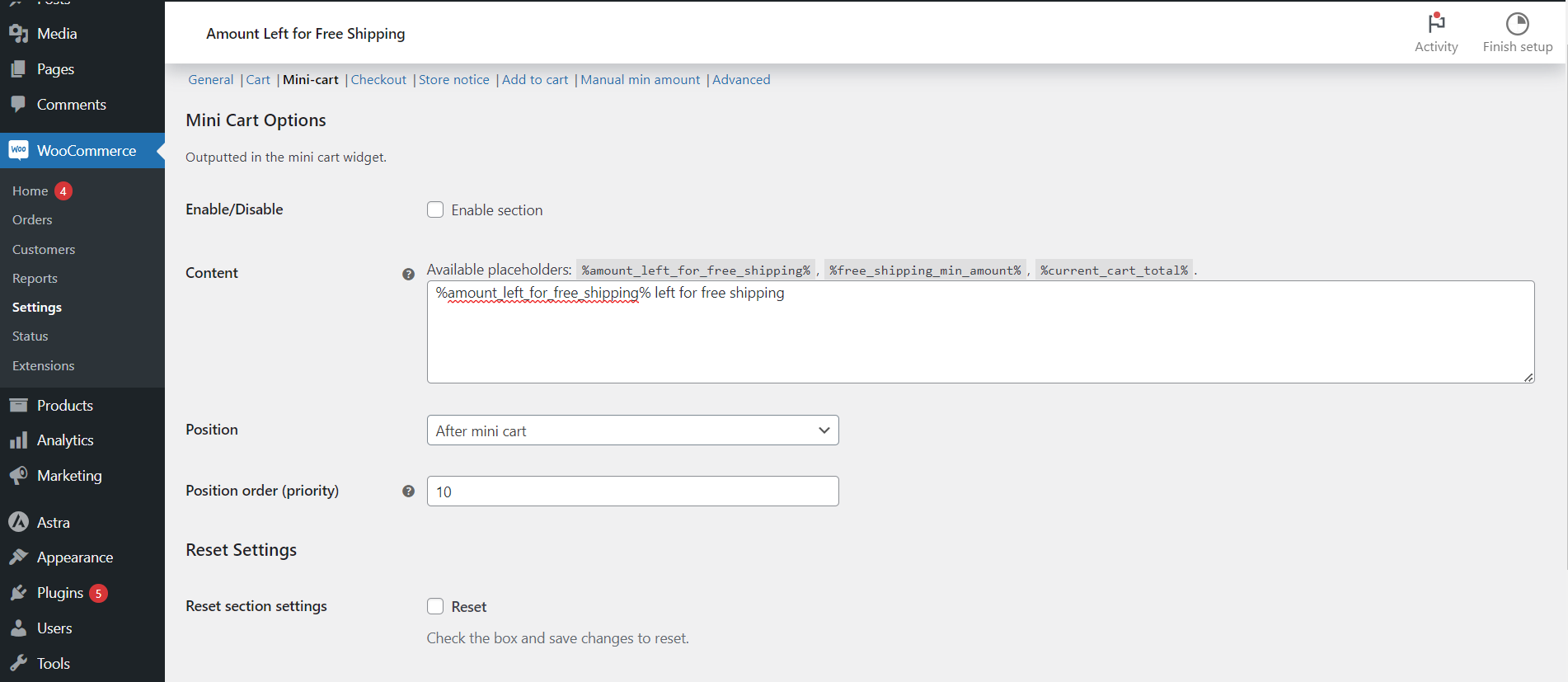
Mini-cart options #
| Label | Option ID | Default |
|---|---|---|
| Enable section | alg_wc_left_to_free_shipping_info_enabled_mini_cart |
No |
| Content | alg_wc_left_to_free_shipping_info_content_mini_cart |
%amount_left_for_free_shipping% left for free shipping |
| Position | alg_wc_left_to_free_shipping_info_position_mini_cart |
After mini cart |
| Position order (priority) | alg_wc_left_to_free_shipping_info_priority_mini_cart |
10 |
The Position dropdown lists the WooCommerce mini cart hooks: Before mini cart, Before mini cart contents, After mini cart contents, In mini cart total, Before mini cart buttons, In mini cart buttons, After mini cart buttons, and After mini cart. The content accepts HTML, shortcodes, and the plugin placeholders such as %amount_left_for_free_shipping% and %progress_bar%.
What the customer sees #
The message appears inside the mini cart at the chosen position. When the cart total reaches the minimum, it switches to the Free shipping reached message from the General section (default: “You have free delivery!”). The positions inside the product list, total and buttons are only printed by WooCommerce when the cart has items; use Before mini cart or After mini cart if you also want the Empty cart message from General to show there.
If it does not work #
- The Enable section box is greyed out: the Pro version is not active.
- Nothing shows: no free shipping minimum was found, or a General > Hide the amount left text rule applies to this cart.
- The amount is out of date: the mini cart text is rebuilt whenever WooCommerce refreshes the mini cart. A stale value usually means a cached cart fragment, so exclude the cart from your cache and purge it. The Advanced > AJAX options refresh the shortcode and store notice, not this section.
- Nothing in a block theme header: the Mini-Cart block and many page builder carts do not run the classic mini cart hooks. See Plugin not working in the Cart block or widget.
FAQ #
Is the mini cart message free? #
No. The Mini-cart section is Pro. The free version covers the cart page, the shortcode and the widget.
Can I show the progress bar in the mini cart? #
Yes. Enable the progress bar and add %progress_bar% to the Mini-cart Content.
How do I show free shipping info on the product page? #
Place the free [alg_wc_left_to_free_shipping] shortcode in the product description or a block, or use the Pro Add to cart notice, which adds the amount left to the “added to your cart” message.
Ready to set this up? #
The Mini-cart section is a Pro feature of Amount Left for Free Shipping. Upgrading unlocks it along with the checkout, store notice, and add to cart sections. Get Amount Left for Free Shipping Pro.
Need a hand? Our team answers every ticket on the Amount Left for Free Shipping support forum.