WooCommerce Export Orders: CSV, Excel & Google Sheets Guide

Quick answer: WooCommerce has no built-in button for exporting orders (its CSV exporter covers products only), so you need an order export plugin. With Export WooCommerce you choose the fields, filter by date or status, and download the orders as CSV or Excel. The steps below also cover Google Sheets and scheduled exports.
Exporting WooCommerce orders sounds simple until you actually try to do it.
You go to your dashboard expecting a quick “Export” button.. and it’s either missing, limited, or not giving you the data you need.
Whether you’re trying to download orders for accounting, analyze sales in Excel, or send data to another system, the default WooCommerce options often fall short.
That’s where understanding the right export method makes all the difference.
Quick Answer: How to Export WooCommerce Orders
The best way to export WooCommerce orders is by generating a CSV or XML file using a dedicated export plugin. CSV is the most commonly used format because it works seamlessly with Excel and Google Sheets, while XML is ideal for integrations and advanced workflows. With the right setup, you can filter orders, choose specific data fields, and even automate exports—something WooCommerce does not fully support by default.
In this guide, you’ll learn exactly how to export WooCommerce orders step by step, when to use CSV vs XML, and how to get clean, spreadsheet-ready data without formatting issues or missing fields.
How to Export WooCommerce Orders (Step-by-Step Overview)
Before jumping into tools or settings, it helps to understand how WooCommerce order export actually works.
There isn’t just one way to export orders.. instead, there are a few approaches depending on what you need.
Here’s a simple breakdown of the main methods:
1. Basic Export (Limited Default Options)
WooCommerce offers very limited built-in export capabilities.
You may find basic reports or developer-level tools, but they don’t give you full control over order data, filters, or file formats. For most store owners, this isn’t enough.
2. CSV Export (Most Common Method)
CSV is the standard format for exporting WooCommerce orders.
It works with tools like Excel and Google Sheets, making it easy to analyze sales, share reports, or manage data.
Most store owners rely on CSV because it’s simple, flexible, and widely supported.
3. XML Export (For Integrations & Advanced Use)
XML is typically used when you need to send order data to external systems such as accounting software, ERPs, or custom integrations. It’s more structured than CSV and better suited for automated workflows.
4. Automated & Scheduled Exports
Instead of exporting orders manually every time, you can automate the process.
This allows you to generate and send order data on a schedule (daily, weekly, etc.), which is especially useful for growing stores.
In the next sections, we’ll walk through the best method step by step and show you how to export your WooCommerce orders in a way that actually works for real business needs.
Can You Export WooCommerce Orders Without a Plugin?
Short answer: not in a practical, flexible way.
WooCommerce does not provide a clear, built-in option to export orders in a fully customizable format like CSV or XML directly from the main orders screen.
While there are some basic tools available, they are limited and not designed for real business use.
What you can do without a plugin?
You might be able to access basic reports or use developer-level tools to retrieve order data.
In some cases, exports are tied to analytics or require manual workarounds.
However, these options usually come with major limitations:
- No control over which fields to export
- No advanced filtering (by date, status, customer, etc.)
- No scheduling or automation
- No clean, spreadsheet-ready formatting
Why this becomes a problem?
As your store grows, you’ll quickly need more than just raw data. You may want to:
- Send orders to your accountant
- Analyze sales performance in Excel
- Share reports with your team
- Connect WooCommerce with external systems
Trying to do all of this manually or through limited tools can be time-consuming and unreliable.
That’s why most store owners move to a dedicated export solution that gives full control over what to export, how to format it, and when to generate it.
Limitations of WooCommerce Order Export (What You Need to Know)
At first glance, exporting WooCommerce orders may seem straightforward.
But once you try to get specific data or format it for real use, the limitations quickly become clear.
Here are the most common challenges store owners face:
1. No Control Over Exported Data
You often can’t choose exactly which fields to export.
This means you may end up with missing information or too much irrelevant data that needs manual cleanup.
2. Limited Filtering Options
Need orders from a specific date range, status, or customer group? Without advanced filtering, you’ll struggle to extract only the data you actually need.
3. No Built-In Automation
WooCommerce doesn’t support scheduled exports by default.
If you need daily or weekly reports, you’ll have to repeat the process manually every time.
4. Formatting Issues in Excel or Sheets
Even when you manage to export data, it may not open cleanly.
You might see broken characters, misaligned columns, or encoding issues.. especially if your store uses multiple languages or special characters.
5. No Support for Integration-Friendly Formats
If you need to connect WooCommerce with accounting tools, CRMs, or other systems, you’ll likely need structured formats like XML. This isn’t something WooCommerce handles well out of the box.
Because of these limitations, exporting orders becomes less about clicking a button and more about finding a reliable way to get clean, usable, and flexible data.
In the next section, we’ll walk through the best method to export WooCommerce orders step by step.
How to Export WooCommerce Orders to CSV (Best Method)
If you want a reliable, flexible way to export WooCommerce orders, CSV is the best place to start.
CSV (Comma-Separated Values) is the most widely used format because it works seamlessly with Excel, Google Sheets, and most reporting tools.
More importantly, it gives you full control over your data when used with the right export setup.
Step 1: Install an Order Export Plugin
To unlock full export functionality, you’ll need a dedicated export plugin (such as WPFactory’s Export WooCommerce) that allows you to generate CSV files with complete control over your order data.
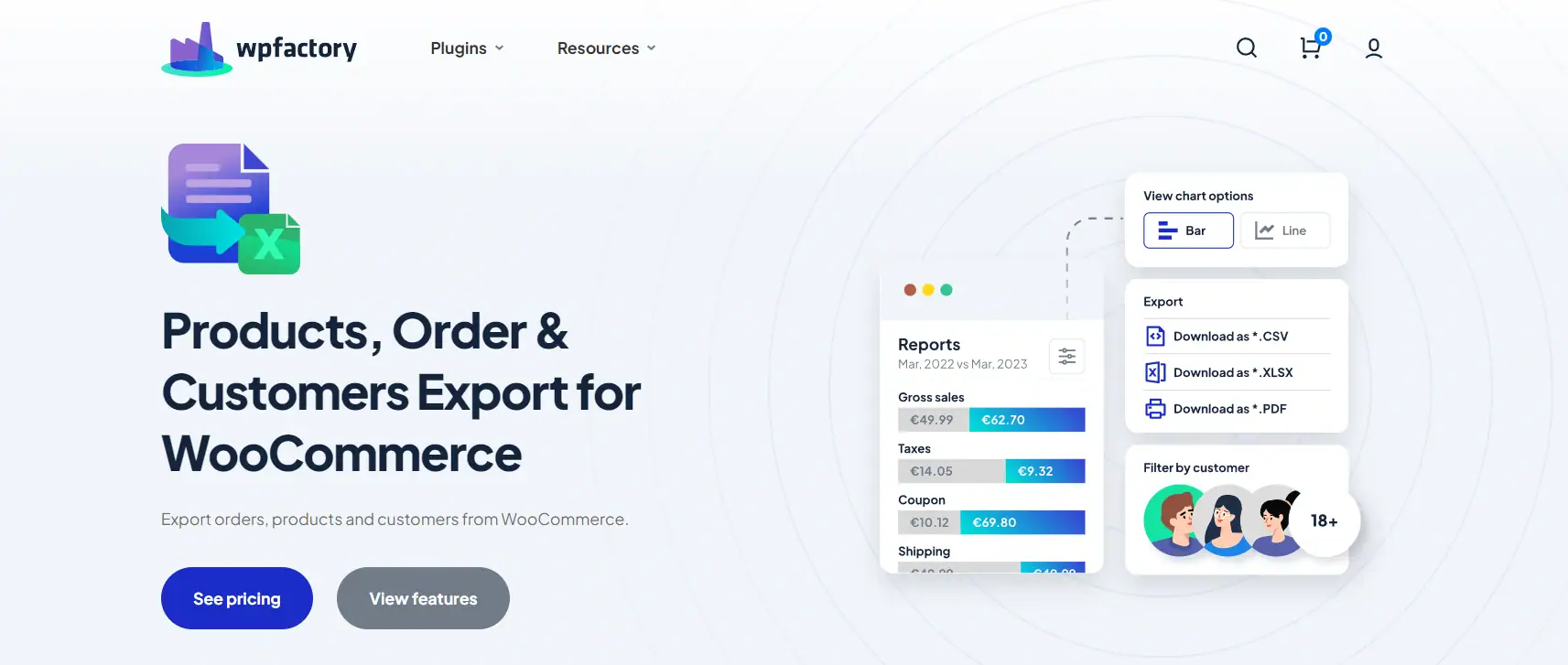
Once installed, you’ll be able to access dedicated export settings directly.
Setup guide: How to Export WooCommerce Order Data walks through the settings step by step.
Step 2: Choose What Data to Export
Instead of exporting everything blindly, you can select exactly what you need. For example:
- Order ID, date, and status
- Customer details (name, email, location)
- Product information and quantities
- Payment and shipping data
This helps you generate clean, focused reports without extra clutter.
Step 3: Apply Filters
You can narrow down your export by applying filters such as:
- Date range (e.g., last 30 days)
- Order status (completed, pending, refunded)
- Specific products or categories
Filtering ensures you only export the data that matters for your current task.
Step 4: Export the CSV File
Once everything is set, you can generate and download your CSV file instantly.
With a proper export setup, your file will be structured and formatted correctly.. so it opens smoothly in Excel or Google Sheets without broken columns or unreadable characters.
Why CSV Is the Best Method?
- Works with Excel, Google Sheets, and other tools
- Easy to edit, filter, and analyze
- Lightweight and fast to generate
- Compatible with most business workflows
In the next section, we’ll see how to open and use your exported data in Excel.
How to Export WooCommerce Orders to Excel?
If you’re looking to export WooCommerce orders to Excel, the process is actually simpler than it sounds.
WooCommerce doesn’t export directly to Excel format (.xlsx). Instead, you export your orders as a CSV file which Excel can open and handle easily.
Step 1: Export Orders as CSV
Start by exporting your WooCommerce orders as a CSV file using your export setup.
Step 2: Open the File in Excel
Once downloaded, you can open the CSV file directly in Excel with a single click. Excel will automatically organize the data into rows and columns.
Step 3: Clean and Format Your Data (Optional)
Depending on your needs, you can:
- Sort orders by date, revenue, or customer
- Filter specific order statuses
- Create simple reports or summaries
- Use pivot tables for deeper analysis
Avoid Common Excel Issues
Sometimes CSV files can open with formatting problems, such as:
- Unreadable characters
- Incorrect column separation
- Encoding issues with special languages
To avoid this, make sure your export file is generated with proper encoding (UTF-8) and structure. This ensures your data opens cleanly and is ready to use without manual fixes.
Next, we’ll look at how to use your exported data inside Google Sheets.
How to Export WooCommerce Orders to Google Sheets?
If you prefer working in Google Sheets instead of Excel, exporting WooCommerce orders is just as straightforward.
Just like Excel, Google Sheets doesn’t require a special export format. You simply upload your CSV file and start working with your data.
Method 1: Upload Your CSV File
This is the easiest and most common approach.
- Go to Google Sheets
- Create a new spreadsheet
- Click File → Import
- Upload your CSV file
Your WooCommerce order data will be automatically organized into rows and columns, ready for filtering, sorting, and analysis.
Method 2: Keep Your Data Updated (Advanced)
If you regularly need updated order data in Google Sheets, you can automate the process.
This usually involves connecting WooCommerce to Google Sheets using automation tools or scheduled exports.
Instead of uploading files manually, your data can be updated automatically in the background. The same hands off approach works for your uploads, where you can rename media files in bulk instead of one at a time.
Why Use Google Sheets?
- Access your data from anywhere
- Share reports easily with your team
- Collaborate in real time
- Build dashboards and simple automations
Next, we’ll look at how to automate WooCommerce order exports so you don’t have to repeat the process manually every time.
How to Schedule and Automate WooCommerce Order Exports?
Manually exporting WooCommerce orders works at first.
But as your store grows, repeating the same process every day or every week quickly becomes inefficient. This is where automation becomes essential.
Why Automation Matters?
Instead of exporting orders manually each time, you can set up automated exports that run on a schedule.
This means your data is always up to date without extra effort.
- Daily sales reports sent automatically
- Weekly exports for accounting or bookkeeping
- Regular data sync with external systems
How Scheduled Exports Work?
With the right setup, you can define when and how your exports are generated.
- Choose a schedule (daily, weekly, monthly)
- Select which orders to include (by date, status, etc.)
- Define the export format (CSV or XML)
- Automatically generate and deliver the file
Where Automation Becomes Valuable?
Automation is especially useful if you:
- Work with accountants or external teams
- Need consistent reporting without manual effort
- Run a high-volume WooCommerce store
- Rely on data-driven decisions
Instead of stopping your workflow to export data manually, automation keeps everything running in the background.
Now, we’ll look at the most reliable way to export WooCommerce orders without limitations, and how to avoid all the issues we’ve covered so far.
Best Way to Export WooCommerce Orders Without Limitations
At this point, the pattern is clear.
Basic WooCommerce export options are limited. Manual work takes time. And as your store grows, managing order data becomes more complex.
What most store owners actually need is simple:
- Full control over what data to export
- Clean, structured files that open without issues
- Flexible formats for different use cases
- The ability to automate the entire process
This is exactly where a dedicated export solution makes the difference.
A More Practical Approach
Instead of relying on limited built-in tools, you can use a plugin designed specifically for exporting WooCommerce data.
For example, the Export WooCommerce Products, Orders & Customers plugin by WPFactory gives you full control over your exports without complicated setup.
What You Can Do With the Right Export Setup?
- Export orders in CSV or XML formats
- Select exactly which fields to include
- Filter orders by date, status, customer, or product
- Generate files that open cleanly in Excel and Google Sheets
- Schedule exports and automate reporting
Why This Matters?
Instead of adjusting your workflow to fit WooCommerce limitations, you get a system that works the way your business actually operates.
Whether you’re exporting data for analysis, accounting, or integrations, having a reliable export setup saves time and reduces errors.
If exporting orders is something you do regularly, this approach quickly becomes essential rather than optional.
How This Plugin Helps Streamline Order Management?
The Export WooCommerce Products, Order & Customers plugin makes order exporting fast and hassle-free.
Here’s how it helps:
- Simple and Easy to Use → No complicated settings, just a few clicks and you get your order data.
- Customizable Exports → Choose exactly which fields to include, so you only get the data you need.
- Filter by Date, Product, or Customer → No more searching manually, just set a filter and export specific orders instantly.
- Multiple Export Formats → Download in CSV or XML so you can open the file in Excel, Google Sheets, or other tools.
- Works for Any Store Size → Whether you’re exporting a few orders or thousands, the plugin handles it smoothly.
Simple Setup for WooCommerce Export Orders plugin
Let’s go step by step to get everything set up.
1. Install the Plugin
Before you can start exporting orders, you’ll need to install and activate the plugin.
Here’s how:
- Purchase the WooCommerce Export Orders plugin.. it’s affordable and worth every penny.
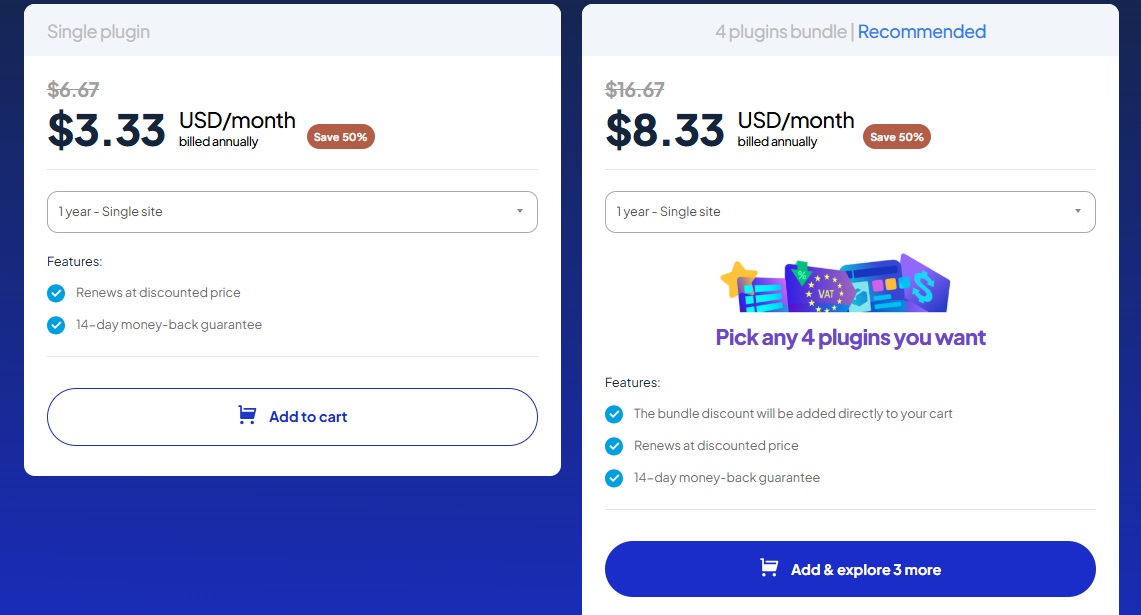
- Once purchased, you’ll receive a ZIP file with the plugin.
- In your WordPress dashboard, go to Plugins > Add New > Upload Plugin.
- Click Upload Plugin, select the ZIP file, and hit Install Now.
- Once installed, click Activate to turn the plugin on.

Now that the plugin is active, you’re ready to start exporting your WooCommerce orders.
2. Select the Fields You Want to Export
Every order has lots of details, but you may only need specific ones.
With this plugin, you can choose exactly what information gets exported.
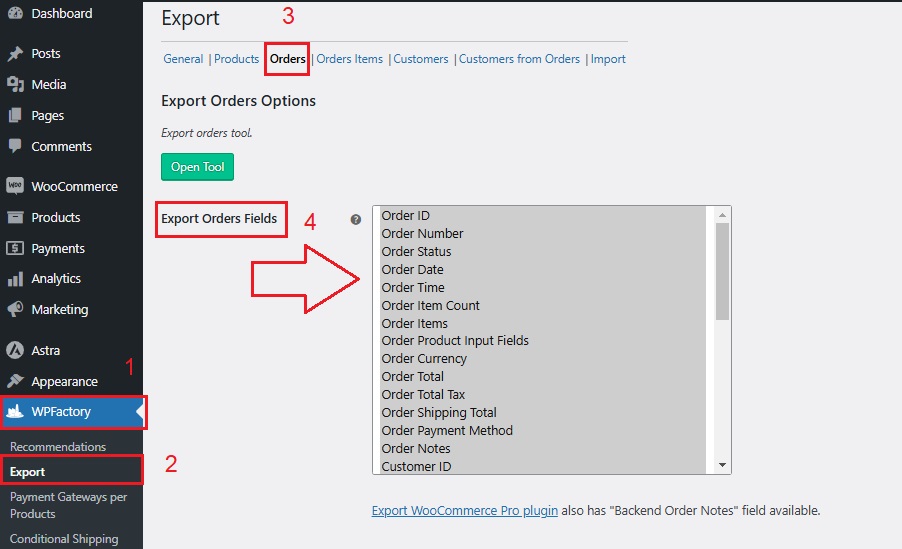
- In your WordPress dashboard, go to WPFactory > Export.
- Click on the Orders tab at the top.
- You’ll see a section called “Export Orders Fields“, this is where you decide what order details to include in your export.
- Select the fields you need, For example, but not limited to:
-
- Order number
- Customer name
- Product details
- Payment method
- Order status
- Shipping details
-
- To select multiple fields, hold the Control (CTRL) key and click the ones you want.
- To select everything, press Control + A.
- Click Save to apply your selections.
➡ Example:
If you only need a simple report for accounting, you might select Order Number, Customer Name, Payment Method, and Total Amount.
If you’re managing shipping, you might include the Order Status and Shipping Address too.
3. Choose the Date Range
Once you’ve selected the fields, it’s time to filter orders based on date.
- Click the Open Tool button on the same page.
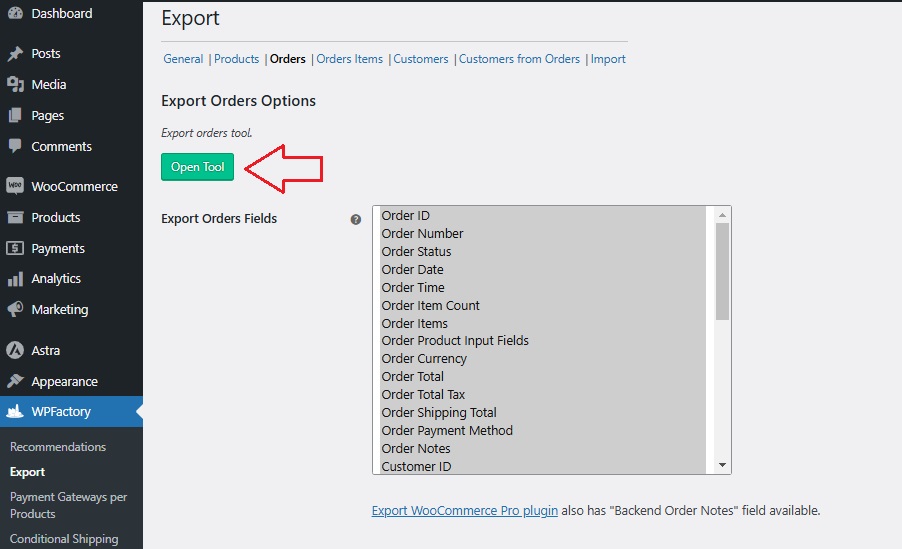
- A new window will open where you can set a date range for the export.
- You have two options:
-
- Quick selections: Choose from pre-set options like All Time, This Month, Last 7 Days, Last 14 Days, or Last Year.
- Custom range: Manually select a specific start and end date if you need data from a particular time frame.
-
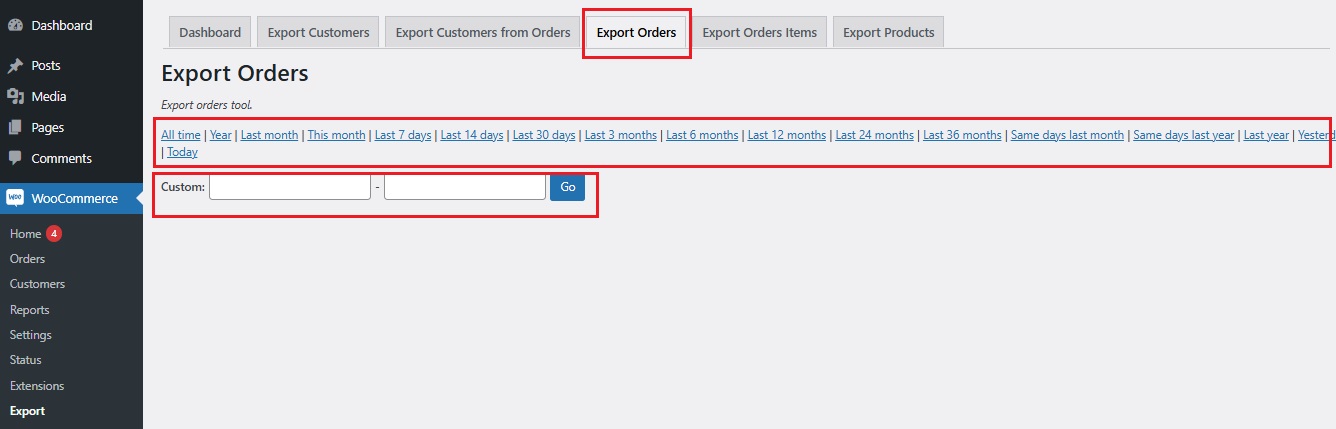
➡ Example:
If you’re preparing a monthly sales report, you can select Last Month to get all orders from that period.
4. Download Your Orders
Now comes the final step, exporting and downloading the file!
- After selecting the date range, all matching orders will appear.
- Click Download CSV if you want to open the file in Excel, Google Sheets, or any spreadsheet program.
- Click Download XML if you need the data for further processing or system integrations.
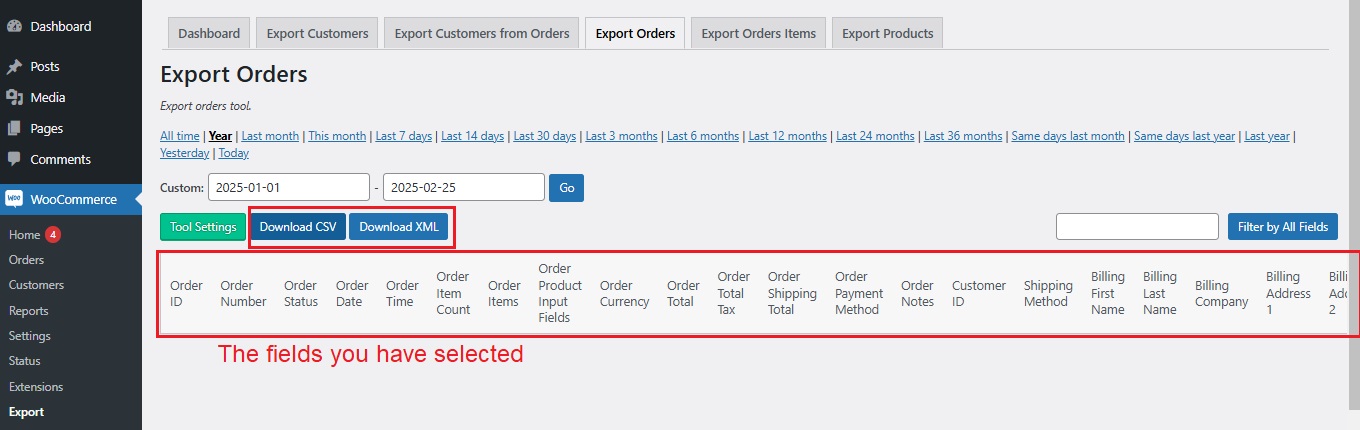
➡ Example:
If you need to send order data to your accountant, downloading a CSV file will make it easy for them to review.
If you’re working with developers or another system, XML might be the better choice.
That’s it! 🎉 You’ve successfully set up the plugin and exported WooCommerce orders.
By following these steps, you can quickly access order data, organize reports, and save time managing your store.
Troubleshooting Common Issues
Exporting WooCommerce orders is usually simple, but sometimes things don’t go as planned!
Maybe your export isn’t working, the file doesn’t look right, or the data is too big to handle.
Let’s go over some common issues and how to fix them.
1. Why Is My Export Not Working?
If you click “Download” and nothing happens or the file is missing data, don’t worry, here are a few things to check:
-
Did You Select the Right Fields?
- Go to WPFactory > Export > Orders and make sure you’ve selected the correct fields for export.
- If the file is empty, try selecting all fields and exporting again.
-
Is Your Date Range Correct?
- Double-check the date range in the Open Tool section.
- If you’re looking for last month’s orders but selected “Last 7 Days,” the export may appear empty.
-
Is Another Plugin Causing a Conflict?
- Sometimes, other WooCommerce plugins might interfere with exports.
- Try disabling other plugins temporarily and running the export again.
-
Is Your Browser Causing Issues?
- If clicking “Download” does nothing, try using a different browser (like Chrome, Firefox, or Edge).
- Clear your browser cache and refresh the page.
2. Fixing Formatting Issues in CSV/Excel
If your CSV or Excel file looks messy or the data is all over the place, here’s how to fix it:
-
Problem: Data Is All in One Column
- Open the CSV file in Excel.
- Click on Column A, then go to Data > Text to Columns.
- Select Delimited, choose Comma as the separator, and click Finish, this should split the data into columns.
-
Problem: Special Characters Look Wrong
- If names, addresses, or product titles show weird symbols (like “é” instead of “é”), it’s a character encoding issue.
- Open the file in Google Sheets instead of Excel, it usually detects encoding better.
- If using Excel, go to File > Open, select your CSV file, and choose UTF-8 encoding.
-
Problem: Numbers Don’t Look Right
- If order totals show as 0.00 or weird symbols appear, check if Excel is automatically converting the format.
- Select the column, go to Format > Number, and set it to Currency or General.
3. Large Order Exports: How to Handle Them
If your store has hundreds or thousands of orders, exporting all at once might slow down your site or cause the export to fail.
Here’s what to do:
-
Break It Down into Smaller Exports
- Instead of exporting everything at once, filter orders by date range (e.g., export one month at a time).
- This reduces the load on your website and prevents timeouts.
-
Use CSV Instead of Excel
- CSV files are smaller and load faster than Excel files, especially for large exports.
- If your Excel file is too big, try opening it in Google Sheets instead.
-
Check Your Web Hosting Limits
- Some web hosts have limits on large file downloads.
- If your export is taking too long, check with your hosting provider to increase memory limits.
Final Thoughts
-
Making the Most of WooCommerce Export Orders
Once you know how to export WooCommerce orders, you can use that data in different ways:
✅ Track Sales Insights and Trends → See which products are selling the most, compare sales over time, and plan for future stock.
✅ Improve Customer Service → Quickly find past orders when customers ask about their purchases.
✅ Simplify Accounting → Send order exports to your accountant for tax calculations and financial reports.
✅ Organize Shipping and Fulfillment → Share order details with your warehouse or delivery team for better order processing.
✅ Filter Orders by Payment Method → See which payment gateways your customers prefer and adjust options if needed.
Tip:
If you export orders regularly, consider saving your favorite settings so you don’t have to reselect fields and filters every time.
Final Words
Having organized order data saves time and keeps your store running efficiently.
Now that you know how to export orders from WooCommerce easily, it’s time to put these steps into action and make order management a breeze!
WooCommerce Export Orders FAQs
How do I export orders from WooCommerce?
The most effective way to export WooCommerce orders is by generating a CSV or XML file using a dedicated export plugin.
This allows you to choose specific data fields, apply filters, and export clean, structured files.
Does WooCommerce have a built-in order export feature?
WooCommerce offers limited built-in options, but it does not provide a flexible, user-friendly way to export orders with full control. Most store owners rely on plugins for complete export functionality.
What is the best format to export WooCommerce orders?
CSV is the most commonly used format because it works with Excel, Google Sheets, and reporting tools. XML is better when you need structured data for integrations or automated workflows.
How do I export WooCommerce orders to Excel?
You can export your orders as a CSV file and then open it in Excel. Excel automatically formats the data into rows and columns, allowing you to sort, filter, and analyze your orders easily.
How do I export WooCommerce orders to Google Sheets?
Export your orders as a CSV file, then upload it into Google Sheets using the import feature. This lets you view, share, and analyze your data online.
Can I export only specific orders?
Yes. With the right export setup, you can filter orders by date, status, customer, or product, so you only export the data you actually need.
Can I automate WooCommerce order exports?
Yes. You can schedule exports to run automatically (daily, weekly, etc.), so your data is always up to date without manual work.
Why does my CSV file look broken in Excel?
This usually happens because encoding or formatting issues.
Using a properly configured export tool ensures your file uses UTF-8 encoding and correct separators, so it opens cleanly without errors.