To update WooCommerce stock from a Google Spreadsheet, publish the sheet to the web as Microsoft Excel (.xlsx), then paste its link into Remote Excel URL at WPFactory > Stock Manager > Settings in Products Stock Manager with Excel for WooCommerce Pro, set Auto Import with Cron to Yes and choose a schedule.
The Pro version of Stock Manager can update stock number, stock status, regular price and sale price from a remote Excel file with a cron job. To use a Google Spreadsheet, the file must be publicly accessible, so you need to publish it.
Before you start #
- Stock Manager Pro, active.
- A Google Sheet whose first row holds headings and whose columns match your Stock Manager settings (by default A = ID, B = SKU, C = regular price, D = sale price, E = stock, F = stock status). The easiest start is to export your products from the Export tab and import that file into Google Sheets.
- The update options you need ticked on the Settings tab (Update Stock Number, Update Stock Status, Update Regular Price, Update Sale Price).
Step 1: Publish your Google Sheet as Excel #
- Open the Google Spreadsheet you want to use.
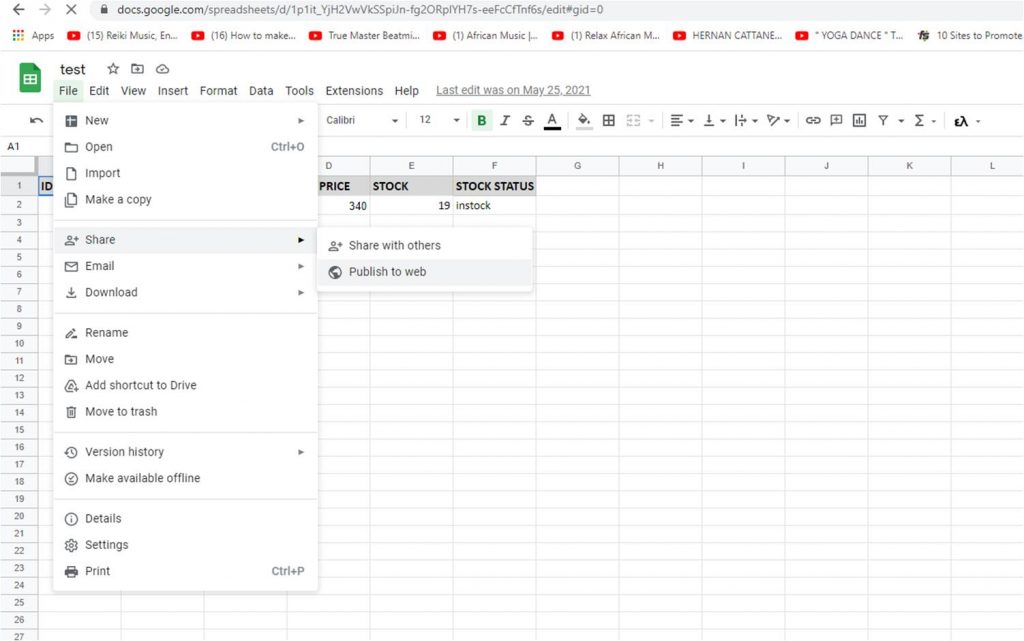
- Click File.
- Click Share and select Publish to web.
- In the popup window, choose the sheet with your stock data, and as output select Microsoft Excel (.xlsx) in the dropdown.
- Click Publish and copy the link.
Your sheet is now published.
For testing, paste the link into a browser address bar, ideally in a private window. If it was published correctly, an Excel file downloads. If so, you are good to go.
Step 2: Configure Stock Manager Pro #
- Go to WPFactory > Stock Manager and click the Settings tab.
- Make sure Auto Import with Cron is set to Yes.
- Paste the Google Sheet link into Remote Excel URL. Google Sheets links redirect before the download, and Stock Manager follows the redirect (supported since version 4.0.1).
- Select the Auto Import Frequency and, optionally, the Auto Import Time for your imports. The time is in UTC.
- Click Save Changes.
Stock Manager now works in the background, updating your WooCommerce products from the Google Spreadsheet on the schedule you chose. Edit the sheet as usual: Google republishes changes automatically, and the next import picks them up.
FAQ #
Do I need to publish the whole spreadsheet? #
No. In the Publish to web dialog you can publish a single sheet. Stock Manager reads the sheet in the published file, starting from row 2.
Is my stock data public once the sheet is published? #
Anyone with the published link can download the file. Keep only the columns Stock Manager needs in that sheet, and do not share the link.
How do I change the schedule later? #
Set Auto Import with Cron to No and save, change the frequency or time, then set it back to Yes and save. An existing schedule is not replaced otherwise.
The import does not run. What should I check? #
Open the link in a private window to confirm it downloads an .xlsx file, check that at least one Update option is ticked, and read the cron section of the Stock Manager troubleshooting guide. For all scheduling options, see how to schedule automatic stock updates.
Ready to set this up? #
Google Sheets sync is a Pro feature of Stock Manager. If you are still on the free version, upgrading takes a couple of minutes and unlocks this along with the rest of the Pro toolkit. Get Stock Manager Pro.
Need a hand? Our team answers every ticket on the Stock Manager support forum.