How to Use AI Product Image Generator for WooCommerce

What Is This Plugin?
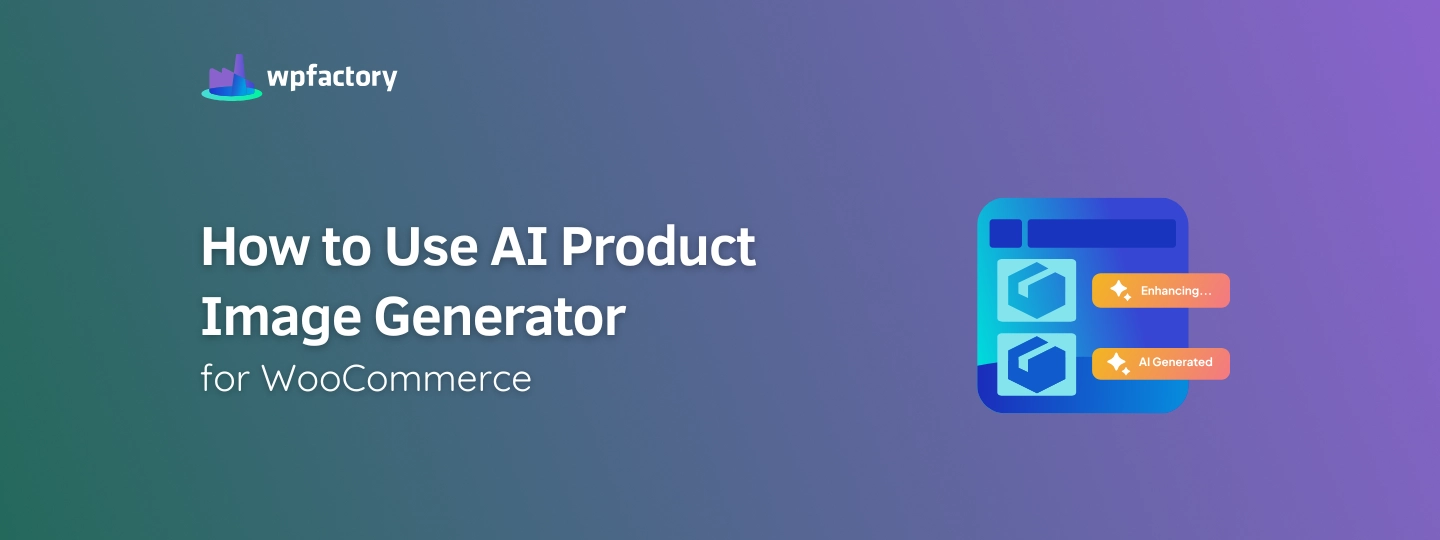
The AI Product Image Generator for WooCommerce is a WordPress plugin that lets you generate professional, high-quality product images using AI directly in your WooCommerce dashboard.
It works by taking your existing product images and enhancing them using AI, creating cleaner backgrounds, and ensuring a consistent visual style. All generated images are automatically saved to your WordPress media library.
What Can It Do?
- Turn basic product photos into high-quality, professional-looking images
- Apply a consistent visual style across your entire catalog
- Generate images individually or in bulk for large stores
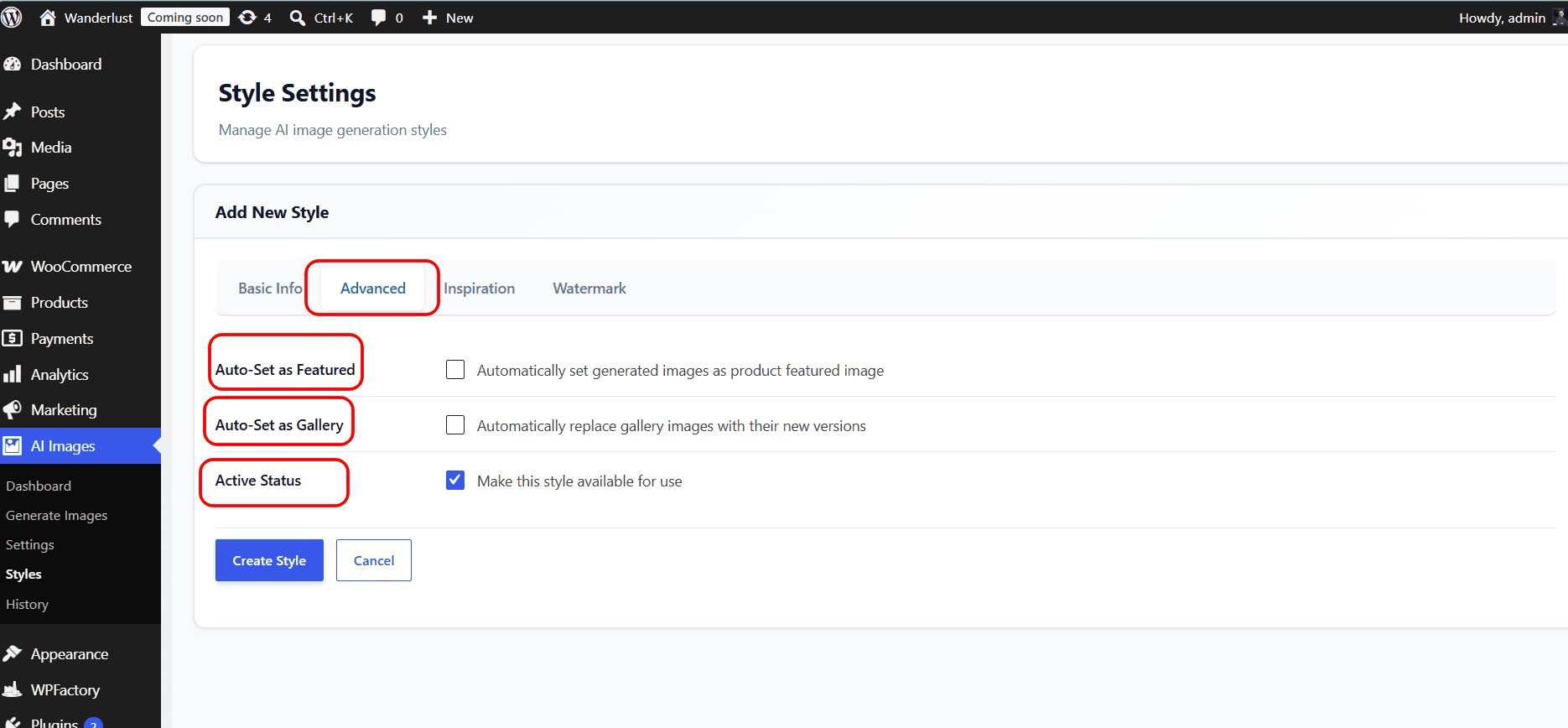
- Automatically replace featured product images – no manual upload needed
- Let you create and manage custom AI styles tailored to your brand
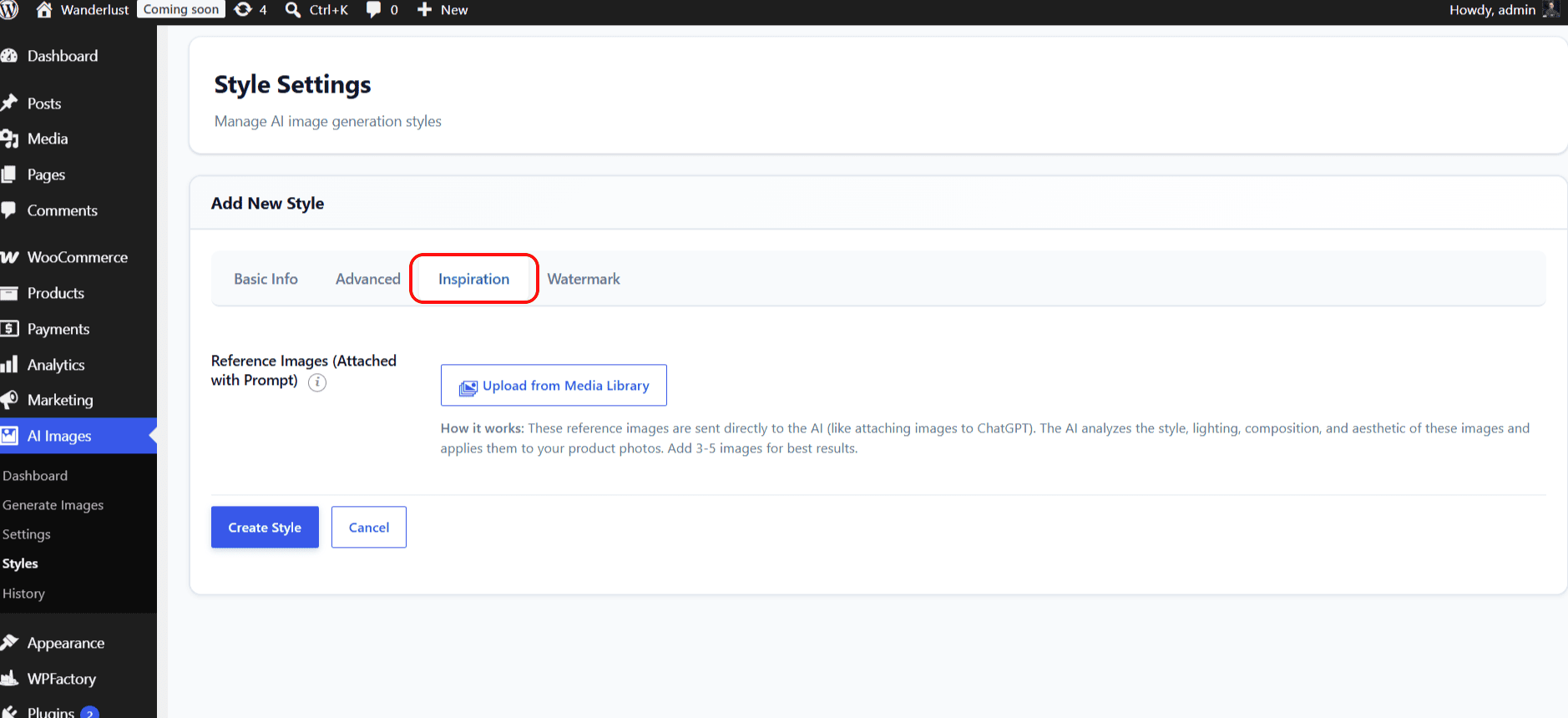
- Use reference images to guide the visual direction of AI output
Styles
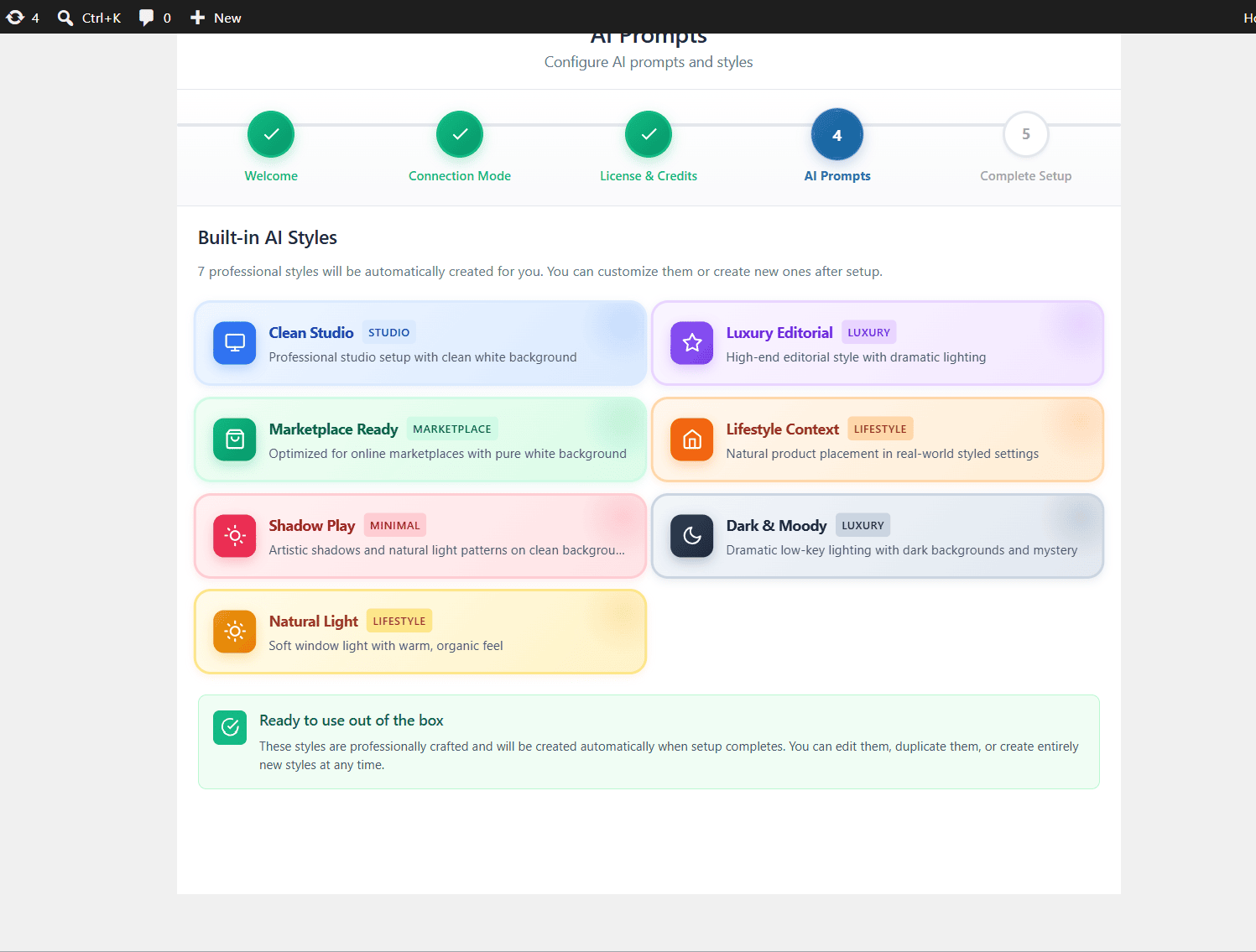
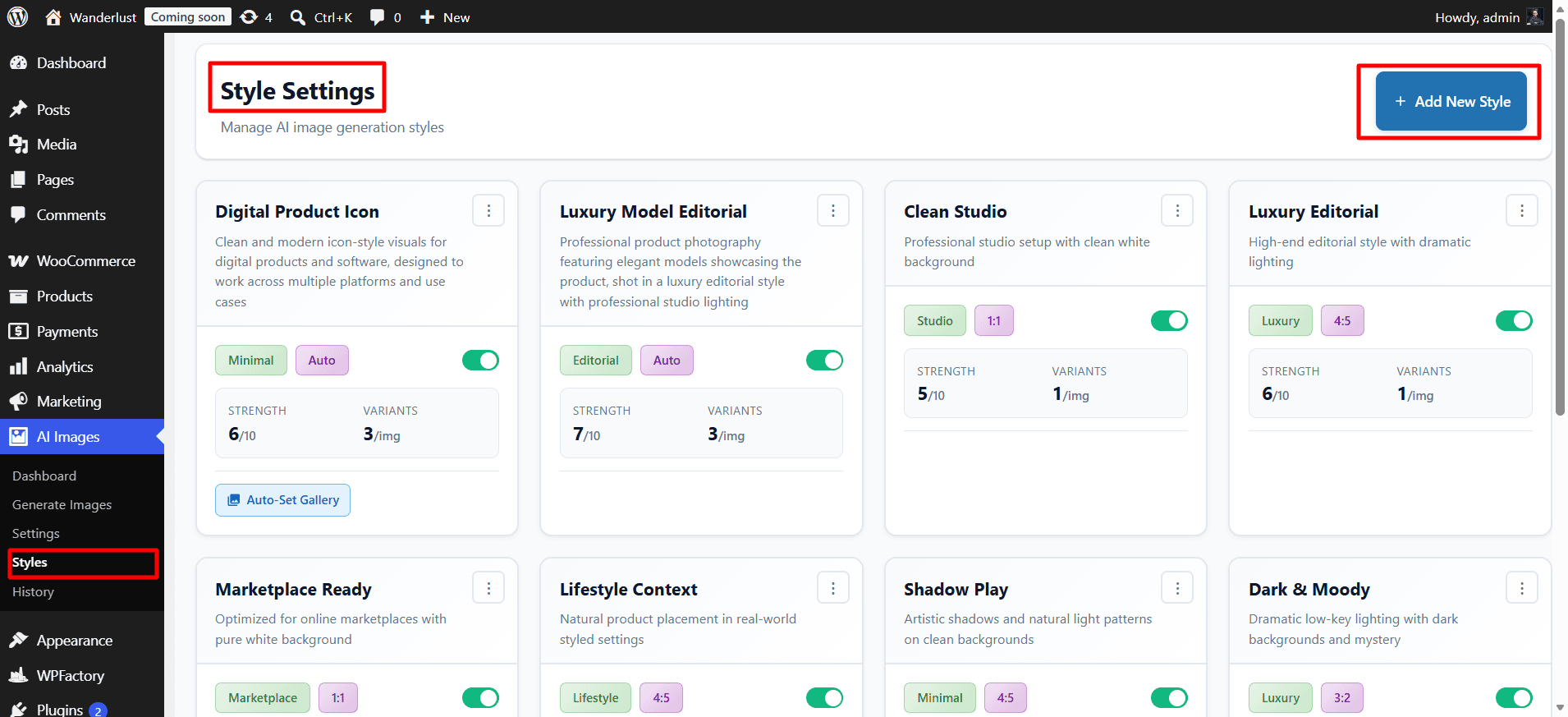
The plugin comes with seven default styles that you can choose based on the look you want for your product images:
- Clean Luxury Editorial
- Studio
- Marketplace Ready
- Lifestyle Context
- Shadow Play
- Dark & Moody
- Natural Light
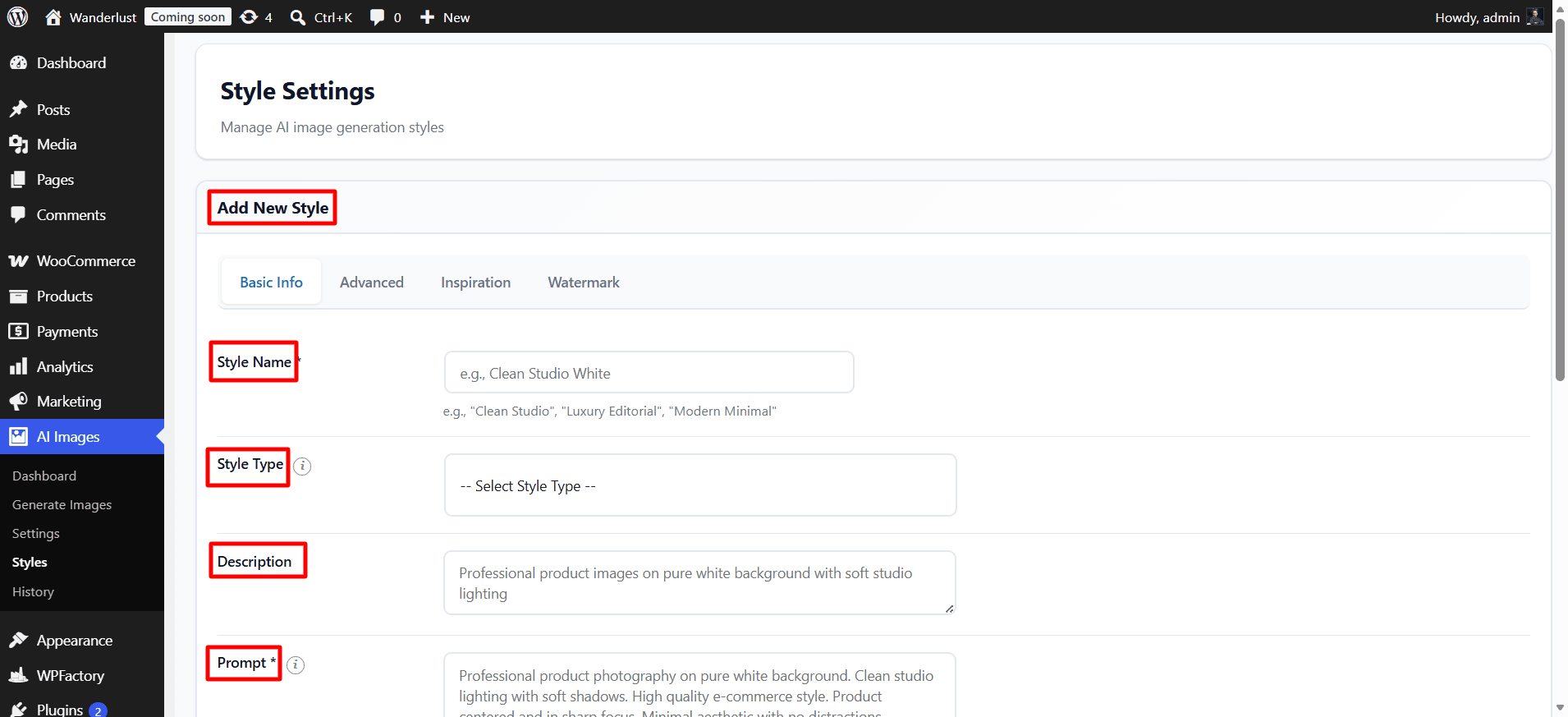
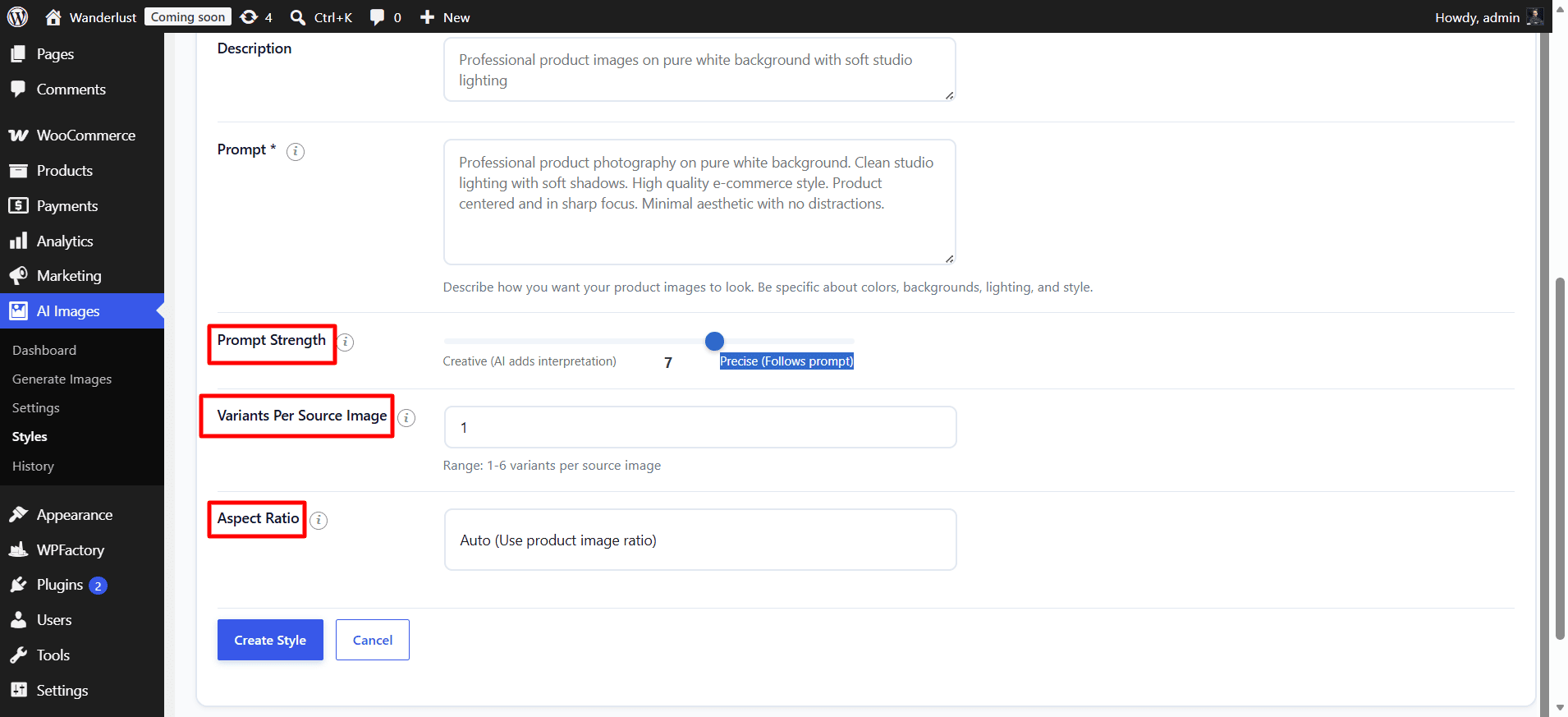
You can also create your own custom style by describing it in text and providing the appropriate prompt to generate it.
Credits
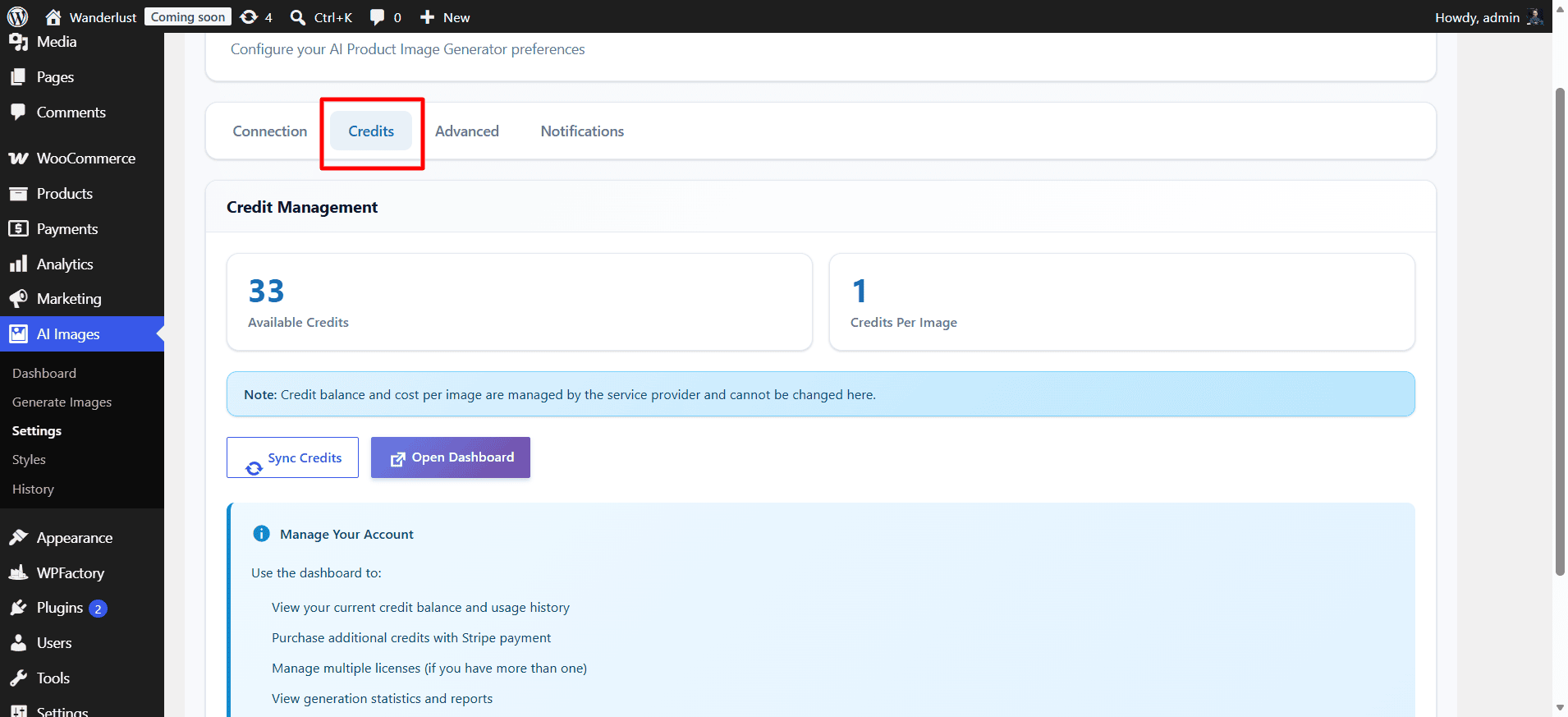
The plugin operates on a credit-based system, where each generated image costs 1 credit.
You have two options to get credits:
- Use the 150 credits provided by the plugin, and then you can purchase more if you want.
-
Connect your own API and use credits from your personal account.
Installation
There are two ways to install the plugin: directly from your WordPress dashboard or by uploading the plugin file manually. Once the plugin is activated, you need to configure a few steps:
Step 1:
➡ Welcome Board
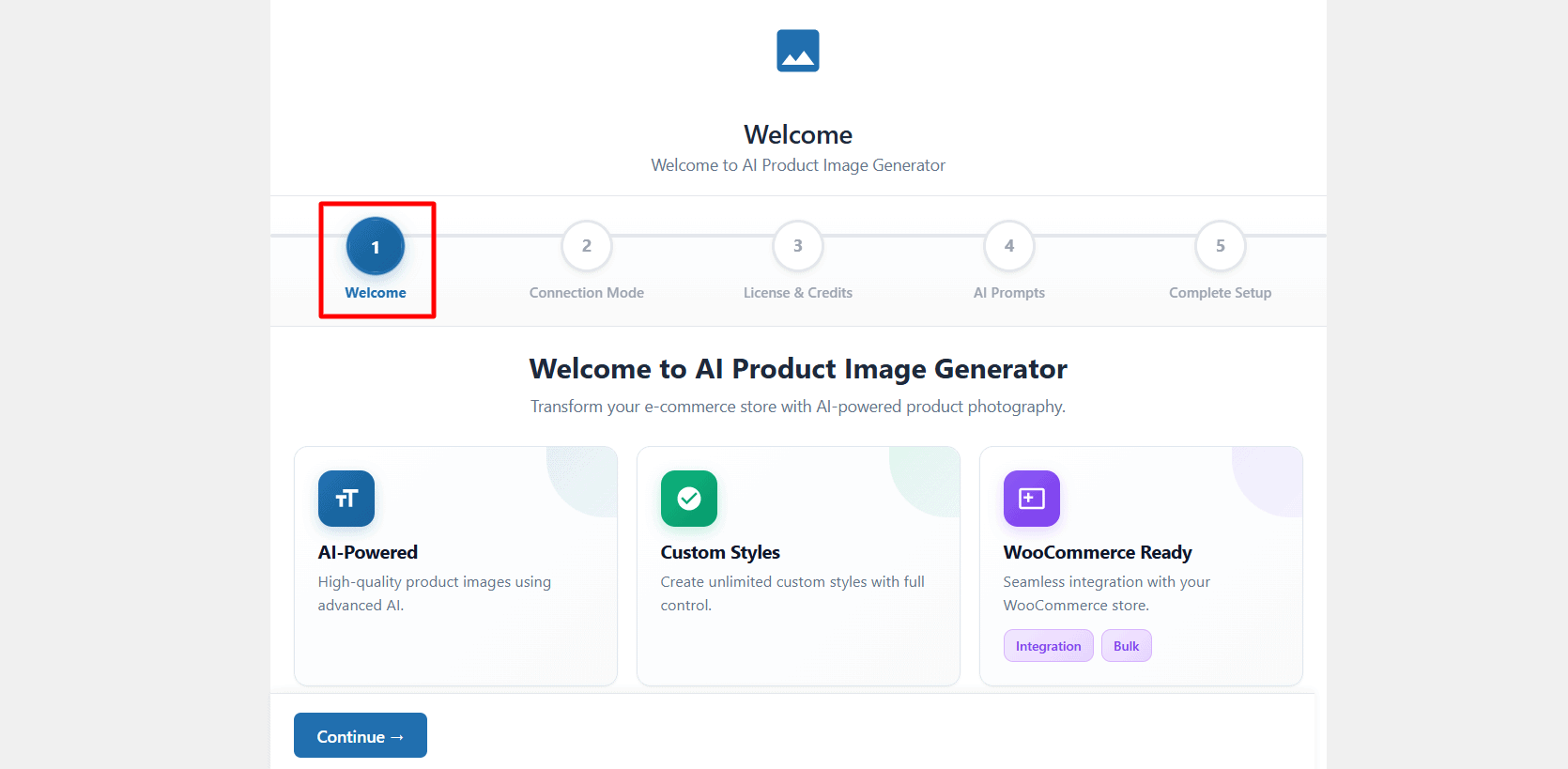
You will go through a wizard that helps you set up the plugin.
You will start with the welcome step, which introduces what this plugin offers.
Step 2:
➡ Connection Mode
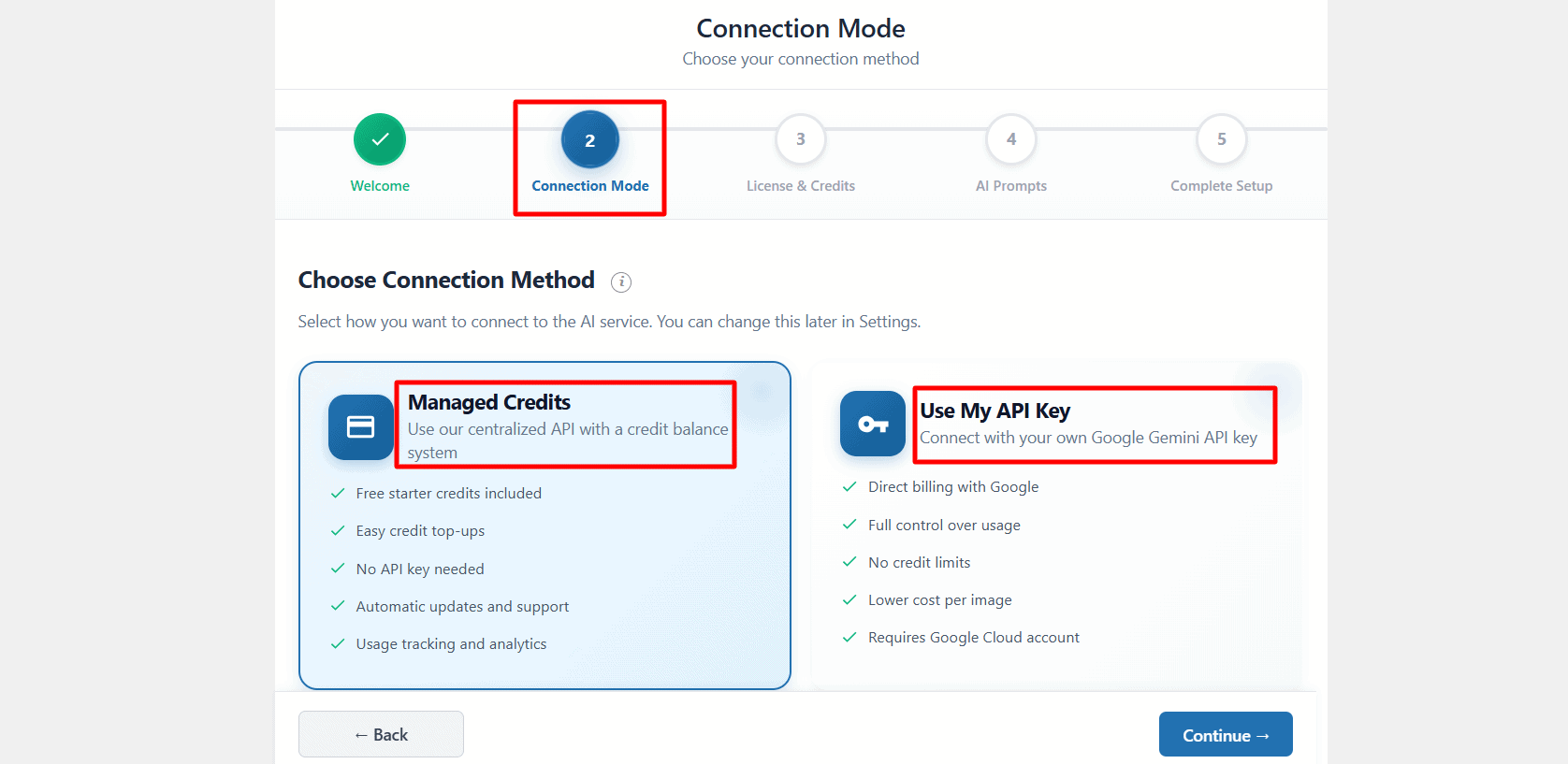
As we mentioned earlier, there are two ways to get credits: either through our API, which provides 150 credits with the option to purchase more later, or by connecting your own Google Gemini API key.
Step 3:
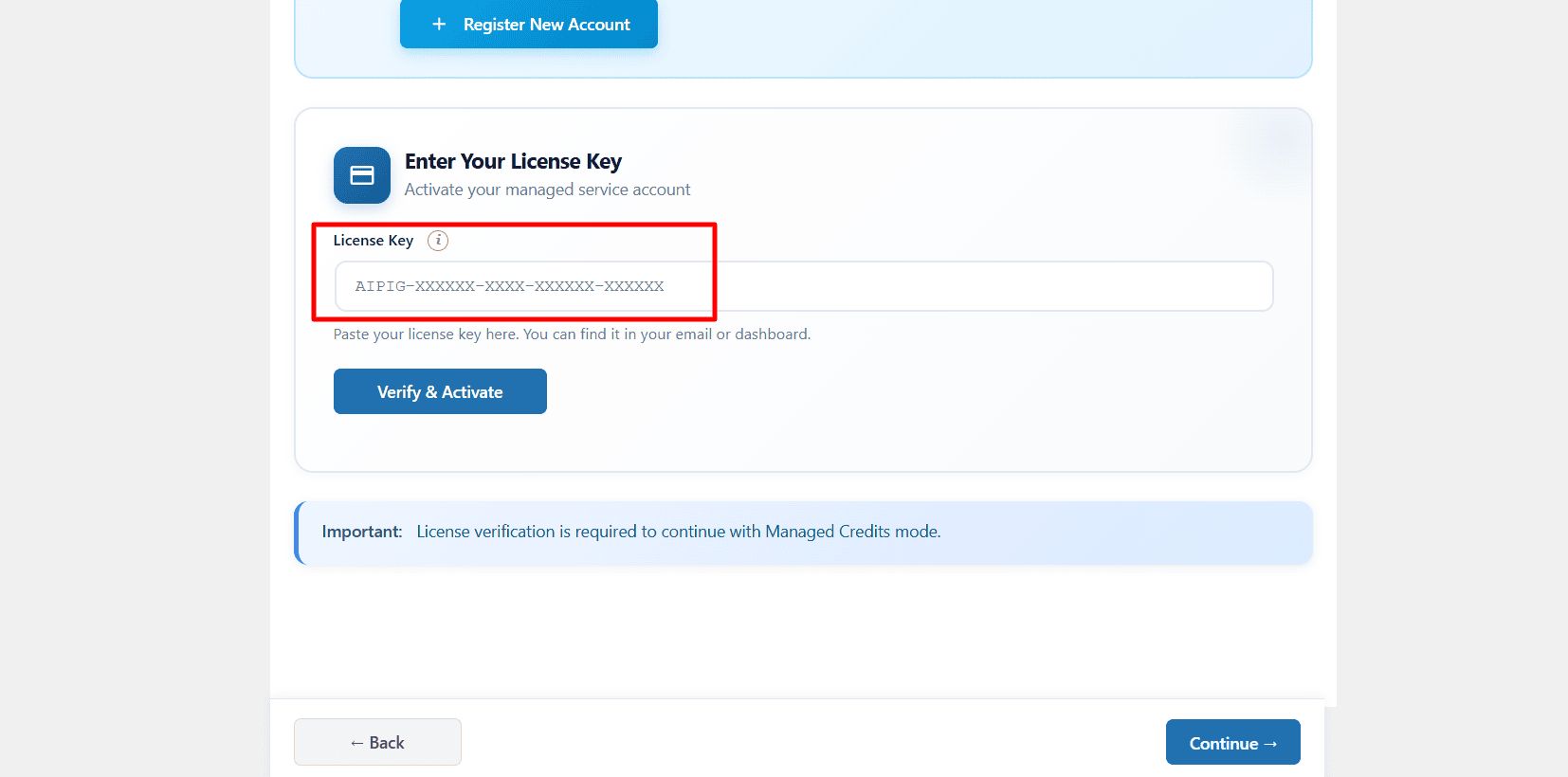
➡ License & Credits
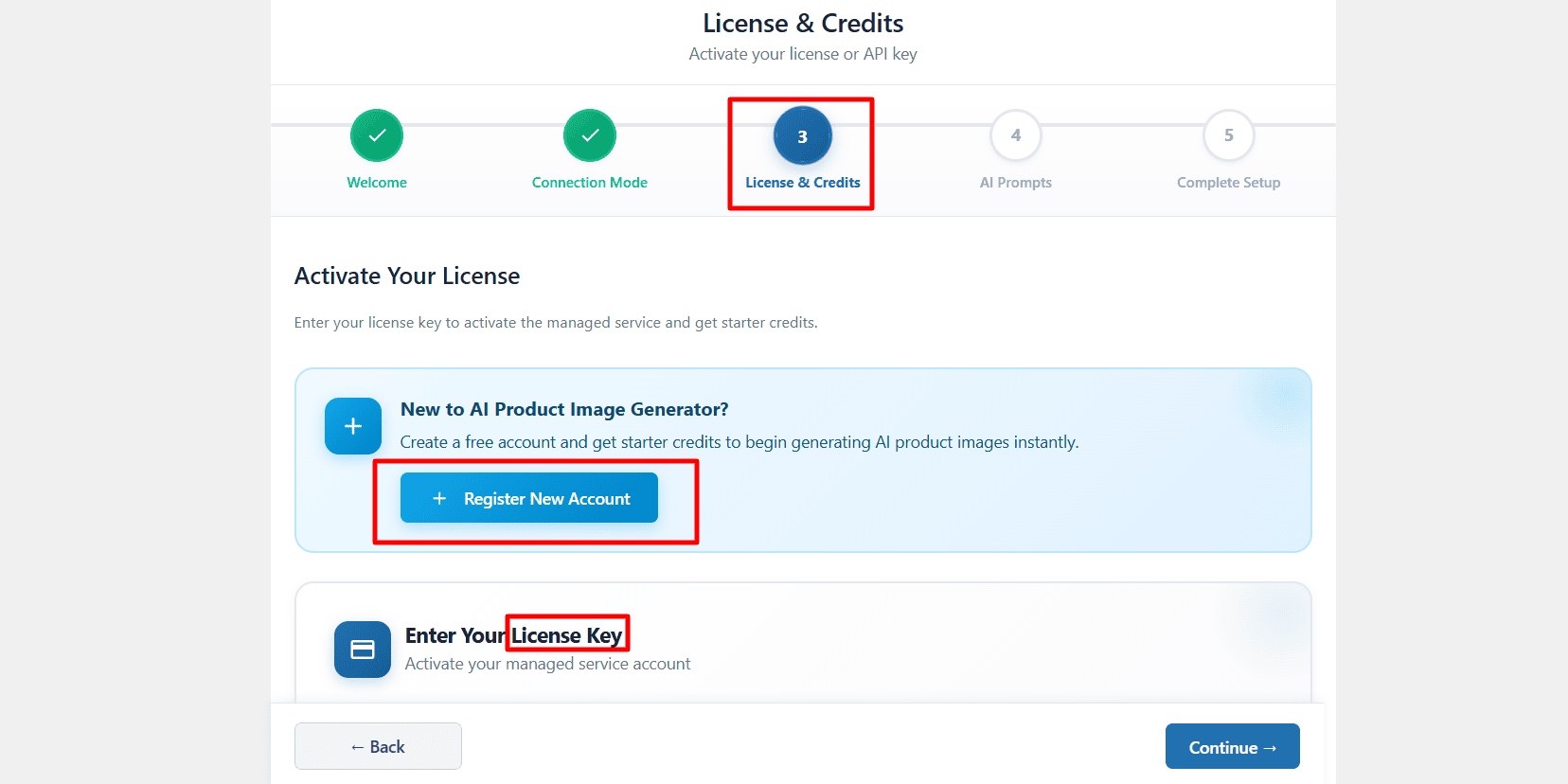
First, you need to create an account. During registration, you will be asked to provide:
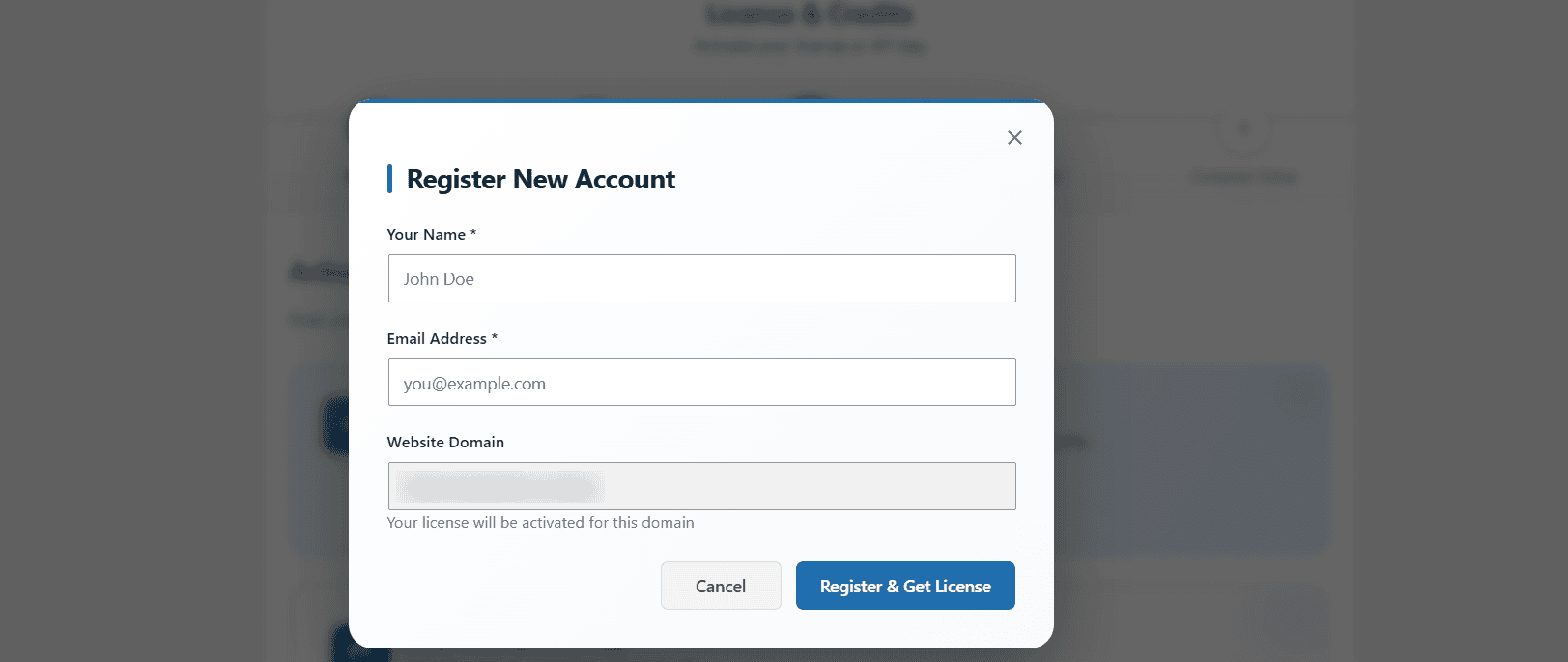
- Your name.
- A valid address, as your Credits Key will be sent to this email.
- Your website URL.
Once your account is created, you can proceed with connecting the plugin and using your credits.
After creating your account, you will receive an email containing your license information. Please note that you will have two different keys:
- A Plugin License Key, which is used for plugin activation, updates, and related functionality.
- A Credits Key, which is used to access and consume AI generation credits.
In this field, make sure to enter the Credits Key that was sent to you by email. This will allow the plugin to generate images using your available credits.
Step 4:
➡ AI Prompts
Here, you can explore all the styles available in the plugin and choose the one that best matches the look you want for your product image. You can also create your own custom style by providing a description and prompts, allowing you to generate images in virtually any style you need.
With that, you have completed the basic setup process and are ready to access the plugin dashboard and start generating AI-powered product images.
Step 5:
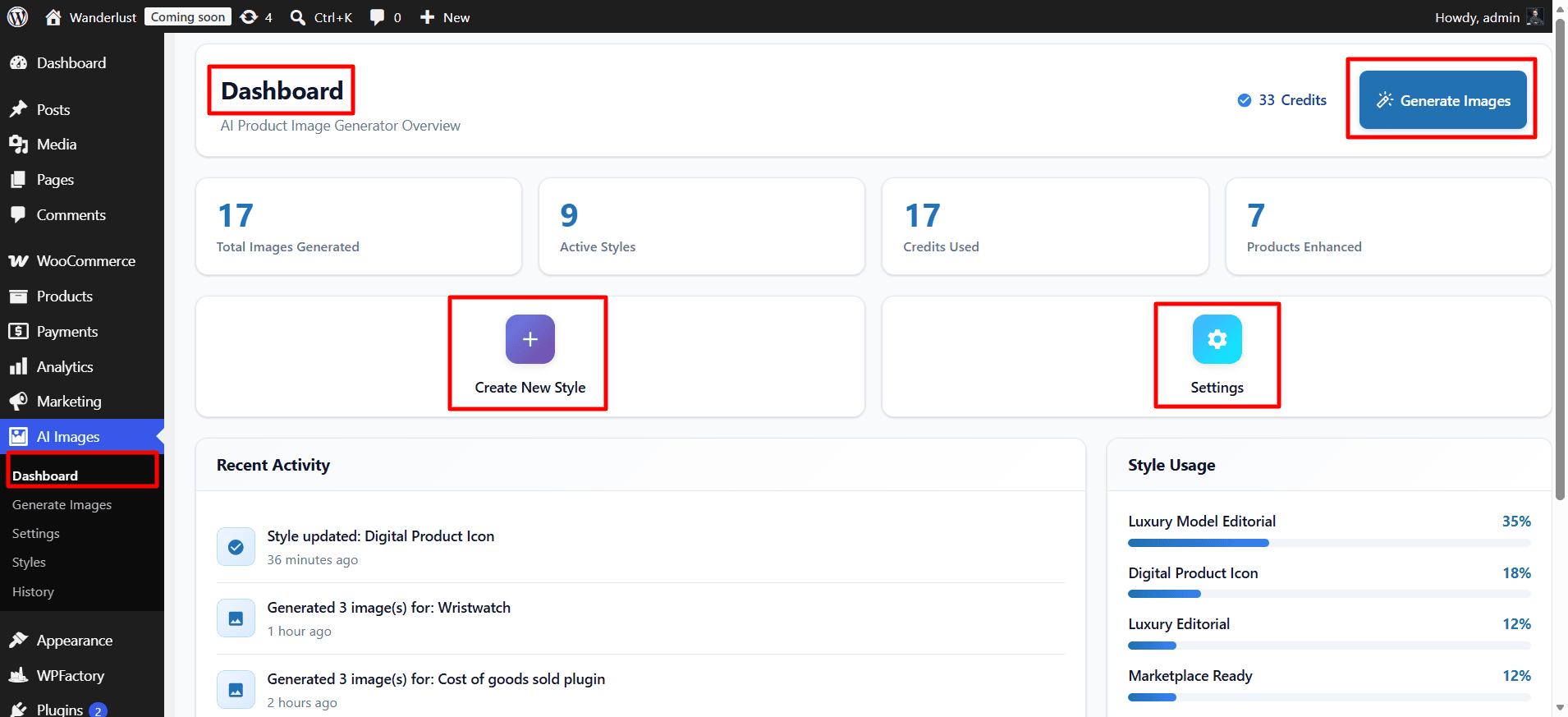
➡ Dashboard
This is the main dashboard of the plugin. From here, you can view your available credits, track how many credits you have used, and see the total number of images you have generated.
The dashboard also gives you quick access to the plugin’s main features, allowing you to create custom styles and generate new AI-powered product images with just a few clicks.
Step 6:
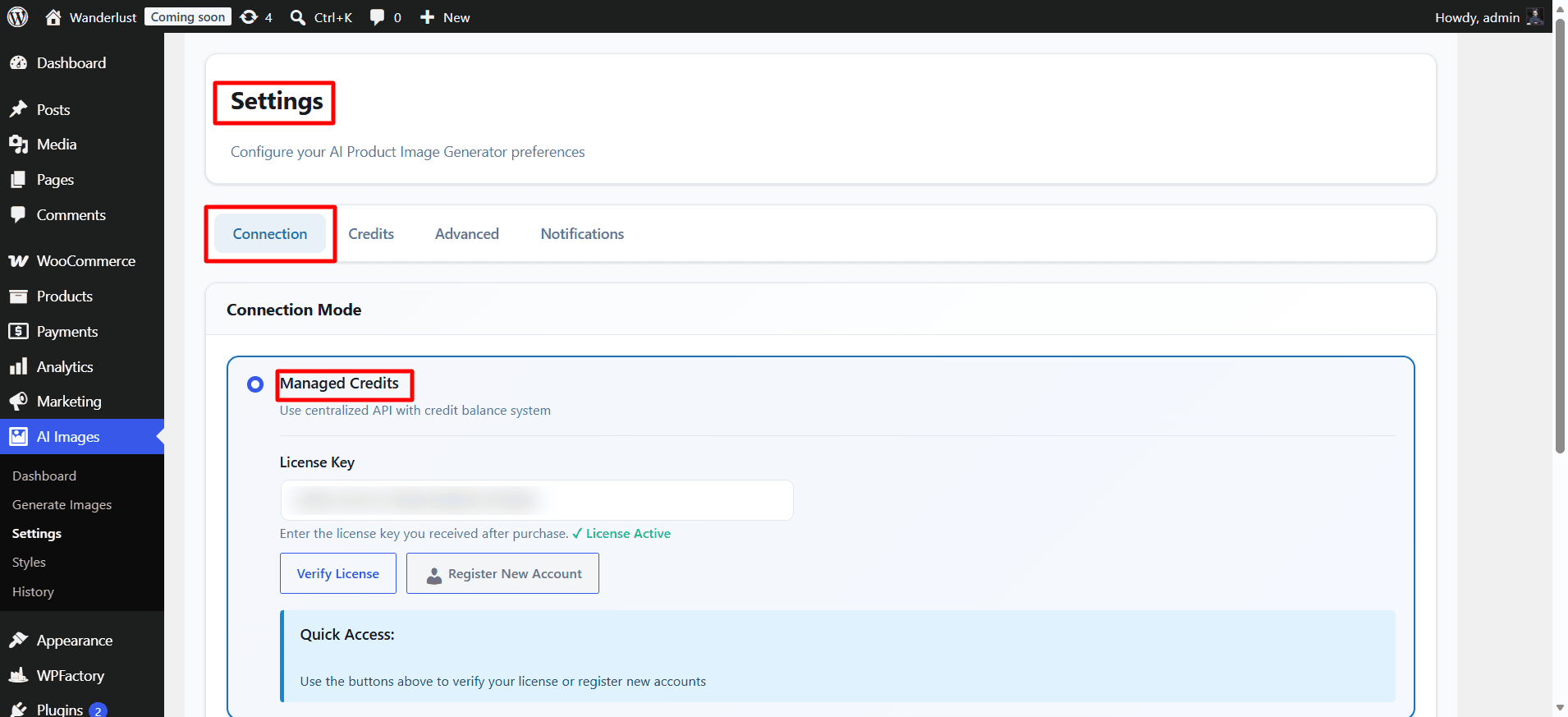
➡ General Settings
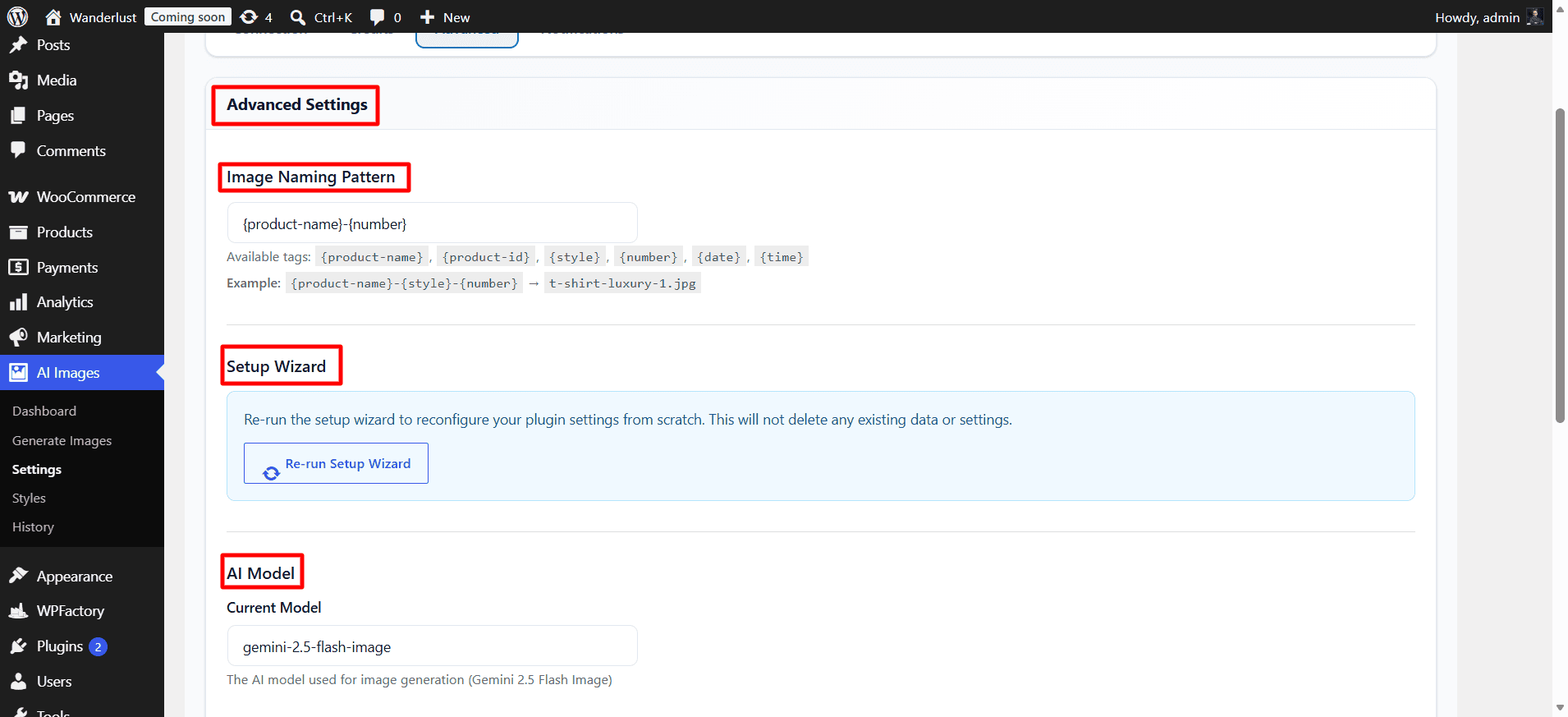
Here, you can find the general settings section, where you can view your available credits, your API key, and manage how everything is configured.
Step 8:
➡ Generate Images
To generate images, there are two ways: either from the dashboard or directly from the product page.
- Dashboard
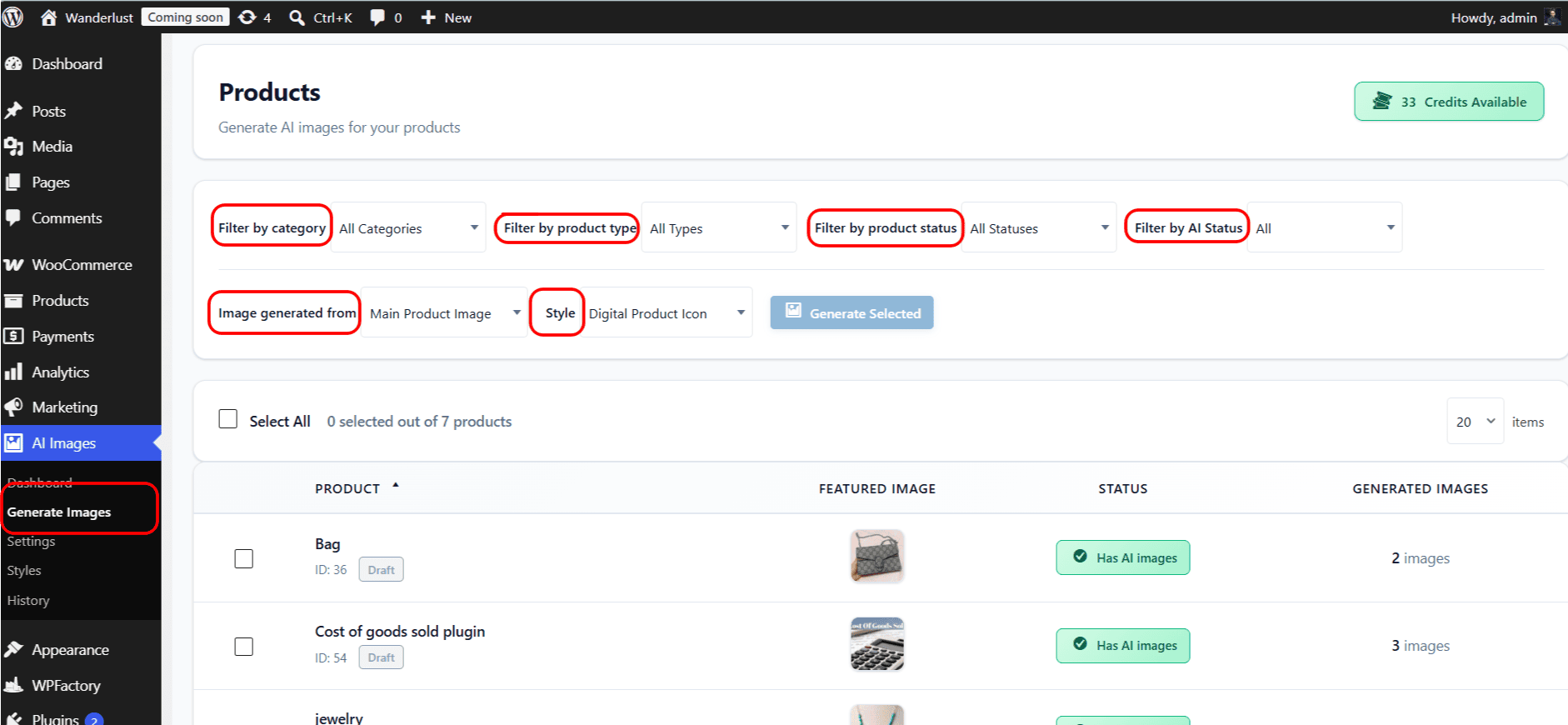
If you want to generate images from the Dashboard, you first need to filter products by criteria such as category, product type, and product status (draft or published). You can also filter by where the image should be applied, such as the featured product image or the product gallery. After that, you can select the style you want and proceed with generating the images.
If you want to generate in Bulk for multiple images, you can do so from the dashboard. Filter the products by criteria such as category or product type, select the desired style, and then generate images for all matching products at once.
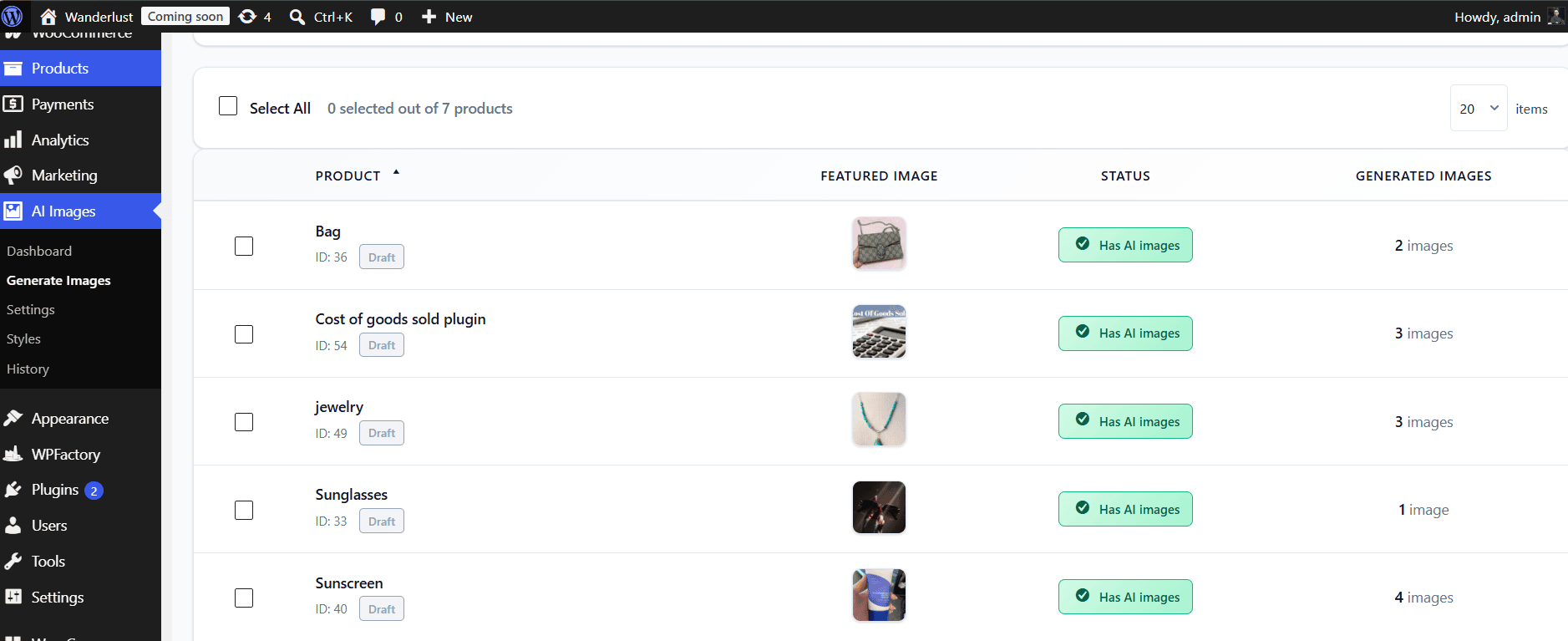
- Product Page
Go to the product page for the item you want to generate an image for. Select the style you want and choose the image source. After that, the image will be generated and will appear directly on the product page.
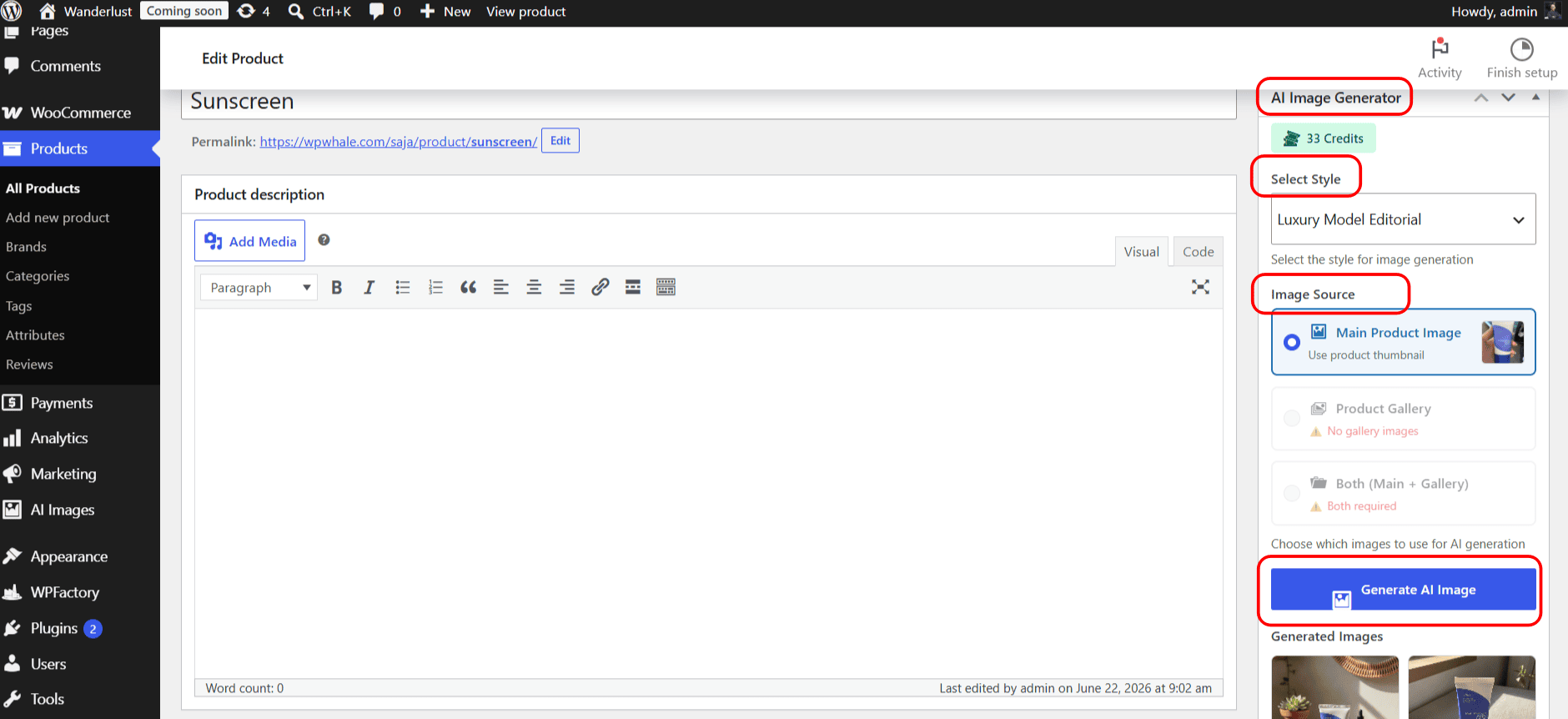
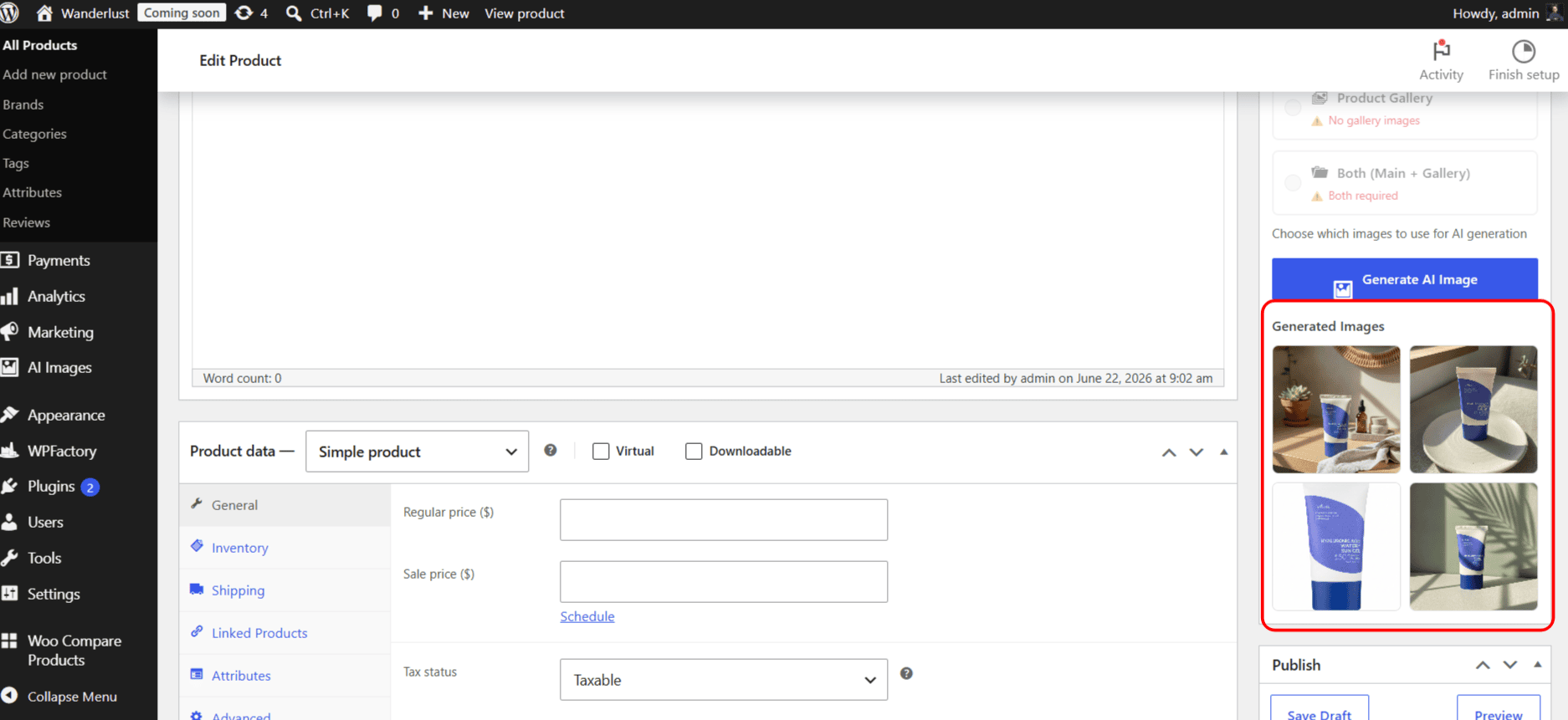
If you enable the Auto Replace Image option, the generated image will automatically replace the existing one once it is created.
After generation, all images are stored in your WordPress media library under the standard naming rules you defined in Settings.
➡Tips for Best Results
- Start with good source images – the AI enhances what’s there. A blurry or dark original will limit results.
- Be specific in your prompt – vague prompts produce inconsistent output.
- Test your style on 2–3 products before running it in bulk.
- Use 2–3 variants per image to have options without flooding your library.
- Create separate styles for different product types or campaigns.
- Review History regularly to track usage and spot any failed jobs.