How to Make a Customer Tax Exempt in WooCommerce (Per User & Per Country)

Quick answer: WooCommerce has no tax-exempt checkbox on customer profiles. You can exempt customers in code with WC()->customer->set_is_vat_exempt( true ) based on user, role or country, or without code: WooCommerce EU & UK VAT Numbers Validation removes VAT automatically for customers with a valid VAT number, and can exempt specific users or countries.
Managing taxes in WooCommerce isn’t exactly simple, especially when you are dealing with different types of customers like B2B, individual customers, or tax-exempt organizations.
Tax exemption rules also vary from one country to another, what applies in the UK may be completely different from the US or elsewhere.
So whether you want to exempt a single customer, a group of users, a specific organization, or even an entire country. WooCommerce doesn’t offer that level of flexibility out of the box.
You can’t just exempt anyone you need with a single click, this is where using a plugin becomes essential.
For that, in this guide we will cover every scenario, and learn you how to make customers exempt in WooCommerce step by step.
What Does “Tax Exempt” Mean in WooCommerce
Simply put, tax exemption means allowing certain customers to be excluded from paying VAT or sales tax at checkout, so they can complete their purchase without any tax related chargers.
Why are some customers exempt from VAT?
This is common for:
- B2B customers with valid VAT numbers.
- Non-profits or charities.
- Customers outside taxable regions.
How WooCommerce Tax Exemption Work
By default, WooCommerce calculates taxes based on several factors, such as:
- The product tax class.
- The billing address.
- The customer’s shipping location.
- The tax rates you have configured in WooCommerce.
However, there’s no clear option in the WooCommerce dashboard to simply “Make this customer tax exempt“. So, if you want to apply a tax exemption, you will need to either set the tax rate to 0% or disable taxes from the settings altogether.
Now, we will go through several tax exemption scenarios:
- Mark a specific customer as a tax exemption.
- Create a tax exempt “user role“.
- Exempt all customers from specific country.
- Display “VAT excluded” pricing to exempt users.
Before diving in, if you want to understand how WooCommerce displays prices with or without tax to different users, read this guide “WooCommerce Display Prices Including or Excluding Tax: What to Set and Why“.
Scenario 1: How to Make a Specific Customer as a Tax Exemption
-
Method 1: Custom PHP (Developer)
Sometimes businesses need to exempt certain customers from VAT, such as nonprofits, resellers, or business partners. In these cases, you need a reliable way to ensure they are never charged tax, no matter what they purchase.
The first method is to use custom PHP code added to your theme’s functions.php file.
add_action(‘woocommerce_before_calculate_totals’, ‘make_customer_tax_exempt’);
function make_customer_tax_exempt($cart) {
if (is_user_logged_in()) {
$user_id = get_current_user_id();
$is_exempt = get_user_meta($user_id, ‘tax_exempt’, true);if ($is_exempt) {
WC()->customer->set_is_vat_exempt(true);
}
}
}
WooCommerce uses “set_is_vat_exempt()” internally to remove VAT at checkout.
-
Method 2: Using a Plugin (Recommended)
The easiest and fastest way is to use a plugin such as WooCommerce EU & UK VAT Numbers Validation plugin. This plugin provides a simple solution without the need for any coding.
It adds a VAT number field to your checkout page, then automatically validates the number. If the VAT number is valid and registered in the official VIES database used by EU tax authorities, the customer is automatically exempt from tax. If not, the applicable tax is applied as usual.
The plugin doesn’t stop at validating VAT numbers; it goes further by performing deeper check to enhance security and ensure compliance with regulations.
When you enable this plugin, you can fully control where and how the field appears, you can choose its placement, decide whether it’s required or optional, and display it conditionally based on user roles and countries.
Now, let’s take a look at how to install and use this plugin.
Method 1: Automatic Tax Exemption
Step1:
➡ Download the Plugin
To get started, you will need to download the “WooCommerce EU & UK VAT Numbers Validation plugin.”
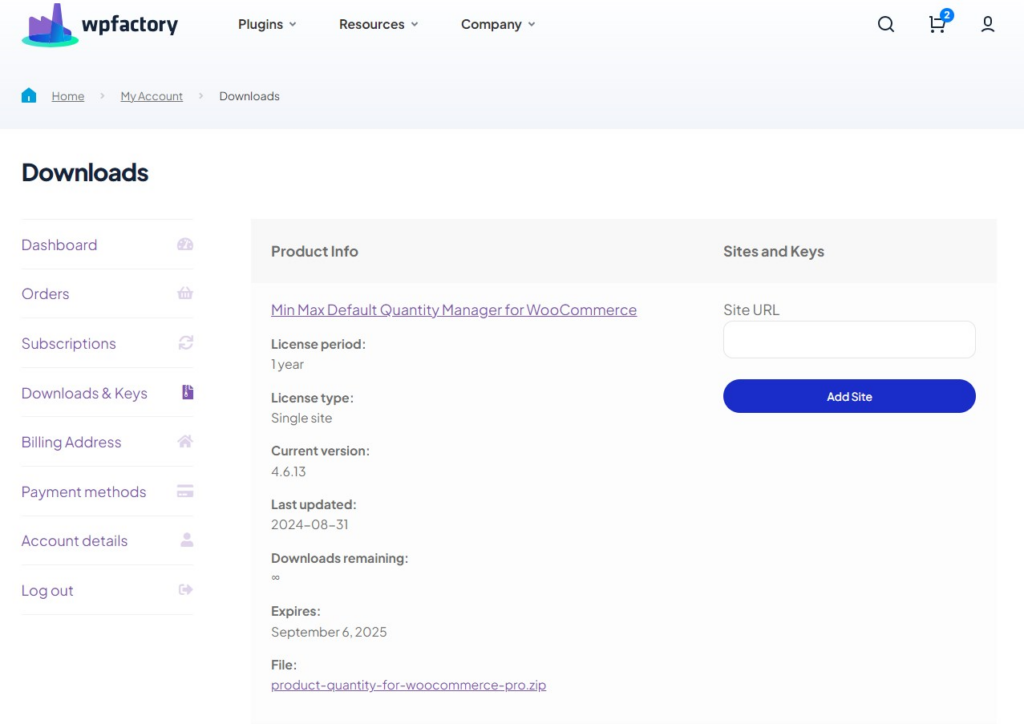
After downloading the plugin, from your WPFactory account, upload it to your WordPress site.
Step2:
➡ Access the Plugin
Once the plugin is installed and activated, you can tailor it to fit your business needs.
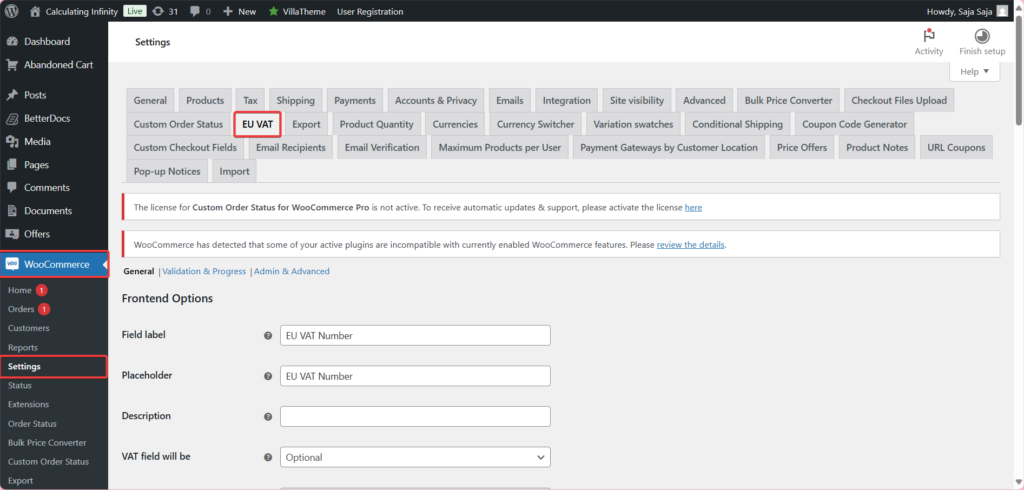
Go to WooCommerce > Settings > “EU VAT”
Step3:
➡ Enable VAT Validation
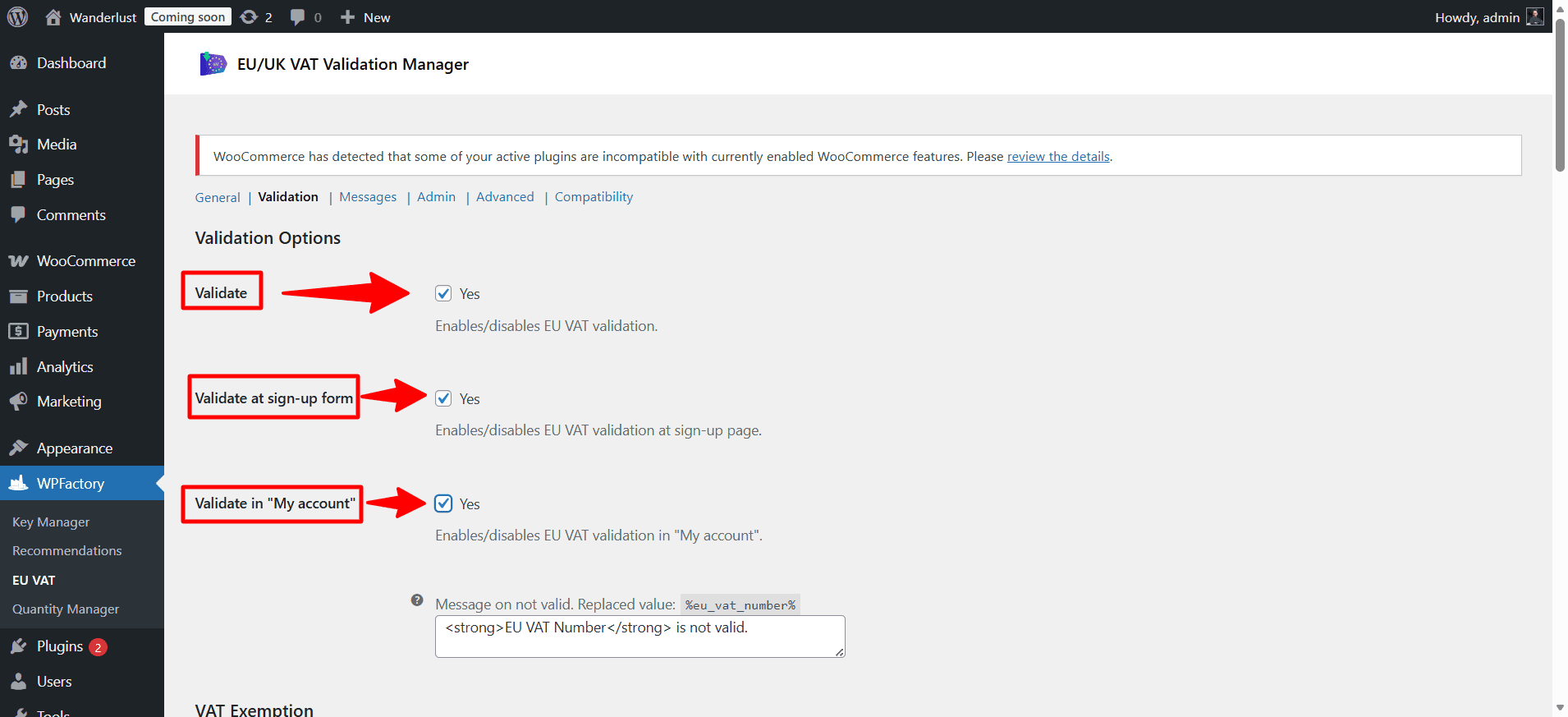
From here, enable these options:
- Validate
From here, you can activate or deactivate the tax number verification feature.
- Validate at signup form
From here, you can activate the tax number verification on the account registration page.
These options are only for enabling VAT number validation.
Step4:
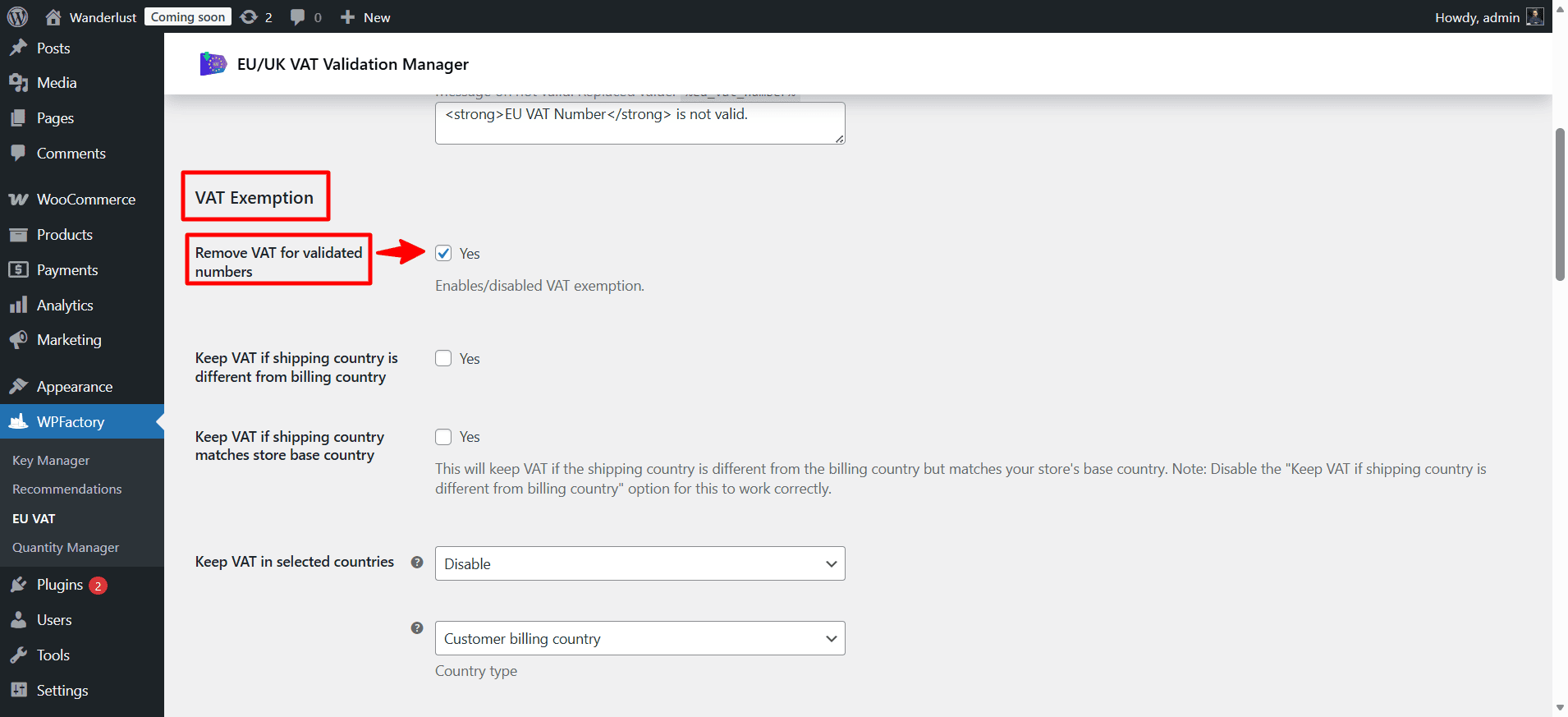
➡ Enable VAT Exemption
- Remove VAT for validated numbers
If the tax number is correct, the customer is exempt from tax.
This is the main option that automatically makes the customer tax exempt.
Also, enable these options as well
- Check country by IP
From here, you can check based on IP and other information.
From here, you can check whether the country shown by the IP address matches the country associated with the tax number.
- Check company name
This will check if the company name matches the VAT number.
- Check for matching billing country code
Check if the country code in the tax number matches the billing country.
- Allow VAT number input without country code
If you enable this option, the customer can enter the tax number without the country code.
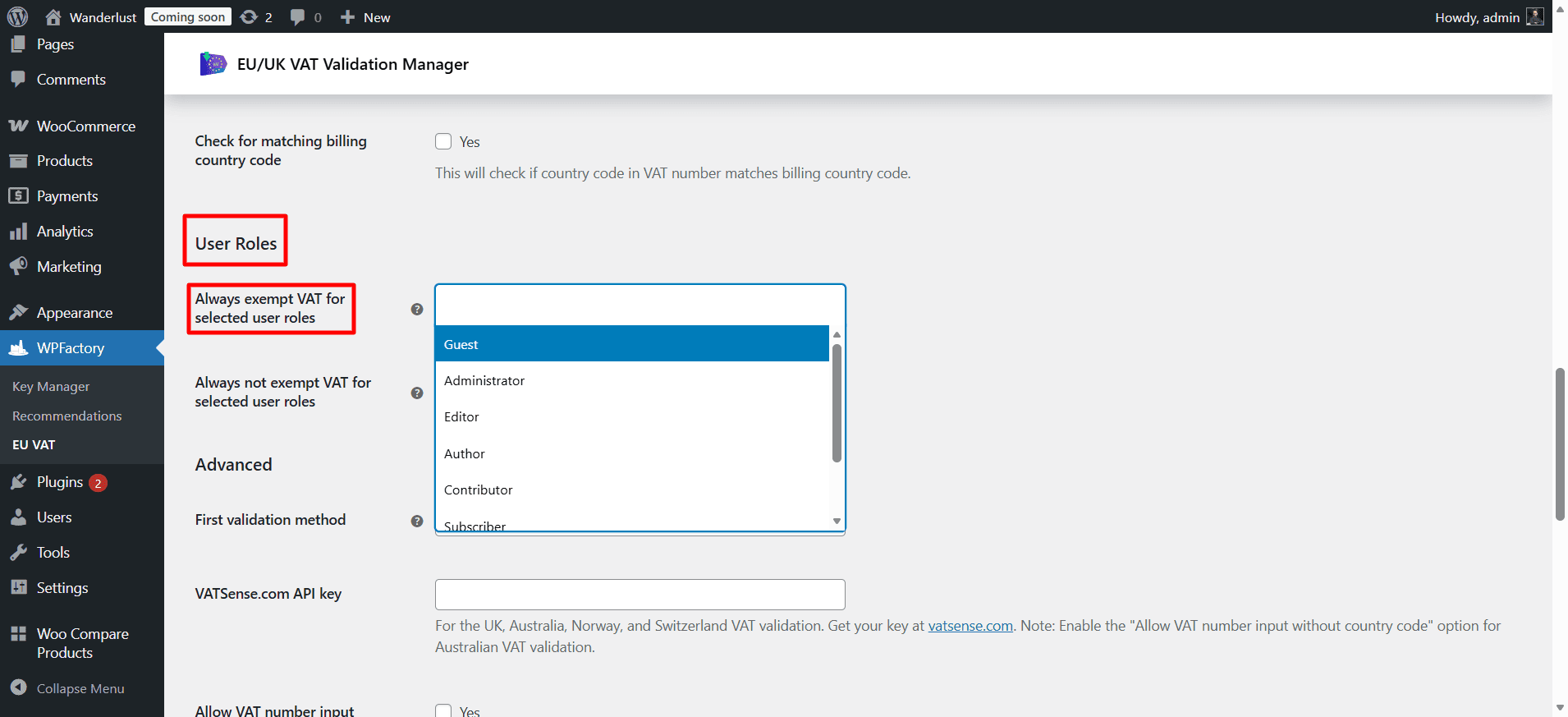
- Always exempt VAT for selected user roles
From here, you can choose the roles of users who will always be exempt from tax, regardless of the validity of the number.
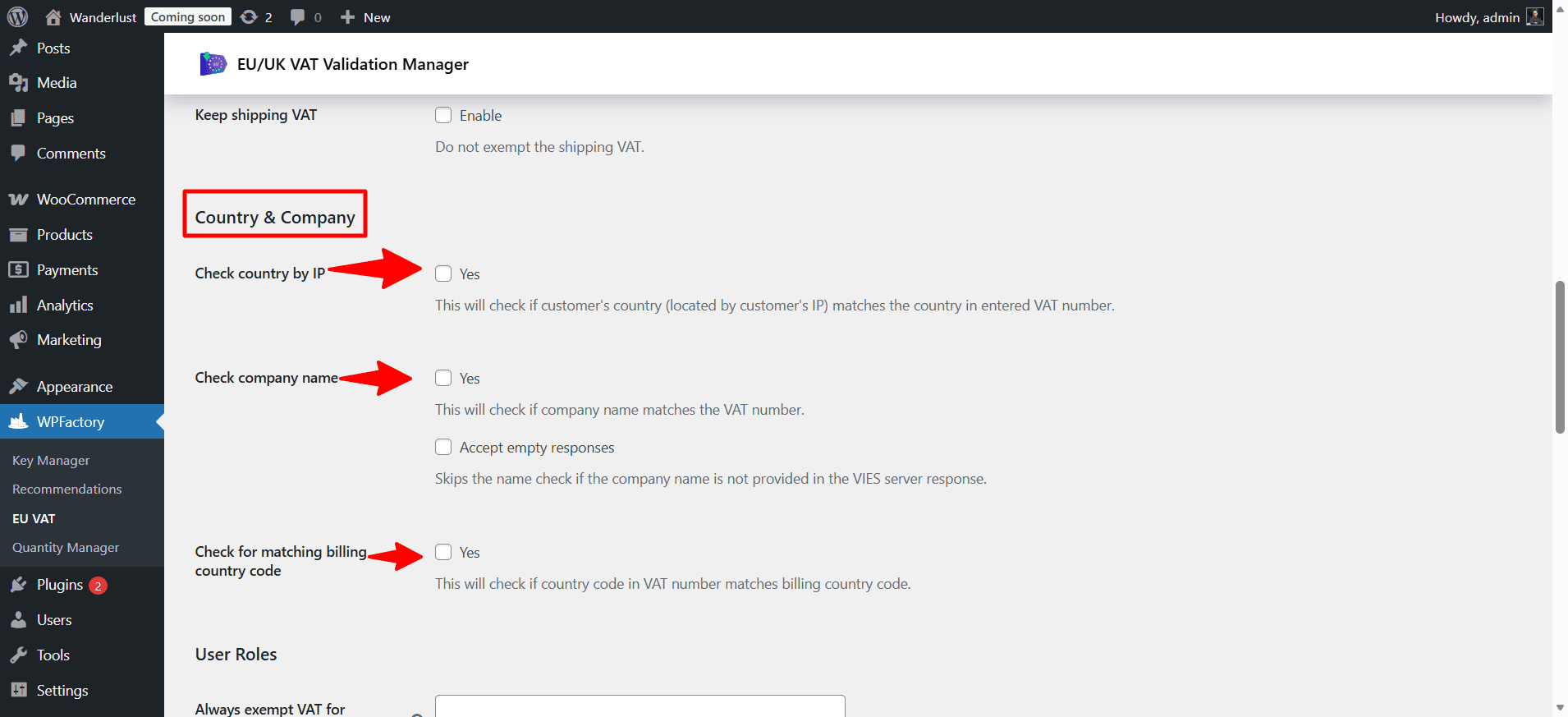
Now, after enabling these options, any customer who:
- Enter a VAT number.
- Has it successfully validated through the EU VIES system
If it is valid: ✔The system will automatically remove VAT from their order. However, if it’s not valid, VAT will be charged
Method 2: Per User Tax Exemption (Manual)
There’s no direct way in WooCommerce or even through the plugin to exempt a specific customer with a single click. You can:
- Assign an unused role exclusively for tax exempt users.
- Or use a plugin like User Role Editor to create a completely new role, name it however you like (e.g, Tax Exempt), and assign it only to the specific customer you want to exempt. This way, you have full control and ensure that only the intended users receive the tax exemption.
Step1:
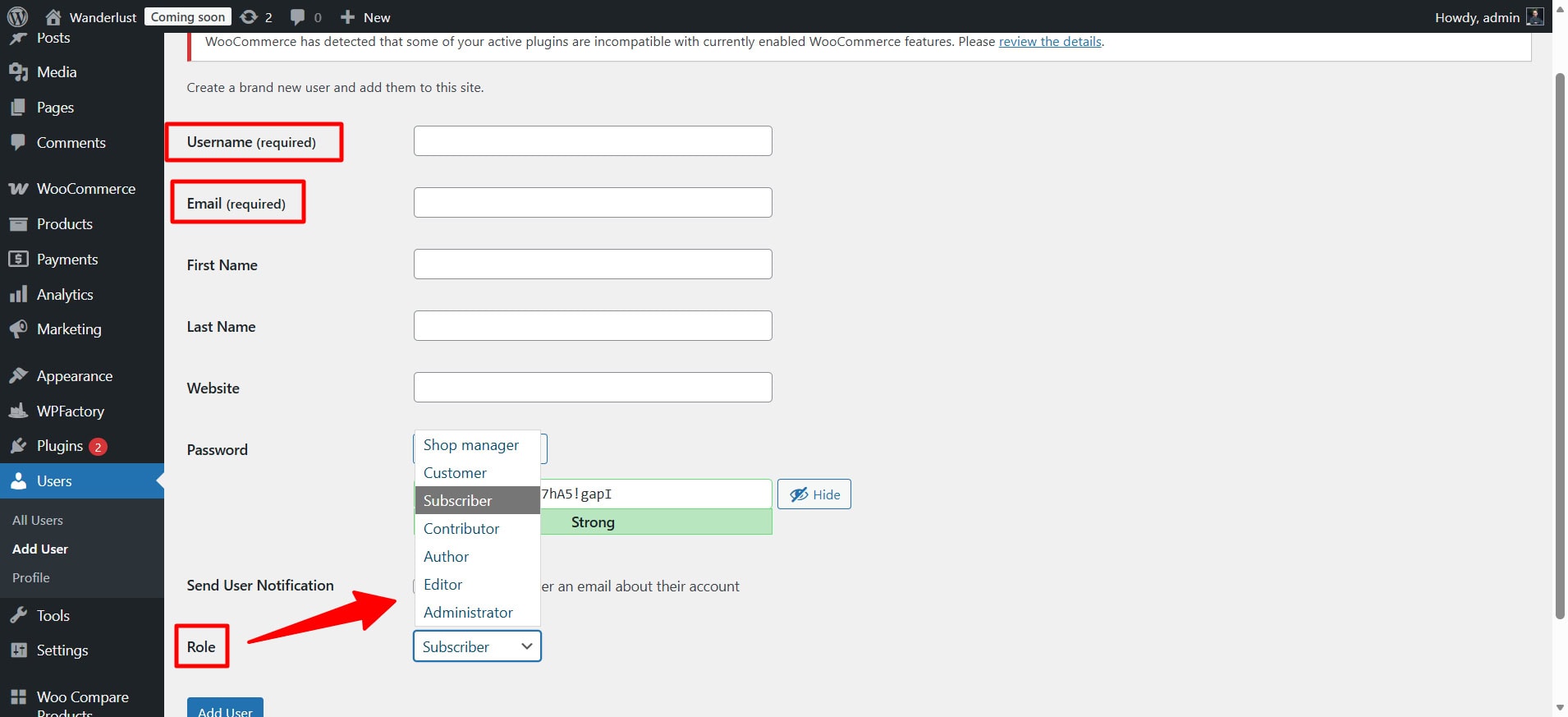
➡ Add a New User
After installing the plugin and creating the role you want, simply edit the user and assign them that role.
Step2:
➡ Exempt VAT for Selected User Roles
Then go to WooCommerce EU & UK VAT Numbers Validation, navigate to the Validation section, and enable “Exempt VAT for Selected User Roles“. After that, select the role you assigned.
This role will always be exempt from VAT.
Scenario 2: How to Make a “User Role” as a Tax Exemption
If you want to exempt an entire group of customers from taxes, such as wholesaler, reseller, nonprofits, or government entities, managing them one by one isn’t scalable. The better approach is to create a custom user role and automatically exempt everyone assigned to that role.
Go to WooCommerce EU & UK VAT Numbers Validation, navigate to the Validation section, and enable “Exempt VAT for Selected User Roles“. After that, select the role you assigned.
This role will always be exempt from VAT.
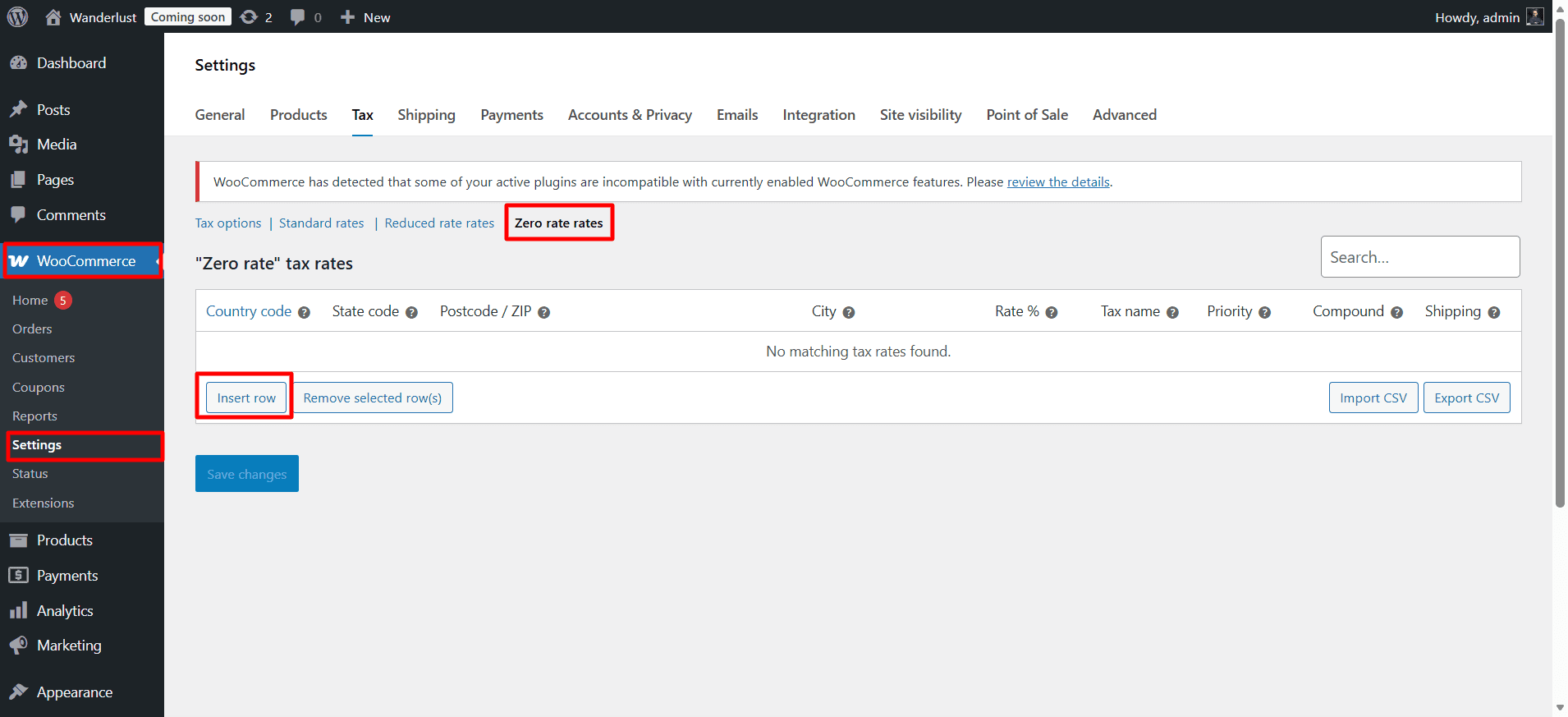
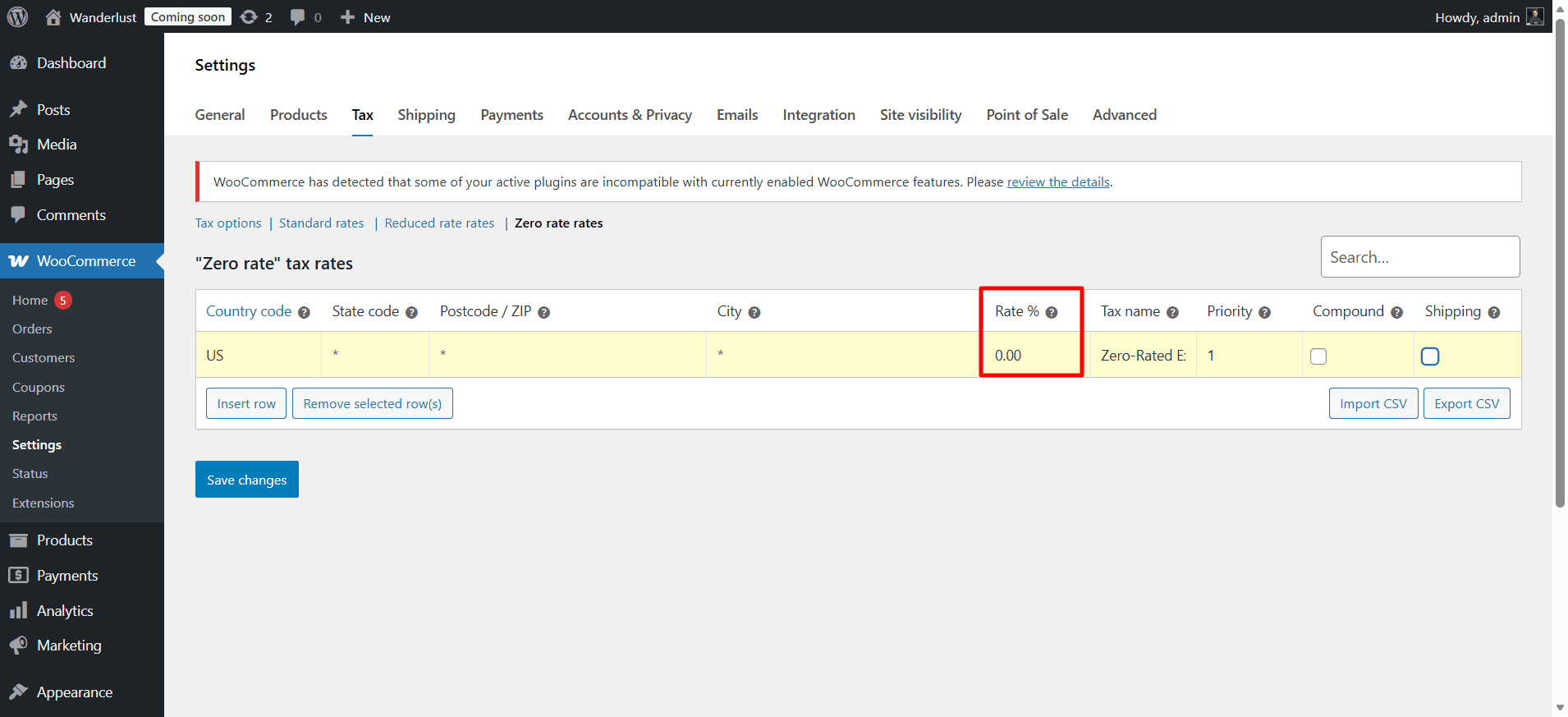
Scenario 3: Exempt All Customers from a Specific Country
Sometimes there are legal scenarios that require exempting certain countries from VAT, such as:
• UK-based stores not charging VAT on exports outside the UK.
• EU stores not charging VAT on B2C sales to non-EU countries.
• US stores not collecting sales tax in states where you have no nexus.
To exempt these countries:
How to Display Prices Without VAT for Exempt Users
Because some customers are VAT exempt, showing prices that include tax feel unprofessional from a UX perspective. That’s why it’s important to display prices without tax for these users.
To achieve this, you need to either add a custom code to your theme’s functions.php file or use a dedicated snippets plugin that allows you to manage custom code safely.
The easiest method is:
1. Use a snippets plugin
Steps:
- Go to your WordPress dashboard.
- Navigate to plugins → Add new.
- Search for: code snippets.
-
Click install, then activate it.
2. Add the Code
- Go to snippets → add new.
- Paste the full code
- Select: Run snippet everywhere, here is the code:
add_filter( ‘woocommerce_tax_display_shop’, ‘wpf_tax_display_for_exempt_users’ );
add_filter( ‘woocommerce_tax_display_cart’, ‘wpf_tax_display_for_exempt_users’ );function wpf_tax_display_for_exempt_users( $display ) {
if ( WC()->customer && WC()->customer->is_vat_exempt() ) {
return ‘excl’; // Show prices without tax
}
return $display; // Default WooCommerce setting
}
This code ensure that any customer marked as VAT-exempt will automatically see prices without VAT across the shop and cart pages.
2. Inside functions.php File
Go to Appearance → Theme File Editor → functions.php → Add the code
But be careful:
- If you change your theme, the code may stop working.
- Any mistake in the code can break the website.
That’s why this option is less secure.
Common Issues & Troubleshooting
|
Problem |
Fix |
| Tax still shows at checkout after adding snippet | Clear WooCommerce session and transient caches. WooCommerce caches the customer object. Try logging out and back in as that customer. |
| woocommerce_customer_is_vat_exempt not firing | Ensure WC()->customer is initialized. On some pages (especially AJAX cart updates), the customer object may not exist yet. Add a null check as shown in the snippets above. |
| Prices show incl. VAT even after exemption | The tax display setting (incl/excl) is separate from the exemption itself. You need Scenario 4’s snippet or plugin setting in addition to the exemption. |
| Exemption applies in cart but not in saved orders | If admin creates orders manually, the exemption filter doesn’t fire in the WP admin. Use the EU VAT plugin or manually set the tax status per-item in the order. |
| VAT exempt users still see tax on some products | Check the product’s individual Tax Status (Taxable / Shipping Only / None) on the product editor > Shipping tab. A product set to “None” ignores exemption. |
Wrapping UP
As we know, WooCommerce itself does not offer a one click “tax exempt” feature. However, using the right approach for each scenario and combining it with the right tools such as WooCommerce EU & UK VAT Numbers Validation plugin, makes the process much simpler and more flexible, even if you are not a developer.
Whether you want to exempt a single customer, you can do it using custom code or plugin. If you want to exempt a group of users, you can easily achieve that by assigning a specific user role. And if you want to exempt an entire country, you can simply set a 0% tax rate for that location.
WooCommerce tax exemptions are not limited to a single built-in option, but rather a combination of flexible methods that can be adapted based on your business needs.