How to Set Up UK VAT in WooCommerce After Brexit (EU Sales)

Quick answer: Since Brexit, a UK store treats sales to EU customers as exports: goods shipped to the EU are generally zero-rated for UK VAT, and EU VAT may be due instead, for example through the EU’s IOSS scheme for low-value parcels. In WooCommerce, set your UK and EU tax rates in the Tax settings, then add a VAT number field and validation with an EU/UK VAT plugin for business buyers. Check the rules with your accountant.
As we know, Brexit changed the rules for UK business selling to EU customers, so if you are running a WooCommerce store in UK and selling to customers in the EU, all VAT rules have completely changed.
After Brexit, the UK is now treated as a non-EU country. This means new VAT rules, new thresholds, and new responsibilities.
For that, in this guide, we will show you:
- What changed.
- How UK VAT now works for EU sales.
- How to configure your store to stay compliant without any issue, or complexity to your checkout.
let’s get started!
What changed after Brexit
Before Brexit, the UK was part of the European Union, so when selling to EU customers, the EU VAT system applied. This made many things much easier, such as:
- A unified VAT system across EU countries.
- Simple cross-border selling with no major complications.
- More predictable and consistent pricing and tax calculations.
On January 1, 2021, the UK left the European Union, which meant a complete change in tax and trading rules.
When the UK sells to EU customers, it is now treated as an export from the UK and an import into the EU (International transactions), which completely changed the rules of the game.
The changes that affect WooCommerce store owners:
- VAT rules now depend on the customer’s country, not just the seller’s location.
- Different EU countries apply different VAT rates that must be calculated individually.
- Some orders may require VAT to be charged at checkout, while others may not.
- Customers declarations and import procedures may apply depending on order value.
- Understanding EU VAT Rules for UK Stores
This directly affects your WooCommerce store:
- Checkout experience (tax visibility and pricing).
- Complexity of managing international sales can lead to a potential drop in sales.
-
Customer expectations regarding final price and delivery fees.
And in the end, if things are not managed and organized properly, this will lead to:
- Incorrect tax charging.
- Cart abandonment due to unexpected fees.
-
Compliance issues with EU regulations.
Things have changed completely, so now we will show you how to configure your store to stay compliant without any issues or complexity in your checkout process. But first you should understand EU VAT rules for UK stores:
Understanding EU VAT Rules for UK Stores
First thing, there are two types of orders according to classifications:
1. Orders Under €150 (low value goods)
- VAT is calculated according to the customer’s country.
- The tax is paid at checkout.
- It is often handled through the IOSS (Import one stop shop) system.
✔️This means that the customer will not pay any additional fees upon delivery.
2. Orders Over €150
- VAT is not calculated inside WooCommerce.
- The customer pays import VAT + customs upon delivery.
👉This may lead to:
- Surprises for the customer
- Refusal to receive the order.
- Customer pays upon delivery, not at checkout.
How to Configure Your WooCommerce Store (Step-by-Step)
If you are selling form the UK to companies within the EU (B2B), you need to do these three things:
- Collect the VAT number form the client.
- Make sure it is correct (validation).
- If correct → cancel VAT (zero rate).
Here’s the setup process:
Step1:
➡ Set up UK VAT in WooCommerce Tax Settings
Here you will do three steps:
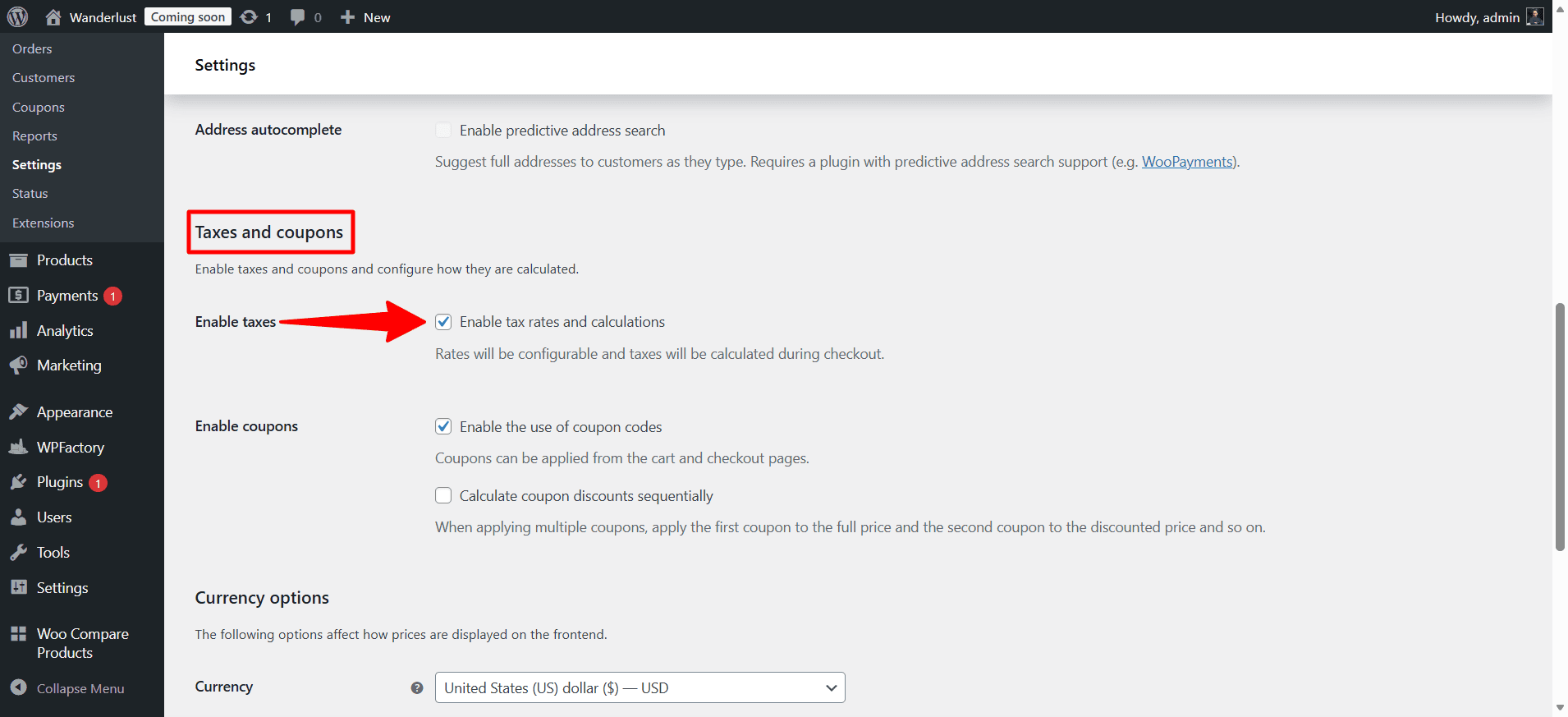
- Your store country → UK
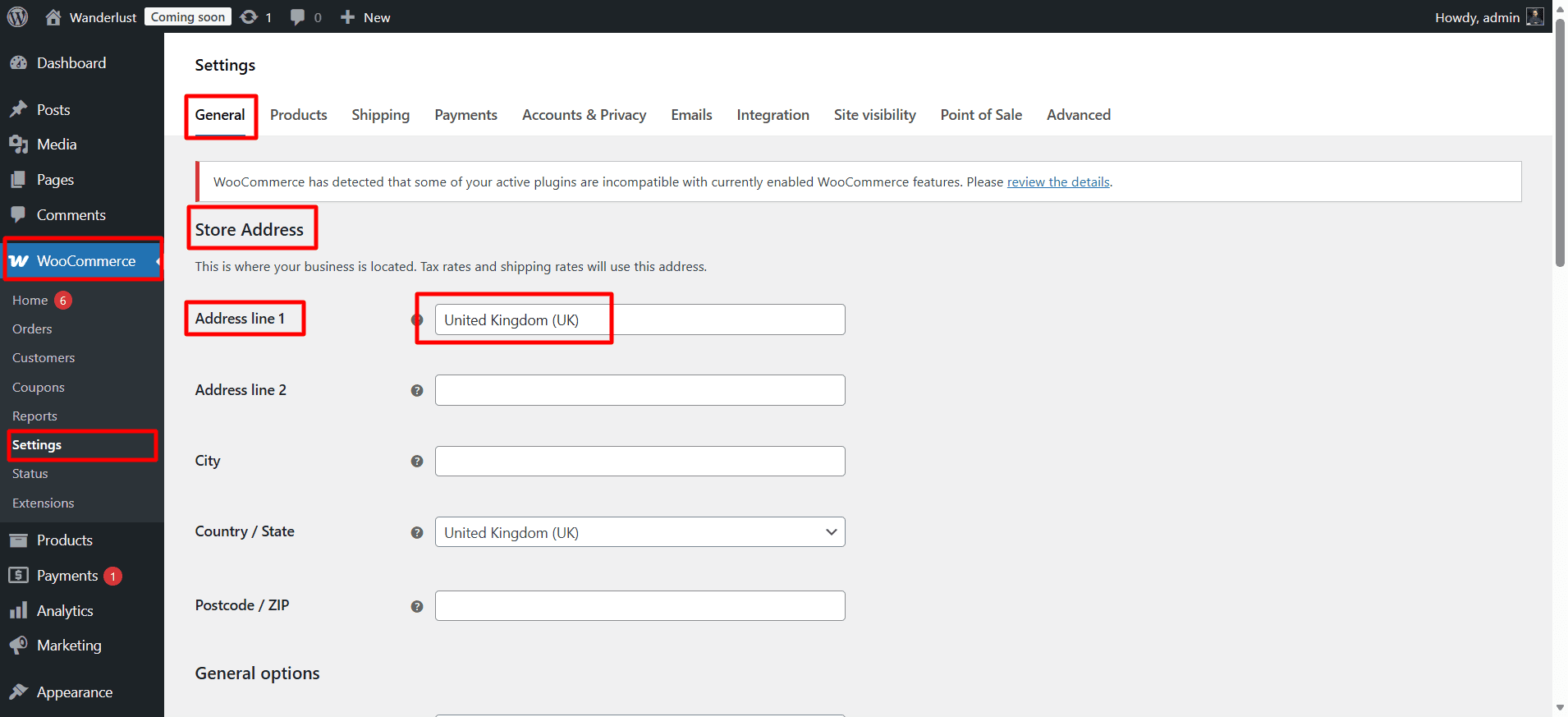
Then enable tax rates and calculations from general settings:
- UK customers → they have 20% VAT
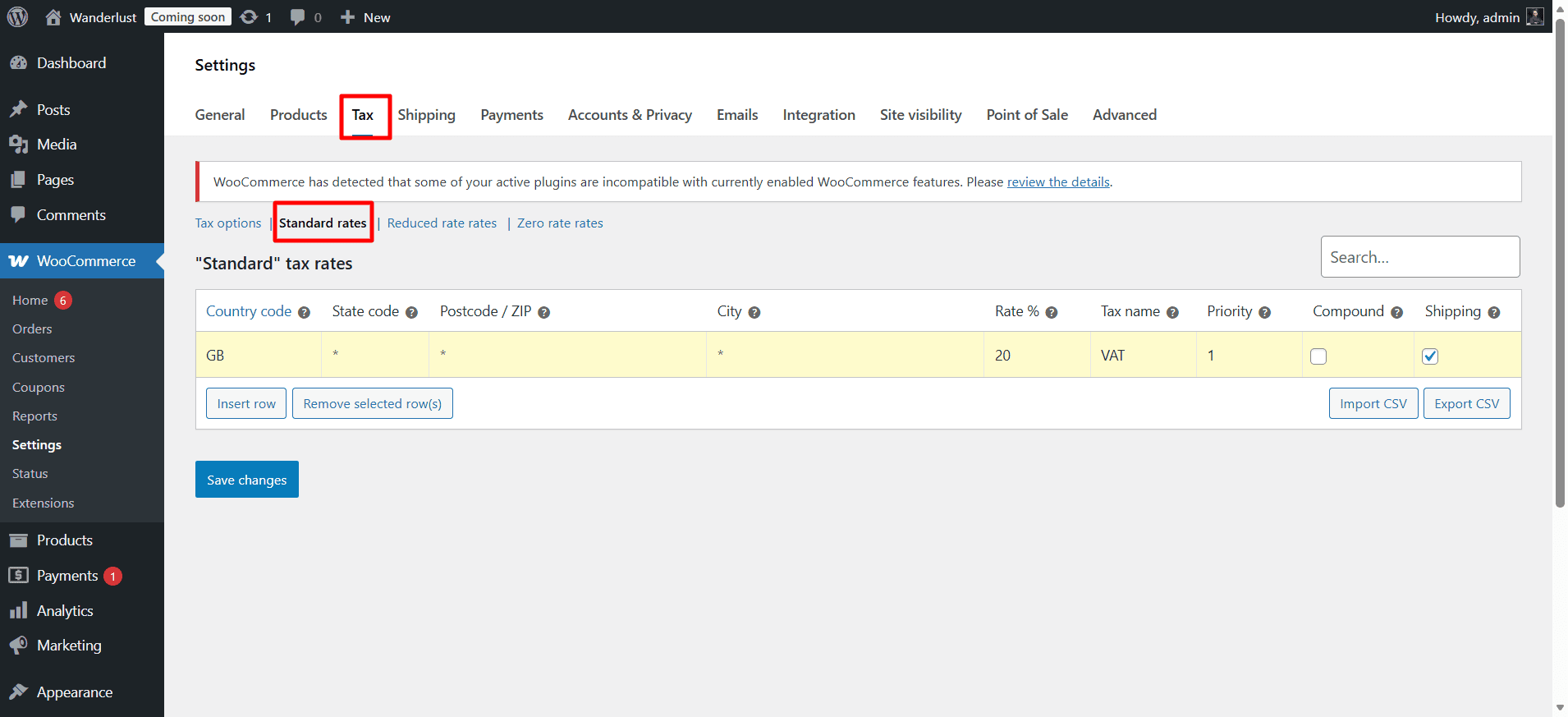
- EU customers → they may have ZERO (but not automatically)
WooCommerce does not automatically provide exemptions based on country or B2B status. Therefore, we need to define a specific rule for (B2B EU) customers.
If the customer has a valid VAT number (Verified through VIES): 0% VAT (tax exemption) is applied.
But how is this handled in practice? There are a few approaches:
- Manual method: setting tax rates per country, which is not very practical or scalable.
-
Rule-based conditions: using custom logic or additional configurations.
-
The easiest and fastest solution: using the WooCommerce EU & UK VAT Numbers Validation plugin, which automatically validates VAT numbers and applies the correct tax rules.
Step2:
➡ Add a VAT Number Field to Checkout
➡ Download the Plugin
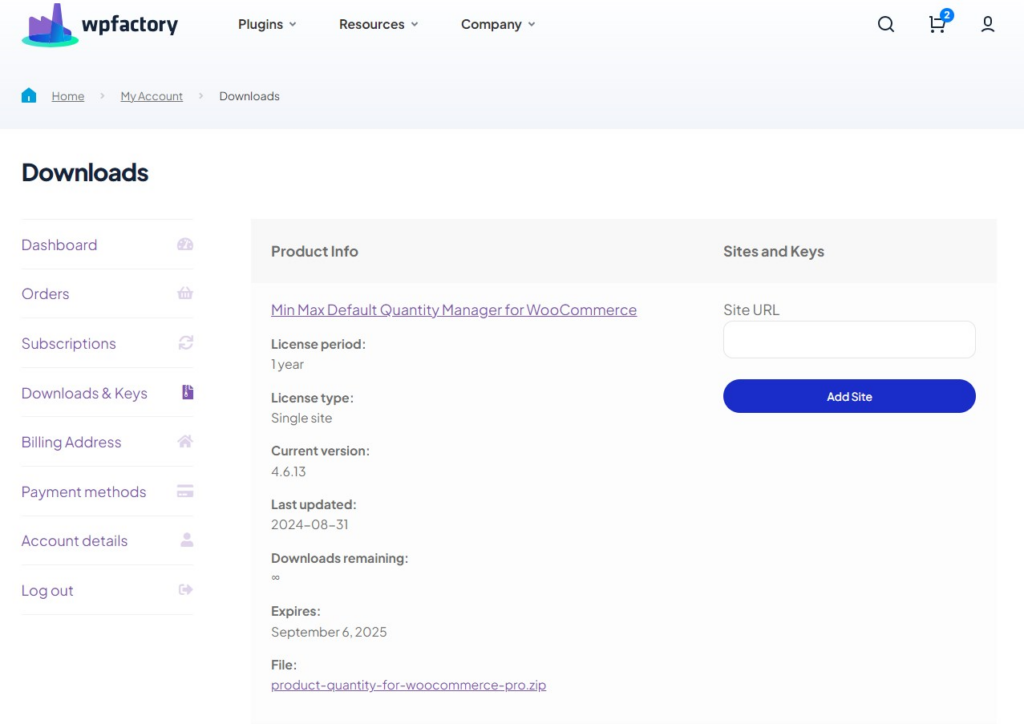
To get started, you will need to download the “WooCommerce EU & UK VAT Numbers Validation plugin.”
After downloading the plugin, from your WPFactory account, upload it to your WordPress site.
Step3:
➡ Access the Plugin
Once the plugin is installed and activated, you can tailor it to fit your business needs.
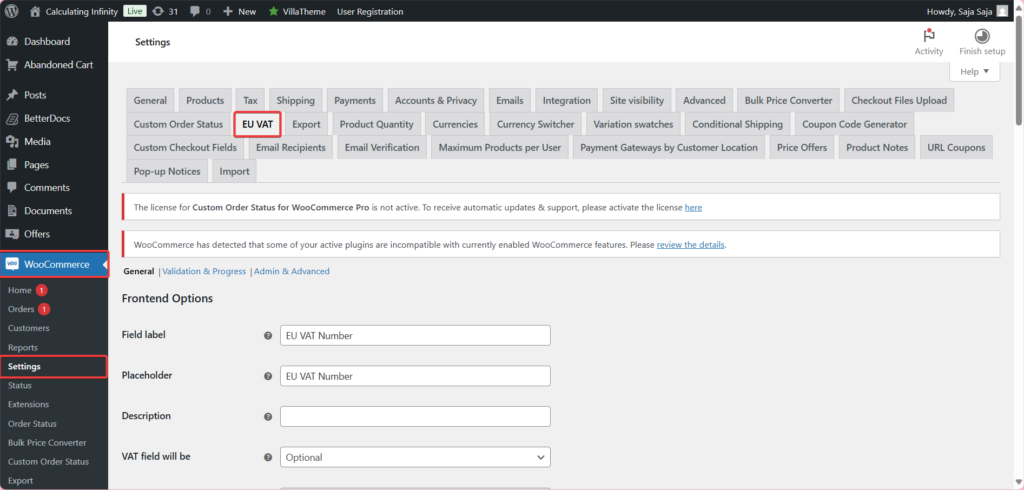
Go to WooCommerce > Settings > “EU VAT”
Step4:
➡ General – Frontend Options
Start with the general settings, that show you how the VAT field appears on your checkout page.
- Field label
It is the field name, meaning the name that appears for the tax number field on the payment page. For example: EU VAT number
- Placeholder
This is the help text inside the field, meaning the symbolic text that appears inside the field before the users type something, to help them understand what should be written inside the field.
- Description
An explanation appears below the field to clarify its purpose or any other instructions.
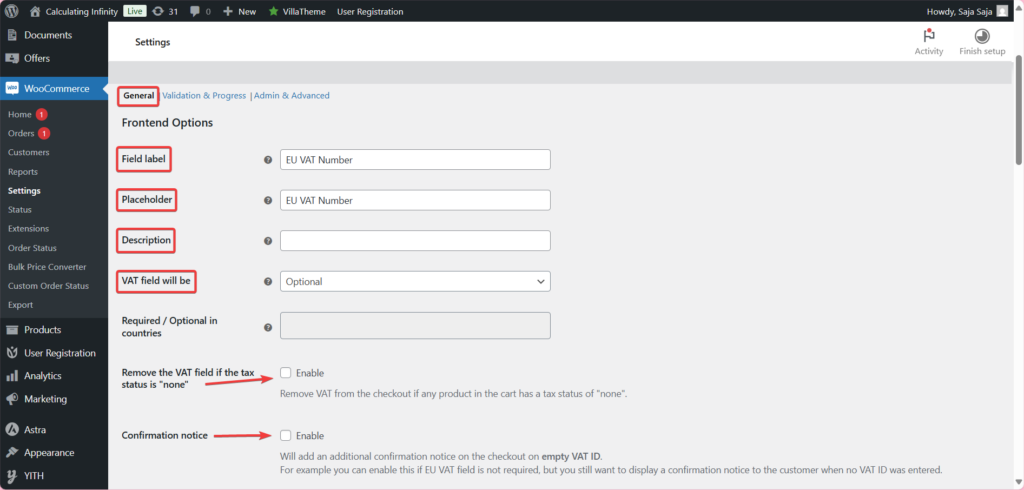
- VAT field will be
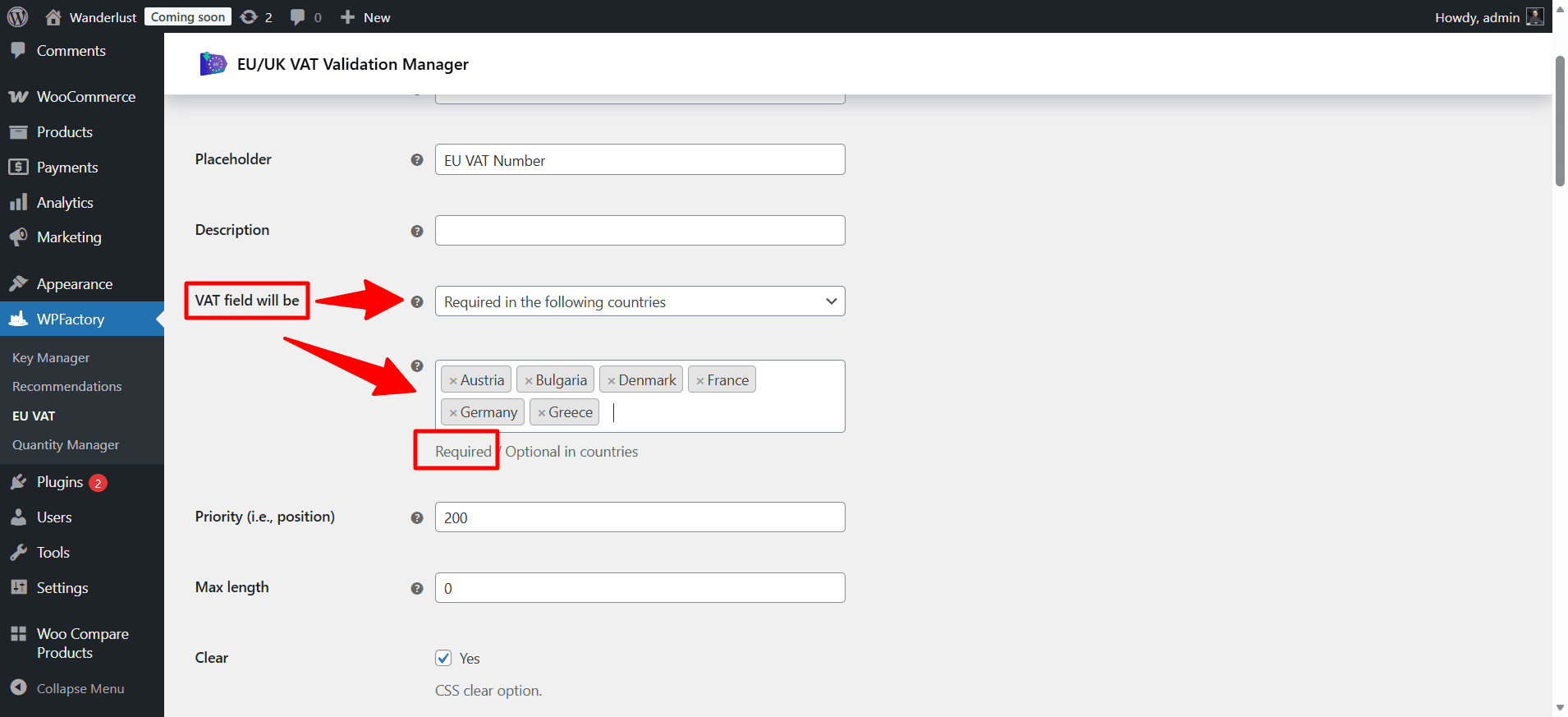
From here, you can choose when the field should be required:
- Optional.
- Required.
- Required in the following countries.
- Required in all countries except following countries.
- Required if the customer fills the company field.
We recommend making it “Required only for EU countries“
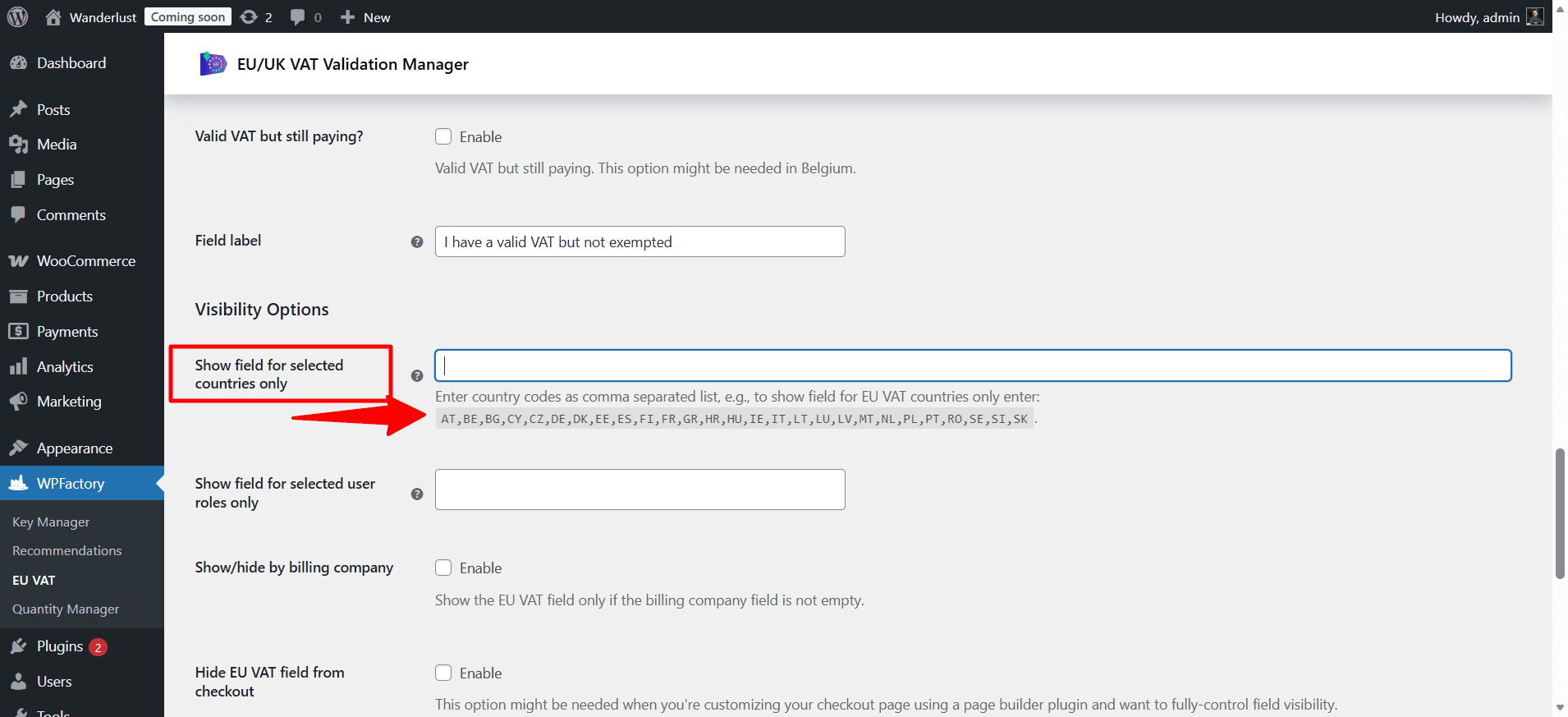
- You can also enable: “Show field for selected countries only”. And enter EU country codes to display the field only where relevant
Step5:
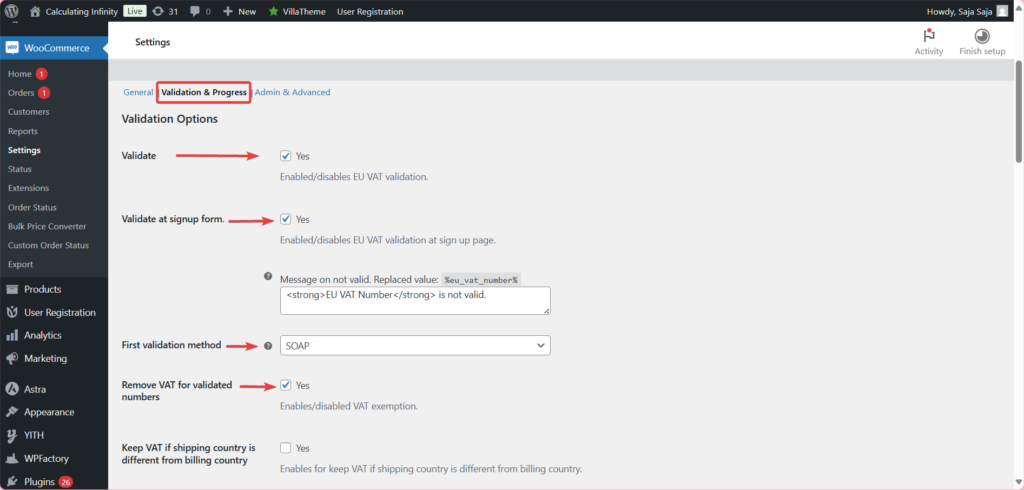
➡Enable VAT Validation (VIES)
- Validate
From here, activate real VAT validation
- Validation Method
Then, choose validation method → SOAP (Recommended). Avoid using “Simple validation” if you rely on tax exemption, it only checks format, not actual validity.
Step6:
➡Automatically Apply VAT Exemption
This is the most important step for handling B2B sales correctly.
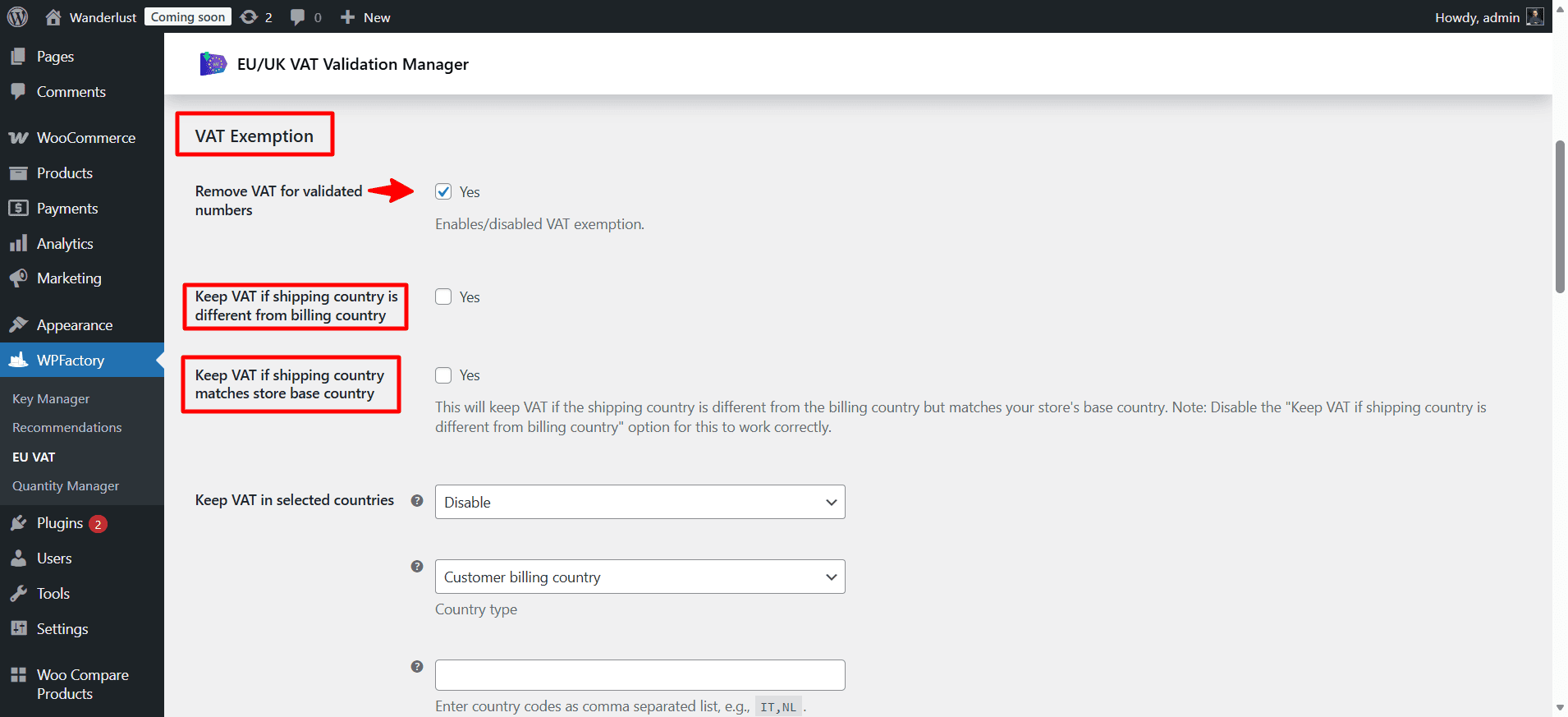
The first thing, you should enable “Remove VAT for validated numbers” option.
This means:
- Valid VAT→ Customer is tax exempt (0% VAT)
- Invalid VAT→ VAT is applied normally.
If you want additional settings to ensure accuracy, and avoid incorrect exemptions, make sure to configure the following options:
- Keep VAT if shipping country is different from billing country
If the shipping country is different from their billing country, the tax remains added and is not exempted. This is important, because VAT rules depend on the actual delivery location.
- Keep VAT if shipping country matches store base country
This ensures that VAT is still applied when shipping to your base country (UK), even if the VAT number is valid.
In simple words:
- UK Orders: Always include VAT.
- EU B2B Orders: Eligible for exemption.
- Keep shipping VAT
This means shipping costs will still include VAT, even if the product itself is tax exempt. This is useful if your shipping services are still taxable.
Step7:
➡Country & Company
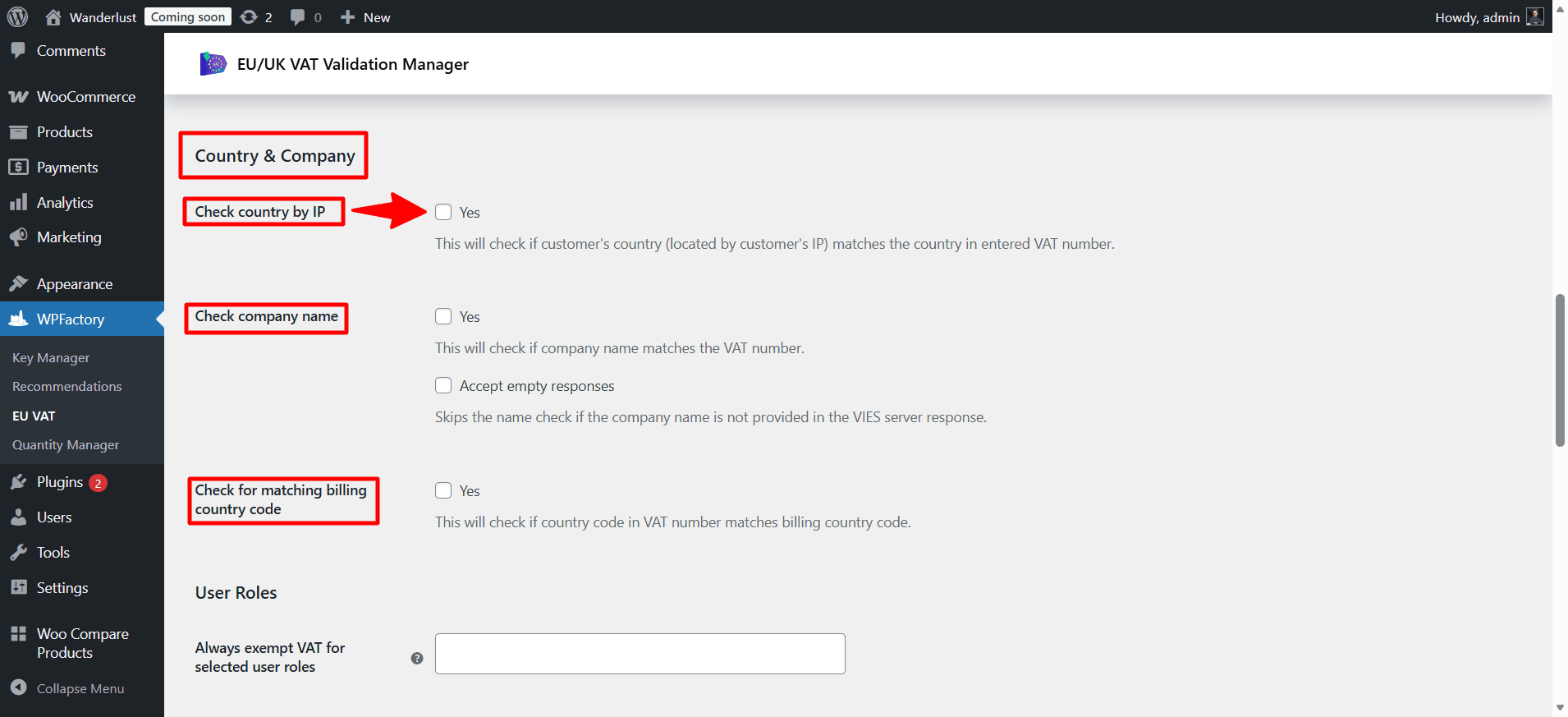
For more accuracy and safety, enable these options:
- Check country by IP
From here, you can check based on IP and other information, you can check whether the country shown by the IP address matches the country associated with the tax number.
- Check company name
This will check if the company name matches the VAT number.
- Check for matching billing country code
Check if the country code in the tax number matches the billing country.
With these settings:
- Customers enter a VAT number.
- WooCommerce validates it via VIES.
- If valid and conditions match, VAT is removed.
- If not, VAT is applied normally.
If you want to explore the plugin in full detail, take a look at this article: How to Validate EU & UK VAT Numbers Automatically in WooCommerce, it explains everything related to the plugin.
Common mistakes UK stores make
| Mistake | Why it’s a problem | Fix |
|---|---|---|
| Still applying EU VAT rules as if UK is in the EU | UK is no longer part of the EU VAT area, different rules apply | Treat EU sales as exports, zero–rate with valid EU VAT number as evidence |
| Not collecting EU VAT numbers at checkout | No evidence of B2B status = can’t justify zero-rating | Add a validated VAT field for EU billing countries |
| Using format-only VAT validation (Simple method) | A correctly formatted number can still be inactive or fraudulent | Use SOAP or cURL to check against VIES directly |
| Charging UK VAT on EU exports | Overcharging EU customers, and incorrectly collecting UK VAT on exports | Zero-rate confirmed EU B2B sales |
| Not storing VAT numbers on orders | No audit trail for HMRC if zero-rated sales are queried | Enable VAT number column in WooCommerce order admin |
Final Thoughts
The VAT before Brexit is no longer the same after Brexit. Now there is a completely new system for UK to EU sales. Therefore, this requires understanding when to charge VAT, and when to exempt it to avoid mistakes that might reduce customer trust in your store.
Frequently asked questions
1. Can UK stores still use VIES to validate EU VAT numbers after Brexit?
Yes. VIES is a public EU service and access is not restricted to EU member states. UK businesses can query VIES to verify EU VAT numbers just as they could before Brexit. The validation process in WooCommerce works the same way regardless of whether your store is based in the UK or EU.
For B2B sales where the EU customer provides a valid VAT number, UK VAT is zero-rated, it’s treated as an export. For B2C sales, UK VAT generally does not apply either, but the EU destination country may charge import VAT. The specifics depend on the order value and destination country. Always confirm with a tax advisor for your exact situation.
3. What proof do I need to keep for zero-rated EU sales?
HMRC requires evidence that the goods or services genuinely left the UK for export. For B2B sales, this typically includes the customer’s valid EU VAT number, proof of delivery or export, and commercial invoices showing the zero-rated amount. The WooCommerce plugin saves the VAT number on every order, giving you an automatic audit trail.
Digital services have slightly different rules. For B2B digital sales to EU businesses with a valid VAT number, the reverse charge mechanism applies, you zero–rate the supply and the EU business accounts for VAT locally. For B2C digital sales to EU consumers, EU VAT rules apply at the customer’s location, which may require EU VAT registration or use of the IOSS scheme.
5. What if my EU customer doesn’t have a VAT number?
If no VAT number is provided, you cannot apply the B2B zero-rate. Treat the sale as a B2C export, UK VAT still does not apply, but the customer may face import VAT on their end. Configure the plugin to make the VAT field optional and set a clear message when no number is entered, so customers understand the implications.