How to Check If a WooCommerce Customer Has a Valid VAT Number (Programmatically)

Quick answer: To check a VAT number in code, send the country code and number to the EU’s VIES validation service and read the result, then store it on the customer or order. If you use EU VAT for WooCommerce, it validates numbers at checkout and saves the result, so your code only needs to read it. Both approaches are shown below.
If you run a WooCommerce store and sell to the EU or the UK, handling VAT manually isn’t easy, and it can lead to inaccurate and potential issues. Since VAT compliance is a legal requirement, you need a reliable way to automate the entire process, from determining whether VAT should be charged to checking if a customer qualifies for tax exemption (B2B).
So, in this guide, we will show you how to check if a WooCommerce customer has a valid VAT number programmatically, and how to simplify the process.
Why VAT validation matters for WooCommerce stores
When selling in the EU or the UK, B2C customers are required to pay VAT, while B2B customers with a valid VAT number are usually exempt.
That’s why manual checking isn’t the most reliable approach. A VAT number that looks correct isn’t necessarily one that is actually registered. This can lead to serious issues, such as:
- Charging tax when you shouldn’t.
- Not charging tax when you should.
- Compliance problems.
All of these can create real risks for your business. And part of getting this right is not just validating the VAT number itself but also making sure your store displays prices correctly for each type of customer. If you are unsure whether to show prices including or excluding tax, take a look at this guide WooCommerce Display Prices Including or Excluding Tax: What to Set and Why, covers that in detail.
Proper validation means querying the VIES (VAT information Exchanging System) maintained by the European Commission. This requires a system that can connect directly to it and verify VAT numbers against officially registered data.
Where VAT Numbers Come from in WooCommerce
By default, WooCommerce doesn’t include built number validation. This means you will either need to add it manually using custom checkout fields or store the VAT number as an order meta field or a user meta field.
So, to make this process reliable, you need a way to validate VAT numbers automatically and connect your store to official VIES database, ensuring accurate tax handling for every order.
Checking VAT Validity Programmatically in WooCommerce
As we mentioned, WooCommerce does not provide a direct way to validate the VAT number, for that there are main approaches to validating VAT numbers programmatically:
-
Basic Format Validation (Regex)
If you are in the entire level, the easiest and simplest way to validate a VAT number is by checking its format using a regular expression (regex).
This is the simplest way of validation, it allows you to check whether the VAT number’s format is correct, but it does not verify whether the number is actually registered.
Validation is based on a specific format: the VAT number must start with two letter country code (such as EU, UK, or FR), followed by 2 to 13 alphanumeric characters.
The result is straightforward:
- If the format is correct→ True
- If the format is incorrect→ False
However, a number can still appear valid while being fake or not actually registered. That’s why this method is useful for improving data quality, but it doesn’t guarantee compliance.
-
Real Time Validation via VIES
This is the most reliable way to verify a VAT number, as it connects directly to the official EU VIES (VAT Information Exchange System) database. This system confirms whether the VAT number is valid and registered or not.
This method requires connecting to VIES via a SOAP API.
$client = new SoapClient(…)
The code sends a request to the EU server with the customer’s details, including:
- Country Code →the country prefix (e.x, DE, UK)
-
VAT Number→ The VAT number without the country code
DE123456789 becomes:
-
country: DE
-
number: 123456789
In return, you receive a real-time response confirming whether the number is valid, along with additional information such as the registered company name and address.
This approach is considered one of the most reliable ways to validate VAT numbers and confirm their registration. However, it requires manual implementation, which can be time consuming and complex.
A Smarter Approach: Automating VAT with EU VAT for WooCommerce
Handling all these steps manually, tracking each VAT number and validating it one by one, is time consuming. That’s why solutions like EU VAT Numbers Validation exist, to take care of all of this for you, making the process faster, easier, and fully automated.
This plugin handles everything, from VIES validation calls, and GeoIP country detection to tax exemption logic, block-based checkout support, and per role display rules.
The plugin doesn’t stop at validating VAT numbers; it goes further by performing deeper check to enhance security and ensure compliance with regulations.
- Match the VAT Number with the Billing Country
- Verify Company Details
- Use GeoIP Tracking
It determines the client’s geographical location through their IP. If their actual location is different from the country they specified, there might be an issue or an attempt at fraud.
How to set it up: quick overview
Here, I will show you the core steps to get automatic VAT validation running on your WooCommerce store:
Step1:
➡ Download the Plugin
To get started, you will need to download the “WooCommerce EU & UK VAT Numbers Validation plugin.”
After downloading the plugin, from your WPFactory account, upload it to your WordPress site.
Step2:
➡ Access the Plugin
Once the plugin is installed and activated, you can tailor it to fit your business needs.
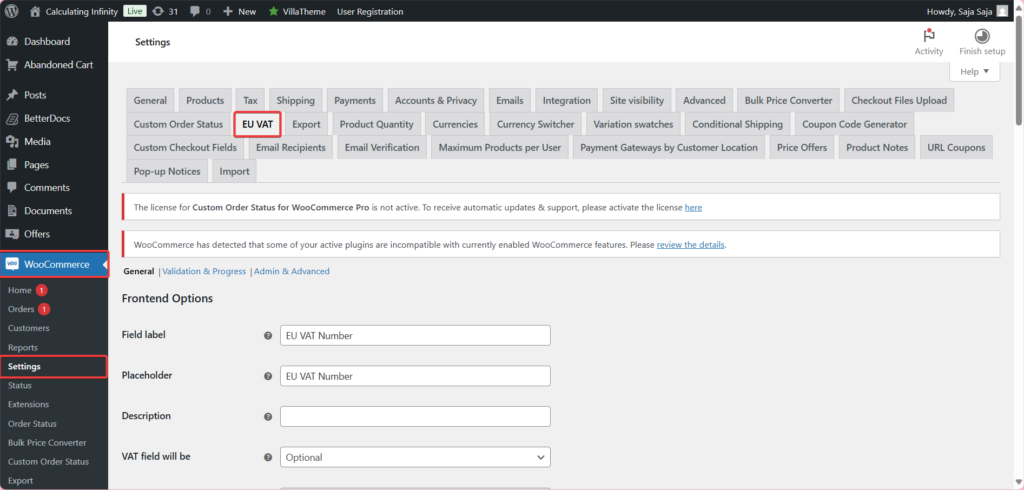
Go to WooCommerce > Settings > “EU VAT”
Step3:
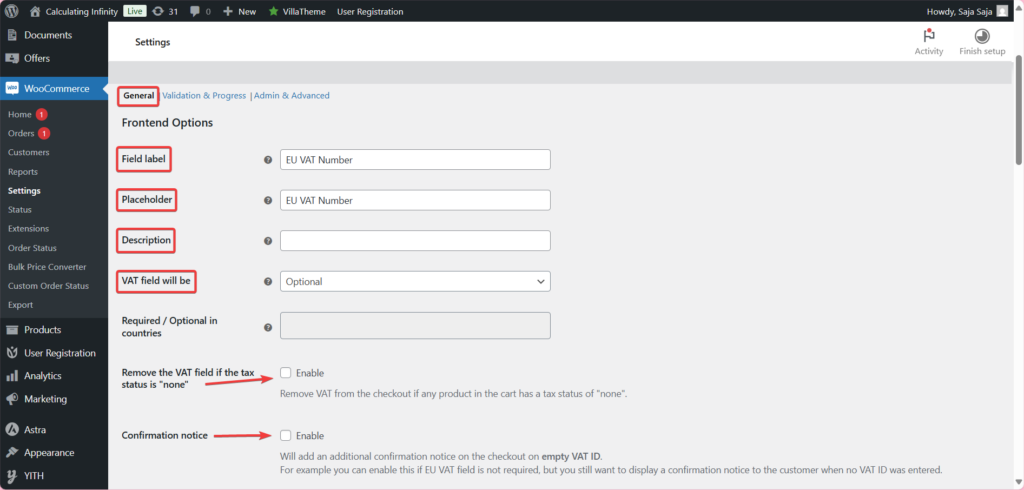
➡ General – Frontend Options
Set the field label (e.g “EU VAT Number”), the placeholder text, and whether the field is required or optional. Choose where it appears on the checkout page.
Step4:
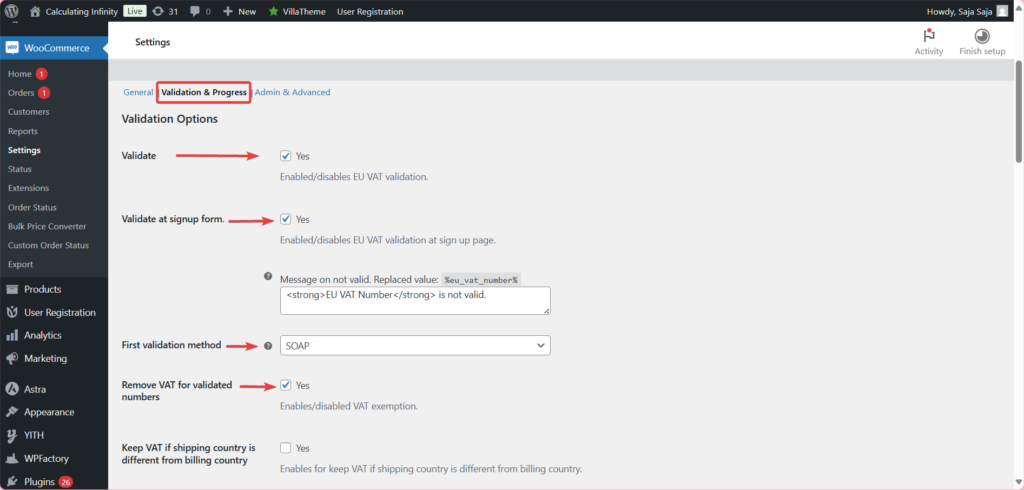
➡Validation & Progress
- Enable validate
From here you can enable the VAT validation feature. Without this the field will collect number but will never check them.
- Remove VAT for Validated Numbers
When you enable this option, if the VAT number check out, tax is automatically removed from the order.
- Message on Not Valid
Here, you can customize the message shown when an invalid number is entered.
- Keep VAT if shipping country is different from billing country
If the shipping country is different from the invoice, the tax remains added and is not exempted.
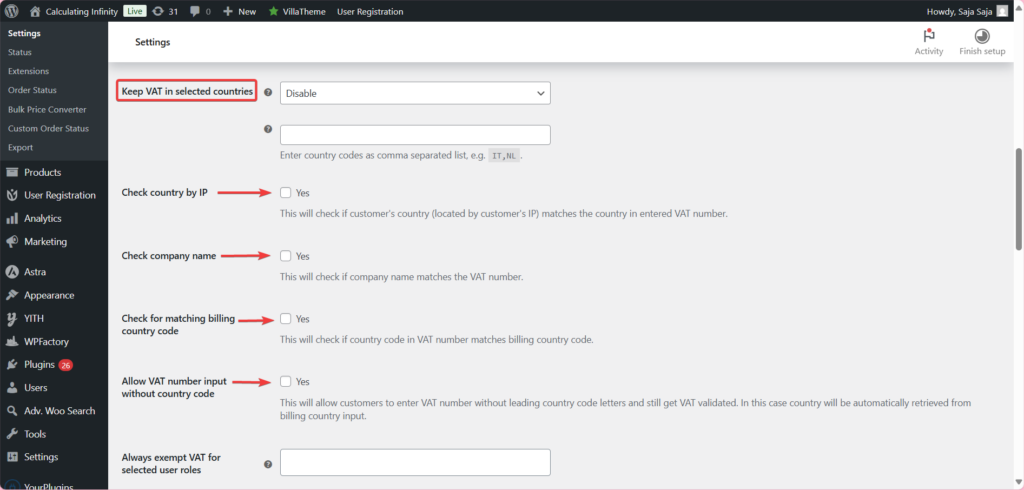
- Keep VAT in selected countries
You can enter the country codes for which you do not want to be exempt from tax even if the number is verified.
Advanced Checks:
- Check country by IP
From here, you can check based on IP and other information.
From here, you can check whether the country shown by the IP address matches the country associated with the tax number.
- Check company name
This will check if the company name matches the VAT number.
- Check for matching billing country code
Check if the country code in the tax number matches the billing country.
- Always not exempt VAT for selected user roles
But here you can enter the role of users who will never be exempt from tax, even with an integer number.
- Accept the VAT number if VIES is not available
Tax number is accepted if VIES service is temporarily unavailable (Technical issue).
This is just a quick steps and overview; the full guide covers every option with screenshots and real examples→ How to Validate EU & UK VAT Numbers Automatically in WooCommerce

Comparison: manual code vs. plugin
| Feature | Manual PHP | EU VAT Plugin |
|---|---|---|
| VIES SOAP lookup | ✅ Possible | ✅ Built-in |
| GeoIP country match | ❌ Extra library needed | ✅ Included |
| Block checkout support | ❌ Complex to implement | ✅ Full support |
| Role-based field control | ❌ Needs custom logic | ✅ Admin UI setting |
| Automatic tax exemption | ✅ Requires filters | ✅ Automatic |
| VIES downtime handling | ❌ Manual try/catch | ✅ Graceful fallback |
| Maintenance over time | ❌ Developer needed | ✅ Plugin updates |
Final Thoughts
Validating a WooCommerce VAT number programmatically requires a lot of careful handling, multiple steps, and manual work, which can often lead to errors, complexity, and potential issues.
That’s why the EU VAT Numbers Validation plugin exists, to remove all these challenges and simplify the entire process in just a few steps. It handles the full workflow, from SOAP API calls and GeoIP checks to tax logic and more.
In this case, all you need to do is install the plugin, connect it to your store, complete the setup, and focus on running your business while the plugin takes care of the rest.
VAT validation is now just a simple, automated process.
Frequently Asked Questions (FAQs)
1. Do I need to validate VAT numbers if I only sell within my own country?
Generally, no. VAT exemption based on a VAT number applies to cross-border B2B transactions within the EU, domestic sales are typically always taxed regardless of whether the buyer has a valid VAT number. The plugin lets you hide the VAT field for your store’s base country to keep the checkout clean for local customers.
2. What happens if the VIES service is temporarily down?
VIES is a public EU service and does occasionally have downtime. The plugin gives you a dedicated setting “Accept the VAT number if VIES is not available” where you can decide whether to accept all numbers by default during an outage, or block checkout until the service recovers.
3. Can I make the VAT field required for some countries but optional for others?
Yes. Under General → VAT field will be, you can set the field to “Required in the following countries” or “Required in all countries except…” and specify a list of country codes. This means you can make it mandatory for EU buyers while keeping it optional, or hidden entirely, for customers from other regions.
4. Which validation method should I choose – SOAP, cURL, or Simple?
Start with SOAP, it’s the official VIES protocol and the most accurate. If your hosting doesn’t support SOAP, switch to cURL as a fallback. Avoid Simple unless you’re just doing a format check, as it doesn’t confirm the number is actually registered, not suitable for applying tax exemptions.
5. Will the VAT number appear on the customer’s invoice?
Yes, if you’re using the PDF Invoices & Packing Slips plugin (or any plugin that references the field ID _billing_eu_vat_number), the VAT number will be included on the invoice automatically, important for B2B customers who need it for their own tax records.