WooCommerce Display Prices Including or Excluding Tax: What to Set and Why


Quick answer: Show prices including tax if you mainly sell to consumers, and excluding tax if you mainly sell to businesses. You set this in two places under WooCommerce → Settings → Tax: Display prices in the shop and Display prices during cart and checkout, which should normally match. If you sell to both, you can show both prices or adjust the display for customers with a validated VAT number.
Do you show prices including tax or excluding tax in your WooCommerce store?
If you have just lunched your WooCommerce store and find yourself stuck at the tax settings, unsure whether to display prices including or excluding tax, or where they should appear, this article is for you.
Choosing the wrong option can lead to customer confusion, abandoned carts, or even compliance issues.
In this guide, we will walk you through the process of:
- The difference between shop and cart display settings.
- When to show prices including or excluding tax.
- How to handle B2B vs B2C stores.
- And how to show both when needed
Let’s get started!
The Confusion: Shop vs Cart Display Settings
When it comes to displaying your prices, WooCommerce gives you flexible option. You can choose one pricing strategy for your shop pages (product pages) and a different one for the checkout (cart page).
Why does this option exist?
Because some stores prefer not to include tax in the product price displayed on the shop pages and instead add it later at checkout. This approach helps keep prices looking lower upfront, while still applying the correct tax before the final purchase.
That’s why WooCommerce allows you to decide whether to display prices including tax or excluding tax, depending on your setup.
Let me simplify it for you, with these options you can:
- Show prices including tax in both the shop and checkout page.
- Show prices excluding tax in both pages.
- Or mix between them based on your pricing strategy.
If you decided to display prices excluding tax in both pages, WooCommerce still calculate and add tax at checkout (If taxes are enabled), so the display setting doesn’t always mean tax isn’t applied, it only controls how prices are shown to the customers.
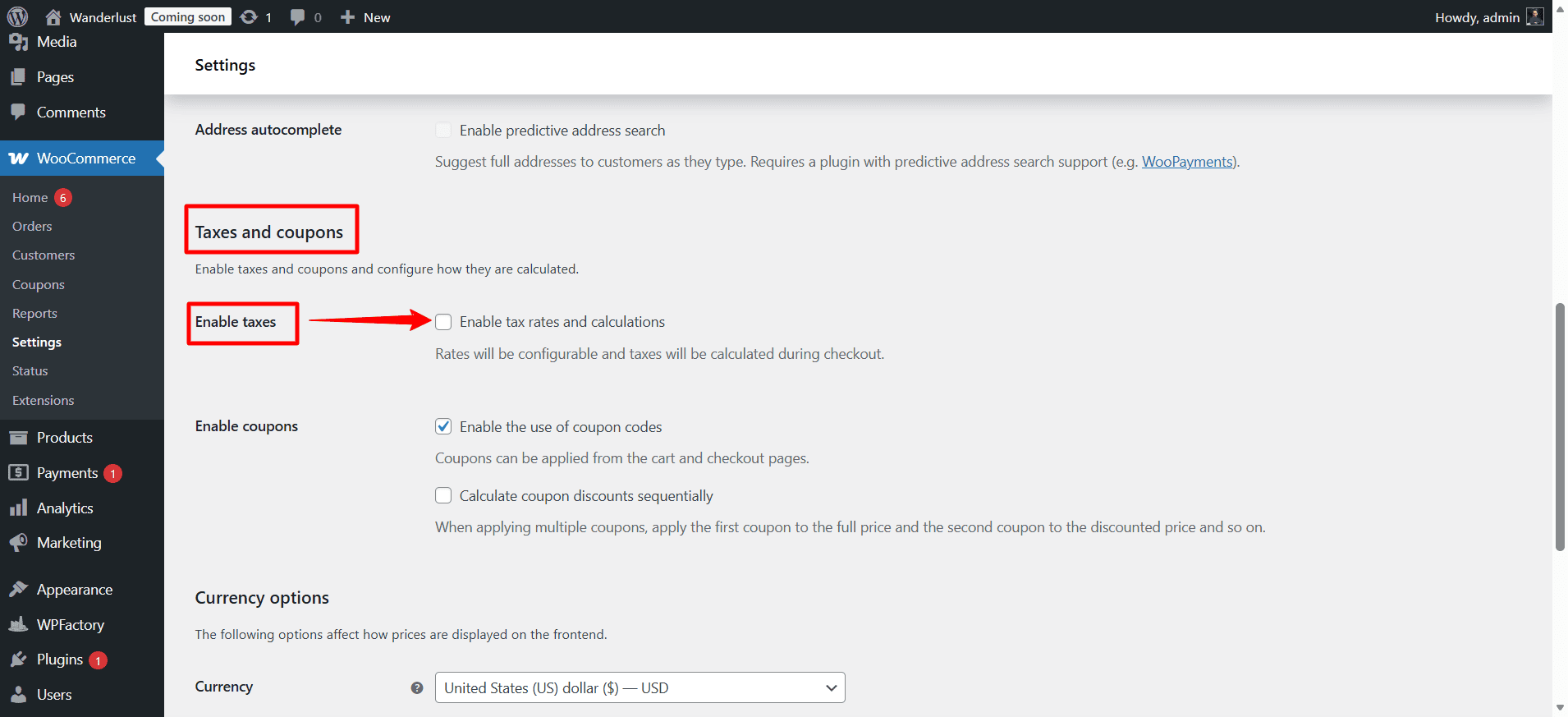
Now, the real question is: when should you display prices including tax on the shop page, and when should you leave it for the checkout?
B2B vs B2C Pricing: When to Show Prices Excluding or Including VAT
The audience varies from store to store. Some stores sell to wholesale buyers (B2B), who expect to see net prices on product pages. On the other hand, when selling to end customers (B2C), who will use the product directly in their daily lives, they expect to see the full amount they will pay, regardless of how tax is applied.
WooCommerce recognizes this difference and gives you the full flexibility to show prices appropriately to each audience at every stage of their shopping journey.
The B2B Use Case: Show Prices Excluding VAT
If your store primarily sells to businesses or wholesale buyers, they usually expect to see net prices (prices excluding tax) on product pages. What matters most to them is the product’s net cost, because business buyers are registered and reclaim the tax through their own filings. So, for them, VAT is simply an administrative figure that passes through their books, not an actual cost.
Recommended settings for B2B:
- Display prices in the shop page (Product pages) → Excluding tax.
- Display prices during checkout and cart page → Excluding tax.
The B2C Use Case: Show Prices Including VAT
If you’re selling to individual consumers (end user), the logic is reversed. Retail customers always expect to see the final price on the shop or product page, including tax, because what matters most to them is what they will actually pay.
We have all experienced this: seeing a product prices at $50 on the shop page, only to find it jumps to $558 at checkout. Many shoppers abandon their carts in their situation, it feels nontransparent. That gap can feel like a bait and switch, even if it’s perfectly legal and clearly disclosed.
Recommended settings for B2C:
- Display prices in the shop page (Product pages) → Including tax.
- Display prices during checkout and cart page → Including tax. The golden rule here is simple: Never surprise the customer with the tax at the last step.
How to Show Both Prices Simultaneously
Okay, what if your store serves both types of customers at once: Businesses (B2B) and retail customers (B2C)?
In this case, you should display both prices on the shop page because you don’t want to lose one of them. For example:
$120.00 (inc. VAT) | $100.00 (ex. VAT)
The price appearance may not be as you want, but you cannot please one person and lose the other, and this will give you:
- Clarity for all users.
- Transparency in pricing.
- Better user experience.
The Real Complication: Mixed Audiences Across Different Countries
If your store operates globally and sells to customers worldwide, especially within the European Union, you are likely facing challenges with VAT. Each country has its own rules and tax rates, which makes things more complicated.
For example, a business customer in Germany with a valid VAT number may be completely exempt from VAT. Meanwhile, an individual consumer in France will be charged the full French VAT rate. And if the customer is based in the UK, they will fall under a completely different set of tax rules.
While WooCommerce allows you to display prices in different ways, it doesn’t automatically detect whether a visitor qualifies for VAT exemption and adjust pricing accordingly.
And that exemption decision starts even earlier, at the moment the customer enters their VAT number. If you’re not sure how that validation process works technically, we have covered it in detail in our guide on How to Check If a WooCommerce Customer Has a Valid VAT Number (Programmatically).
That’s why where the WooCommerce EU & UK VAT Numbers Validation comes in, to solve this exact problem.
The Solution: WooCommerce EU & UK VAT Numbers Validation
You no longer need to choose between a B2B setup and a B2C setup or manually approve VAT exemptions order by order. The plugin takes care of all of this and more.
It adds a VAT number field to your checkout page, then automatically validates the number. If the VAT number is valid and registered in the official VIES database used by EU tax authorities, the customer is automatically exempt from tax. If not, the applicable tax is applied as usual.
The plugin doesn’t stop at validating VAT numbers, it goes further by performing deeper check to enhance security and ensure compliance with regulations.
- Match the VAT Number with the Billing Country
- Verify Company Details
- Use GeoIP Tracking
It determines the client’s geographical location through their IP. If their actual location is different from the country they specified, there might be an issue or an attempt at fraud.
When you enable this plugin, you can fully control where and how the field appears, you can choose its placement, decide whether it’s required or optional, and display it conditionally based on user roles and countries.
Here are some of its most powerful features:
- Real-Time & Accurate EU & UK VAT Validation
- Advanced VAT Validation Checks
- Customizable & Intuitive VAT Field Options
- Show VAT Field & Apply Settings by User Roles
- Block-Based Checkout Compatibility
- Verify VAT Compliance by GeoIP Tracking
- Real-Time Validation Messages
- Full Control Over Field Settings
Quick Decision Guided
| Store Type | Shop Display | Cart Display |
|---|---|---|
| B2B only | Excluding tax | Excluding tax |
| B2C only | Including tax | Including tax |
| Mixed B2B + B2C | Show both | Including tax |
| EU cross-border | Use EU VAT plugin | Auto-adjusted |
Final Thoughts
How you display prices in WooCommerce, whether including tax or not, doesn’t just affect how customers perceive your pricing, it has real consequences for conversion rates, customer trust, and legal compliance.
If your audience is (B2B), the safest approach is to display prices excluding tax. On the other hand, if you’re targeting end user (B2C), it’s better to show prices including tax, so customers can clearly see the full amount upfront.
The real challenge begins when you sell globally. With customers from different countries, each its own tax rules and regulations, managing this manually becomes difficult. You need a solution that can evaluate each order individually and classify it correctly.
This is where WooCommerce EU & UK VAT Numbers Validation fills the gap. By automating the validation process and integrating directly with the VIES database, the plugin ensures that if a VAT number is valid, the customer is automatically exempt from tax. If not, the applicable tax is applied as usual.
With this setup, the plugin makes sure every customer, whether a business buyer in Berlin or a retail consumer in Paris, sees the right price and pays the correct amount.
Frequently Asked Questions
1. Should I display prices including or excluding tax in WooCommerce? I
t depends on your audience. If you sell to individual consumers (B2C), always show prices including tax, surprises at checkout kill conversions. If you sell to businesses (B2B), show prices excluding tax, since business buyers evaluate costs based on net prices and reclaim VAT through their own filings.
2. Can I set the shop display and cart display differently?
Yes, WooCommerce allows you to configure these two settings independently. For example, you could show ex-VAT prices in the shop for browsing purposes, then show the full breakdown including tax at checkout. However, for most stores, keeping them consistent is the safer choice to avoid confusing customers.
3. Why does my cart show a different price than my product page?
This is almost always caused by a mismatch between the “Display prices in the shop” and “Display prices during cart and checkout” settings in WooCommerce → Settings → Tax. Set both to the same option to fix it.
4. Can I show both the inc-VAT and ex-VAT price at the same time?
WooCommerce doesn’t support this natively, but it can be achieved through plugins or custom code. This is particularly useful for stores that serve both B2B and B2C customers simultaneously.
5. What if I sell to customers in multiple EU countries with different VAT rates?
This is where WooCommerce’s native settings fall short. Each EU country has its own VAT rate, and business customers with valid VAT numbers may qualify for exemptions. A plugin like EU VAT for WooCommerce by WPFactory handles this automatically, it validates VAT numbers in real time via the VIES database and applies the correct tax treatment per customer.
6. How does VAT exemption work for B2B customers at checkout?
A B2B customer from another EU country may be exempt from paying VAT on cross-border purchases, provided they have a valid VAT registration number. The EU VAT for WooCommerce plugin adds a VAT number field at checkout, validates it instantly against official EU records, and automatically removes the tax from the order if the number is valid.
7. Is it a legal requirement to show prices including VAT for consumer-facing stores?
In most EU countries, yes. Consumer-facing stores are legally required to display the final price inclusive of all taxes. Showing ex-VAT prices to retail consumers without clear disclosure can put you in violation of local consumer protection laws.
8. Will showing ex-VAT prices hurt my B2C conversion rate?
Almost certainly yes, if the customer only sees the tax added late in the checkout process. Shoppers form price expectations early, on the product page, and any upward surprise at the cart or checkout stage increases abandonment. Always match the price the customer sees first with what they actually pay.