Table of Contents
Styling WooCommerce pop-up notices, their colors, borders, close button, and icons, is done in the WordPress Customizer. Popups for WooCommerce: Add to Cart, Checkout & More Pro adds a dedicated Popup Notices Customizer panel with live preview. This is a Pro feature.
Before you start #
- WooCommerce, active.
- Popups for WooCommerce: Add to Cart, Checkout & More Pro.
- Enable custom style ticked at WPFactory > Popups (also reachable at WooCommerce > Settings > Pop-up Notices), in the Custom style group.
Open the Customizer panel #
- Go to Appearance > Customize.
- Open the Popup Notices panel.
- Use the sections below and watch the preview update live. Click Publish to save.
General Style #
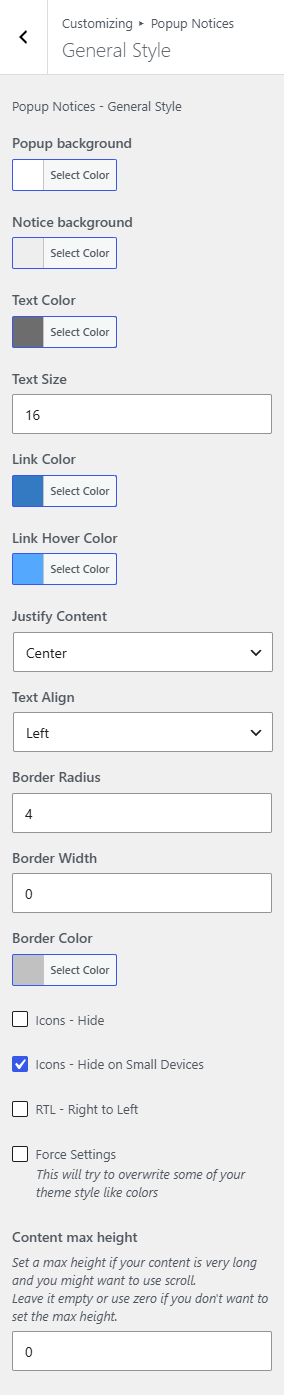
| Control | Default |
|---|---|
| Popup background | #ffffff |
| Notice background | #eeeeee |
| Text color | #6d6d6d |
| Text size | 16 |
| Link color / Link hover color | #347AC3 / #54a9ff |
| Justify content / Text align | Center / Left |
| Border radius / width / color | 4 / 0 / #c1c1c1 |
| Icons – Hide | Off |
| Icons – Hide on small devices | On |
| RTL – Right to Left | Off |
| Force Settings (override theme) | Off |
| Content max height (scroll long content) | 0 (none) |
Tip: if your theme overrides pop-up colors, enable Force Settings to apply the plugin’s styles with higher priority.
Close button and notice icons #
- Close Button – External: horizontal and vertical position and offset, background, color, and border radius of the button that sits on the pop-up corner.
- Close Button – Internal: an optional in-pop-up close button, with display toggle, background and text color, and button text (default “Close”).
- Success / Error / Info Notice: each has an Icon Class and Icon Color (defaults #22bf21, #e21616, #347ac3). When Use Font Awesome is on, an icon picker is shown; otherwise you type an icon class.
Ready to set this up? #
The Customizer styling panel is a Pro feature of Popup Notices. Get Popup Notices Pro.