Table of Contents
To hide a specific notice from pop-ups in Popups for WooCommerce: Add to Cart, Checkout & More, go to WPFactory > Popups, open the Ignore messages group in the General section, choose a Search method, and enter the message text in Ignored messages. Ignoring one message is free; ignoring multiple messages is Pro.
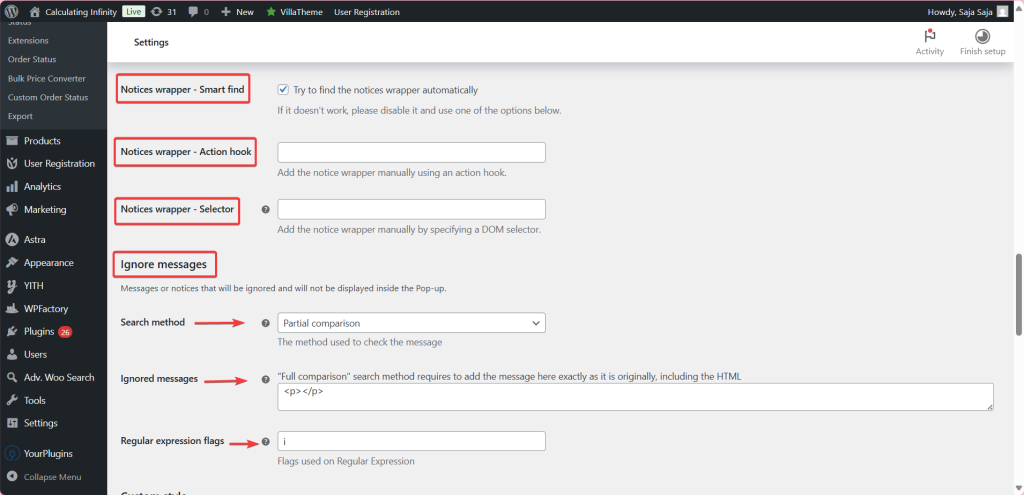
Step-by-step #
- Go to WPFactory > Popups (also reachable at WooCommerce > Settings > Pop-up Notices).
- In the General section, open the Ignore messages group.
- Choose a Search method: Partial comparison, Full comparison, or Regular expression.
- Enter the message text in Ignored messages. For Full comparison, paste the message exactly as it appears, including its HTML.
- Save changes.
Options reference #
| Setting | Option ID | Default | Free/Pro |
|---|---|---|---|
| Search method | ttt_pnwc_opt_ignore_search_method |
Partial comparison | Free |
| Ignored messages | ttt_pnwc_opt_ignore_msg_field |
Empty | Free (multiple: Pro) |
| Regular expression flags | ttt_pnwc_opt_ignore_msg_regex_f |
i | Free |
Search methods explained #
- Partial comparison: matches if the notice contains the text you entered. The easiest option.
- Full comparison: matches only if the notice is exactly the text you entered, including HTML.
- Regular expression: matches with a regex pattern. The Regular expression flags field applies flags such as
ifor case-insensitive matching.
Pro tip: in Pro, the Ignored messages field becomes a textarea so you can add one message per line and ignore several at once.
Get more control #
Ignoring a single message is free. Popups for WooCommerce: Add to Cart, Checkout & More Pro lets you ignore multiple messages and unlocks styling, auto-close, and message customization. See what Pro unlocks.