To turn WooCommerce notices into pop-ups, install Popups for WooCommerce: Add to Cart, Checkout & More and go to WPFactory > Popups. With Enable Plugin on (the default), add to cart, coupon and checkout messages open in a pop-up. The general options on this screen are free.
Where the settings live #
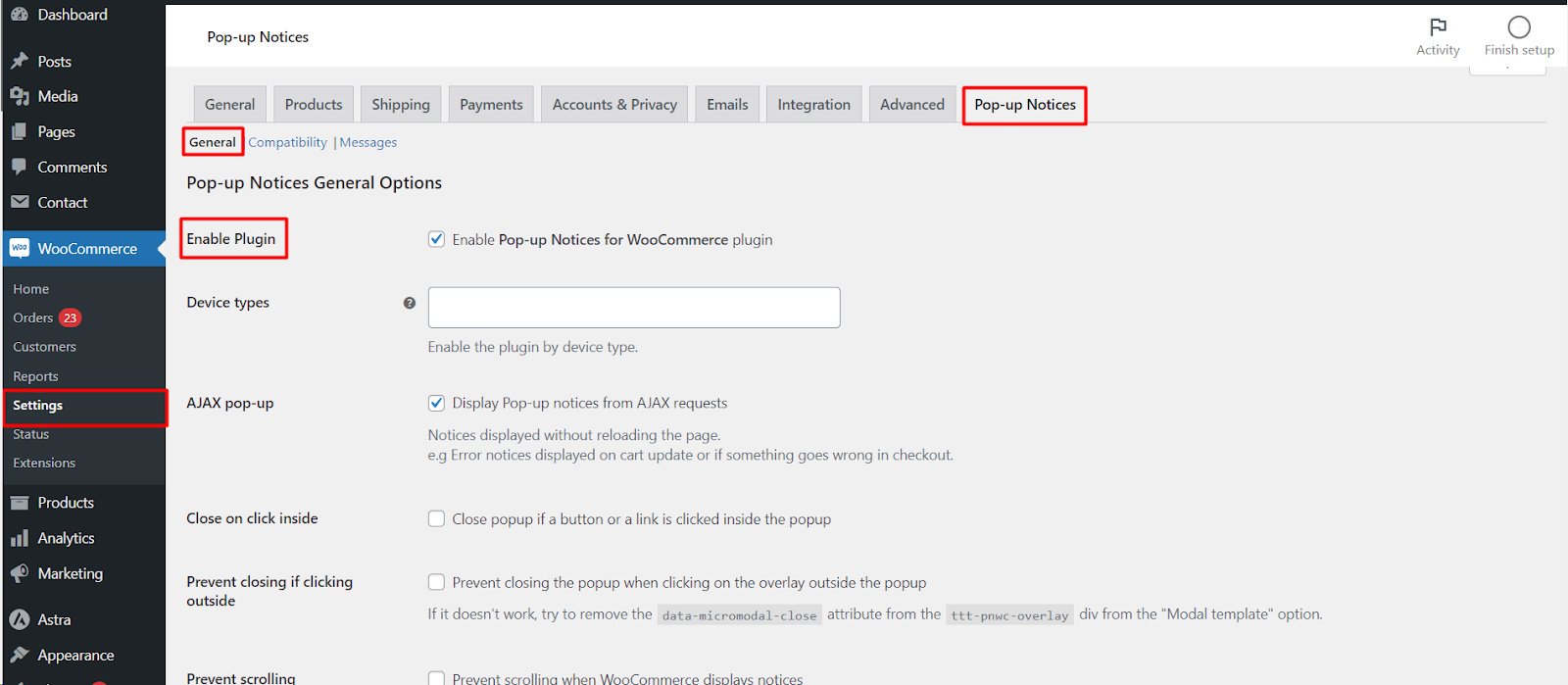
Go to WPFactory > Popups (also reachable at WooCommerce > Settings > Pop-up Notices). The General section opens first.
General options #
| Setting | Option ID | Default | Free/Pro |
|---|---|---|---|
| Enable Plugin | ttt_pnwc_opt_enable |
Yes | Free |
| Device types (mobile, desktop, or both) | ttt_pnwc_opt_allowed_device_types |
Empty (all devices) | Free |
| AJAX pop-up | ttt_pnwc_opt_ajax |
Yes | Free |
| Close on click inside | ttt_pnwc_opt_click_inside_close |
No | Free |
| Prevent closing if clicking outside | ttt_pnwc_opt_prevent_closing_if_clicking_out |
No | Free |
| Prevent scrolling (AJAX notices only) | ttt_pnwc_opt_prevent_scroll |
No | Pro |
| Micromodal loading method | ttt_pnwc_opt_micromodal_load_method |
Externally from unpkg.com | Free |
Turn notices into pop-ups in four steps #
- Install and activate Popups for WooCommerce, then go to WPFactory > Popups.
- Check that Enable Plugin is ticked (it is on by default).
- Under Notice types, keep error, success and info notices enabled, or untick the ones you do not want as pop-ups.
- Under Notice hiding, tick the types whose normal inline notice you want to hide, then click Save changes. Add a product to the cart to see the pop-up.
What each general option does #
- Device types: choose Mobile, Desktop or both. Leave it empty to load the pop-ups on every device.
- AJAX pop-up: also shows notices that appear without a page reload, for example errors after updating the cart or at checkout. When off, only notices present when the page loads become pop-ups.
- Close on click inside: closes the pop-up when the customer clicks a button or link inside it, such as View cart.
- Prevent closing if clicking outside: the pop-up stays open when the customer clicks the dark overlay, so they must use the close button.
- Prevent scrolling (Pro): stops the cart and checkout pages from scrolling up to WooCommerce’s notice area after an AJAX update.
Micromodal is the small JavaScript library that renders the pop-up. You can load it externally from unpkg.com, externally from jsdelivr.com, or locally from the plugin folder. Choose Locally if your site blocks external scripts or a privacy policy requires it.
Why store owners use pop-up notices #
- Nothing gets missed: a modal is far harder to overlook than a themed inline notice, so add-to-cart confirmations and checkout errors actually reach the customer.
- Clearer errors: replace easy-to-miss validation messages with a pop-up the customer must acknowledge before continuing.
- Consistent look: pop-ups render the same way regardless of how a theme styles WooCommerce notices.
If pop-ups do not appear #
- Enable Plugin is off, or the visitor’s device is not in Device types.
- The notice type is unticked under Notice types.
- The notice appears after an AJAX request and AJAX pop-up is off.
- The Micromodal script is blocked by a firewall, ad blocker or script optimizer. Switch Micromodal loading method to Locally.
- Your theme or the block-based Cart and Checkout print notices with their own markup. The plugin reads WooCommerce’s standard
woocommerce-message,woocommerce-errorandwoocommerce-infonotices. - With Pro, Restrictive Loading limits pop-ups to selected pages or conditions.
Seeing the message twice? See remove default WooCommerce notices to avoid duplicate pop-up messages.
FAQ #
Does it show a pop-up when a product is added to the cart? #
Yes, on the product page, because WooCommerce shows a success notice there. On shop and category pages WooCommerce adds products by AJAX without a notice, so the pop-up needs the Pro AJAX add to cart notice option, see add to cart pop-up on shop and archive pages.
Can the pop-up include a link to checkout? #
The pop-up shows WooCommerce’s own message, which includes its View cart button. With Pro message customization you can add your own content and a checkout link using {{checkout_permalink}}, see customize pop-up notices.
Can it show related or upsell products in a pop-up? #
No. Popups for WooCommerce turns store notices into pop-ups. For product suggestion pop-ups, WPFactory offers a separate plugin, WooCommerce Sales Bump: Upsell, Cross-sell & Related Products Popup.
Can I change the pop-up design? #
Yes, with Pro, through the WordPress Customizer, see style pop-up notices with the Customizer.
Get more control #
The general options above are free. Popups for WooCommerce: Add to Cart, Checkout & More Pro adds styling through the Customizer, auto-close, cookies, audio, restrictive loading, and message customization. See what Pro unlocks.
Need a hand? Our team answers every ticket on the Popup Notices support forum.