Table of Contents
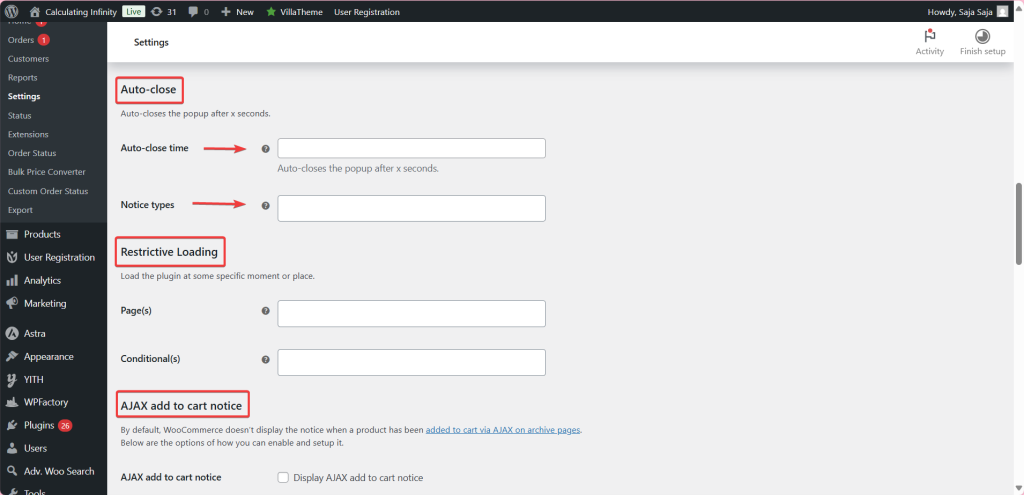
To show an add to cart pop-up on shop and archive pages with Popups for WooCommerce: Add to Cart, Checkout & More Pro, go to WPFactory > Popups, open AJAX add to cart notice in the General section, and enable it. Leave Notices wrapper – Smart find on, or set an Action hook or CSS Selector if your theme needs it.
Before you start #
- WooCommerce, active, with AJAX add to cart enabled on archive pages (WooCommerce > Settings > Products).
- Popups for WooCommerce: Add to Cart, Checkout & More Pro.
Step-by-step #
- Go to WPFactory > Popups (also reachable at WooCommerce > Settings > Pop-up Notices).
- In the General section, open AJAX add to cart notice.
- Enable AJAX add to cart notice.
- Leave Notices wrapper – Smart find on to let the plugin place the pop-up automatically.
- If Smart find does not work with your theme, turn it off and set either an Action hook or a CSS Selector where the notice should be inserted.
- Save changes and test by adding a product from the shop page.
Options reference #
| Setting | Option ID | Default |
|---|---|---|
| AJAX add to cart notice | ttt_pnwc_opt_ajax_add_to_cart_notice_enable |
No |
| Notices wrapper – Smart find | ttt_pnwc_opt_ajax_add_to_cart_notice_wrapper_smart |
Yes |
| Notices wrapper – Action hook | ttt_pnwc_opt_ajax_add_to_cart_notice_wrapper_hook |
Empty |
| Notices wrapper – Selector | ttt_pnwc_opt_ajax_add_to_cart_notice_wrapper_selector |
Empty |
Tip: a good selector to try is .woocommerce-notices-wrapper. If your theme uses a page builder such as JetWooBuilder, also enable the matching option in the Compatibility section.
Ready to set this up? #
The AJAX add to cart notice is a Pro feature of Popup Notices. Get Popup Notices Pro.