To show WooCommerce add to cart, coupon and checkout notices in a popup, install Popups for WooCommerce: Add to Cart, Checkout & More and configure it at WPFactory > Popups (also reachable at WooCommerce > Settings > Pop-up Notices). With the default settings, error, success and info notices already open as popups.
What it does #
WooCommerce shows short notices when a product is added to the cart, a coupon is applied or a checkout field fails validation. Popup Notices shows those same notices in a popup that is hard to miss, and can hide the original inline notice so shoppers see each message once.
Install and activate #
- Free: go to Plugins > Add New, search for Popups for WooCommerce by WPFactory, then install and activate it.
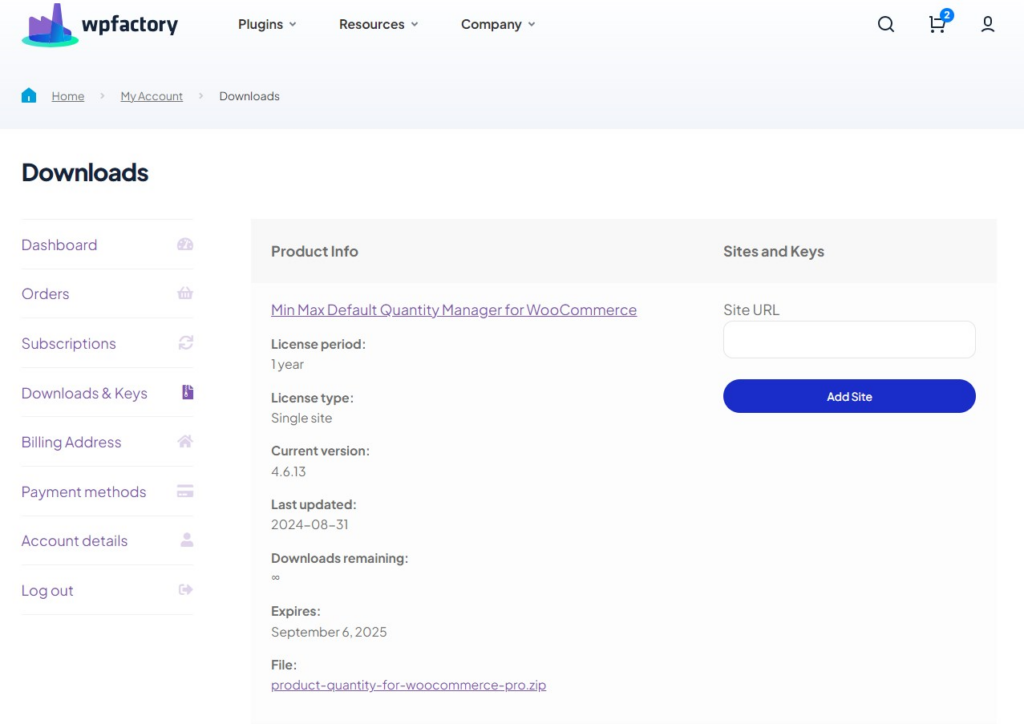
- Pro: download Popups for WooCommerce: Add to Cart, Checkout & More Pro from your WPFactory account, upload it under Plugins > Add New > Upload Plugin and activate it. The Pro ZIP includes all free features. WooCommerce must be active.
First setup #
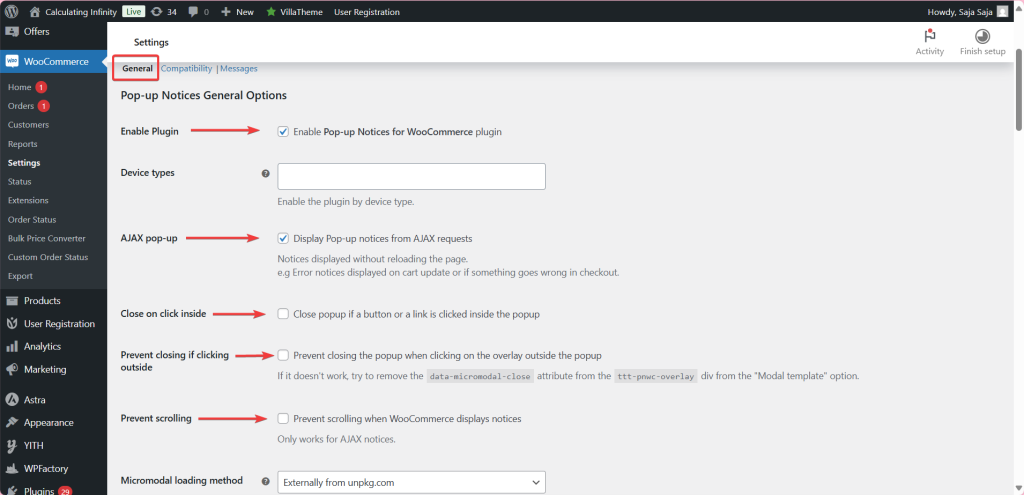
- Go to WPFactory > Popups. On the General section, confirm Enable Plugin is ticked (on by default).
- Under Notice types, keep Enable error notices, Enable success notices and Enable info notices on (all on by default), or untick the types you do not want as popups.
- Under Notice hiding, tick Hide error notices, Hide success notices and Hide info notices for the same types, so the inline WooCommerce notice does not appear as well (all off by default). Save changes.
- Add a product to the cart from a single product page. The “added to your cart” message opens in a popup.
- To get a popup when shoppers add to cart from shop or category pages (AJAX add to cart), enable the Pro AJAX add to cart notice option described below.
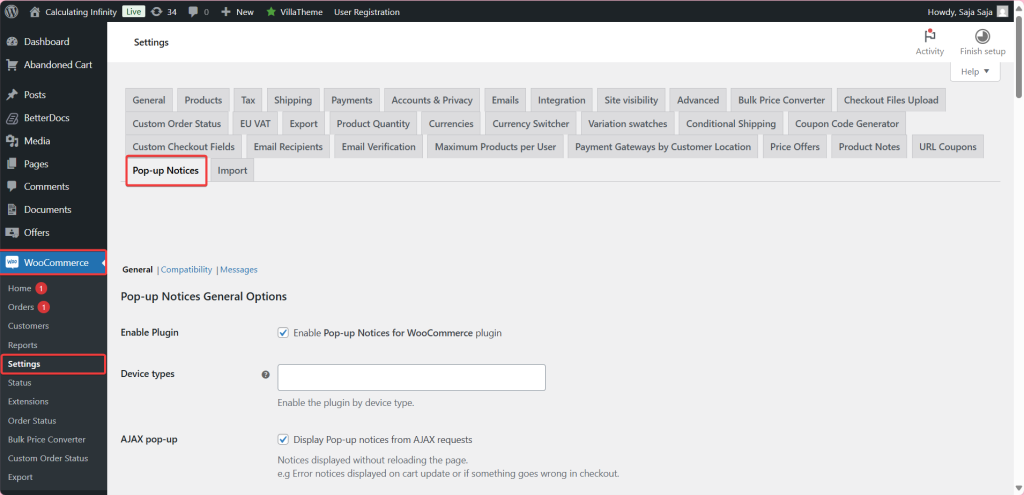
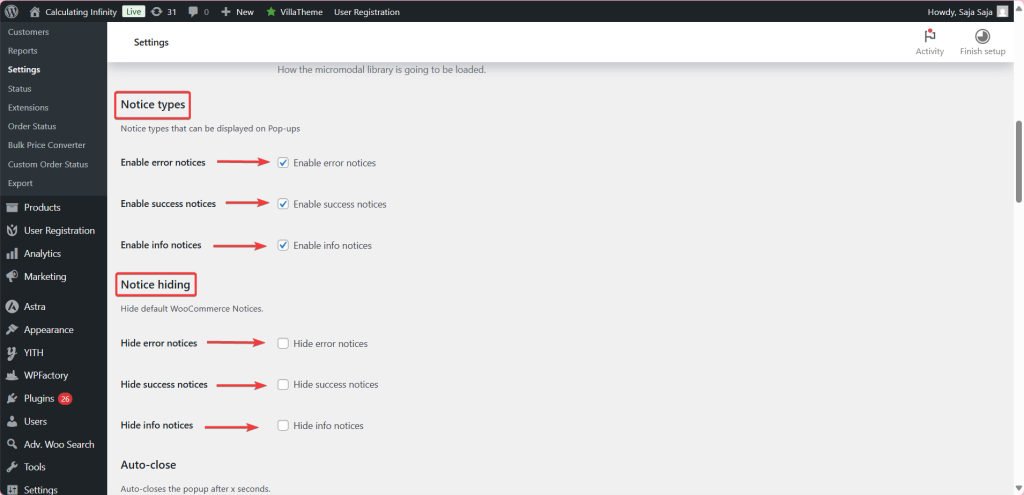
More on these options: Pop-up Notices general options and removing default WooCommerce notices to avoid duplicates.
Main features #
General options (free, except Prevent scrolling) #
Device types limits popups to mobile or desktop (empty means all devices). AJAX pop-up (on by default) shows notices from AJAX requests. Close on click inside and Prevent closing if clicking outside control how the popup closes, and Micromodal loading method loads the popup library externally from unpkg.com (default), externally from jsdelivr.com, or locally. Prevent scrolling is Pro. See the Popup Notices settings reference.
AJAX add to cart notice (Pro) #
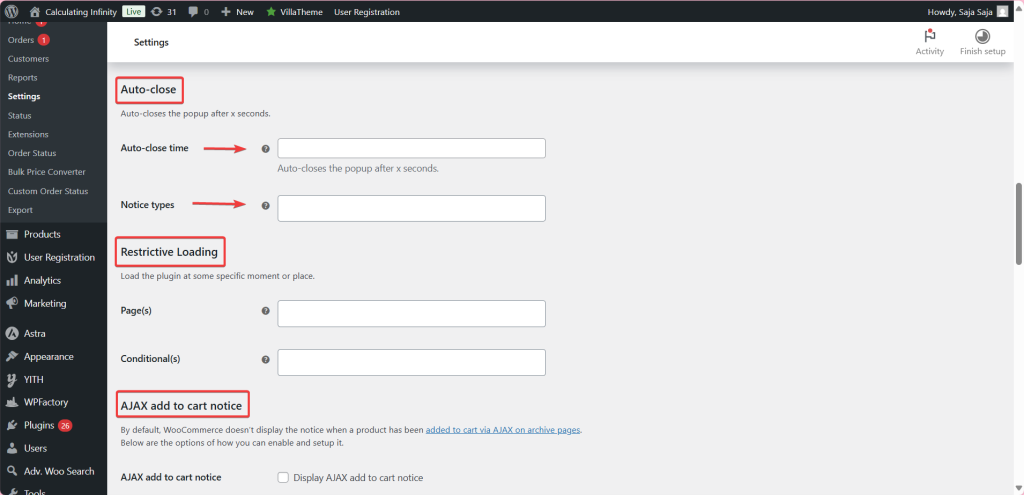
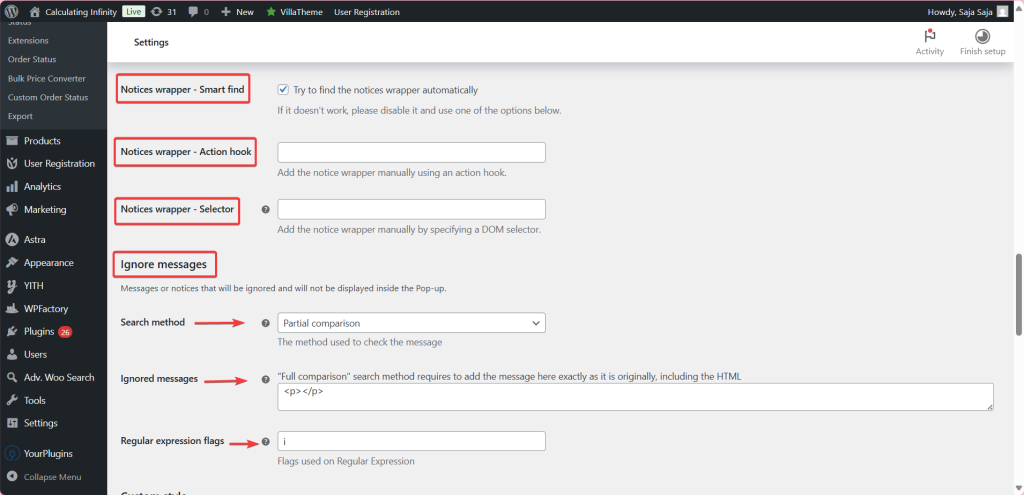
WooCommerce shows no notice when a product is added from a shop or archive page via AJAX. Enable AJAX add to cart notice to show one as a popup. Notices wrapper – Smart find (on by default) tries to place it automatically; if that fails, set Notices wrapper – Action hook or Notices wrapper – Selector. See add to cart popup on shop and archive pages.
Auto-close and Restrictive Loading (Pro) #
Auto-close time closes the popup after a number of seconds, for the notice types you choose. Restrictive Loading loads the plugin only on chosen Page(s) or when a Conditional(s) check is true, such as the cart or checkout page. See auto-close popups and load popups only on specific pages.
Ignore messages #
Keep specific notices out of popups. Pick a Search method (Partial comparison by default, Full comparison, or Regular expression) and list the messages. The Regular expression option is Pro; its Regular expression flags field defaults to i, which makes matching case-insensitive. See hide specific notices from popups.
Custom style and modal template #
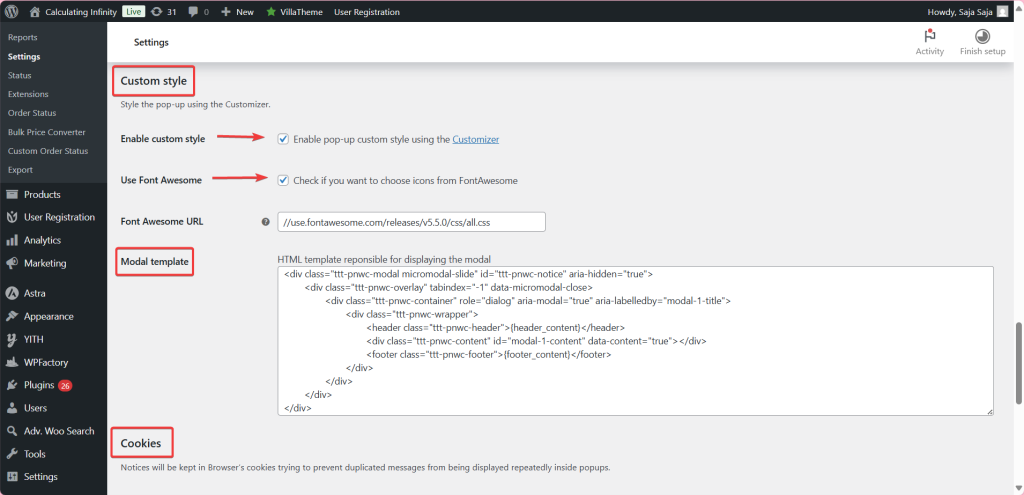
Enable custom style (on by default) links to the WordPress Customizer, where Pro adds popup colors, text size, borders, close button and icon options. Modal template lets a developer edit the popup HTML. See style popups with the Customizer and customize the modal template.
Cookies and audio (Pro) #
Cookies stores shown messages so the same one does not repeat, with an Expiration time in hours (default 0.5) and a Message origin of Static (default), Dynamic or All. Audio plays a sound when a popup opens or closes. See prevent duplicate popups with cookies and play a sound when a popup opens.

Compatibility (Pro) #
The Compatibility section adds options for JetWooBuilder For Elementor and YITH WooCommerce Points and Rewards. Enable Compatibility section first. See Pro compatibility options.

Messages customization (Pro) #
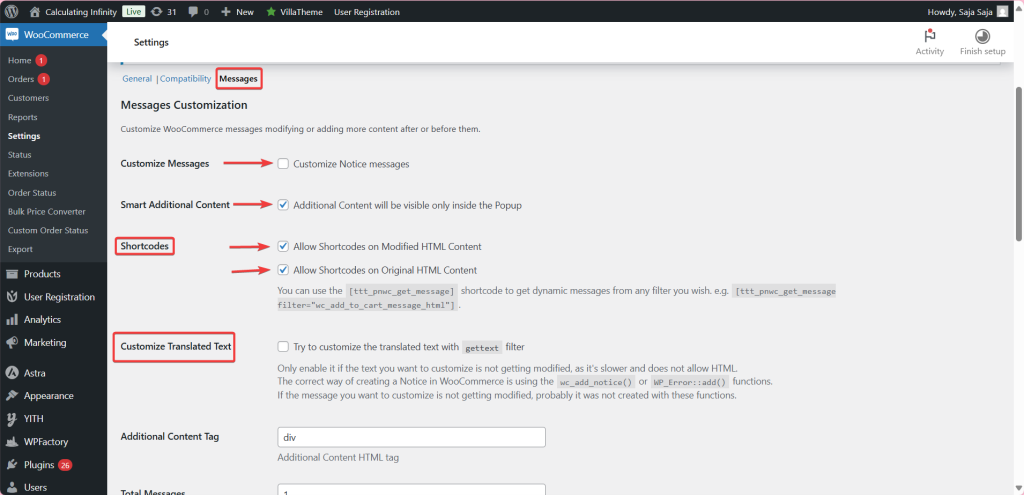
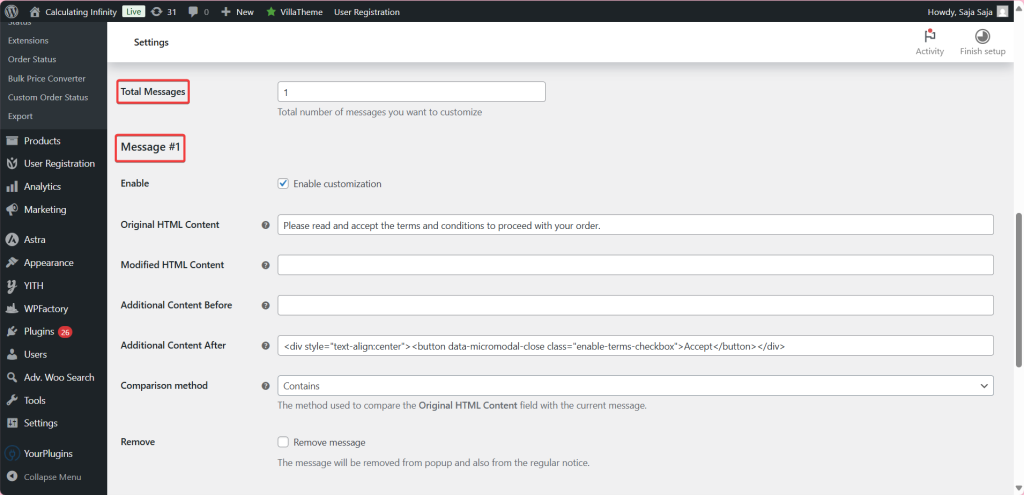
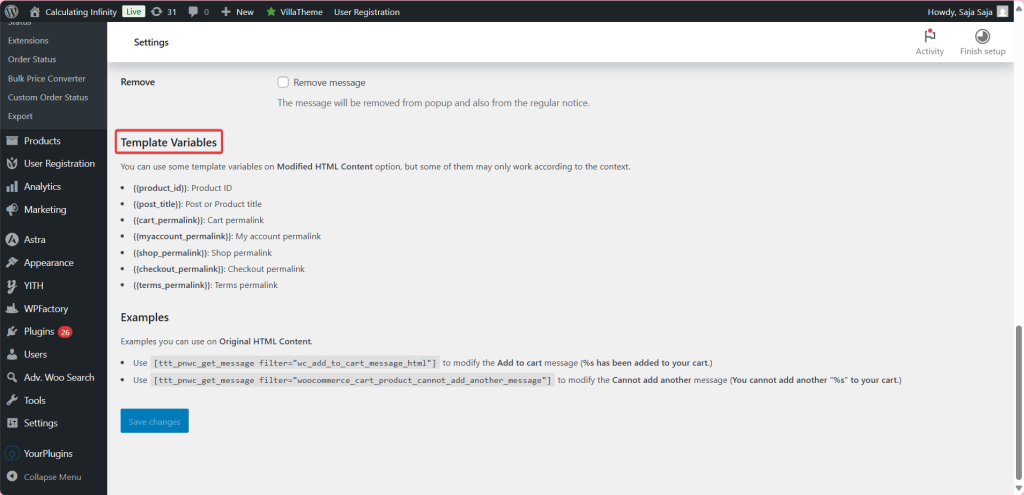
The Messages section rewrites WooCommerce messages, adds content before or after them, and supports template variables and the shortcodes [ttt_pnwc_get_message] and [ttt_pnwc_product_image]. Set Total Messages, then configure each one. See craft pop-up messages, template variables and the shortcodes guide.
Free vs Pro #
| Feature | Free | Pro |
|---|---|---|
| Error, success and info notices as popups, notice hiding | Yes | Yes |
| Device types, AJAX pop-up, close behavior, Micromodal loading method | Yes | Yes |
| Ignore messages (partial and full comparison), modal template | Yes | Yes |
| Prevent scrolling, Regular expression matching | No | Yes |
| AJAX add to cart notice on shop and archive pages | No | Yes |
| Auto-close, Restrictive Loading, Cookies, Audio | No | Yes |
| Customizer styling options | No | Yes |
| Compatibility section and Messages customization with shortcodes | No | Yes |
More detail: Popup Notices free vs Pro.
FAQ #
Why do I see the message twice? #
The popup shows the notice and WooCommerce still shows it inline. Tick the matching Hide … notices options under Notice hiding.
Why is there no popup when I add to cart from the shop page? #
Shop and category pages add to cart by AJAX, where WooCommerce shows no notice. Enable the Pro AJAX add to cart notice option.
Can I stop one specific message from opening a popup? #
Yes. Add it to Ignore messages. Partial comparison matches any part of the text, which is usually enough.
Popups stopped working after a WooCommerce update. What should I check? #
Update Popup Notices to the latest version and clear server, CDN, plugin and browser caches. If the popup library is blocked from loading externally, switch Micromodal loading method to Locally. See popups stop working after a WooCommerce update.
Get more control #
The core popup behavior is free. Popups for WooCommerce: Add to Cart, Checkout & More Pro adds the AJAX add to cart popup, styling, auto-close, restrictive loading, cookies, audio and message customization. See what Pro unlocks.
Need a hand? Our team answers every ticket on the Popup Notices support forum.