Table of Contents
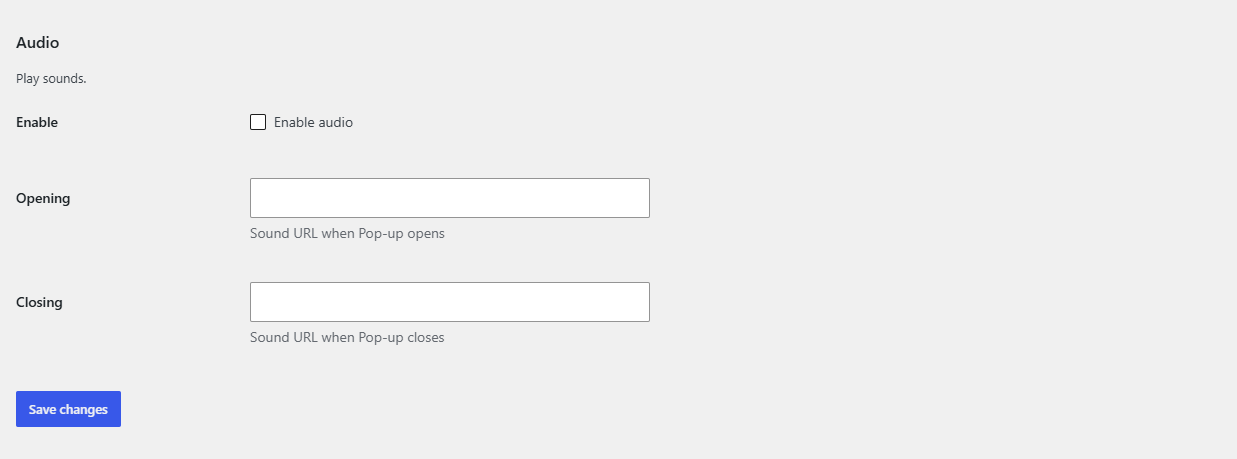
To play a sound when a pop-up opens in Popups for WooCommerce: Add to Cart, Checkout & More Pro, go to WPFactory > Popups, open the Audio group in the General section, tick Enable, and paste a sound URL into Opening (and optionally Closing). Save changes and trigger a pop-up to test. This is a Pro feature.
Before you start #
- WooCommerce, active.
- Popups for WooCommerce: Add to Cart, Checkout & More Pro.
- A hosted sound file URL for opening, and optionally one for closing (for example an MP3 in your media library).
Step-by-step #
- Go to WPFactory > Popups (also reachable at WooCommerce > Settings > Pop-up Notices).
- In the General section, open the Audio group.
- Tick Enable.
- Paste a sound URL into Opening, and optionally into Closing.
- Save changes and trigger a pop-up to test.
Options reference #
| Setting | Option ID | Default |
|---|---|---|
| Enable audio | ttt_pnwc_opt_audio_enable |
No |
| Opening sound URL | ttt_pnwc_opt_audio_opening |
Empty |
| Closing sound URL | ttt_pnwc_opt_audio_closing |
Empty |
Note: browsers restrict autoplay audio until the visitor has interacted with the page. A sound tied to an add-to-cart click generally plays, while a sound on a pop-up that appears before any interaction may be blocked by the browser.
Ready to set this up? #
Audio is a Pro feature of Popup Notices. Get Popup Notices Pro.