Table of Contents
The modal template is the HTML that builds the pop-up. Editing it lets a developer change the structure, classes, or wrapper markup. Popups for WooCommerce: Add to Cart, Checkout & More exposes the template as an editable field, and this is available in the free version.
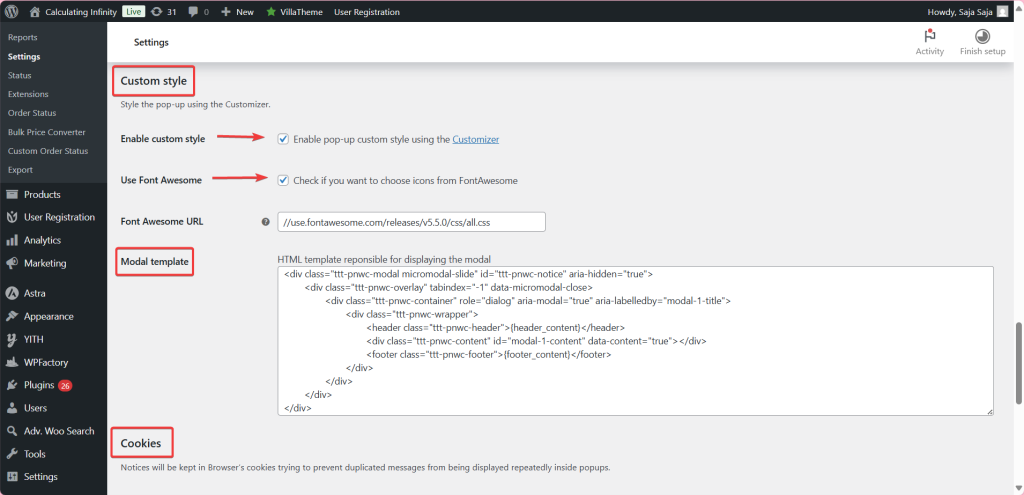
Where to edit it #
Go to WPFactory > Popups (also reachable at WooCommerce > Settings > Pop-up Notices), open the Custom style group, and edit Modal template (ttt_pnwc_opt_modal_template).
The default template #
<div class="ttt-pnwc-modal micromodal-slide" id="ttt-pnwc-notice" aria-hidden="true">
  <div class="ttt-pnwc-overlay" tabindex="-1" data-micromodal-close>
    <div class="ttt-pnwc-container" role="dialog" aria-modal="true" aria-labelledby="modal-1-title">
      <div class="ttt-pnwc-wrapper">
        <header class="ttt-pnwc-header">{header_content}</header>
        <div class="ttt-pnwc-content" id="modal-1-content" data-content="true"></div>
        <footer class="ttt-pnwc-footer">{footer_content}</footer>
      </div>
    </div>
  </div>
</div>
Rules to keep #
- Keep the
{header_content}and{footer_content}placeholders; the plugin swaps in the close button and any footer content there. - Keep the
ttt-pnwc-contentelement withdata-content="true": the notice text is injected into it. - Keep a close control carrying
data-micromodal-close, or customers cannot close the pop-up. - The
data-micromodal-closeattribute on.ttt-pnwc-overlayis what closes the pop-up on an outside click. Enabling Prevent closing if clicking outside removes it automatically, so do not hand-edit that behavior.
Tip: prefer the ttt_pnwc_modal_template, ttt_pnwc_header_content, and ttt_pnwc_footer_content filters for programmatic changes so your edits survive setting resets. See the Developer hooks, filters and shortcodes reference.
Need a hand? #
Our team answers developer questions on the Popup Notices support forum.