To create WooCommerce taxonomy terms in bulk, use the Import Terms screen in WooCommerce Products Import & Export with Excel. You can import product categories (with images and hierarchy), attribute values, variation swatch data, and brand terms, all from a single Excel file. This is separate from importing products: you build the terms first, then assign them to products later.
Open the Import Terms screen #
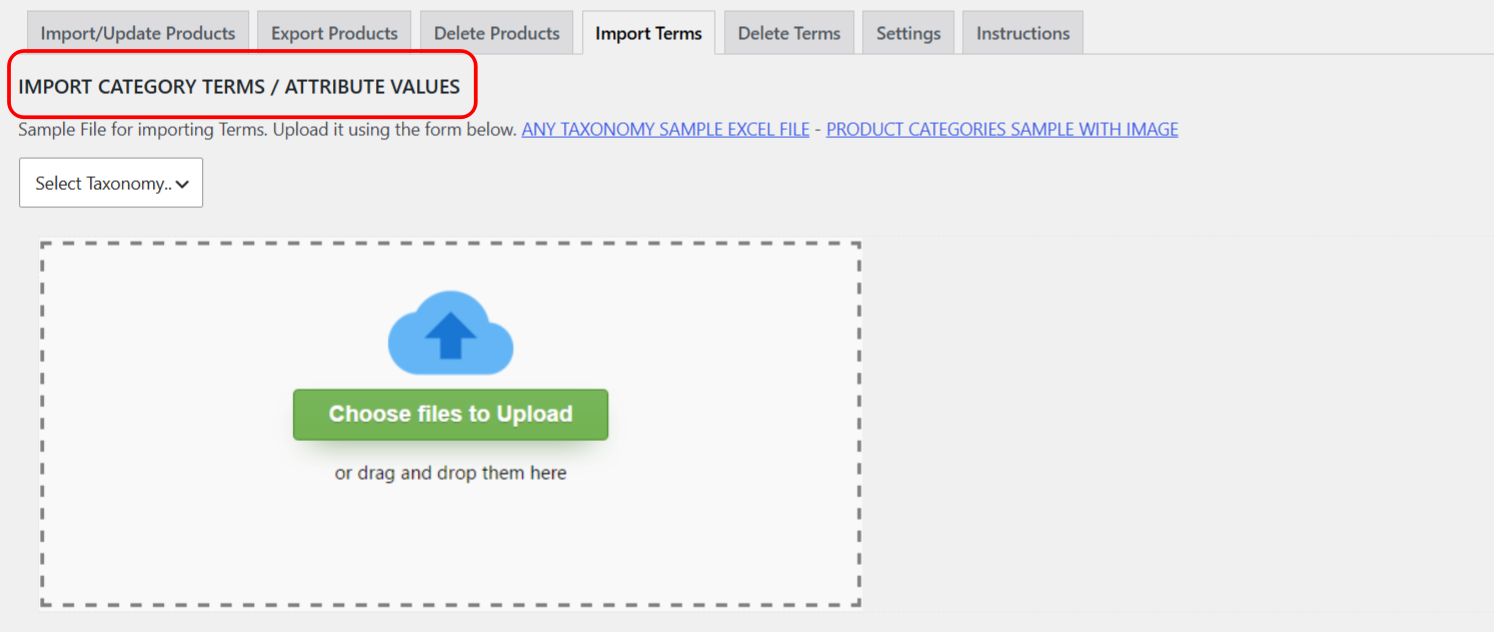
Go to WPFactory > Product Import/Export > Import Terms. Select the taxonomy you want to import into from the Select Taxonomy dropdown, for example product_cat for categories or a product attribute taxonomy.
Build the Excel file #
Each row is one term. The plugin reads these columns in order:
| Column | Meaning |
|---|---|
| A | Term name. |
| B | Description. |
| C | Slug (optional; generated from the name if blank). |
| D | Parent term name, to build a hierarchy. |
| E | Image (for product_cat, the category image; for supported swatch and brand taxonomies, the swatch value or brand image). |
| F | Swatch tooltip or brand banner (for supported plugins). |
| G | Brand banner link (for supported brand plugins). |
Sample files are linked at the top of the screen: ANY TAXONOMY SAMPLE EXCEL FILE and PRODUCT CATEGORIES SAMPLE WITH IMAGE. Additional sample files appear automatically when a supported swatch or brand plugin is active.
Import category terms with images #
- Select
product_catas the taxonomy. - List each category in column A, an optional description in B, an optional slug in C, and a parent category name in D for subcategories.
- Put an image name or URL in column E to set the category image. Image names must already exist in your Media Library; URLs (including Dropbox public links) are downloaded on import.
- Click Import Terms.
Import attribute values and swatches #
Select a product attribute taxonomy to import its values. When a supported variation swatches plugin is active, extra selectors appear so you can import swatch data:
- Swatch type: Color, Image, or Button.
- Image attach method: Upload or Uploaded ID.
Column E then carries the swatch value (a color, an image URL, or an image ID) and column F carries the tooltip.
Import brand terms #
When a supported brands plugin is active, select its brand taxonomy. Column E sets the brand image, column F the brand banner, and column G the brand banner link.
Note: swatch and brand fields are written only when the matching plugin (a supported variation swatches or brands plugin) is active. Category images and basic term data always import.
Delete terms #
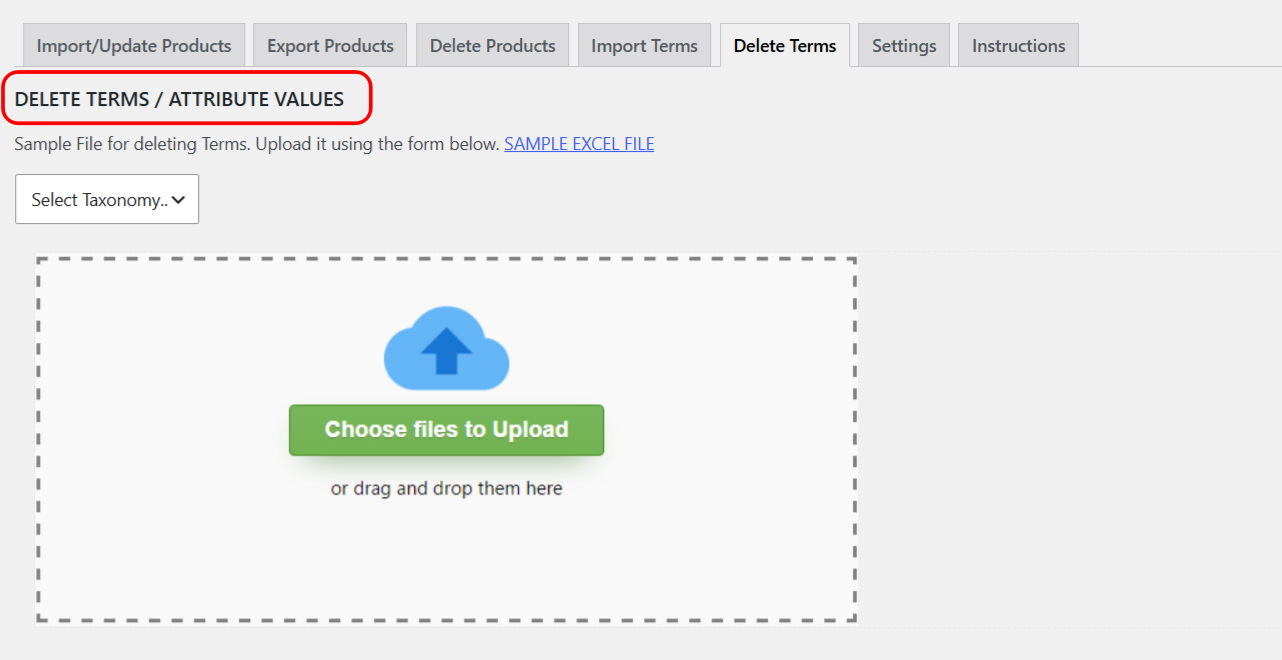
To remove terms in bulk, use WPFactory > Product Import/Export > Delete Terms: select the taxonomy, upload an Excel file listing the terms, and click Delete from Excel.
Get more from Products Import & Export with Excel #
Building your category and attribute structure first makes product imports cleaner. WooCommerce Products Import & Export with Excel handles both terms and products from Excel. See everything it can do.