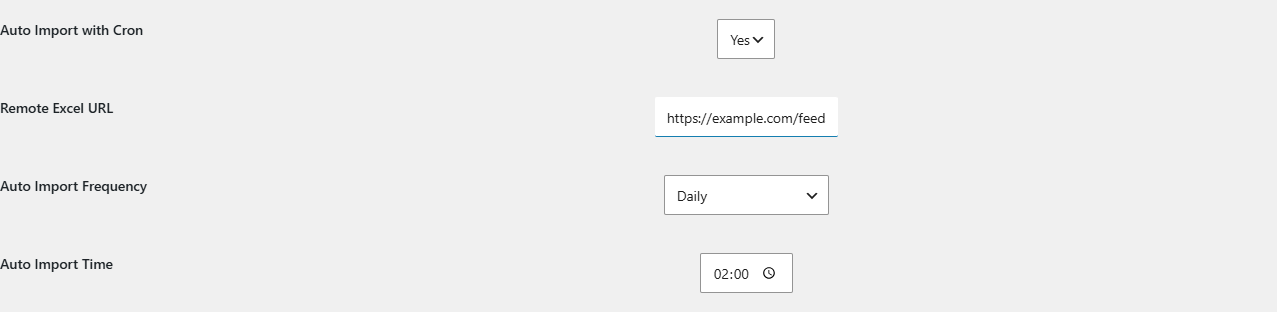
To schedule automatic WooCommerce stock updates, go to WPFactory > Stock Manager > Settings in Products Stock Manager with Excel for WooCommerce. Set Auto Import with Cron to Yes, paste the Remote Excel URL, choose an Auto Import Frequency and Auto Import Time, and save.
Before you start #
- The file must be an .xlsx file that anyone can download from its URL, without logging in. Opening the URL in a private browser window should download the file.
- Your server needs the PHP cURL extension. Without it the import stops with “CURL is not installed!”.
- Scheduled imports use WP-Cron, which runs when your site gets visits. On low-traffic sites, set up a real server cron job that calls
wp-cron.phpso imports run on time. - During the import, a temporary file named
tempfile.xlsxis written to the directory WordPress runs from (usually the site root) and deleted afterwards, so that directory must be writable. - The remote file uses the same columns and the same Update … checkboxes as a manual upload.
How to set up a scheduled stock update #
- Put your stock file online as a direct .xlsx download. For Google Sheets, follow how to update stock from a Google Spreadsheet.
- Go to WPFactory > Stock Manager and click the Settings tab.
- Tick the fields the import may change (Update Stock Number, Update Stock Status, Update Regular Price, Update Sale Price) and set the column letters if your file differs from the default layout.
- Set Auto Import with Cron to Yes.
- Paste the file address into Remote Excel URL.
- Choose an Auto Import Frequency: Once every 1min, 5min, 10min or 30min, Once every 1 hour, 6 hours or 12 hours, Daily, Weekly or Monthly.
- Optionally set Auto Import Time, the time of the first run. Later runs follow the frequency from that point.
- Optionally tick Setting Zero Stock for All Products before Cron Update if the file lists your complete stock.
- Click Save Changes. The schedule is created when you save with a frequency selected.
How the scheduled import runs #
- At each scheduled time, WP-Cron triggers the
updateWithCronevent. - If zero stock before cron is ticked, every product is set to 0 and Out of stock.
- Stock Manager downloads the file from the Remote Excel URL (following redirects), reads the active sheet (the one selected when the file was saved, usually the first) from row 2, and updates each product it matches by ID or SKU.
- The temporary file is deleted.
Unlike a manual upload, a scheduled import applies the stock status column after the stock number, so a status in the file is kept even when the stock is above 0.
Change or stop the schedule #
- To stop imports: set Auto Import with Cron to No and save. The scheduled event is removed. Deactivating the plugin also removes it.
- To change the frequency or time: a new schedule is only created when none exists. Set Auto Import with Cron to No and save, then set your new frequency and time, switch back to Yes and save again.
FAQ #
Which time zone does Auto Import Time use? #
The time is converted with the server’s PHP time zone, which WordPress sets to UTC. Enter the time in UTC. For example, for a 06:00 run in New York during winter (UTC-5), enter 11:00.
Can I use a Dropbox or OneDrive link? #
Yes, if the link downloads the .xlsx file directly without a login or preview page. Test it in a private browser window first.
How do I run the import right away to test it? #
Use a cron management plugin to run the updateWithCron event now, or, with WP-CLI, run wp cron event run updateWithCron. Then check a few products.
Do I see a report of what the cron import changed? #
No. Scheduled imports run in the background without a results screen. Check the products or the stock report after a run.
Ready to set this up? #
Scheduled imports are a Pro feature of Stock Manager. If you are still on the free version, upgrading takes a couple of minutes and unlocks this along with the rest of the Pro toolkit. Get Stock Manager Pro.
Need a hand? Our team answers every ticket on the Stock Manager support forum.