To show a related products popup in WooCommerce, open WPFactory > Upsell, Cross-sell & Related Products Popup Pro > General in WooCommerce Sales Bump: Upsell, Cross-sell & Related Products Popup. Set What to show to Related products for shop pages, and keep Show related if upsells are not set on Yes for product pages without upsells.
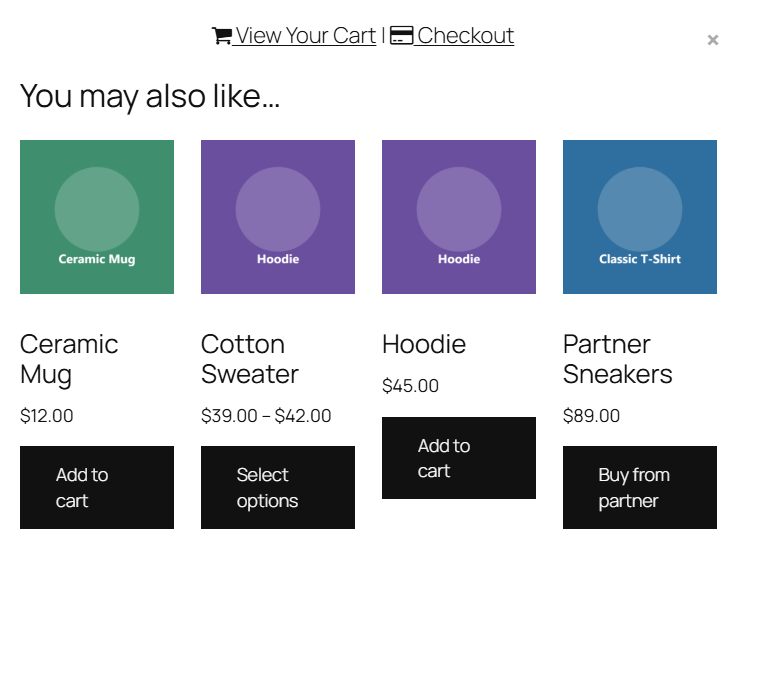
Where related products come from #
Related products need no setup per product. WooCommerce picks them from products that share a category or tag with the product the shopper added, and the added product itself is never listed. You cannot hand-pick related products; use upsells or cross-sells when you need a fixed list.
Show a related products popup on shop pages #
- Go to WPFactory > Upsell, Cross-sell & Related Products Popup Pro > General.
- Under Archive/Shop Page Options, set Show popup to Yes.
- Set What to show to Related products.
- Set Limit to cap how many related products appear (0 shows all), and Columns for the layout.
- Click Save changes and test by clicking Add to cart on a simple product in your shop.
Using a block theme? The shop popup attaches to WooCommerce’s classic product list. On block themes whose shop page uses the Product Collection block (the default in themes such as Twenty Twenty-Five), clicking Add to cart adds the product but no popup opens. To use the popup, go to Appearance > Editor > Templates > Product Catalog and replace the Product Collection block with the WooCommerce Classic Template block, or use a classic theme.
Use related products as a fallback on product pages #
- Go to WPFactory > Upsell, Cross-sell & Related Products Popup Pro > General.
- Under Single Product Page Options, set Show related if upsells are not set to Yes (the default).
- Click Save changes.
- Open a product with no upsells and click Add to cart. The popup shows the Related products section your theme prints on that page.
Products that have upsells still show their upsells on the product page. After the shopper closes the popup, the related products section stays in its usual place on the page.
FAQ #
Can I choose which related products appear? #
No. WooCommerce selects them automatically from shared categories and tags. To control the list, add products as upsells or cross-sells and point the popup at that type.
Why is there no related products popup on my product page? #
Check that Show related if upsells are not set is Yes, that the product has no upsells, and that your theme still prints the Related products section. A product with no shared categories or tags has no related products to show.
Why does no popup open when I add a product from the shop page? #
Check that Show popup under Archive/Shop Page Options is Yes and that you are testing a simple product (variable products go to their product page first). On a block theme, the shop page must use the classic product list; see the note above.
How do I limit the number of related products? #
On shop pages, use Limit. On product pages, the number comes from your theme’s Related products section.
Does the fallback setting change the shop page popup? #
No. Shop pages follow What to show only. The fallback applies to single product pages.
Ready to set this up? #
Sales Bump is a premium plugin, and every option in this article is included with it. Get Sales Bump to turn more add-to-cart clicks into bigger orders.
Need a hand? Our team answers every ticket on the Sales Bump support forum.