To show an upsell popup after add to cart in WooCommerce, add upsell products to each item under Product data > Linked Products, and WooCommerce Sales Bump: Upsell, Cross-sell & Related Products Popup opens them in a popup. Check WPFactory > Upsell, Cross-sell & Related Products Popup Pro > General; upsells are the default everywhere.
Before you start #
- Sales Bump and WooCommerce are active.
- The WooCommerce option Enable AJAX add to cart buttons on archives (WooCommerce > Settings > Products) is on. Sales Bump turns it on when activated; the shop page popup needs it.
Steps #
- Go to Products > All Products and edit the product that should trigger the popup.
- In Product data, open the Linked Products tab.
- In Upsells, search for and select the products to suggest, then click Update.
- Go to WPFactory > Upsell, Cross-sell & Related Products Popup Pro > General.
- Under Single Product Page Options, set Show related if upsells are not set to No if the popup should appear only for products that have upsells. Leave it on Yes to show related products for the rest.
- Under Archive/Shop Page Options, keep Show popup on Yes and What to show on Upsells.
- Optional: set Limit (0 shows all upsells) and Columns (default 4) for the shop page popup.
- Click Save changes, then test on the product page and the shop page.
What the shopper sees #
- The product is added to the cart without a page reload, and the mini cart refreshes.
- On the product page, a View Your Cart link appears under the Add to cart button.
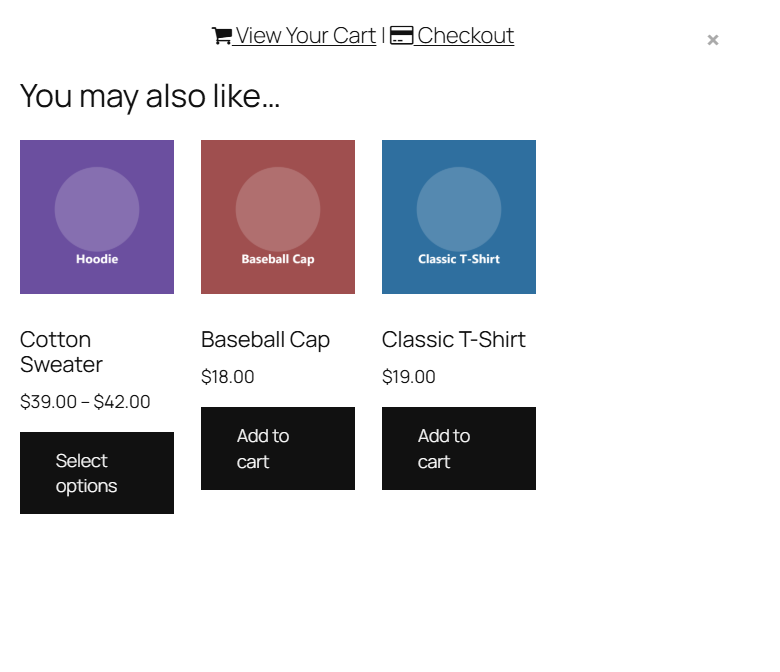
- The popup opens with the upsell products, each with its own Add to cart button, plus View Your Cart and Checkout links at the top.
- The popup closes with the × button, a click outside it, or the Esc key.
Product page and shop page popups differ #
| Single product page | Shop and category pages | |
|---|---|---|
| Products shown | Always the product’s upsells (or related products as a fallback). What to show does not apply here. | Whatever What to show is set to. Upsells by default. |
| Where the popup content comes from | The upsells section your theme already prints on the product page (usually headed “You may also like…”) | Built by Sales Bump with the WooCommerce products shortcode |
| Number and columns | Set by your theme’s upsells section | Limit and Columns |
FAQ #
Why did the “You may also like” section disappear from my product page? #
Sales Bump hides the product page upsells section and shows it only as the popup after Add to cart. If Show popup on mobile is No, the section shows in its normal place on mobile devices.
Does the upsell popup work with variable products? #
On the product page, yes: it opens after the shopper picks the options and clicks Add to cart, and the chosen variation and quantity are added. On shop pages, variable products show Select options instead of Add to cart, so they do not open the popup.
Can each product show different upsells? #
Yes. The popup always uses the upsells saved on the product the shopper added, so every product can have its own list.
What happens if a product has no upsells? #
On the product page it shows related products instead when Show related if upsells are not set is Yes, and no popup when it is No. On shop pages set to Upsells, no popup opens and the product is simply added to the cart.
Tip: to suggest add-ons rather than upgrades on shop pages, see How to Show Cross-sell Products in a Popup in WooCommerce.
Ready to set this up? #
Sales Bump is a premium plugin, and every option in this article is included with it. Get Sales Bump to turn more add-to-cart clicks into bigger orders.
Need a hand? Our team answers every ticket on the Sales Bump support forum.