To control where the popup appears, use Show popup on mobile, Show related if upsells are not set and Show popup in WooCommerce Sales Bump: Upsell, Cross-sell & Related Products Popup at WPFactory > Upsell, Cross-sell & Related Products Popup Pro > General. Together they switch the popup on or off for mobile devices, product pages and shop pages.
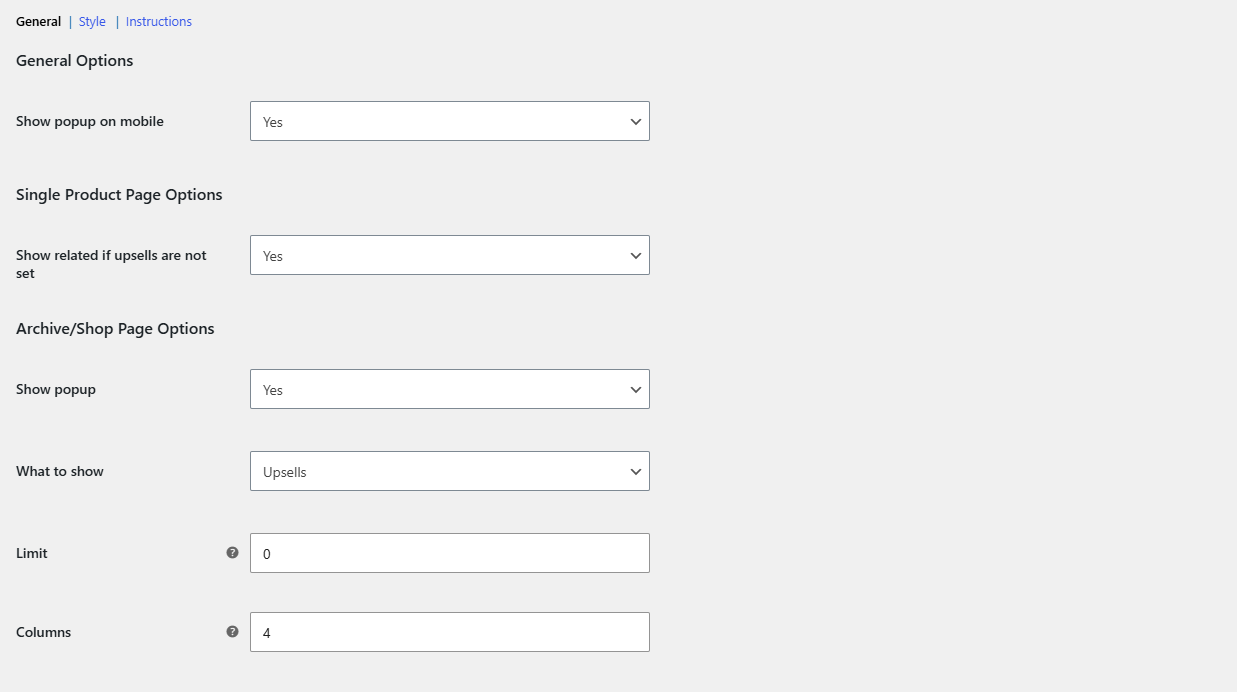
Where the popup can appear #
| Location | Popup? | Controlled by |
|---|---|---|
| Single product page | Yes, after Add to cart, when the product has upsells (or related products with the fallback on) | The product’s upsells and Show related if upsells are not set |
| Shop, product category and tag pages | Yes, after Add to cart on simple products | Show popup and What to show |
| Phones and tablets | Yes by default | Show popup on mobile |
| Checkout, and after an order is placed | No | Not available |
Turn off the popup on shop pages #
- Go to WPFactory > Upsell, Cross-sell & Related Products Popup Pro > General.
- Under Archive/Shop Page Options, set Show popup to No.
- Click Save changes.
Shop page Add to cart buttons go back to the standard WooCommerce behavior. The product page popup is not affected.
Turn off the popup on mobile devices #
- Go to WPFactory > Upsell, Cross-sell & Related Products Popup Pro > General.
- Under General Options, set Show popup on mobile to No.
- Click Save changes.
On devices WordPress detects as mobile, which includes phones and most tablets, Sales Bump loads none of its styles or scripts. Add to cart works the standard WooCommerce way, and the product page upsells section shows in its normal place.
Limit the popup on product pages #
There is no single switch for product pages. The popup opens only when there is something to show, so:
- Set Show related if upsells are not set to No.
- Leave Upsells empty on products that should not open a popup.
Developers can switch the popup off on chosen pages with code, see the Sales Bump Developer Reference.
Places the popup does not reach #
- Product grids on ordinary pages, such as a front page built with a products block or shortcode, may not open the popup.
- Products loaded after the page opens, through infinite scroll, a Load more button or AJAX filters, do not open the popup until the page is reloaded.
- Themes or page builders that replace the standard WooCommerce Add to cart buttons may not open it. See Sales Bump Popup Not Showing: Troubleshooting.
FAQ #
Why does the popup still open on product pages when Show popup is No? #
Show popup only covers shop and category pages. Product pages follow each product’s upsells and the related products fallback.
Does Show popup on mobile also cover tablets? #
It uses the WordPress mobile check, which treats phones and most tablets as mobile. Desktop and laptop browsers still get the popup.
Can I show the popup only for certain categories? #
Not from the settings. Leave upsells empty on products that should not trigger it, or use a code snippet from the developer reference to dequeue the popup scripts on chosen pages.
Can the popup appear on the checkout page? #
No. Sales Bump has no checkout or post-purchase popup.
Ready to set this up? #
Sales Bump is a premium plugin, and every option in this article is included with it. Get Sales Bump to turn more add-to-cart clicks into bigger orders.
Need a hand? Our team answers every ticket on the Sales Bump support forum.