To get started, install WooCommerce Sales Bump: Upsell, Cross-sell & Related Products Popup, activate it, and open WPFactory > Upsell, Cross-sell & Related Products Popup Pro. The default settings already open a popup of linked products when a shopper clicks Add to cart, so your first popup only needs upsell products added to one item.

What Sales Bump does #
Sales Bump raises your Average Order Value (AOV) by showing product suggestions in a popup right after a shopper clicks Add to cart. It can show three kinds of suggestions, all based on WooCommerce data you already have:
- Upsells: higher-priced or premium alternatives, set per product under Product data > Linked Products > Upsells.
- Cross-sells: complementary products, set per product under Product data > Linked Products > Cross-sells.
- Related products: similar products that WooCommerce picks from shared categories and tags.
The popup includes View Your Cart and Checkout links. Shoppers close it with the × button, by clicking outside it, or by pressing Esc.
Before you start #
- WooCommerce must be installed and active. Sales Bump does nothing without it.
- Sales Bump is a premium plugin with no separate free edition to configure. If the older free plugin (
webd-woocommerce-crosell-popup) is still active, activating Sales Bump deactivates it. - On activation, Sales Bump turns on the WooCommerce option Enable AJAX add to cart buttons on archives. Keep it on: the shop page popup relies on it.
Step 1: Install and activate the plugin #
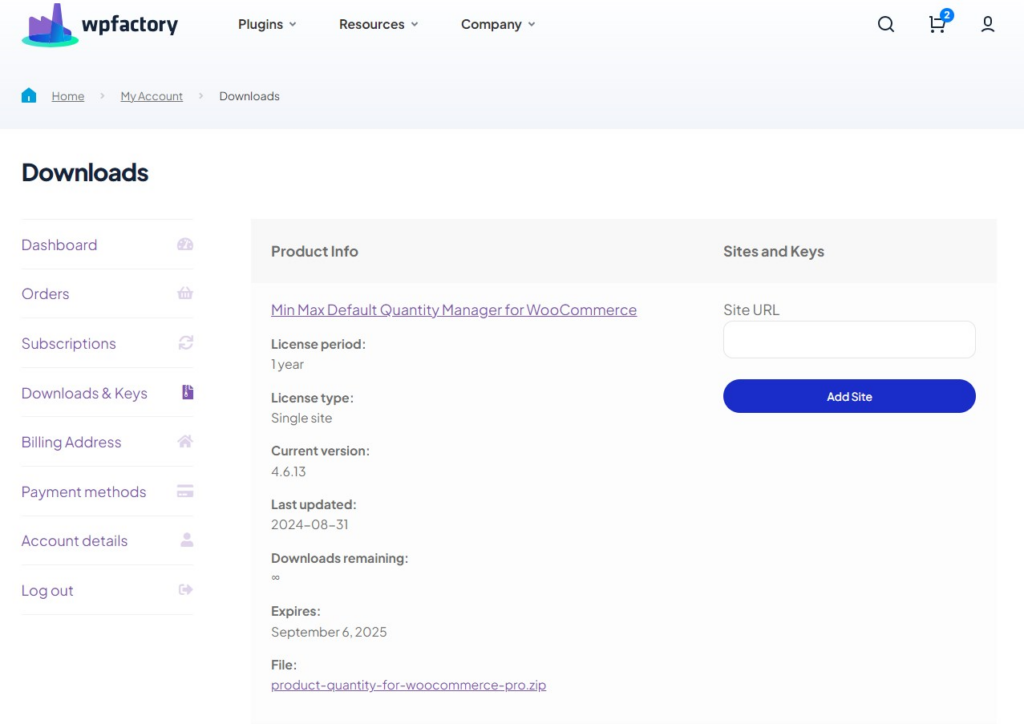
- Download the plugin ZIP file from your WPFactory account.
- In WordPress, go to Plugins > Add New Plugin > Upload Plugin, choose the ZIP file and click Install Now.
- Click Activate Plugin.
Step 2: Open the settings #
Go to WPFactory > Upsell, Cross-sell & Related Products Popup Pro (also reachable from the Settings link under the plugin name on the Plugins page). The settings page has three tabs:
- General: where and when the popup appears, and which products it shows on shop pages.
- Style: popup width, top margin and corner rounding.
- Instructions: a setup video. See Video: Set Up Upsell, Cross-sell and Related Products Popups.

Step 3: Create your first popup #
- Go to Products > All Products and edit a product you sell often.
- In the Product data box, open the Linked Products tab.
- In Upsells, search for and select one or more products you want to suggest.
- Click Update.
- Open the product page on your store and click Add to cart. The product is added without a page reload and the popup opens with your upsells.
- Go to your shop page and click Add to cart on the same product. The popup opens there too, because What to show defaults to Upsells.
Step 4: Review the General options #
The General tab groups its options into three sections:
- General Options > Show popup on mobile: choose No to keep the popup off phones and tablets. Default: Yes.
- Single Product Page Options > Show related if upsells are not set: when a product has no upsells, show its related products in the popup instead. Default: Yes.
- Archive/Shop Page Options > Show popup: turn the popup on or off for shop and category pages. Default: Yes.
- Archive/Shop Page Options > What to show: Upsells, Cross-sells or Related products on shop and category pages. Default: Upsells.
- Archive/Shop Page Options > Limit and Columns: how many products the shop page popup shows (0 means all) and in how many columns (default 4).

Every option, with its default and option ID, is listed in the Sales Bump Settings Reference.
Step 5: Adjust the style #
On the Style tab you can match the popup to your store:
- Popup window width: any CSS width, for example
600pxor50%. Leave it empty to keep the default of 80% (90% on small screens). - Popup margin top: moves the popup layer down from the top of the browser window, for example
80px. - Border radius: rounds the popup corners. The greater the value, the more rounded the corners, for example
12px.

More design and text options are covered in How to Customize the Sales Bump Popup Design and Texts.
What triggers the popup #
| Page | Trigger | Products shown |
|---|---|---|
| Single product page | The Add to cart button (for variable products, after the shopper picks the options) | The product’s upsells, or its related products when it has no upsells and Show related if upsells are not set is Yes |
| Shop, product category and other WooCommerce archive pages | The Add to cart button on simple products (variable products show Select options and do not trigger it) | Upsells, cross-sells or related products of the clicked product, as chosen in What to show |
The popup only opens when there is something to show. A product with no linked products of the chosen type is added to the cart normally, with no popup. Sales Bump has no popup of its own on the cart or checkout page, and nothing is shown after an order is placed.
FAQ #
Is there a free version of Sales Bump? #
No. Sales Bump is sold as a single premium plugin and none of its options are locked. The older free plugin is no longer offered, and activating Sales Bump deactivates it if it is still installed.
Where did the plugin tab in WooCommerce settings go? #
Since version 3.0.0 the settings live under WPFactory > Upsell, Cross-sell & Related Products Popup Pro. The old WooCommerce settings tab is hidden, but the Settings link on the Plugins page still opens the same screen.
Why did no popup open after I clicked Add to cart? #
The product most likely has no products of the type the popup is set to show. Add upsells or cross-sells under Linked Products, or see Sales Bump Popup Not Showing: Troubleshooting.
Does the popup work on mobile? #
Yes, by default. Set Show popup on mobile to No if you prefer the standard WooCommerce add to cart behavior on phones and tablets.
Next steps #
- How to Show an Upsell Popup After Add to Cart in WooCommerce
- How to Show Cross-sell Products in a Popup in WooCommerce
- How to Show a Related Products Popup in WooCommerce
- How to Choose Which Products Appear in the Sales Bump Popup
- How to Control Where the Sales Bump Popup Appears
Ready to set this up? #
Sales Bump is a premium plugin, and every option in this article is included with it. Get Sales Bump to turn more add-to-cart clicks into bigger orders.
Need a hand? Our team answers every ticket on the Sales Bump support forum.