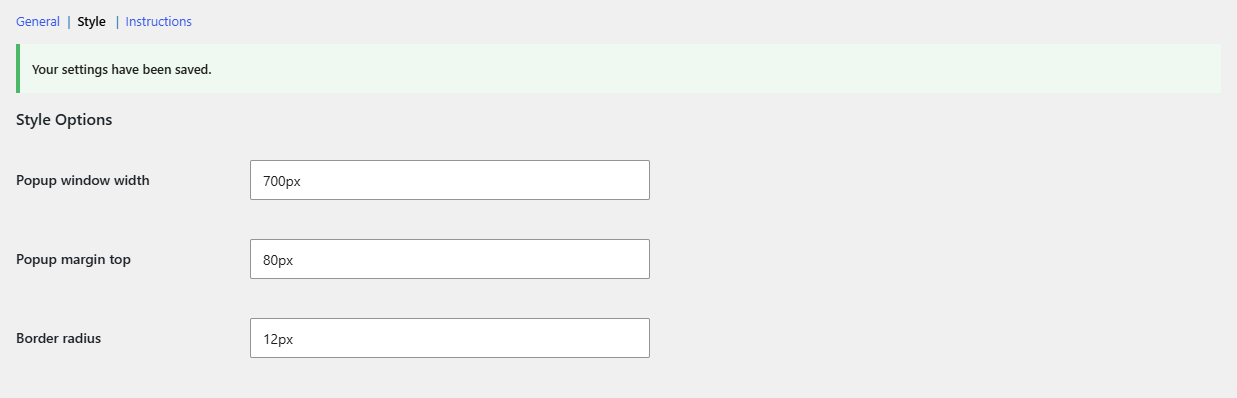
To customize the popup design, open WPFactory > Upsell, Cross-sell & Related Products Popup Pro > Style in WooCommerce Sales Bump: Upsell, Cross-sell & Related Products Popup and set Popup window width, Popup margin top and Border radius. Popup texts such as View Your Cart and Checkout change through translation, and the heading through a WooCommerce filter.
Steps #
- Go to WPFactory > Upsell, Cross-sell & Related Products Popup Pro and open the Style tab.
- In Popup window width, enter a CSS width such as
700pxor60%. - In Popup margin top, enter a value such as
80pxto move the popup layer down, for example below a sticky header. - In Border radius, enter a value such as
12pxto round the corners. - Click Save changes, clear any page cache, and open the popup on your store to check the result.
Style options #
| Label | Option ID | Default | What it changes |
|---|---|---|---|
| Popup window width | WebdWoocommerceCrosellPopupPropopupWidth |
Empty (80% wide, 90% on screens up to 767px) | Width of the white popup box. A value you enter applies on all screen sizes. |
| Popup margin top | WebdWoocommerceCrosellPopupPropopupMarginTop |
Empty | Moves the whole popup layer, including the dark backdrop, down from the top of the window. The box already sits 100px below the top of that layer. |
| Border radius | WebdWoocommerceCrosellPopupProborderRadius |
Empty (square corners) | Rounds the corners of the popup box. |
To undo your changes, tick Reset section settings at the bottom of the Style tab and click Save changes.
Change the popup texts #
| Text | Where it appears | How to change it |
|---|---|---|
| You may also like… | Heading of the shop page popup. On product pages the heading comes from your theme’s upsells section (or “Related products” for the fallback). | The WooCommerce filter woocommerce_product_upsells_products_heading, or translate the woocommerce text domain |
| View Your Cart | Link at the top of the popup and under the product page Add to cart button | Translate the wpfactory-wc-ucr-pro text domain |
| Checkout | Link at the top of the popup | Translate the woocommerce text domain |
A translation plugin such as Loco Translate lets you change these strings without code, even for an English store. A heading filter example is in the Sales Bump Developer Reference.
Go further with custom CSS #
Colors, shadows and spacing have no settings, but the popup uses stable CSS classes. Add rules like these in your theme’s Additional CSS area:
/* Darker backdrop */
.woocommerce .up-sells {
  background-color: rgba(0, 0, 0, 0.6);
}
/* Popup box: shadow and extra padding */
.woocommerce .up-sells .wrapper {
  box-shadow: 0 10px 30px rgba(0, 0, 0, 0.25);
  padding: 32px !important;
}
/* Close button color */
.woocommerce .up-sells .close {
  color: #333333;
}
Sales Bump sets the box margin and padding with !important, so padding overrides need !important too.
FAQ #
Can I change the popup colors from the settings? #
No. The Style tab covers width, top margin and border radius. Use the CSS classes above for colors and shadows.
Does my width setting apply on phones? #
Yes. A width you enter replaces both the 80% desktop default and the 90% small screen default, so percentage values usually work best on mobile.
Why don’t my style changes show on the store? #
Sales Bump prints the style rules in the page footer, so a cached page keeps the old look. Clear your page cache and browser cache after saving.
Can I change the cart and checkout icons? #
The icons are Font Awesome 4 icons loaded by Sales Bump (fa-shopping-cart and fa-credit-card). You can restyle or hide them with CSS on .woocommerce .up-sells .links .fa.
Ready to set this up? #
Sales Bump is a premium plugin, and every option in this article is included with it. Get Sales Bump to turn more add-to-cart clicks into bigger orders.
Need a hand? Our team answers every ticket on the Sales Bump support forum.