To reply to WooCommerce reviews from the product page, log in with a role allowed at WooCommerce > Settings > Review replies > General, open the product’s Reviews tab and click Reply under a review. Easy Replies to WooCommerce Reviews adds that link and turns the review form into a reply form.
Before you start #
- Easy Replies installed and active, with General > Enable plugin on (the default).
- Your user must be allowed to reply: an administrator by default, or the product’s author. See how to let vendors or shop managers reply to allow more roles.
- Reviews must be open on the product.
Reply with the standard review form #
- Log in and open the product page.
- Go to the Reviews tab and find the review.
- Click Reply under the review text.
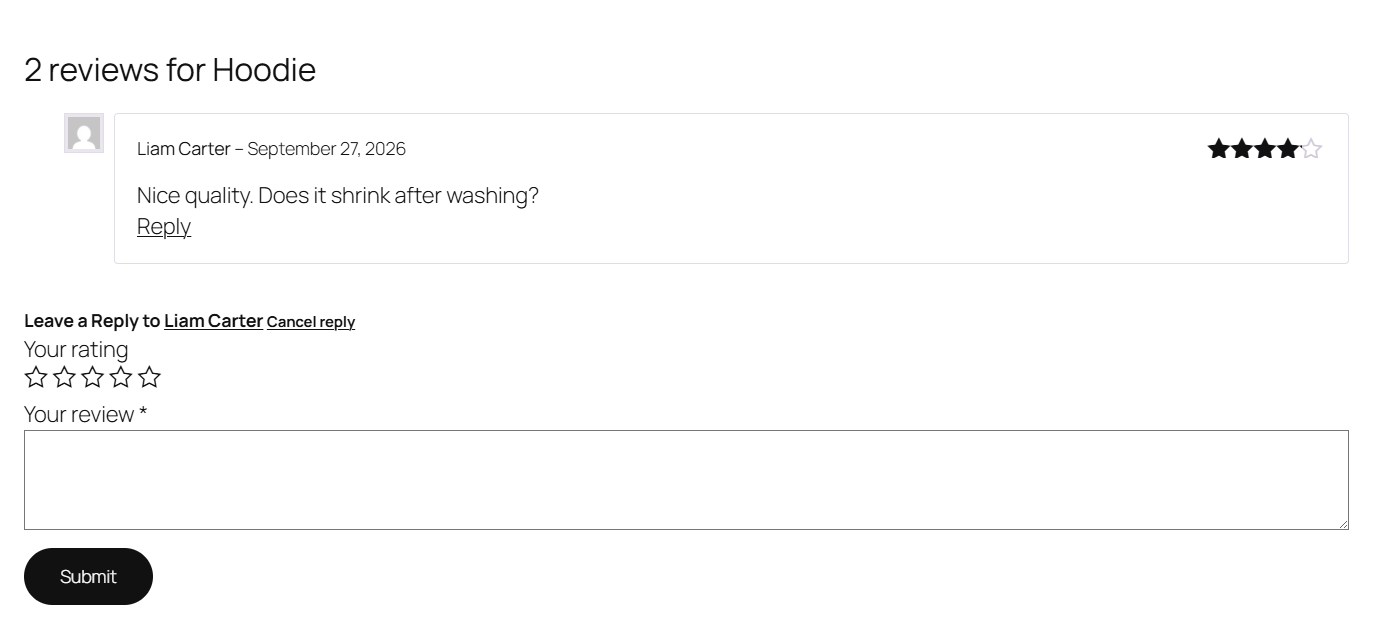
- The review form switches to reply mode, titled “Leave a Reply to” followed by the reviewer’s name. On most classic themes it moves under that review. On block themes such as Twenty Twenty-Five it stays at the bottom of the Reviews tab, but your reply is still attached to that review. By default the star rating field is hidden, and you do not need to choose a rating.
- Type your reply and submit.
The reply is saved as a WordPress comment linked to the review, so it appears nested under it. Whether it is published immediately or held for approval depends on Settings > Discussion.
Reply with a pop-up form #
If the standard form does not move under the review on your theme, or you simply prefer a pop-up:
- Go to WooCommerce > Settings > Review replies > General.
- Tick Reply using popup and click Save changes.
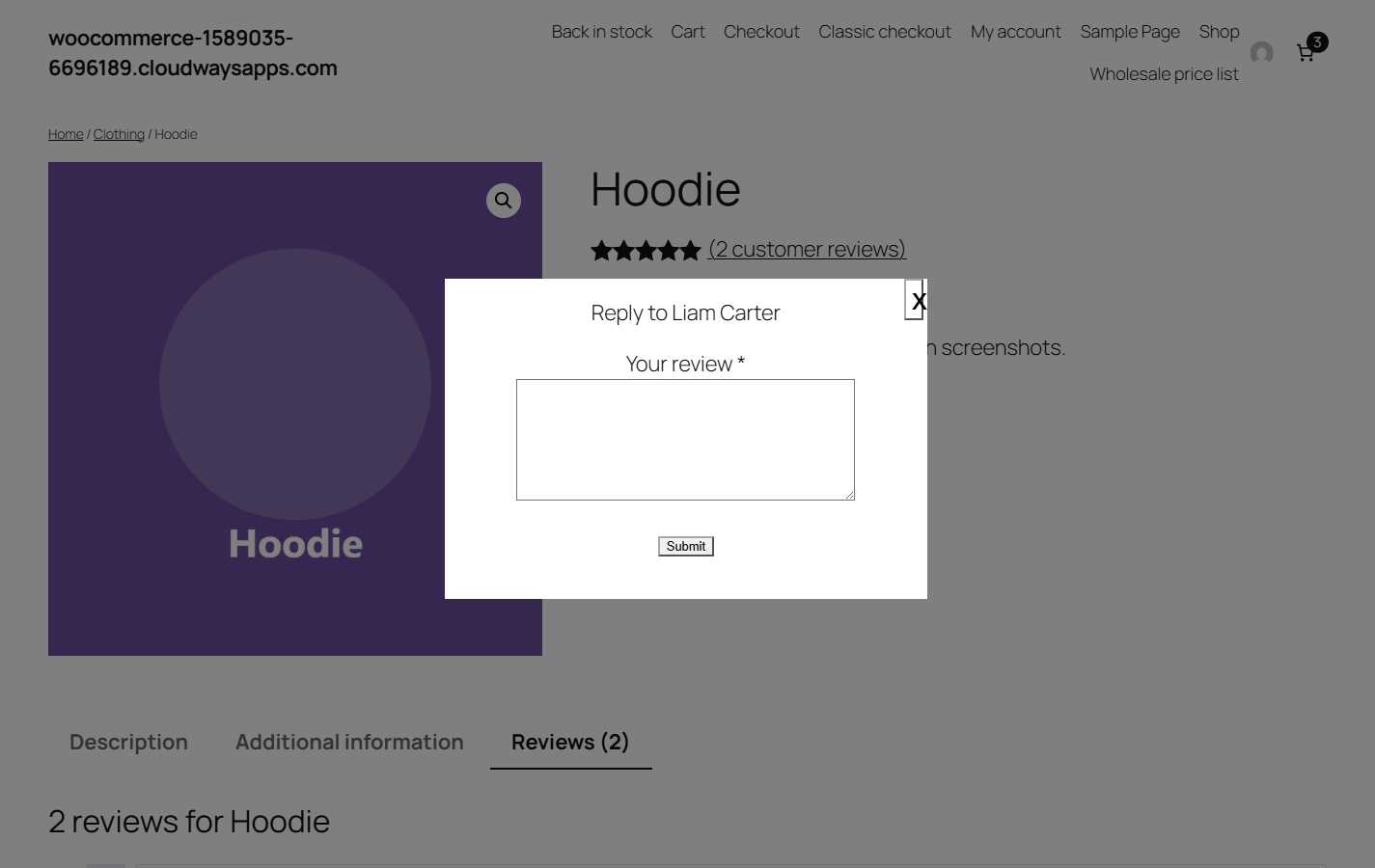
- On the product page, click Reply under a review. A pop-up opens with the title “Reply to” followed by the reviewer’s name.
- Type your reply and click Submit. On success the page reloads and your reply is shown.
Replies sent from the pop-up are published straight away (they skip moderation) and use your account’s display name and email as the author. Submitting an empty reply shows “Empty comment !” and nothing is saved.
Change the “Your review” label while replying #
The review form’s comment field is labeled “Your review”, which reads oddly on a reply. In General > Comment field label:
- Set Label action to Change text and enter your wording in Label text (default “Your reply”). The label switches while you are replying and switches back when you cancel. Or choose Hide to hide the label for users allowed to reply.
- Leave Label selector at
.comment-form-comment labelunless your theme uses different markup. - Click Save changes.
These label options apply to the standard form. The pop-up form keeps its own fixed label.
Keep replies out of your ratings #
In General > Rating, three options work together and are all on by default:
- Rating requirement: users allowed to reply do not have to pick a star rating. If your theme still forces one, also tick Force rating requirement removal.
- Rating meta: no rating is saved on replies, so they never affect the product’s average rating.
- Hide rating: hides the star rating field on the reply form.
FAQ #
Can customers reply to each other’s reviews? #
Only if you allow their role. By default only administrators and product authors see the Reply link. You can add roles such as Customer, or even Guest, in General > User role.
Will my reply change the product’s star rating? #
No, as long as Rating meta stays on. It stops a rating from being saved on any reply to a review.
Why is my reply waiting for approval? #
Replies through the standard form go through WordPress comment moderation. Approve them in Products > Reviews, adjust Settings > Discussion, or use Reply using popup, which publishes replies immediately.
Where do I edit or delete a reply? #
Replies are stored as reviews in WordPress. Manage them in Products > Reviews like any other review.
Need a hand? Our team answers every ticket on the Easy Replies support forum.