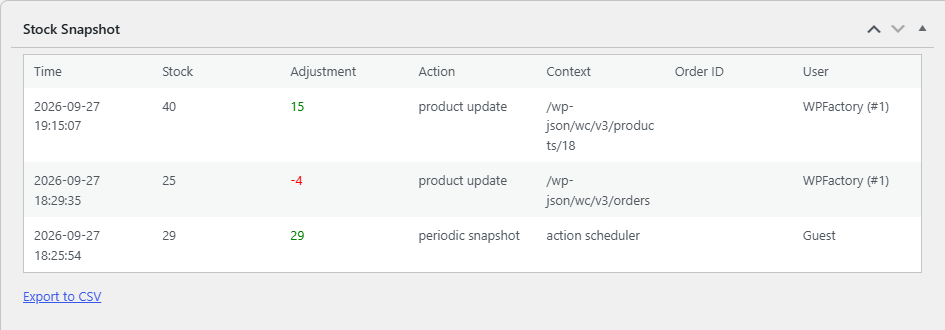
To see WooCommerce stock history for a product, install Stock History & Reports Manager for WooCommerce, open the product in Products > All Products and scroll to the Stock Snapshot box. It lists each stock change with the time, new quantity, adjustment, and what caused it. Options are at WPFactory > Stock Snapshot.
Before you start #
- The product must have Manage stock? enabled on its Inventory tab.
- History starts from the first snapshot. Past changes made before the plugin was active are not available. To give every product a starting point, run Tools > Take snapshot once.
- The product history box and CSV export are free.
Steps #
- Go to Products > All Products and click the product name.
- Scroll to the Stock Snapshot box. With Extra data on (the default), it sits in the main column below the product data. With Extra data off, it is a compact box in the right sidebar.
- Read the rows. The newest change is at the top.
- For a variable product, each variation’s history is listed below the parent’s, under the variation name, when Include variations is on (the default).
- To download the history, click Export to CSV below the table. The file is named
stock-snapshot-product-{ID}.csv.
What the columns mean #
| Column | Meaning |
|---|---|
| Time | When the snapshot was taken, in your site’s time zone. |
| Stock | The stock quantity recorded. |
| Adjustment | The change from the previous row, in green for increases and red for decreases. |
| Action | What triggered the snapshot: product update, product variation update, periodic snapshot, manual snapshot or URL snapshot. |
| Context | Where the change came from when known, for example checkout, order edit, product edit, save variations, save items, refund items or action scheduler. |
| Order ID | The related order, when the change came from checkout or an order screen. |
| User | The user who made the change, shown as name and ID, or Guest for a logged-out customer. |
With Extra data off, the box shows only Time and Stock, and new snapshots no longer store the action, context, order or user.
The box shows the first and latest snapshot plus every snapshot where the quantity changed. Scheduled snapshots with an unchanged quantity are stored but hidden, which keeps the list short.
What the CSV contains #
The export lists every stored snapshot for that product, including unchanged ones. With Extra data on, it has Date, Time, Stock, Action and Context columns. With Extra data off, it has Date, Time and Stock. You need the manage_woocommerce capability (shop managers and administrators) to export.
Frequently asked questions #
Why does the box say “No data yet.”? #
No snapshot exists for the product yet. Update the product, wait for the next scheduled snapshot, or run Tools > Take snapshot. Also check that Manage stock? is enabled for the product.
Can I see which order reduced the stock? #
Yes, when Extra data is on. Changes made at checkout or on an order screen show the order number in the Order ID column.
How do I track total stock for a variable product? #
Turn on Append variations under General > Variable Product Options. The parent product’s snapshots then add up the stock of all its variations.
Can I see the stock history for all products at once? #
Yes. Use the Report section for a list of changes or the History section for a table of levels by date. See How to Create a WooCommerce Stock Change Report and How to See WooCommerce Stock Levels on a Past Date.
Get more from Stock History #
This feature is free. Stock History & Reports Manager for WooCommerce Pro adds stock snapshot emails and scheduled daily report emails. See what Pro unlocks.
Need a hand? Our team answers every ticket on the Stock History support forum.