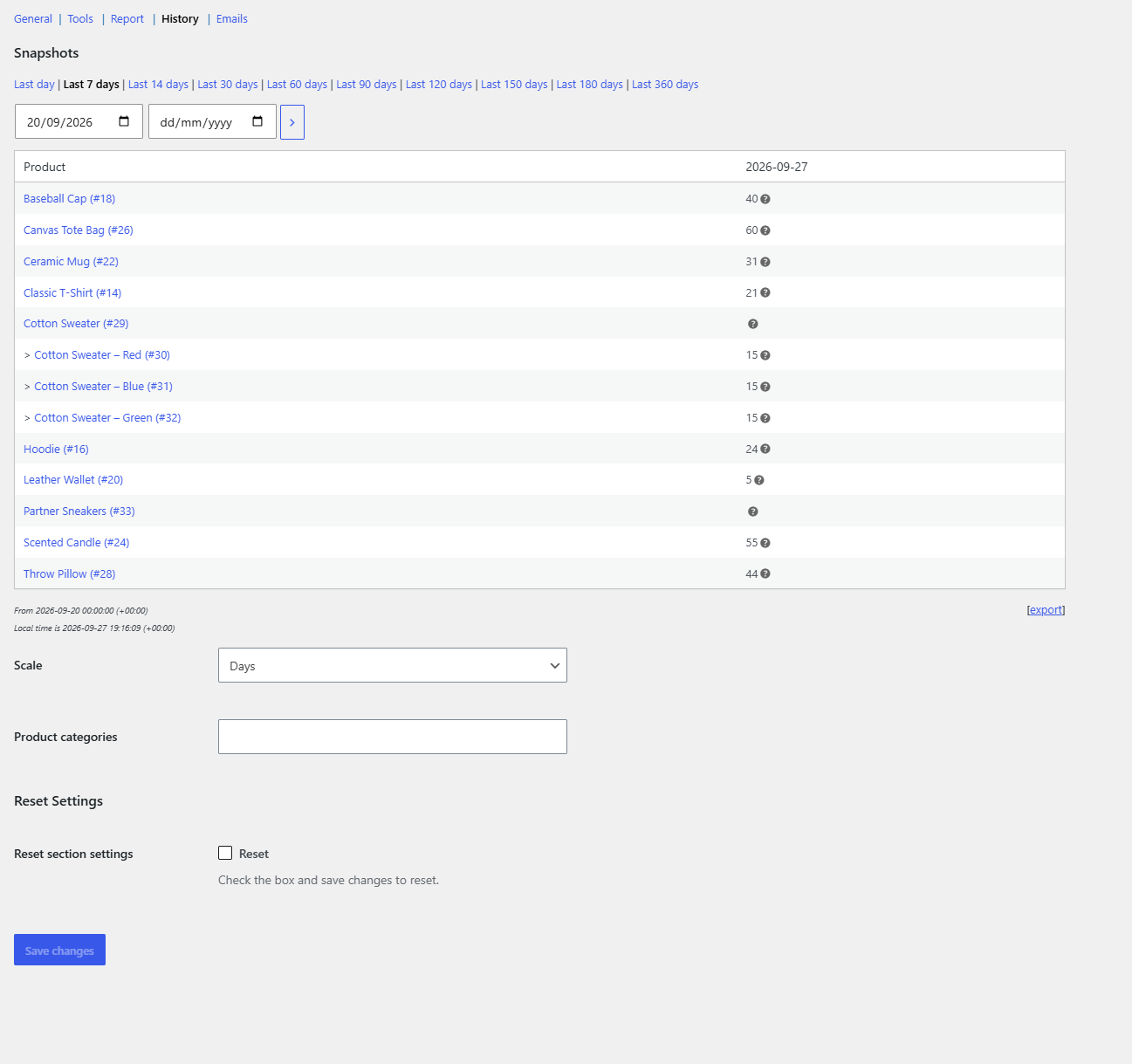
To see WooCommerce stock levels on a past date, go to WPFactory > Stock Snapshot > History in Stock History & Reports Manager for WooCommerce. It shows a table with one row per product and one column per date, filled with the stock recorded then. Pick a range, set the Scale, and export to CSV.
Before you start #
- The table can only show dates on which a snapshot was taken. Keep Periodic snapshots on so every product is recorded at least once a day. See How to Schedule Automatic WooCommerce Stock Snapshots.
- The History section and its CSV export are free.
Steps #
- Go to WPFactory > Stock Snapshot (also reachable at WooCommerce > Settings > Stock Snapshot) and click History. By default it covers the last 7 days.
- Click a preset such as Last 30 days, or enter start and end dates in the date fields and click the arrow button.
- Below the table, choose the Scale: Years, Months, Days (default), Hours, Minutes or Seconds.
- Optional: pick one or more Product categories to limit the rows.
- Click Save changes to apply the Scale and category choices.
- Click [export] to download the table as
stock-snapshot-history.csv.
How to read the table #
- Each row is a product. Variations appear as their own rows, marked with
>, when Include variations is on. Product names link to their edit screens. - Columns are dates at the chosen scale, newest on the left.
- Each cell shows the last stock quantity recorded in that period. With the Days scale, a product updated several times in one day shows its final quantity for that day.
- A dash
-means no snapshot was taken for that product in that period. - Hover the help icon in a cell to see what triggered the snapshot and which user made it (when Extra data is on).
- Only products with Manage stock? enabled have values.
Frequently asked questions #
How do I find the stock on a specific day last month? #
Set the start date to that day and the end date to the next day, keep the Scale on Days, and run it. The single column shows each product’s stock at its last snapshot that day.
Why are some cells empty (a dash)? #
No snapshot exists for that product in that period. Products are only recorded on updates and on scheduled snapshots, so shorten the periodic interval if you need finer detail.
Can I compare month-end stock across the year? #
Yes. Choose Last 360 days and set the Scale to Months. Each month column shows the last quantity recorded that month.
The table is slow to load. What can I do? #
The History table reads every product’s snapshots. Narrow it with Product categories or a shorter range. Results are cached until the next snapshot or settings save.
Get more from Stock History #
This feature is free. Stock History & Reports Manager for WooCommerce Pro adds stock snapshot emails and scheduled daily report emails. See what Pro unlocks.
Need a hand? Our team answers every ticket on the Stock History support forum.