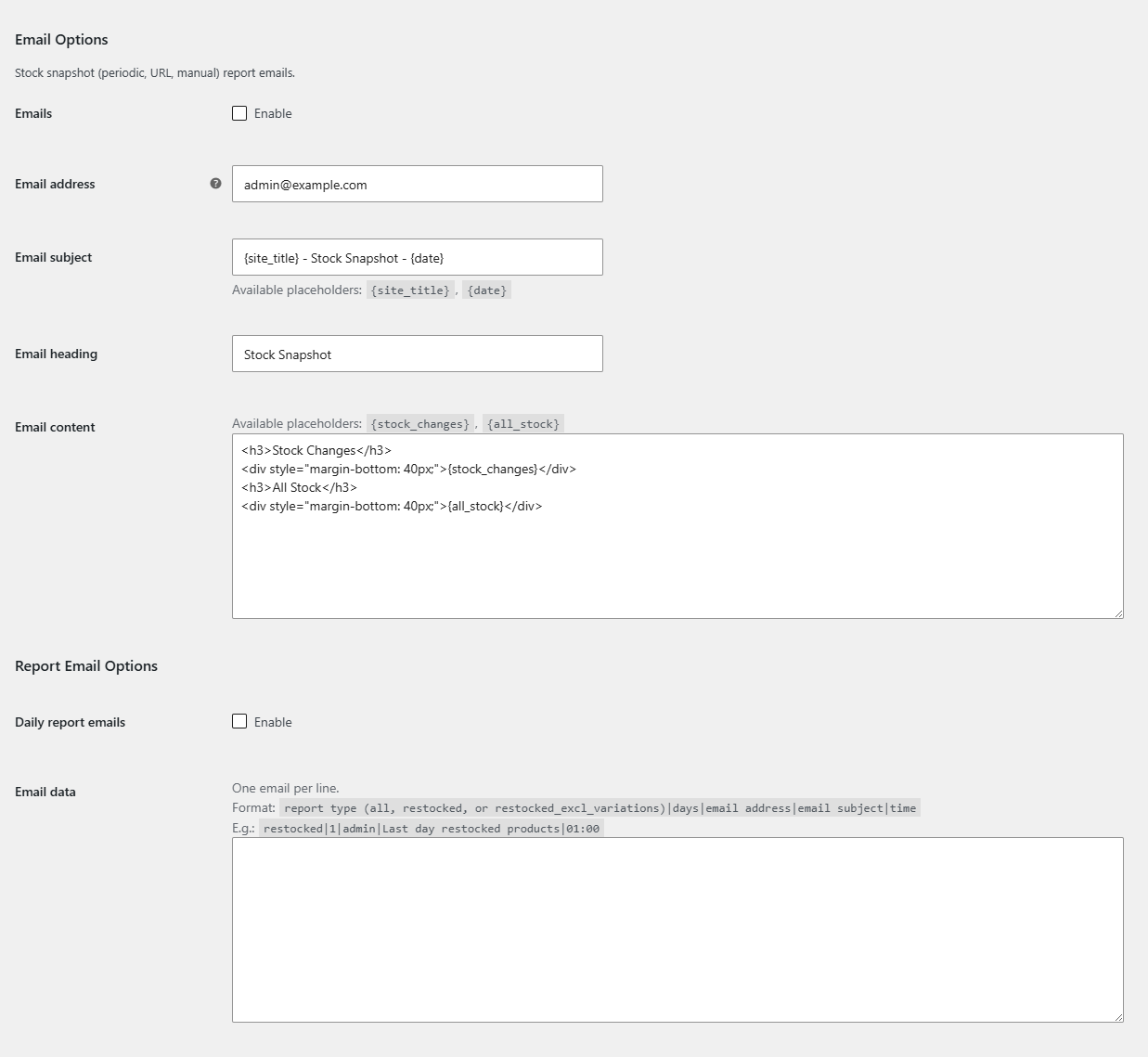
To email WooCommerce stock reports automatically, go to WPFactory > Stock Snapshot > Emails in Stock History & Reports Manager for WooCommerce Pro. Tick Emails to get a stock summary after each snapshot, or tick Daily report emails and add a line such as restocked|1|yo*@*****le.com|Restocked yesterday|08:00.
Before you start #
- This is a Pro feature. In the free version, the Emails and Daily report emails checkboxes are disabled.
- Emails are sent with WooCommerce’s mailer and email template. If other WooCommerce emails do not arrive, fix email delivery first (an SMTP plugin usually helps).
- Both email types rely on scheduled actions, so WP-Cron must be working.
Option 1: a stock summary after every snapshot #
This email is sent each time a full snapshot runs: periodic, manual (Tools) or URL. Single-product update snapshots do not send it.
- Go to WPFactory > Stock Snapshot (also reachable at WooCommerce > Settings > Stock Snapshot) and click Emails.
- Under Email Options, tick Emails.
- Set Email address. It defaults to your site admin email.
- Adjust Email subject (default
{site_title} - Stock Snapshot - {date}) and Email heading (defaultStock Snapshot). - Edit Email content if you like. Use
{stock_changes}for a table of products whose stock changed since the previous snapshot and{all_stock}for a table of every product. - Click Save changes. To test, run Tools > Take snapshot.
Each table lists #, SKU, Product (linked), Stock and Previous. Increases are shown in green and decreases in red. If nothing changed, the changes table is replaced by “No changes in stock.”
Option 2: daily report emails #
These emails send the same data as the Report section, once a day, at a time you choose.
- On the Emails section, under Report Email Options, tick Daily report emails.
- In Email data, add one line per email in this format:
report type|days|email address|email subject|time
- Click Save changes. Each valid line is scheduled as a daily recurring action.
| Part | What to enter |
|---|---|
| report type | all (every stock change), restocked (products whose stock went up) or restocked_excl_variations (restocked, without variations). |
| days | How many days back the report covers, counted from the start of that day. 1 covers yesterday and today so far. |
| email address | The recipient. |
| email subject | The subject line, also used as the email heading. |
| time | When to send each day, in your site’s time zone, for example 08:00. |
Examples:
restocked|1|bu***@*****le.com|Restocked in the last day|08:00
all|7|ow***@*****le.com|Weekly stock movements|07:30
Lines that do not have exactly five parts are ignored. Each scheduling result is written to the WooCommerce log under the source stock-snapshot-for-woocommerce (WooCommerce > Status > Logs).
Frequently asked questions #
I changed a line in Email data and now get two emails. Why? #
Saving a new or changed line schedules a new recurring action, but the action for the old line is not removed. Go to WooCommerce > Status > Scheduled Actions, search for alg_wc_stock_snapshot_report_email_action, and cancel the pending action with the old settings.
Can I send a weekly report instead of a daily one? #
Report emails are sent every day. Use a days value of 7 to cover a week in each email.
Why don’t I get an email when a single product changes? #
The snapshot email is tied to full snapshots only (periodic, manual or URL). Product update snapshots are recorded but do not send an email.
How many emails will the snapshot email send? #
One per full snapshot. With the default daily interval that is one a day. A shorter periodic interval means more emails.
Ready to set this up? #
This is a Pro feature of Stock History. If you are still on the free version, upgrading takes a couple of minutes and unlocks snapshot and daily report emails. Get Stock History Pro.
Need a hand? Our team answers every ticket on the Stock History support forum.