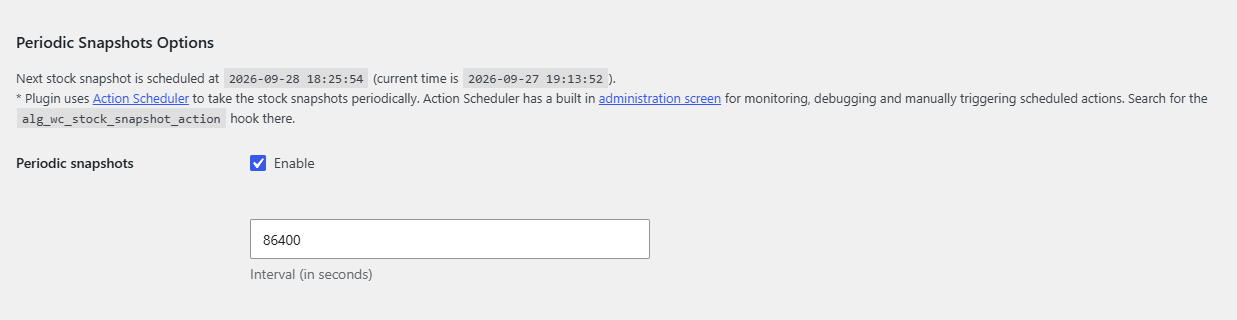
To schedule automatic WooCommerce stock snapshots, go to WPFactory > Stock Snapshot in Stock History & Reports Manager for WooCommerce, tick Periodic snapshots under Periodic Snapshots Options, set the Interval (in seconds), for example 86400 for once a day, and click Save changes.
How snapshots are taken #
Stock History records stock in four ways. All of them are free:
- Product update snapshots (on by default): a snapshot of one product each time it is saved, including stock changes from orders and refunds.
- Periodic snapshots (on by default): a snapshot of every product at a fixed interval.
- Manual snapshot: a snapshot of every product when you run the Take snapshot tool.
- URL snapshot (off by default): a snapshot of every product when a special address is visited, useful with a server cron job.
Set the periodic interval #
- Go to WPFactory > Stock Snapshot (also reachable at WooCommerce > Settings > Stock Snapshot). You land on the General section.
- Under Periodic Snapshots Options, tick Periodic snapshots.
- Enter the Interval (in seconds). The default is
86400(24 hours) and the minimum is60. Examples:3600hourly,43200twice a day,604800weekly. - Click Save changes. The section heading shows when the next snapshot is scheduled and the current site time.
Snapshots run through Action Scheduler. To watch or run them by hand, go to WooCommerce > Status > Scheduled Actions and search for alg_wc_stock_snapshot_action. Changing the interval replaces the old schedule with a new one that starts right away.
Take a snapshot now #
- Open the Tools section.
- Tick Take snapshot and click Save changes.
- A message confirms “Snapshot taken for N product(s)”.
Use a server cron job instead #
If WP-Cron is unreliable on your site, you can trigger snapshots from your hosting control panel:
- On the General section, tick Allow snapshots via URL and save. The help tip shows your address, which is your site address followed by
?alg_wc_stock_snapshot=1. - In your hosting control panel, create a cron job that requests that address at the interval you want, for example with
wget -q -O /dev/null "https://example.com/?alg_wc_stock_snapshot=1". - Optional: untick Periodic snapshots so you do not record twice.
Note: the snapshot URL does not require a login. Anyone who knows it can start a full snapshot, which is heavy on large stores. Leave Allow snapshots via URL off unless you use it.
Choosing a sensible interval #
- Each periodic snapshot records every stock-managed product, even if nothing changed, and keeps the record forever unless you delete it.
- Because product updates are already recorded as they happen, a daily interval is enough for most stores. Very short intervals grow your database quickly and add server load.
- With Pro snapshot emails enabled, every periodic, manual or URL snapshot sends an email, so match the interval to how often you want the email.
Frequently asked questions #
The settings page says “Crons are disabled on your site!” What does that mean? #
Your wp-config.php sets DISABLE_WP_CRON to true, so scheduled snapshots will not run on their own. Set it to false, or keep it and add a server cron job that runs WP-Cron or the snapshot URL.
Do periodic snapshots include variations? #
Yes, when Include variations is on (the default). Each variation is recorded as a separate product.
Does deactivating the plugin stop the schedule? #
Yes. Deactivation removes the scheduled snapshot action. It is created again when you reactivate the plugin.
Does a periodic snapshot record products that do not manage stock? #
It runs over all products, but products without Manage stock? have no quantity, so nothing useful appears for them in the reports.
Get more from Stock History #
Scheduled snapshots are free. Stock History & Reports Manager for WooCommerce Pro can email you a stock summary after each one. See what Pro unlocks.
Need a hand? Our team answers every ticket on the Stock History support forum.