To generate WooCommerce product images with AI, open a product under Products, pick a style in the AI Image Generator box of AI Product Image Generator for WooCommerce, choose the image source and click Generate AI Image. The AI reworks your existing product photo in that style and saves the result to your Media Library.
Before you start #
- The setup wizard is complete and a connection is configured: a verified license with credits (Managed Credits) or a Gemini API key (Use My API Key). See Getting Started.
- The product has a main image, gallery images, or both. The AI edits these photos; it does not work from the product title alone.
- At least one active style in AI Images > Styles. Setup creates seven built-in styles.
How to generate an image for one product #
- Go to Products and open the product.
- Save any changes you have made to the product first. The page reloads automatically after a successful generation, and unsaved edits would be lost.
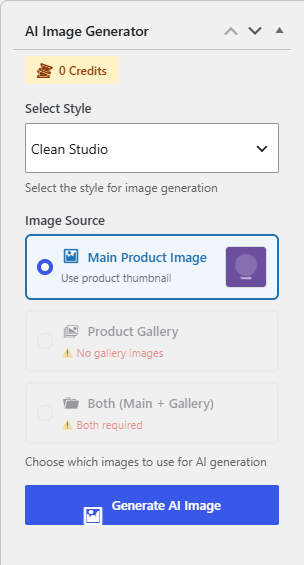
- Find the AI Image Generator box in the right sidebar. The top of the box shows your credit balance (Managed Credits) or Gemini API (Use My API Key).
- In Select Style, choose a style, for example Clean Studio or Lifestyle Context.
- Under Image Source, choose:
- Main Product Image to use the product image.
- Product Gallery to process each gallery image (available when the product has gallery images).
- Both (Main + Gallery) to process the main image and every gallery image.
- Click Generate AI Image and keep the page open. Each image can take up to a couple of minutes, and the images are processed one after another.
- When you see Successfully generated N image(s)!, the page reloads. The new images appear under Generated Images in the box. Click View all when there are more than four.
What happens to the generated images #
- Every generated image is added to your Media Library as a new attachment, named with the pattern in AI Images > Settings > Advanced > Image Naming Pattern.
- Your product images change only if the style has Auto-Set as Featured or Auto-Set as Gallery turned on. Otherwise, add the new image yourself with Set product image or Add product gallery images.
- With Auto-Set as Featured, the first result for the main image becomes the product image and any extra variants are added to the gallery.
- With Auto-Set as Gallery, the first result for each gallery image takes that image’s place in the gallery and extra variants are added at the end.
- The original images are not deleted. They stay in the Media Library, so you can switch back at any time.
How many images and credits one click uses #
The number of images equals the number of source images multiplied by the style’s Variants Per Source Image. Example: a product with 1 main image and 2 gallery images, generated with Both (Main + Gallery) and a style set to 2 variants, produces 6 images.
- Managed Credits: the plugin checks your balance before starting and stops with Insufficient credits. Need N. if it is too low. The service deducts the cost per image shown in AI Images > Settings > Credits > Credits Per Image.
- Use My API Key: no credits are used; Google bills your account for each request.
FAQ #
Will this overwrite my original product photo? #
No. The original file stays in the Media Library. The product image is swapped only when the style’s Auto-Set options are on, and you can set the original back at any time.
Can I generate images for product variations? #
No. The plugin uses the product’s main image and gallery images. Variation images are not used as sources.
Can I generate images for many products at once? #
Yes, from AI Images > Generate Images. See How to Bulk Generate AI Images for WooCommerce Products.
Why does it say “Connection error”? #
The request usually ran longer than your server or proxy allows, which is more likely with Both (Main + Gallery) and several variants. Try Main Product Image first, lower the style’s variants, or use bulk generation, which runs in the background. See Troubleshooting.
Need a hand? Our team answers every ticket on the AI Image Generator support forum.