This is the settings reference for AI Product Image Generator for WooCommerce. All plugin-wide options are at AI Images > Settings, on four tabs: Connection, Credits, Advanced and Notifications. Each tab has its own save button. Style options (prompt, variants, watermark) are covered in the custom styles guide.
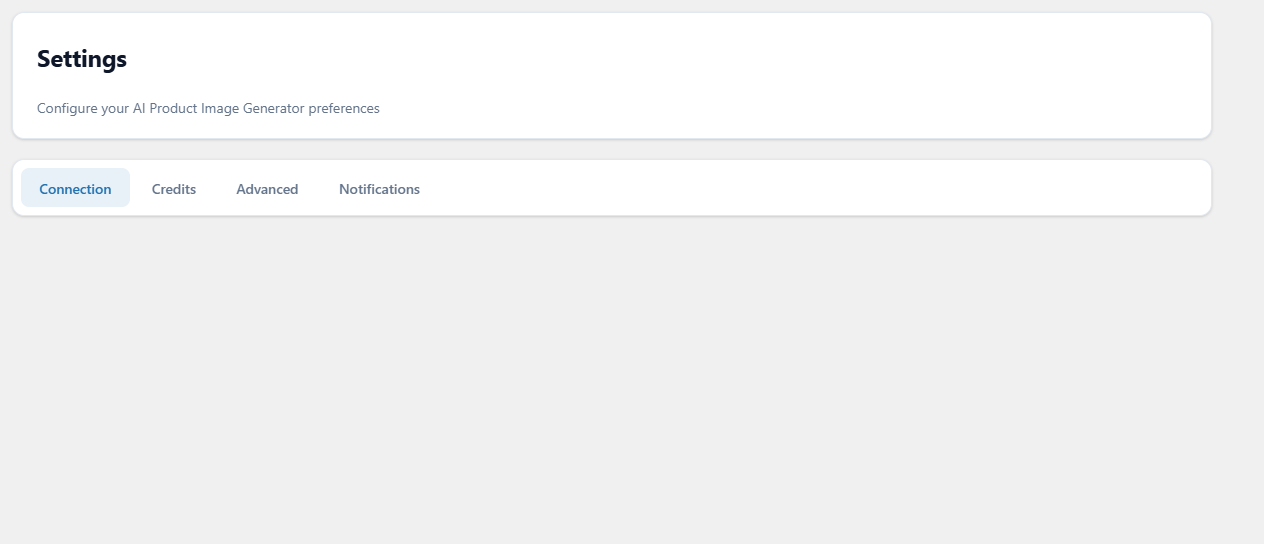
Connection tab #
| Setting | Stored in | Default | What it does |
|---|---|---|---|
| Connection Mode: Managed Credits or Use My API Key | aipig_settings (api_mode: managed or own_api) |
Managed Credits | Chooses where generation requests are sent: WPFactory’s service or Google’s Gemini API. |
| License Key (Managed Credits) | aipig_license_data |
Empty | Your license key. Verify License checks it with the service for this domain and shows License Active on success. Register New Account opens a sign-up form. |
| Google Gemini API Key (Use My API Key) | aipig_settings (api_key) |
Empty | Your key from Google AI Studio. Test Connection checks it with Google. |
Click Save Connection Settings. Guide: How to Connect Your Gemini API Key or Managed Credits.
Credits tab #
With Use My API Key, this tab only shows Own API Mode Active, because Google bills you directly. With Managed Credits it shows:
| Item | What it shows or does |
|---|---|
| Available Credits | Your balance as last reported by the service (stored in aipig_credits_balance). It cannot be edited here. |
| Credits Per Image | The cost the service charges for each generated image (stored in aipig_cost_per_image). Set by the service. |
| Sync Credits | Fetches the current balance from the service now. |
| Open Dashboard | Opens WPFactory’s account dashboard, where you log in with your registered email address and license key to view usage and buy credits. |
The AI Images > Dashboard page shows a Low Credits Warning when fewer than 20 credits remain.
Advanced tab #
| Setting | Stored in | Default | What it does |
|---|---|---|---|
| Image Naming Pattern | aipig_image_naming_pattern |
{product-name}-{number} |
File name for generated images. Tags: {product-name}, {product-id}, {style}, {number}, {date}, {time}. Characters other than letters, digits, hyphens and underscores become hyphens, and a counter is added when a file with the same name already exists. |
| Re-run Setup Wizard | Button | None | Opens the setup wizard again from the first step. Existing data and settings are kept. |
| AI Model: Current Model | aipig_settings (ai_model) |
gemini-2.5-flash-image |
Read-only. Shows the model used for image generation. |
| Remove all plugin data on uninstall | aipig_remove_on_uninstall |
Off | When ticked (two confirmations), deleting the plugin removes its database tables (styles, prompts, generated image records, activity log, transactions), its options and its post meta. Generated images already in your Media Library are standard attachments and stay there. |
| Clear Generation History | Button | None | Permanently empties the generation log table after a confirmation. Images and styles are not affected. |
Click Save Advanced Settings to store the naming pattern and the uninstall option.
Notifications tab #
| Setting | Default | Notes |
|---|---|---|
| Enable email notifications | Off | Saved with the other notification settings. |
| Email Address | Site admin email | Where notification emails should go. |
| Summary Email | No summary | No summary, Daily summary or Weekly summary. |
| Notification Types | All ticked | Generation Complete, Generation Failed, Bulk Generation Complete, Low Credits Warning, Out of Credits. |
| Use custom SMTP settings | Off | Reveals SMTP Host, SMTP Port (587), Encryption (None, SSL, TLS; default TLS), Authentication (Yes), SMTP Username, SMTP Password, From Email and From Name, plus Test SMTP Connection. |
Click Save Notification Settings. Test Notification adds a test entry to the in-admin notification list.
Note for version 1.0.1: the email options are stored, but this version does not send notification or summary emails yet. Notifications are recorded on AI Images > History instead. Also leave Use custom SMTP settings unticked: saving with it ticked can end in a critical error page in this version.
Other screens #
- AI Images > Styles: style fields are listed in How to Create Custom AI Image Styles for WooCommerce; watermark fields in How to Watermark AI Product Images in WooCommerce.
- AI Images > Generate Images: filters, Image generated from and Style, see How to Bulk Generate AI Images for WooCommerce Products.
- AI Images > History: the last 50 notifications, such as failed generations and bulk run summaries, with Mark All as Read and Clear All.
- Product edit screen, AI Image Generator box: Select Style, Image Source and Generate AI Image, see How to Generate WooCommerce Product Images with AI.
Access #
Settings, Styles and History require administrator access (manage_options). The Dashboard, Generate Images page and the product box require the edit_products capability, which shop managers have.
Need a hand? Our team answers every ticket on the AI Image Generator support forum.