Add Costs to Your Whole Catalog Without Losing a Weekend

Quick Answer: WooCommerce Bulk Edit Cost of Goods
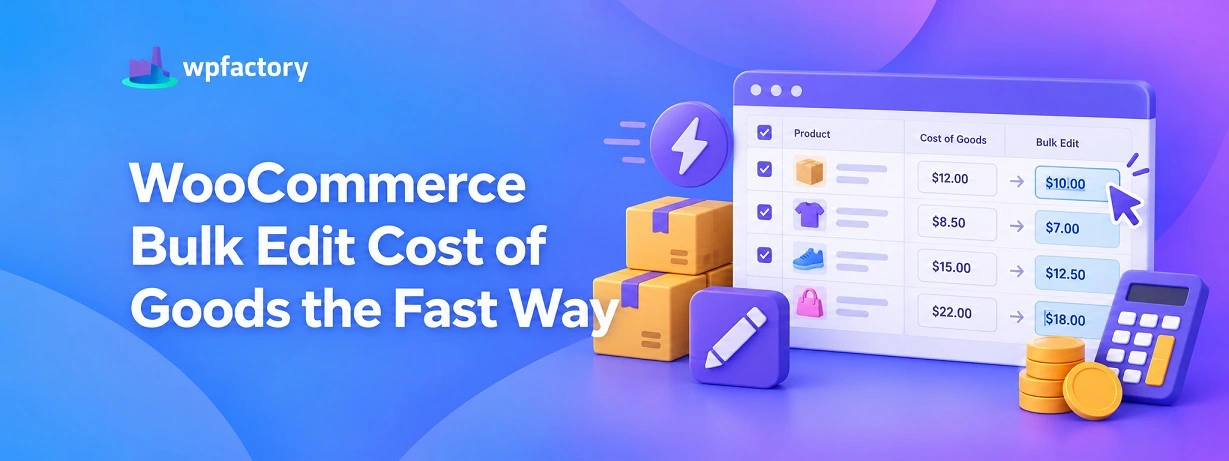
To bulk edit cost of goods in WooCommerce, a plugin like Cost of Goods for WooCommerce gives you two reliable paths. You can edit costs straight on the products screen with a quick-edit column that lets you type a cost on many products in one pass, or you can map a cost column in a CSV file and import thousands of products at once. Both beat opening each product one by one, which is the method that turns a simple job into a lost weekend.
- In-screen quick edit: Best for a few dozen products, no file needed.
- CSV import: Best for hundreds or thousands, matched by product ID or SKU.
- Get the file right first: A mismatched column header is the number one reason an import fails silently.
Before you import a single row, run your column headers through the checker tool further down. It catches the small mistakes that make a whole import fail.
You decided to track profit, which means every product needs a cost. Then you opened your catalog and counted the rows. Two hundred products. Or eight hundred. Or a number you would rather not say out loud.
The obvious approach is to open each product, scroll to the cost field, type a number, save, and move to the next. It works for ten products. At three hundred, it is an afternoon gone, and you have not reached the variations yet.
There is a faster road, and it comes in two lanes. One lets you fill in costs right on the product list, the other lets you push a whole spreadsheet of costs into the store in a single import.
This guide walks both ways to bulk edit cost of goods in WooCommerce, and hands you a tool to make sure your import file is clean before you run it.
Let us get those costs in and get your weekend back.
Two Ways to Bulk Edit Cost of Goods
There are two reliable ways to WooCommerce bulk edit cost of goods, and knowing which lane fits your situation saves time before you start.
The right choice depends on how many products you are costing and where the numbers live right now.
If your costs are already sitting in a supplier spreadsheet, the CSV route saves the most time.
If you are typing costs from memory or from a printed list, the in-screen quick edit is often quicker because there is no file to prepare.
Here is how the two compare at a glance.
| Factor | In-Screen Quick Edit | CSV Import |
|---|---|---|
| Best catalog size | Up to a few dozen | Hundreds to thousands |
| Where costs start | In your head or on paper | Already in a spreadsheet |
| Setup needed | None, edit in place | A clean file with matching columns |
| Main risk | Slow if the catalog is large | A bad header makes the import fail |
Most store owners end up using both. A bulk CSV import to cost the whole catalog in one go, then in-screen quick edit for the handful of products that change later.
Why Doing It One Product at a Time Falls Apart?
It is worth being honest about why the manual route fails, because it explains what the alternatives are really solving.
Open a product, wait for the editor to load, scroll to the cost field, type, save, wait for the save, go back to the list, open the next. Call it forty seconds per product on a good day.
At forty seconds, three hundred products is over three hours of identical clicking. Eight hundred products is most of a working day.
And none of that counts variations, where a single variable product can carry ten or twenty separate costs of its own.
The manual method does not just cost time. It costs accuracy, because somewhere around product one hundred and fifty the mind wanders and a wrong number slips in.
A bulk method is faster and steadier, which is why any store past a small catalog needs one.
This is the point where the right plugin stops being a convenience and becomes the only sensible way to do the job. The Cost of Goods for WooCommerce plugin was built for exactly this.
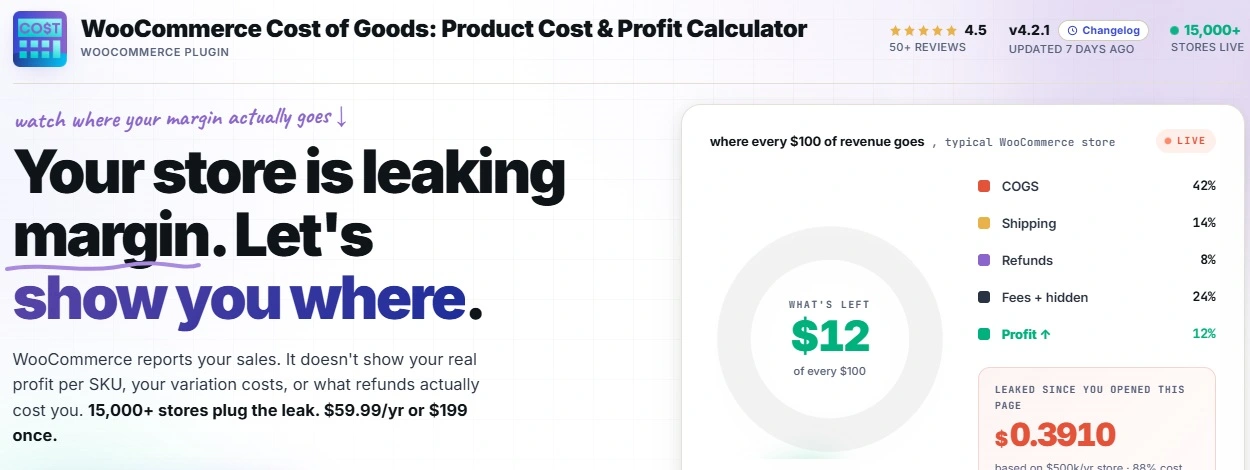
Its own words are plain.
It supports bulk editing of both prices and costs, so you can update costs across many products in a single click, and you can map a cost column in a CSV and import thousands of products in minutes.
That is the difference between a weekend and a coffee break.
Cost Your Whole Catalog in One Pass
The Cost of Goods for WooCommerce plugin adds a quick-edit cost column to your product list and lets you map a CSV column to cost and import thousands of products at once. Variation costs can be bulk-set in seconds. It is the fast lane for giving every product a real cost, and it is already working in 15,000+ stores.
Method 1: In-Screen Bulk Editing
This is the route for catalogs you can scroll through in a few screens. No file, no mapping, just type and go.
Step 1: Turn On the Cost Column
With the plugin active, a cost field appears in the product quick-edit row. You reach it from the main Products list, so you never have to open the full product editor just to add a number.
Step 2: Quick Edit Product by Product
Hover a product, choose Quick Edit, and the cost field is right there alongside price.
Type the cost, update, and the row saves without a full page reload. It is the same motion as the manual method with most of the waiting removed.
Step 3: Bulk-Set Variations
For a variable product, you can set a cost across all its variations at once rather than editing each size or color by hand.
A product with twenty variations stops being twenty separate jobs.
Method 2: Bulk Import Costs From a CSV
This is the route for real scale. If your supplier already sent you a price list, you are halfway done before you touch WordPress.
Step 1: Prepare Your File
Your spreadsheet needs a column that identifies each product, by product ID or SKU, and a column holding the cost.
The identifier is how the import knows which product each cost belongs to, so it has to match what your store already uses.
Step 2: Map the Cost Column
During import you tell WooCommerce which column is the cost.
You map your spreadsheet’s cost column to the store’s cost field, and the import writes each number to the right product in one run across thousands of rows.
Step 3: Run It and Spot-Check
After the import, open a few products and confirm the cost landed where it should.
A quick spot-check at the start saves you from discovering a mapping mistake after it has touched your whole catalog.
Check Your CSV Before You Import
Most failed imports are not WooCommerce being difficult. They are a header typed slightly wrong, a missing identifier column, or a cost column full of currency symbols the importer cannot read.
Paste your spreadsheet’s header row into the checker below. It flags the columns that will cause trouble before you waste an import run finding them the hard way.
CSV Column Checker
Once the checker shows a clean file, your import is almost certain to run cleanly too. Most of the pain of a bulk import happens before the upload, not during it.
Keeping Costs Current After the First Import
The first bulk edit gets every product costed. The real world then moves, and your costs need to move with it.
When a supplier raises prices, you do not redo the whole catalog. You prepare a small file with only the changed products and import again, or quick-edit the few items in-screen.
The same way you bulk edit cost of goods in WooCommerce at setup is the way you keep it current.
A good habit is a quick cost review whenever a supplier sends a new price list.
Update the affected rows, re-import, and your profit reports stay built on today’s numbers rather than last quarter’s.
Which Method Each Store Should Reach For?
The lane that fits depends on how your store is shaped. Here is the quick read.
Small Catalogs Under Fifty Products
In-screen quick edit wins. The file preparation for a CSV would take longer than just typing the costs directly in the product list.
Large Catalogs and Resellers
CSV import is the only sane choice.
When a supplier already provides a price list, you are mapping a column rather than retyping hundreds of numbers, and the whole catalog is costed in one run.
Stores With Heavy Variations
Makers and apparel stores live in variations.
Bulk-setting variation costs, rather than editing each one, is what keeps a product with twenty sizes from becoming twenty separate chores.
Mistakes That Wreck a Bulk Cost Import
A few errors turn a quick import into an afternoon of cleanup. Each one is easy to avoid once you know it.
- A header the importer does not recognize
If the cost column is named something the import does not expect and you skip the mapping step, the costs land nowhere. The checker above is there to catch this first.
- No identifier column
Without a SKU or product ID, the import cannot tell which product each cost belongs to, so nothing matches.
- Currency symbols in the cost column
A value like a dollar sign followed by a number can confuse the importer. Keep the cost column as plain numbers.
- Importing to the whole catalog without a spot-check
Run a small test, confirm a few products, then run the full file. A mapping mistake caught on five products is a non-event. Caught on five thousand, it is a long evening.
Related Resources
- the complete cost of goods and profit tracking guide covers the whole topic from first setup onward
- how to read the profit on a single order shows what those costs unlock once they are in
- how to rank every product in a profit report is the payoff of costing your whole catalog
- the formula behind cost of goods sold explains the math your costs feed into
- a comparison of the leading cost tracking plugins shows how the options line up
Give Every Product a Cost in One Sitting
The Cost of Goods for WooCommerce plugin lets you bulk edit costs in the product list, bulk-set variation costs, and map a CSV column to import thousands of products at once. It is the difference between costing your catalog in an afternoon and dreading it for weeks. Trusted by 15,000+ stores.
FAQs About WooCommerce Bulk Edit Cost of Goods
How do I bulk edit cost of goods in WooCommerce?
You have two routes.
You can turn on a cost column in the product quick-edit row and type costs across many products without opening each one, or you can map a cost column in a CSV file and import thousands of products at once.
The Cost of Goods for WooCommerce plugin adds both, so the method you pick depends on catalog size rather than on what the store can do.
Can I import product costs into WooCommerce from a CSV?
Yes. You prepare a file with an identifier column, a SKU or product ID, and a cost column, then map the cost column during import.
The import writes each cost to the matching product, which is how stores cost thousands of products in minutes rather than one at a time.
What column does my CSV need to set cost of goods?
At a minimum you need two columns.. one that identifies the product, such as SKU or product ID, and one that holds the cost as a plain number.
Run your header row through the column checker on this page to confirm both are present and named in a way the import will accept.
Can I bulk-set costs for variable products?
Yes. Variation costs can be set across all variations of a product at once, rather than editing each size or version by hand.
This matters most for apparel and maker stores, where a single product can carry many variations that each need a cost.
How do I update costs when a supplier raises prices?
You do not redo the whole catalog.
You prepare a small file with only the changed products and import it again, or quick-edit those few items in the product list.
Keeping costs current this way means your profit reports stay built on today’s numbers instead of outdated ones.
Is there a plugin to bulk edit cost of goods in WooCommerce?
Yes. Cost of Goods for WooCommerce is available on WordPress.org and adds bulk cost editing, variation cost setting, and CSV cost import to your store.
You record costs once at scale, and your profit tracking has the data it needs.