Find Your Real Earners and Your Quiet Losers in One Report

Quick Answer: WooCommerce Profit Report
A WooCommerce profit report takes every order you have taken and sorts the profit by the three questions that run a store: which products earn, which categories carry the catalog, and how profit moves across a date range.
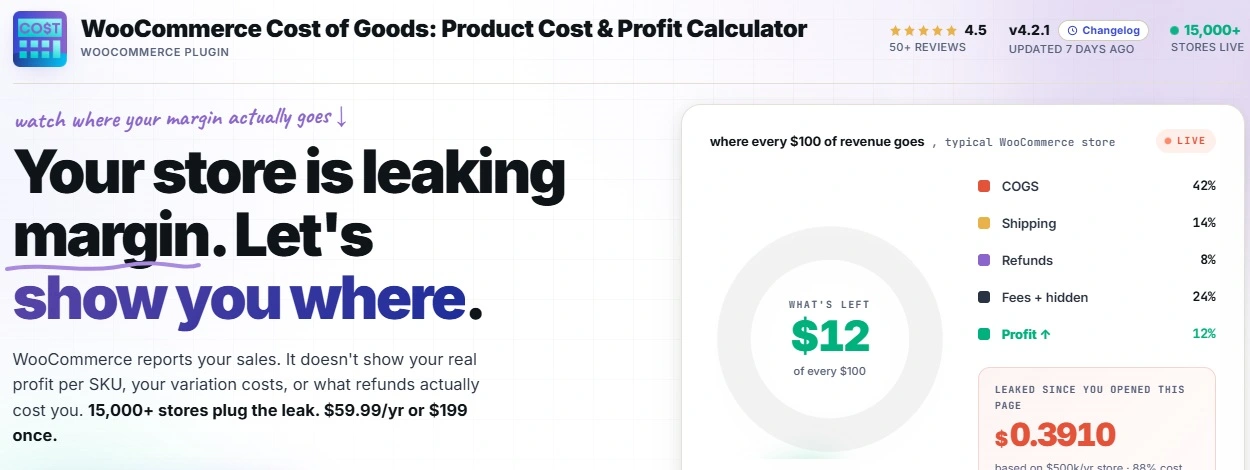
WooCommerce ships with a sales report, so you already know what sold. What it does not tell you is what each sale kept, and that is the gap a profit report closes.
- By product: Ranks every item by the profit it keeps, not the units it moves.
- By category: Shows which parts of the catalog pull their weight and which drag.
- By date range: Tracks whether margin is climbing or slipping over weeks and months.
Build a quick version of this report with your own numbers in the interactive tool further down, and watch the ranking sort your best sellers from your best earners.
Open your WooCommerce dashboard and you get a tidy picture of sales. A line goes up, orders stack up, and the month looks like a good one.
Now try to answer a harder question. Which product made you the most money last month? Not which sold the most units, which kept the most profit after costs.
For most stores, answering that means exporting orders into a spreadsheet, pasting in costs by hand, and wrestling formulas until midnight.
That spreadsheet is where good intentions go to die. It is out of date the moment an order comes in, and nobody rebuilds it every week.
A profit report solves the problem at the source. Instead of a frozen snapshot you maintain by hand, your store sorts profit for you, live, by product, by category, and across any date range you pick.
The chaos of a thousand orders becomes one clear ranking.
Here is how to read it, and how to set it up.
What a Profit Report Really Shows You?
A sales report answers one question.. how much did I sell.
A profit report answers the one that pays your rent.. how much did I keep, and where did it come from.
The difference matters because revenue and profit rarely rank the same way. Your top seller by volume can sit near the bottom once its cost, shipping, and payment fees come out.
A quiet product with a fat margin can be the one truly funding the business.
A good WooCommerce profit report breaks the answer into three views, and each one answers a different decision.
Profit by Product
This is the view most owners reach for first. Every product lined up by the profit it brings in, so you can see your real earners at a glance. It is the fastest way to catch a popular item that is quietly running on a thin or negative margin.
Profit by Category
Zoom out from single items and you see the shape of the catalog. Category profit tells you whether your accessories are carrying your main line, or the other way around, which is the kind of insight that reshapes what you stock and promote.
Profit by Date Range
A single month is a dot. A date range is a trend. Watching profit across weeks and months shows whether a price change helped, whether a supplier increase is eating your margin, and whether the store is getting healthier or just busier.
Reading a Profit Report the Right Way
A report is only useful if you read it correctly, and there is one trap that catches almost everyone. The temptation is to sort by revenue and stop there. The habit to build is sorting by profit.
Take a small example. Three products, one month of sales, laid out the way a WooCommerce profit report would rank them.
| Product | Units Sold | Revenue | Profit |
|---|---|---|---|
| Starter Kit | 200 | $10,000 | $900 |
| Refill Pack | 120 | $4,800 | $2,640 |
| Deluxe Bundle | 40 | $6,000 | $2,100 |
Sort by revenue and the Starter Kit wins by a mile. Sort by profit and it drops to last, earning less than a third of what the Refill Pack keeps on half the sales.
The Starter Kit is a loss leader hiding in plain sight. It looks like the hero of the store and is really the weakest earner of the three.
Only the profit column tells you that, and only once you sort by it.
Get These Reports Without the Spreadsheet
The Cost of Goods for WooCommerce plugin records your product costs, payment fees, and shipping, then builds profit reports by product, by category, and by date range right inside your store. The ranking above updates itself with every order, so the spreadsheet disappears and the answer is always current. Already working in 15,000+ stores.
Build Your Own Profit Report
You do not need a full plugin install to feel how this works. Enter a few of your own products below, with the price, cost, and units sold for each, and the builder ranks them by profit the way a real report would.
Watch what happens to the order of the list. The product you expected at the top often is not, and that gap is the whole reason profit reports exist.
Profit Report Builder
If the builder reshuffled your mental ranking, that is the lesson in miniature. A real store has hundreds of products, and the reshuffle is bigger and more surprising at that scale.
How to Set Up Profit Reports in WooCommerce
The builder above runs on numbers you typed. A live store needs the same ranking built from real orders, updating on its own.
That is the job of a cost of goods plugin, and the setup is shorter than the spreadsheet you are replacing.
Step 1: Give Every Product a Cost
Reports are only as honest as the costs behind them. Enter a cost on each product, and a separate cost for each variation where sizes or versions differ. For a large catalog, costs can be imported in bulk rather than typed one by one.
Step 2: Add the Fees That Eat Margin
Enter your payment gateway fee and your shipping costs once. From then on they are folded into every order, so the profit in your report reflects the real net of each sale, not just price minus product cost.
Step 3: Open the Reports
With costs in place, the store builds the profit report for you. You switch between profit by product, by category, and by date range, and the numbers refresh as new orders arrive. No export, no pasting, no stale spreadsheet.
Step 4: Act on What You See
The point of the report is the decision it triggers. A thin-margin bestseller might need a price nudge, a weak category might need pruning, and a rising-cost trend might need a supplier conversation. The report surfaces the signal, and you make the call.
Where Each Report View Earns Its Keep
Different stores lean on different views. Here is which one tends to matter most, and why.
Catalog-Heavy Retailers
When you carry hundreds of items, the by-category view is the one that saves you.
It tells you which sections of the store deserve more shelf space and which are quietly coasting, without making you read every product line.
Seasonal and Promotion-Driven Stores
If your sales spike around launches or holidays, the by-date-range view is your truth serum. It shows whether a promotion truly lifted profit or just moved revenue around while the margin shrank.
Single-Line and Maker Stores
With a tight range, the by-product view does the heavy lifting.
Each variation reports its own profit, so you see which size or version earns and which one you are making for the love of it.
How Often Should You Read Your Profit Report?
A report you open once a year is a history lesson. A report you check on a rhythm is a steering wheel.
The right cadence depends on how fast your store moves, and a simple routine keeps the numbers working for you.
For most stores, a weekly glance at profit by product is enough to catch a problem while it is still small.
A bestseller slipping into thin margin shows up fast, and a quick price or supplier fix costs far less than a month of quiet losses.
Once a month, widen the lens. Read profit by category to see which parts of the catalog are carrying their weight, and pull a date-range view to compare this month against the last few.
That is where slow trends become visible, the kind that never show up in a single week.
Around a big change, a price update, a new supplier, a seasonal promotion, check the report before and after.
The comparison tells you whether the change helped your margin or only moved revenue around, and it turns every decision into something you can measure rather than guess.
The Mistakes That Make a Profit Report Lie
A report built on shaky inputs is worse than no report, because it gives you false confidence. These are the errors that quietly corrupt the numbers.
- Leaving fees out of the cost
If payment and shipping costs are not in the calculation, every profit figure in the report is inflated. The ranking can look fine while the real margins are thinner than they appear.
- Using one cost for all variations
A blended cost across sizes makes the cheap variation look less profitable and the expensive one look better than it is. The by-product view then ranks them wrong.
- Reading revenue when you mean profit
The most human mistake of all. The revenue column is bigger and more flattering, so the eye drifts to it. Train yourself to sort by the profit column every time.
- Never updating costs
Supplier prices move. A report built on last year’s costs tells you a comforting story that is no longer true.
Related Resources
- the complete cost of goods and profit tracking guide maps the whole topic from first setup to acting on the numbers
- how to read the profit on a single order covers the order-level view that these reports roll up
- the way margin is calculated for an online store explains the percentages behind every row in your report
- a walkthrough of configuring the plugin takes you through the settings screen by screen
- a comparison of the leading profit tracking plugins shows how the reporting options stack up
Turn a Month of Orders Into One Clear Ranking
The Cost of Goods for WooCommerce plugin records product costs, payment fees, and shipping, then builds a live WooCommerce profit report by product, by category, and by date range. Your best earners and your quiet losers sort themselves, and the number is current every time you look. Trusted by 15,000+ stores.
Frequently Asked Questions
What is a WooCommerce profit report?
A WooCommerce profit report sorts the profit from your orders by product, by category, and by date range, so you can see what each item and section of the catalog truly keeps after costs.
WooCommerce has a built-in sales report, but it stops at revenue. A profit report needs your product costs and fees added, which a plugin such as Cost of Goods for WooCommerce supplies.
Does WooCommerce have a profit report by default?
No. WooCommerce reports sales and orders out of the box, but it does not know your costs, so it cannot show profit.
Once you add a cost to each product with a cost of goods plugin, the store can calculate profit and present it by product, category, and date range.
How do I see profit by product in WooCommerce?
You add a cost to each product, then open the profit report and sort by product. Each item lines up by the profit it brings in rather than the units it sells.
This view is the quickest way to spot a popular product that is running on a thin or negative margin.
Can I run a WooCommerce profit report for a date range?
Yes. A profit report can be filtered to any date range, which turns a single month into a trend you can read.
Watching profit across a range shows whether a price change helped, or whether a supplier increase is slowly eating your margin.
Why is my profit report different from my sales report?
Because they measure different things.
A sales report shows revenue, the money that came in. A profit report subtracts product cost, shipping, and payment fees to show what you truly kept.
A product can top the sales report and sit near the bottom of the profit report, which is exactly why both views matter.
Is there a plugin that builds WooCommerce profit reports?
Yes. Cost of Goods for WooCommerce is available on WordPress.org and adds profit reporting to your store. You record product costs and fees, and it builds reports by product, category, and date range that update with every order.