WooCommerce Bulk Editing: The Complete Guide for Store Owners

Quick Answer: WooCommerce Bulk Editing
WooCommerce bulk editing means changing many products at once in a single action instead of opening them one by one. WooCommerce ships with a basic built-in bulk editor, but it only touches the products on the page you can see, has no preview, and can’t round prices or schedule a sale, which is exactly where most store owners get stuck. For anything past a quick change, store owners reach for a dedicated tool like Bulk Price Editor.
- Built-in editor: fast for small edits on one page, but no percentage rounding, no preview, no scheduling.
- Plugin editor: filter by category or tag, adjust regular and sale prices separately, round to .99, preview, then apply across the whole catalog.
The worked example below shows how to raise 500 prices by 10 percent in under a minute, and the calculator further down tells you exactly how many hours that one change saves you.
You just agreed a 10 percent price rise with your supplier. Now you open WooCommerce and see 500 products waiting.
You click into the first one, change the price, hit update, wait for the page to reload, and go back for the second. At this rate you are looking at most of the afternoon gone, and a real chance of fat-fingering a decimal somewhere in the middle.
This is the quiet tax every growing WooCommerce store pays. The catalog gets bigger, and the “quick” edits stop being quick.
WooCommerce bulk editing is the way out. Done right, that 500-product price change takes one action and under a minute. Done with the wrong tool, it is still the afternoon.
This guide covers both: what the built-in editor can and can’t do, where a dedicated plugin takes over, and a calculator that puts a real number on the time you are losing.
What WooCommerce bulk editing actually means
Bulk editing is any change you apply to a group of products in one pass, rather than editing each product on its own screen.
Store owners usually need it for a handful of recurring jobs:
-
- Price changes: a supplier increase, a currency shift, or a margin correction across a category.
- Sales and promotions: setting sale prices for a weekend or a seasonal event, then clearing them afterward.
- Stock updates – correcting inventory levels after a stocktake or a delivery.
- Attribute and taxonomy cleanup: fixing categories, tags, or product attributes in batches.
Not every tool handles every one of those. That difference is the whole reason this guide exists, and it is where most of the wasted time hides.
The honest headline: WooCommerce has native bulk editing built in, and it is genuinely useful for small jobs. It just runs out of road fast once your store grows or your edits get more specific.
The native WooCommerce way, and where it breaks
WooCommerce comes with a bulk editor out of the box. You don’t need anything extra to try it.
Go to Products in your WordPress dashboard.
Tick the checkbox next to the products you want, choose Edit from the Bulk actions dropdown, and click Apply.
A panel opens where you can set a new price, or increase or decrease the existing price by a fixed amount or a percentage.
For a small, simple change, that is often all you need.
The trouble starts the moment your store is bigger than one screen. The native editor has real limits that WooCommerce store owners run into again and again:
- It only works on the products currently on screen
If your product list is paginated, the bulk action touches that page only. Editing 500 products means doing it page by page.
- There is no preview
You apply the change and hope. If a percentage increase pushes a sale price above its regular price, you find out after the fact.
- No rounding
A 7 percent increase on $14.99 gives you $16.0393. The native editor leaves it there. No rounding to a clean number, no charm pricing like .99.
- No filtering
You can’t say “only products in the Shoes category with a certain tag.” You select manually, every time.
- No scheduling
You can’t set a sale to start Friday night and revert Monday morning on its own.
None of these are bugs. The native editor was built for light, occasional edits, not for running pricing operations on a catalog of hundreds or thousands of products.
Once you cross that line, you need a tool built for the job. For a deeper walkthrough of the native method and its page-by-page limits, see our guide on bulk price updates for all products.
The better way: Bulk Price Editor
When the native editor runs out of road, Bulk Price Editor picks up exactly where it stops.
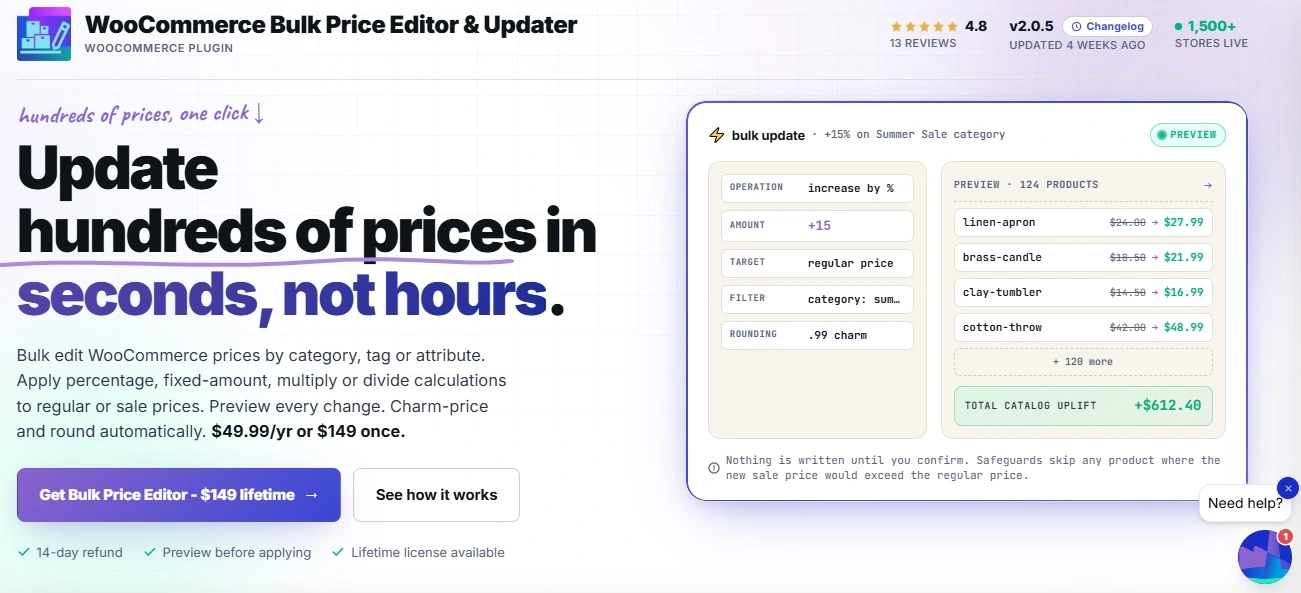
It is a WooCommerce plugin from WPFactory built around one job.. changing the prices of many products in a single, controlled action. Here is what it adds on top of the native editor, and why each piece matters to a store owner.
-
Filter before you edit
Instead of ticking boxes by hand, you narrow the products first: by category, tag, attribute term, SKU pattern, stock status, or product type. “All products in Winter Collection” becomes a filter, not a scavenger hunt.
-
Choose how the price changes
Set a fixed price, increase or decrease by a percentage, add or subtract an amount, or multiply and divide. Each method can apply to regular prices, sale prices, or both, so you control exactly which price moves.
-
Round the result cleanly
After a percentage change leaves you with $16.0393, the plugin rounds up, down, or to the nearest value you choose. You can snap every result to a charm-pricing ending like .99, .95, or .49 in the same pass.
-
Preview before anything is saved
You see the new prices before they go live. If a new sale price would land above its new regular price, that product is skipped and flagged, so a bad rule can’t quietly break your catalog.
-
Schedule a sale with automatic revert
This is the one that surprises people. You can schedule an update to start later, and set the old prices to restore automatically at a chosen time. Start a weekend sale Friday evening, let it roll back Monday morning, and never touch it again.
It handles both simple and variable products, updating every variation automatically, and it uses Action Scheduler under the hood so the number of products is effectively unlimited.
One honest boundary worth stating plainly: Bulk Price Editor is a pricing tool. It changes regular and sale prices. It does not edit stock quantities or product attributes, those appear only as filters you select by.
If pricing is your heavy, repeated job, which for most stores it is, this is the tool. We will cover the other edit types in the FAQ.
How to install and set up Bulk Price Editor
Getting started takes a couple of minutes.
Install the version
- Buy and download the plugin file from the Bulk Price Editor plugin page.
- In WordPress, go to Plugins → Add New → Upload Plugin.
- Choose the downloaded zip file, click Install Now, then Activate.
Run your first bulk edit
Once active, open WooCommerce → Bulk Price Editor. You will see tabs for Editor, Scheduled, History, and Settings. No setup is needed before your first run.
The flow is always the same four steps.. filter the products you want, choose how the price should change, check the preview, then apply. That is the entire loop, and it is the same whether you are editing 10 products or 10,000.
A worked example: raising 200 prices by 15 percent
Numbers make this concrete. Say you run a homeware store and your supplier raised wholesale costs across your Kitchen category. You need every price in that category up by 15 percent, rounded to a clean .99 ending.
Here is how the operation breaks down, step by step.
| Step | Action | Result |
|---|---|---|
| 1. Filter | Select the Kitchen category | 200 products selected in one click |
| 2. Method | Increase regular price by 15 percent | $19.99 becomes $22.9885 |
| 3. Round | Snap to nearest .99 ending | $22.9885 becomes $22.99 |
| 4. Preview | Review the new prices before saving | Any broken sale price is flagged and skipped |
| 5. Apply | Commit the change | 200 prices updated at once |
By hand, at roughly 20 seconds per product to open, edit, round in your head, and save, that is over an hour of clicking. With the filter-and-apply flow above, it is a single operation measured in seconds.
Stop editing prices one product at a time
Filter, adjust, round, preview, and apply across your whole catalog in one action with Bulk Price Editor, trusted by 1,500+ stores and rated 4.8. It even schedules a sale and reverts it for you automatically.
Native editor vs. plugin vs. CSV import
There are three common ways to change many products in WooCommerce. Each fits a different job. Here is how they line up for bulk price editing specifically.
| Capability | Native editor | Bulk Price Editor | CSV import |
|---|---|---|---|
| Works across the whole catalog | Page by page only | Yes, via filters | Yes |
| Percentage increase or decrease | Basic | Yes, with rounding | Calculate yourself in the file |
| Rounding and charm pricing (.99) | No | Yes | Manual in spreadsheet |
| Preview before saving | No | Yes | No |
| Schedule and auto-revert a sale | No | Yes | No |
| Best for | A few quick edits | Repeated price operations | Full catalog rebuilds |
It is worth reading every row. The split is not always where store owners expect, and the scheduling line is usually the one that explains why a weekend sale never went live on time.
Calculate the time bulk editing saves you
Theory is one thing. The number that matters is how much of your week manual editing is eating. Enter your catalog size and how long one manual edit takes, and the tool below shows the gap.
The pattern is the part that matters. Manual time climbs with every product you add. The plugin stays flat whether you edit 50 products or 5,000, because it is always one filtered action. The bigger your store gets, the wider that gap grows in your favor.
Which approach fits your store
Bulk editing is not one-size-fits-all. The right choice depends on how your catalog behaves.
- Small store, rare changes
If you have a few dozen products and edit prices once in a while, the native editor is fine. Don’t over-tool a simple job.
- Growing store, regular price work
If you run promotions, adjust for supplier costs, or manage a catalog in the hundreds, a dedicated price editor pays for itself in the first big change. The rounding and preview alone remove a whole class of mistakes.
- Seasonal store with timed sales
If your calendar is built around weekend deals and seasonal events, the scheduling and auto-revert feature is the difference between a sale that runs itself and one you babysit at odd hours.
- Full catalog overhaul
If you are rebuilding your entire product set from a supplier feed, a CSV import is the right tool. For ongoing adjustments to an existing catalog, a bulk editor is faster and safer.
Related resources
These guides go deeper on specific parts of WooCommerce bulk editing:
- WooCommerce Bulk Price Update for All Products – the native method in full, and its page-by-page limits.
- Bulk Price Editor plugin page – the full feature list, pricing, and the 14-day money-back guarantee.
- Bulk Price Editor on WordPress.org – download and try the free version.
Make WooCommerce bulk editing a one-minute job
For fast, accurate price changes across your whole catalog, including percentage updates, rounding, previews, and scheduled sales, Bulk Price Editor is the tool built for the job.
Try it with confidence: every purchase is backed by a 14-day money-back guarantee.
Frequently asked questions
Does WooCommerce have built-in bulk editing?
Yes. WooCommerce has a native bulk editor under Products. You can select products, choose Edit from the bulk actions, and set a new price or a percentage change. It works for small edits but only on the products on the current page, with no preview or rounding.
Can I bulk edit prices in WooCommerce by percentage?
Yes. The native editor does basic percentage increases and decreases. For percentage changes with clean rounding to a .99 ending, a preview before saving, and filtering by category or tag, a plugin like Bulk Price Editor handles it in one controlled pass.
Can Bulk Price Editor edit stock or inventory quantities?
No. Bulk Price Editor is a pricing tool. It changes regular and sale prices, and uses stock status only as a filter to select products. For bulk stock quantity changes you would use a dedicated inventory tool or the native editor for small batches.
Can I schedule a bulk sale in WooCommerce?
Yes, with the right tool. Bulk Price Editor lets you schedule a price update to start later and automatically restore the old prices at a set time. You can start a weekend sale Friday evening and have it revert Monday morning on its own.
Will bulk editing work with variable products?
Yes. Bulk Price Editor works with both simple and variable products. Select a variable product and it updates every variation automatically, or target individual variations directly.
What is the fastest way to update all product prices in WooCommerce?
For a one-time full rebuild, a CSV import is fastest. For ongoing changes to an existing catalog, filtering your products and applying a bulk price edit in one action is both the fastest and the safest route, since you preview the result before it goes live.