WordPress AI Assistant: Let AI Run Your Site Without Losing Control

Quick Answer: What is a WordPress AI assistant?
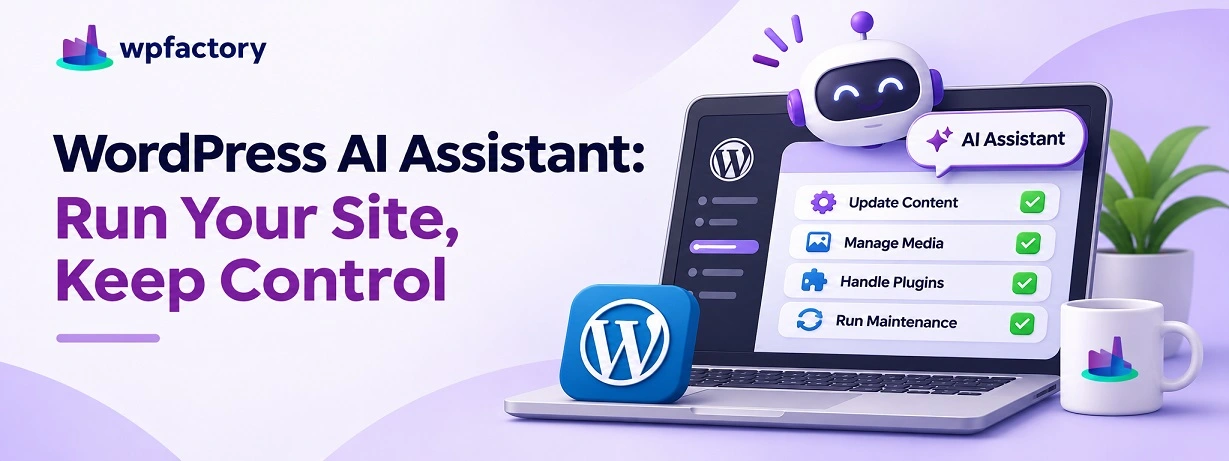
A WordPress AI assistant is a tool that lets you run your site by typing what you want in plain words, fixing typos, drafting a post, replying to comments, updating plugins, while the hard part sits quietly in the background.. it prepares each change and shows it to you first, so the AI does the clicking but you still hold the switch.
- What it does? turns plain-English requests into real edits on your pages, posts, menus, comments, plugins, and shop.
- What makes it safe? every change is previewed, waits for your approval, and has an Undo.
- How it connects? it works inside wp-admin, or links to the AI apps you already use, like Claude and ChatGPT.
The part most store owners get wrong is the safety model, and it is the one thing that decides whether letting AI near your site is reckless or smart. The worked example and the free tool below show exactly where the line sits.
You open your AI chat, describe the change you want, and get a clean answer back. Then comes the boring part.
You copy the text. You switch to wp-admin. You find the right page. You paste. You fix the formatting. You do it again for the next change.
The AI was smart enough to write the fix, but it could not touch your site. So you became the copy-paste robot in the middle.
A WordPress AI assistant closes that gap. Instead of talking about your site, it works on your site. You say what you want, it prepares the change, you approve, and it happens. No tab-switching, no manual paste.
This guide explains what a WordPress AI assistant is, what it can and cannot do, and the safety model that keeps you in control. There is a free interactive tool further down that shows what an assistant could handle on a site like yours.
What is a WordPress AI assistant?
A WordPress AI assistant is software that understands plain-language requests and carries them out inside your WordPress site.
Think of it as an agent that has learned its way around wp-admin. You tell it the outcome you want. It figures out the steps, prepares them, and waits for your go-ahead.
The key word is agent. A normal AI chatbot answers questions. An AI agent for WordPress takes action: it creates the page, edits the post, marks the spam, updates the plugin. That shift, from advice to action, is what makes it useful.
It helps to separate three things people lump together:
- An AI writing plugin: generates text you still have to place yourself.
- A chatbot for visitors: answers your customers, not you.
- A WordPress AI assistant: does the admin work on your behalf, across the whole site.
This article is about the third kind.
How a WordPress AI assistant actually works
Under the hood, the assistant needs a safe way to reach your site’s functions, creating a post, editing a page, listing plugins, without handing raw database access to anything.
Modern assistants do this through a standard called MCP (Model Context Protocol). In plain terms, your site exposes a fixed set of approved actions, and the AI can only use those actions, nothing more. It cannot invent new powers for itself.
You do not need to understand the plumbing to use it. But the idea matters, because it is why a good assistant is safe.. the AI is handed a short, locked list of things it may request, and your site checks every request against your own rules before anything runs.
There are two ways people use this in practice.
- Inside wp-admin
You open a chat panel in your dashboard and type what you want. The assistant works right there. No outside account, no setup.
- From an AI app you already use
You connect Claude, ChatGPT, or another app to your site once, and then drive your site from that app’s own chat window. We cover this in depth in our guide to turning your site into a WordPress MCP server.
What a WordPress AI assistant can do on your site
A capable assistant covers the whole site, not one corner of it. Here is the practical range.
Content
Draft a new post from a brief. Rewrite a clumsy paragraph. Fix typos across every page in one pass. Add alt text to images that have none.
Housekeeping
Find and fix broken links. Mark spam comments. Draft replies to comments and reviews that are waiting. Trash old drafts that have been sitting for months.
Structure
Add a new page to a menu. Reorder your navigation. Set a tagline. Build a simple About or Contact page.
Maintenance
Check which plugins have updates and apply them safely. Report what changed overnight. Answer questions about your own site, like which posts are still drafts.
Your shop
If you run WooCommerce, a capable AI assistant for WordPress reaches your store too.. edit product details, adjust prices, update stock, all through the same plain-English requests.
The common thread is that you describe the result, not the clicks. You manage WordPress with AI instead of hunting through menus.
The real question.. is it safe to let AI touch your site?
This is the part that decides everything. An assistant that can edit your whole site is powerful. Power without brakes is a problem.
A trustworthy assistant is built around one principle.. you keep the switch. The AI prepares, you decide.
Here is what that looks like in a well-built tool.
- Every change is previewed
Before anything happens, you see exactly what will change, shown before and after. Nothing is a surprise.
- Nothing goes live without your yes
On the default safety setting, the assistant gets the change ready and then stops. It waits for you to approve it.
- Everything has an Undo
If a change was not what you wanted, you roll it back. Pages, posts, and comments are hidden or trashed-with-undo, never deleted for good.
- Rules the AI cannot break
You set hard limits once.. never delete anything, always ask before publishing, protect the home and privacy pages, never let any AI change users, plugins, or settings on its own. These rules are checked twice, when the change is prepared and again right before it runs.
- One switch stops everything
A single “Stop all AI” control freezes the built-in assistant and any outside AI app you connected. Nothing on the site can change until you turn it back on.
That last point matters for the connected apps too. When you let Claude or ChatGPT work on your site, they run under the same rules and the same brakes as the built-in assistant. Your site is the referee, not the AI.
Run your whole WordPress site from plain English, safely.
The AI Assistant and MCP Server for WordPress by WPFactory does exactly this: a built-in AI agent for your dashboard, plus a connection for Claude, ChatGPT, Cursor, and more. Every change is previewed, follows your rules, waits for your yes, and has an Undo.
Copy-paste chatbot vs a connected AI assistant
The difference is easiest to see side by side.
| What happens | Copy-paste chatbot | Connected AI assistant |
|---|---|---|
| Making a change | You paste it into wp-admin by hand | The assistant applies it for you |
| Seeing your real content | It only knows what you paste in | It reads your actual site |
| Approval | None needed, it changes nothing itself | You approve each change first |
| Undo | Whatever WordPress gives you | Built in, per change |
| Doing ten edits | Ten manual pastes | One request, previewed as a batch |
It is worth reading every row. The split is not just about speed. The real gap is control.. the chatbot leaves you doing the work by hand, while the connected assistant does the work and still waits for your word.
See what an AI assistant could do on your site
The theory is simple enough. The useful question is what this looks like for your site specifically.
Pick your site type and the jobs you care about. The tool shows what an assistant could handle for you, and flags which jobs wait for your approval before they run.
How to set up a WordPress AI assistant
Getting started takes a few minutes. The steps below cover the WPFactory assistant.
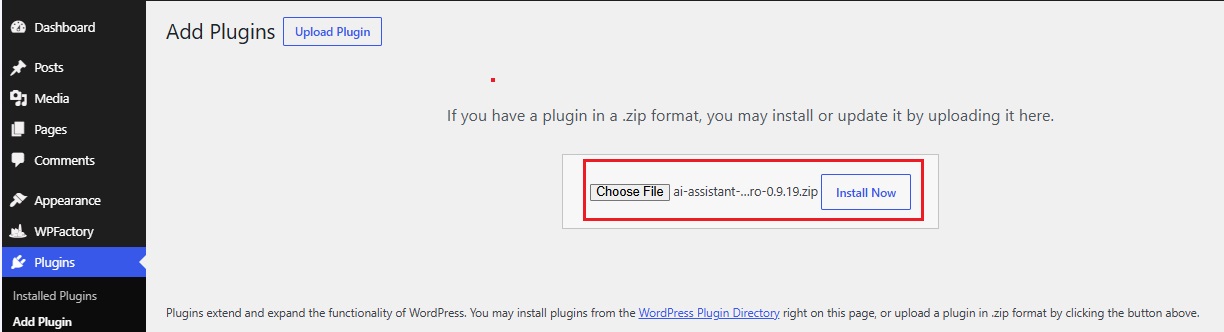
1. Install and activate
Upload the plugin zip from your WPFactory account under Plugins, then activate it. The setup wizard opens on its own.
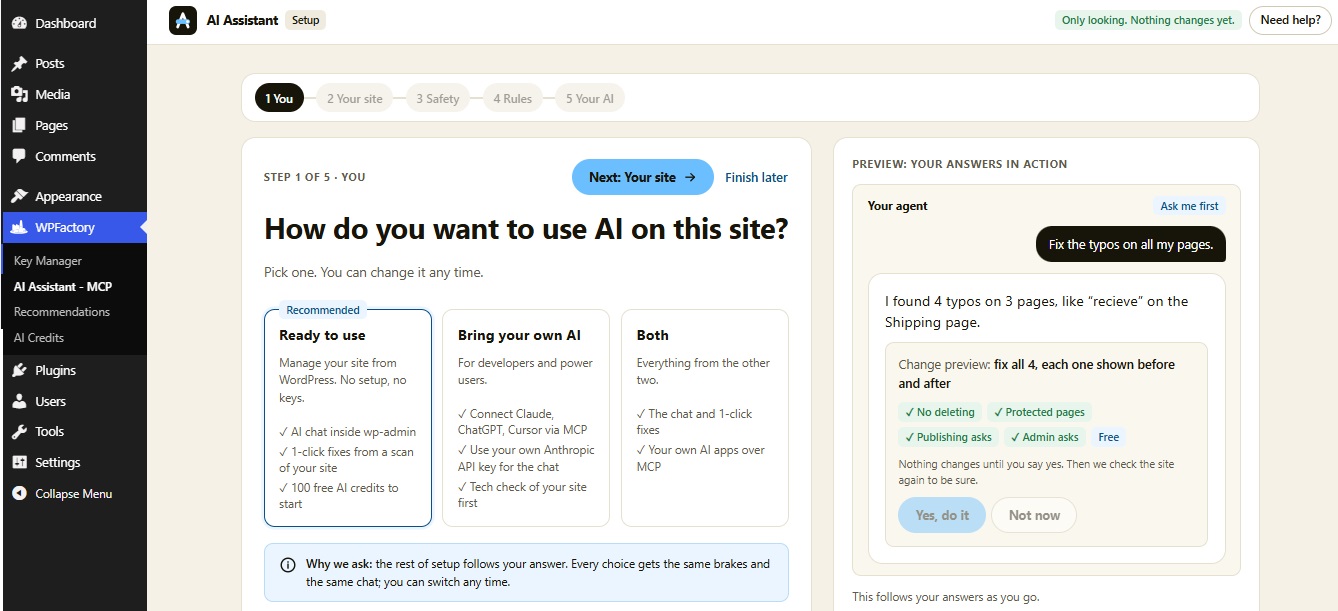
2. Choose how you want to use AI
Pick “Ready to use” to work entirely inside wp-admin, “Bring your own AI” to connect an outside app, or “Both”. You can switch any time.
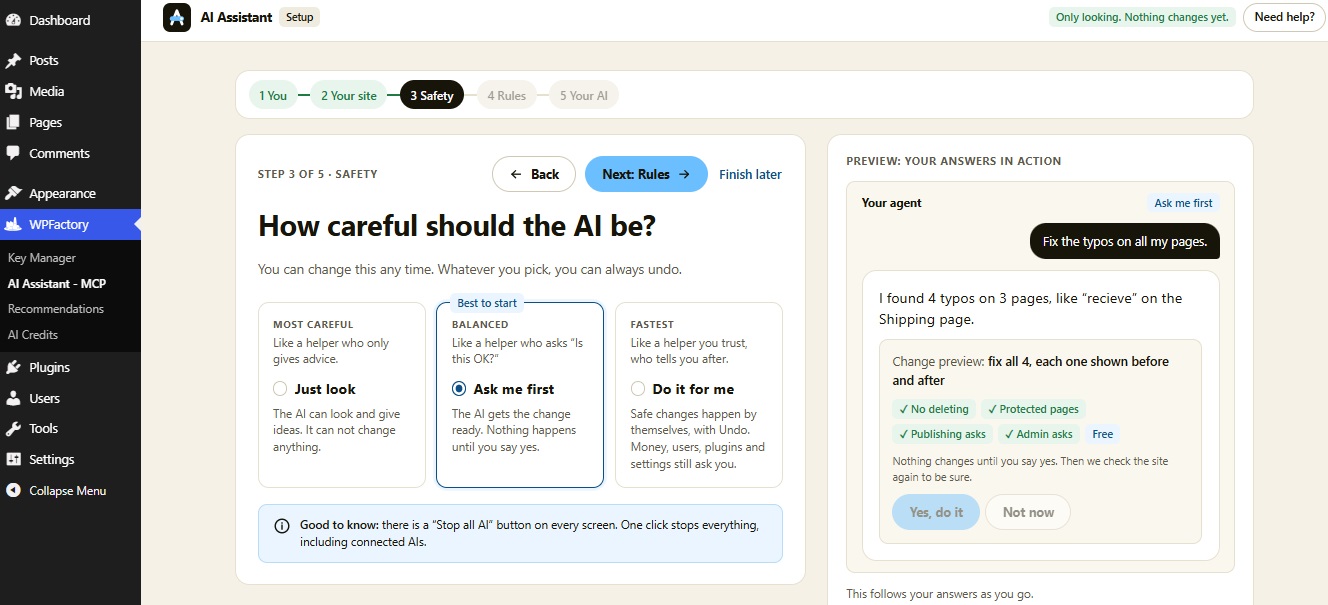
3. Set your safety level
The default is “Ask me first”: the AI prepares changes and waits for your approval. This is the recommended starting point.
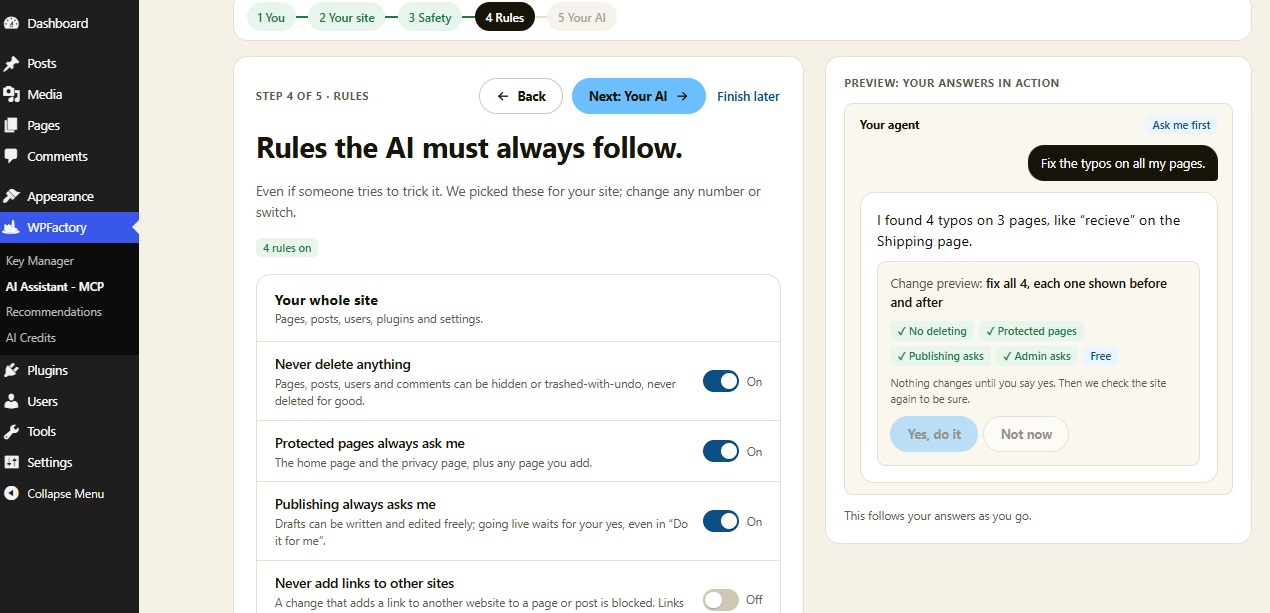
4. Confirm your rules
The wizard sets sensible defaults, never delete anything, protect key pages, always ask before publishing. Adjust them to taste.
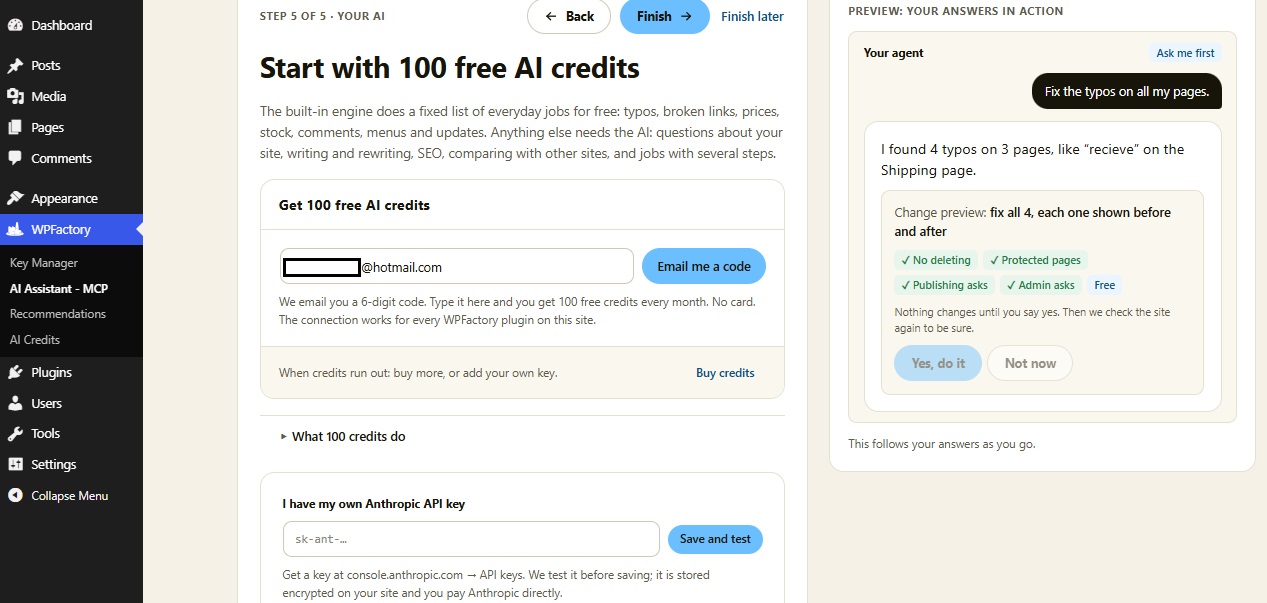
5. Start working
Open the chat and type a request, or connect your AI app and drive the site from there.
For connecting an outside app, our step-by-step guide on how to connect Claude to WordPress walks through the whole flow.
Use cases by site type
The same assistant earns its keep differently depending on what you run.
- Bloggers and content sites
The win is content hygiene.. fixing typos site-wide, drafting posts, cleaning old drafts, and adding alt text so images stop hurting your SEO.
- Business and brochure sites
The win is upkeep.. keeping pages current, replying to contact-form-driven comments, updating plugins without the monthly worry, and spinning up a new landing page from a short brief.
- WooCommerce stores
The win is operations.. editing product details in bulk-sounding plain English, adjusting prices and stock, answering questions about your own catalog, and handling reviews.
Store owners already juggle enough, an AI agent for WordPress that reaches the shop removes a layer of clicking.
Related resources
- What is a WordPress MCP server, and how to set one up
- How to connect Claude to WordPress
- How to connect ChatGPT to WordPress
- How to connect Cursor to WordPress
- How to connect Claude Code to WordPress
Add a WordPress AI assistant that keeps you in control.
Manage your whole site in plain English with the AI Assistant and MCP Server for WordPress.. a built-in agent, plus a safe connection for Claude, ChatGPT, Cursor, and more. Previews, rules, approvals, and Undo on every change.
Backed by a 14-day money-back guarantee, so you can try it on your own site with nothing at risk.
Frequently asked questions About WordPress AI assistant
What is a WordPress AI assistant?
It is a tool that runs tasks on your WordPress site from plain-English requests, editing pages, drafting posts, fixing links, updating plugins. Unlike a chatbot, it takes action, and on the safe default it waits for your approval before anything goes live.
Is it safe to let AI manage my WordPress site?
It is safe when the assistant previews every change, waits for your yes, and keeps an Undo. A good WordPress AI assistant also enforces hard rules the AI cannot break, like never deleting content and always asking before publishing.
Does a WordPress AI assistant work with Claude or ChatGPT?
Yes. A capable assistant turns your site into something Claude, ChatGPT, Cursor, and similar apps can connect to, so you can manage the site from the AI app you already use. The same safety rules apply to those apps.
Can an AI agent for WordPress change my site without asking?
Only if you choose a setting that allows it. On the default “Ask me first” level, nothing changes until you approve it. Even on faster settings, sensitive actions like touching users, plugins, and settings still ask you first.
Do I need to know how to code to use it?
No. You type what you want in plain words. The built-in option needs no keys or setup. Connecting an outside AI app takes a short, guided process and still no code.
What is the difference between a WordPress AI assistant and an AI writing plugin?
A writing plugin generates text you then place yourself. An AI assistant does the placing and the wider admin work too, across pages, menus, comments, plugins, and your shop, so you manage the whole site, not just the words.