To control shipping methods by the categories in the cart, use the Require Product Categories and Exclude Product Categories conditions in Conditional Shipping for WooCommerce: Restrict Shipping Options by Anything. Instead of listing individual products, you point a shipping method at whole categories, which is easier to maintain as your catalog grows.
Before you start #
- WooCommerce, active, with your products assigned to meaningful categories.
- Conditional Shipping installed and enabled. Both conditions are free.
Step-by-step setup #
- Go to WPFactory > Conditional Shipping (also reachable at WooCommerce > Settings > Conditional Shipping).
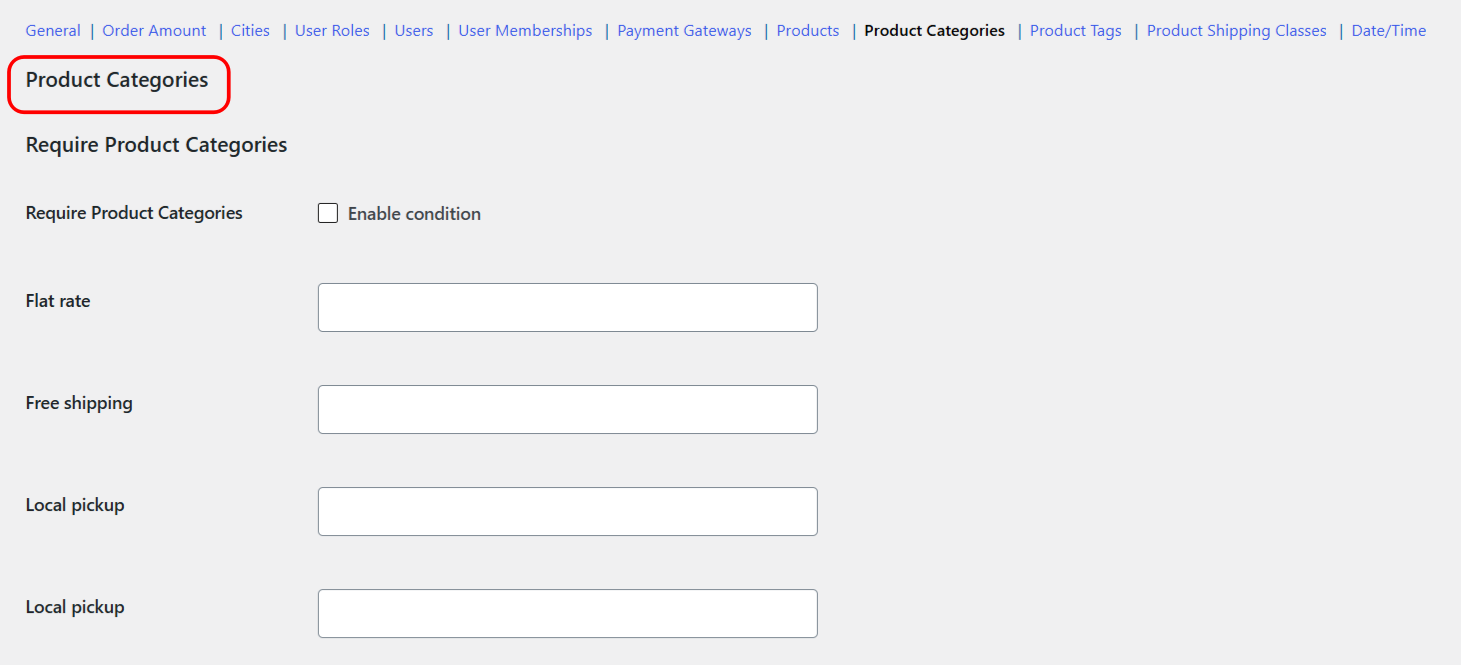
- Open the Product Categories section.
- To limit a method to certain categories, tick Enable condition for Require Product Categories, then select those categories next to the method.
- To hide a method when certain categories are in the cart, tick Enable condition for Exclude Product Categories, then select those categories next to the method.
- Leave a method’s value empty to apply no category rule to it.
- Save changes and test with a product from a selected category in the cart.
A rule triggers when a cart item belongs to a selected category. For Require, that item makes the method available; for Exclude, it removes the method. Only the categories you actually select matter, so pick the ones that describe the products you want to target.
The Require all option #
Require Product Categories honors the Require all general option (wpjup_wc_cond_shipping_validate_all, in the General section, default No). With it off, one matching item is enough for the method to show. With it on, every item in the cart must belong to a selected category before the method appears.
Options reference #
| Label | Option ID | Type | Default | Free/Pro |
|---|---|---|---|---|
| Require Product Categories (Enable condition) | wpjup_wc_cond_shipping_product_cat_incl_enabled |
Checkbox | No | Free |
| Required categories, per shipping method | wpjup_wc_cond_shipping_product_cat_incl_method[{method_id}] |
Multiselect (product categories) | Empty | Free |
| Exclude Product Categories (Enable condition) | wpjup_wc_cond_shipping_product_cat_excl_enabled |
Checkbox | No | Free |
| Excluded categories, per shipping method | wpjup_wc_cond_shipping_product_cat_excl_method[{method_id}] |
Multiselect (product categories) | Empty | Free |
| Require all (General) | wpjup_wc_cond_shipping_validate_all |
Checkbox | No | Free |
Each condition also has its own optional notice (wpjup_wc_cond_shipping_product_cat_incl_notice[enabled] and [content], and the matching _excl keys), shown before the cart and checkout forms when a method was hidden by that condition.
Use cases #
- Category promotion: require an Accessories category on a Free Shipping method to lift sales there.
- Protect fragile goods: exclude a Fragile Items category from Local Pickup so those orders always ship by a safer method.
- Whole-cart rule: combine Require Product Categories with Require all so a method shows only when every item is from your chosen categories.
Troubleshooting #
- The method appears too often: by default one matching item is enough. If you meant “the whole cart must qualify”, enable Require all.
- The rule never matches: confirm the products actually carry the selected category, and that Enable condition is ticked on the correct method row.
- Need to start over: tick Reset section settings in the Product Categories section and save to reset it to defaults.
Get more control #
These category conditions are free. Conditional Shipping for WooCommerce: Restrict Shipping Options by Anything Pro adds the “Use shipping instances” option, so you can set conditions per shipping-method instance (a specific Flat rate inside a specific zone) instead of globally per method type. See what Pro unlocks.