- Can WooCommerce restrict shipping by product without a plugin?
- Conditional Shipping by Product
- Frequently asked questions
- Does Require Products need every item in the cart to match?
- If I select a variable product, are all its variations included?
- What if I also use other conditions, such as category or city?
- Can I tell customers why a shipping method is missing?
- Can I set the rule for one Flat rate in one zone only?
- Get more control
To show or hide WooCommerce shipping methods based on the products in the cart, install Conditional Shipping for WooCommerce: Restrict Shipping Options by Anything, go to WPFactory > Conditional Shipping (also at WooCommerce > Settings > Conditional Shipping), open Products and enable Require Products or Exclude Products. Both are free.
Can WooCommerce restrict shipping by product without a plugin? #
Partly. WooCommerce core lets you set up shipping zones, choose methods per zone, and use shipping classes to change Flat rate costs. It has no setting that hides a shipping method when a specific product is in the cart, and Free shipping can only be limited by a coupon or a minimum order amount.
Conditional Shipping by Product #
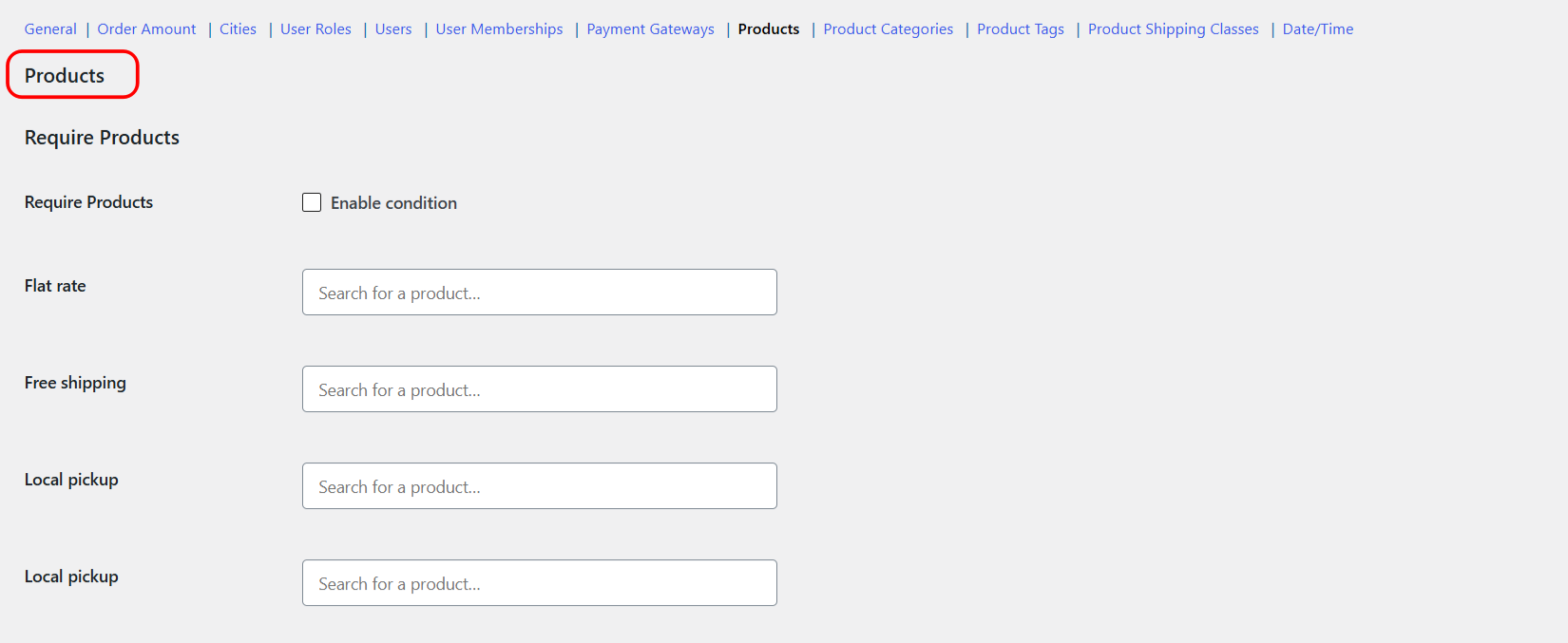
Pick products with an AJAX search, then tie a shipping method to their presence, so you can promote free shipping on select items or keep bulky goods off Local Pickup.
Before you start #
- WooCommerce, active, with the products you want to target already published.
- Conditional Shipping installed and enabled. Both conditions are free.
Step-by-step setup #
- Go to WPFactory > Conditional Shipping (also reachable at WooCommerce > Settings > Conditional Shipping).
- Open the Products section.
- To limit a method to certain products, tick Enable condition for Require Products, then, next to that method, search and select the products that should unlock it.
- To hide a method when certain products are in the cart, tick Enable condition for Exclude Products, then select those products next to the method.
- Leave a method’s value empty to apply no product rule to it.
- Save changes and test with the selected products in the cart.
Two general options that change this behavior #
Both live in the General section and affect the Products conditions:
- Add products variations (
wpjup_wc_cond_shipping_add_variations, default Yes): adds product variations to the Products search list, so you can target an individual variation, not just the parent product. This affects the Require Products and Exclude Products conditions. - Require all (
wpjup_wc_cond_shipping_validate_all, default No): when on, Require Products needs all cart items to match the selected products, rather than at least one. Exclude is unaffected.
Options reference #
| Label | Option ID | Type | Default | Free/Pro |
|---|---|---|---|---|
| Require Products (Enable condition) | wpjup_wc_cond_shipping_product_incl_enabled |
Checkbox | No | Free |
| Required products, per shipping method | wpjup_wc_cond_shipping_product_incl_method[{method_id}] |
Multiselect (AJAX product search) | Empty | Free |
| Exclude Products (Enable condition) | wpjup_wc_cond_shipping_product_excl_enabled |
Checkbox | No | Free |
| Excluded products, per shipping method | wpjup_wc_cond_shipping_product_excl_method[{method_id}] |
Multiselect (AJAX product search) | Empty | Free |
| Add products variations (General) | wpjup_wc_cond_shipping_add_variations |
Checkbox | Yes | Free |
| Require all (General) | wpjup_wc_cond_shipping_validate_all |
Checkbox | No | Free |
Each condition also has its own optional notice (wpjup_wc_cond_shipping_product_incl_notice[enabled] and [content], and the matching _excl keys), shown before the cart and checkout forms when a method was hidden by that condition.
Use cases #
- Promotional shipping: require a newly launched product on a Free Shipping method to feature it.
- Keep bulky goods off pickup: exclude oversized products from Local Pickup so they always ship by courier.
- Whole-cart rule: combine Require Products with Require all so a method appears only when every item is from your chosen set.
Troubleshooting #
- A variation is not in the search list: turn on Add products variations in the General section.
- Require matches too easily: if you meant “the whole cart must qualify”, enable Require all; by default one matching item is enough.
- Need to start over: tick Reset section settings in the Products section and save to reset it to defaults.
Frequently asked questions #
Does Require Products need every item in the cart to match? #
No. By default one matching item is enough to show the method. Turn on Require all in the General section if every cart item must be one of the selected products.
If I select a variable product, are all its variations included? #
Yes. Selecting the parent product covers all of its variations. With Add products variations on (the default), you can also pick a single variation.
What if I also use other conditions, such as category or city? #
By default the Logical operator in the General section is AND, so a method is hidden if any enabled condition hides it. Switch it to OR to show the method when any condition passes. See AND vs OR for multiple shipping conditions.
Can I tell customers why a shipping method is missing? #
Yes. Each condition has its own optional notice, shown before the cart and checkout forms. See cart and checkout notices for hidden shipping methods.
Can I set the rule for one Flat rate in one zone only? #
Yes, with Pro. Turn on Use shipping instances to set conditions per method instance, as explained in setting shipping conditions per shipping method instance.
Get more control #
These product conditions are free. Conditional Shipping for WooCommerce: Restrict Shipping Options by Anything Pro adds the “Use shipping instances” option, so you can set conditions per shipping-method instance (a specific Flat rate inside a specific zone) instead of globally per method type. See what Pro unlocks.