Table of Contents
To add custom fields to your WooCommerce checkout, install Custom Checkout Fields for WooCommerce and activate it like any other WordPress plugin. This guide covers both install methods and how to confirm the plugin is running.
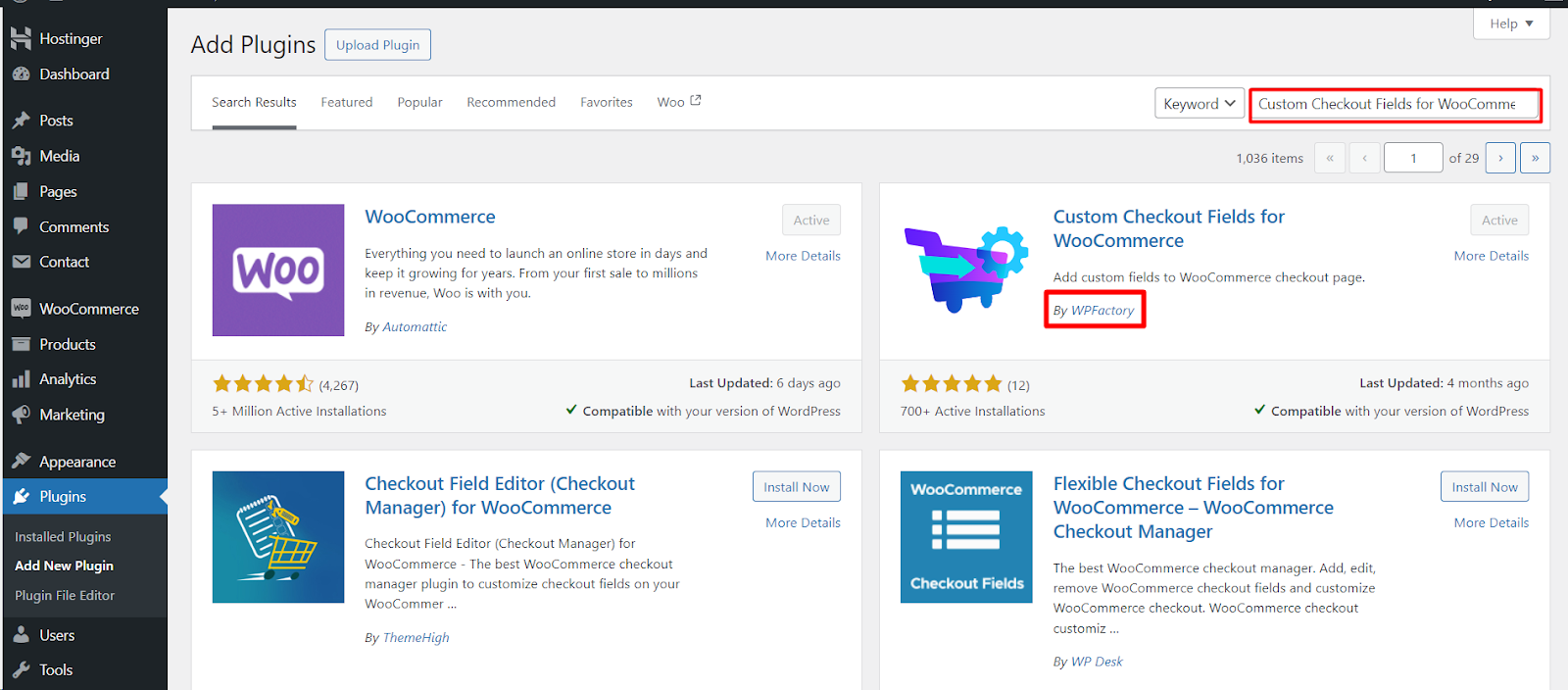
Before you start #
- WordPress with WooCommerce installed and active.
- The plugin zip file, or access to the WordPress.org plugin directory for the free version.
Method 1: install from the WordPress dashboard #
- Go to Plugins > Add New in your WordPress dashboard.
- Click Upload Plugin at the top of the page.
- Choose the plugin zip file (for the Pro version this is
custom-checkout-fields-for-woocommerce-pro.zip) and click Install Now. - Click Activate Plugin.
Method 2: manual upload over FTP #
- Unzip the plugin file on your computer.
- Connect to your server with an FTP client such as FileZilla, or use your host’s file manager.
- Upload the unzipped plugin folder to
/wp-content/plugins/. - In WordPress, go to Plugins, find the plugin, and click Activate.
Confirm the plugin is active #
- Go to WPFactory > Custom Checkout Fields (also reachable at WooCommerce > Settings > Custom Checkout Fields).
- You land on the General tab. From here you create and manage your fields. A Field #1 tab is also present, where you configure your first field.
Free vs Pro: the free version lets you add one custom field with the full set of field types and options. Custom Checkout Fields Pro raises the Custom fields number limit so you can add up to 100 fields. Every field type, visibility rule, and fee option is available in the free version for that one field.
Next steps #
- Add and configure your first field on the General and Field #1 tabs.
- Set where the field appears with the Position options (Billing, Shipping, Account, or Order notes).
Get more fields #
The free version covers a single custom field. Custom Checkout Fields for WooCommerce Pro unlocks up to 100 fields, so you can build out a full checkout form. See what Pro unlocks.