Change the list of per-page options shoppers can choose #
To customize the products per page options in Number of Products per Page – Pagination Manager for WooCommerce Pro, go to WPFactory > Products per Page, edit Select options in the Select Options block with one Title|Number entry per line (use -1 for all products), set the Default option, and save. The free version uses a fixed list.
Before you start #
- WooCommerce, active.
- Number of Products per Page – Pagination Manager for WooCommerce Pro (in the free version the options field is read-only).
Edit the options #
- Go to WPFactory > Products per Page (also reachable at WooCommerce > Settings > Products per Page).
- In the Select Options block, edit Select options (option id
alg_products_per_page_select_options). - Enter one option per line in
Title|Numberformat. Use-1for all products. - Set Default option (option id
alg_products_per_page_default) to the number you want pre-selected. - Save changes.
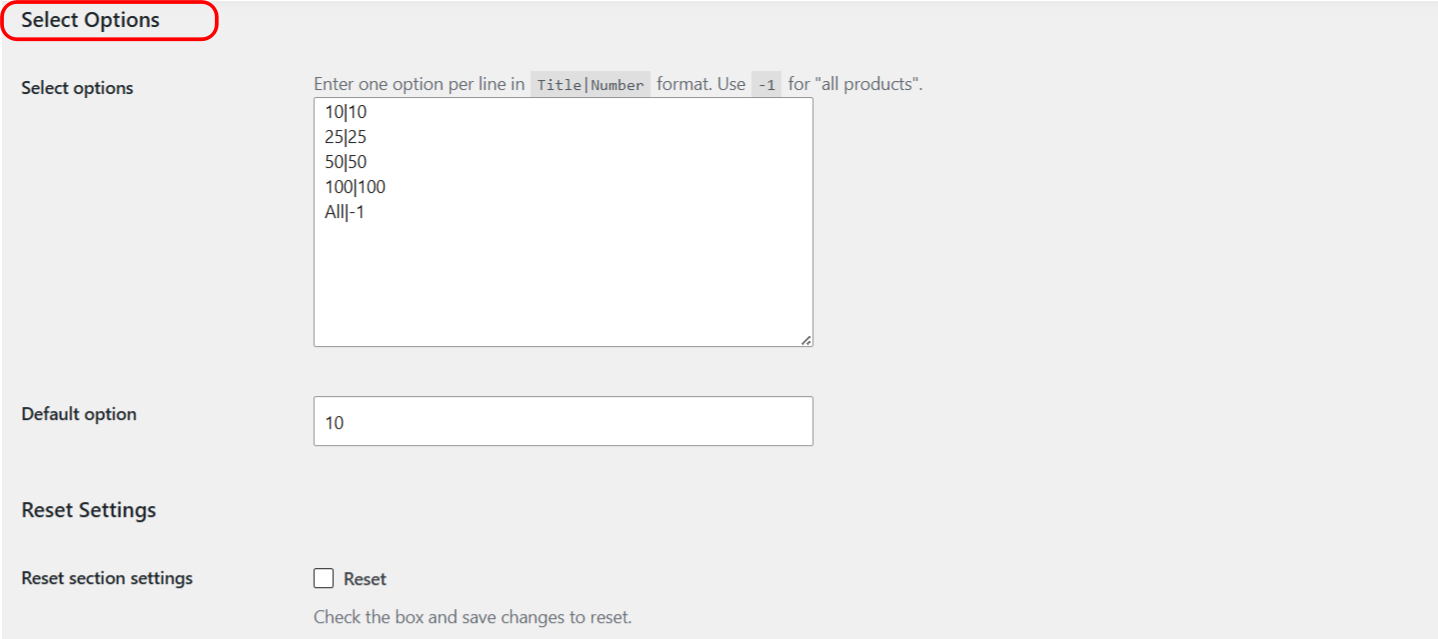
Example #
12|12
24|24
48|48
Show all|-1
This shows four choices labeled 12, 24, 48 and “Show all”. The title on the left is what shoppers see; the number on the right is how many products load.
Note: the title and number are separated by a vertical bar, in that order. A common mistake is to reverse them: write All|-1, not -1|All. Avoid setting a very large value or -1 as the default on big catalogs, since loading every product at once slows the page.
Default option value #
The Default option is free and controls what a first-time visitor sees before choosing. Set it to any number from your list, for example 24.
Ready to set this up? #
Editing the options list is a Pro feature of Products per Page. Upgrading takes a couple of minutes and also unlocks the Products per Page widget. Get Products per Page Pro.