Configure a PDF document (Invoice) in WooCommerce #
To configure the Invoice document in PDF Invoices & Packing Slips Generator for WooCommerce, go to WPFactory > PDF Invoicing (also reachable at WooCommerce > Settings > PDF Invoicing) and open the Doc: Invoice section. There you control when the document is created, how it is numbered, and where customers and staff can reach it.
Go to WPFactory > PDF Invoicing (also reachable at WooCommerce > Settings > PDF Invoicing) and open the Doc: Invoice section.
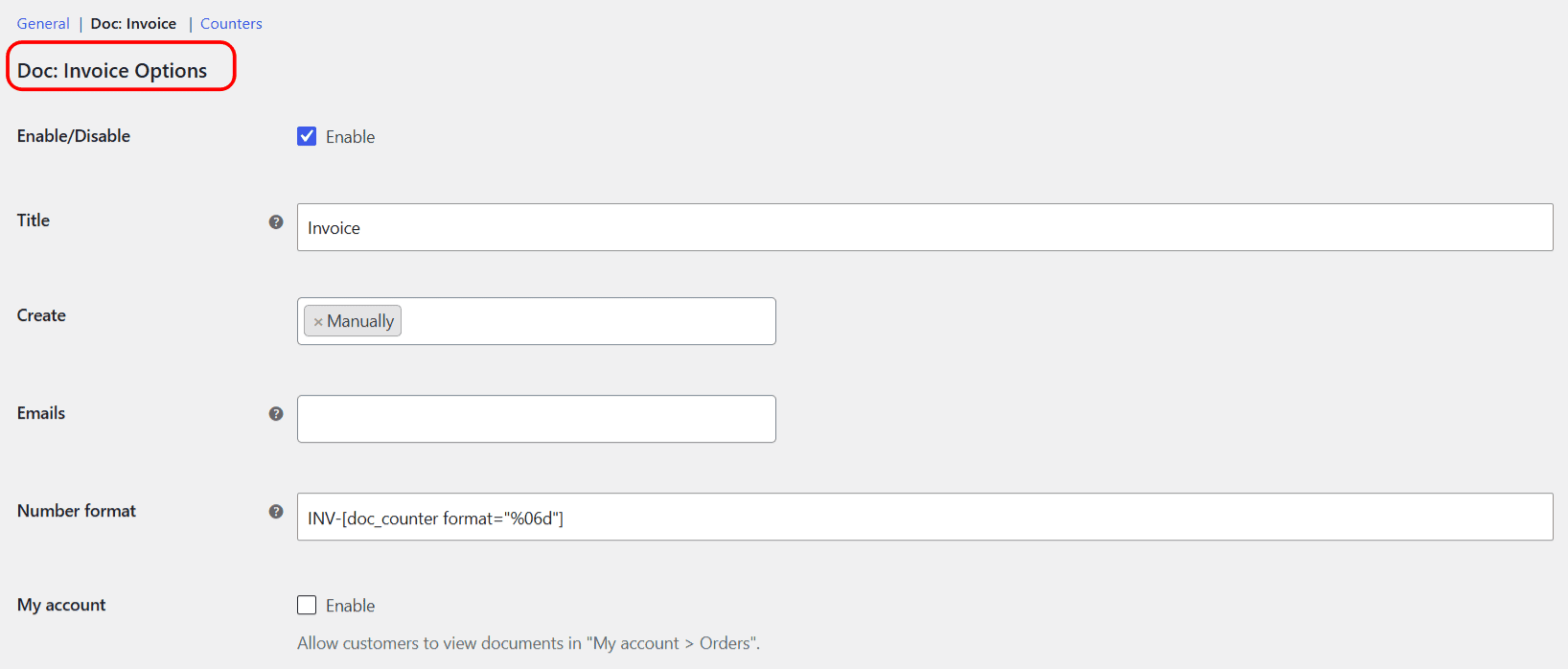
General options #
| Label | Option ID (array key) | Default |
|---|---|---|
| Enable/Disable | enable |
Yes |
| Title (used in admin and My Account) | admin_title |
Invoice |
| Create (trigger) | hooks |
Manually |
| Emails (attach to) | emails |
(none) |
| Number format | number_format |
INV-[doc_counter format="%06d"] |
| My account | my_account_orders |
No |
| Bulk actions | order_bulk_actions |
Download PDFs |
Document creation triggers #
The Create option decides when the document is generated. It is a multi-select, so you can choose more than one trigger.
| Trigger | When it fires |
|---|---|
| Manually | Only when you click Create on the order edit screen or in the orders list. |
| On new order | As soon as the order is created. |
| On payment complete | After the order payment is completed. |
| On checkout order processed | When the checkout finishes processing the order. |
| On order partially refunded | When a partial refund is recorded on the order. |
| On order status … | When the order reaches a chosen status (one entry per status, for example Processing or Completed). |
A document is created only once per order per document, so re-firing a trigger will not produce duplicates.
Numbering and format #
The Number format field builds the document number using shortcodes. The default is:
INV-[doc_counter format="%06d"]This yields numbers like INV-000001. The [doc_counter] shortcode returns the per-document counter and increments it, and format="%06d" pads it with leading zeros to six digits.
To reset the sequence each year, add the year with a date shortcode rather than a bare [Y] (there is no [Y] shortcode, so it would print literally). Use [current_time] or [doc_formatted_date] with a datetime_format attribute:
INV-[current_time datetime_format="Y"]-[doc_counter format="%04d"]This produces a number like INV-2026-0001. Keep in mind that the counter itself does not reset automatically; adjust it in the Counters section at the start of a new fiscal year. See WooCommerce Invoice Number Format and Counters for the full walkthrough.
Note: you cannot use the doc_nr property inside Number format, because the number is what this field defines.
Customer access and bulk actions #
- Emails: choose which WooCommerce email notifications carry the document as an attachment. By default none are selected.
- My account: when enabled, customers can open the document from My Account > Orders. Off by default.
- Bulk actions: adds View PDFs and/or Download PDFs to the orders list bulk-action menu. Only Download PDFs is enabled by default.
For step-by-step guides, see Attach PDF Invoices to WooCommerce Emails, WooCommerce PDF Invoices in My Account, and Bulk View and Download PDF Invoices.
Get more control #
Configuring one document is free. PDF Invoices & Packing Slips Generator for WooCommerce Pro lets you add more document types, each with its own triggers, numbering, and emails. See what Pro unlocks.