If Google Merchant Center rejects EANs created by EAN for WooCommerce as invalid or restricted, the codes use a prefix that GS1 has not issued to you. The Generate tool’s default Country prefix is 200, a GS1 range reserved for in-store use. The fix: load your GS1-issued codes with WPFactory > EAN > Tools > Assign from the list.
Why generated codes can fail #
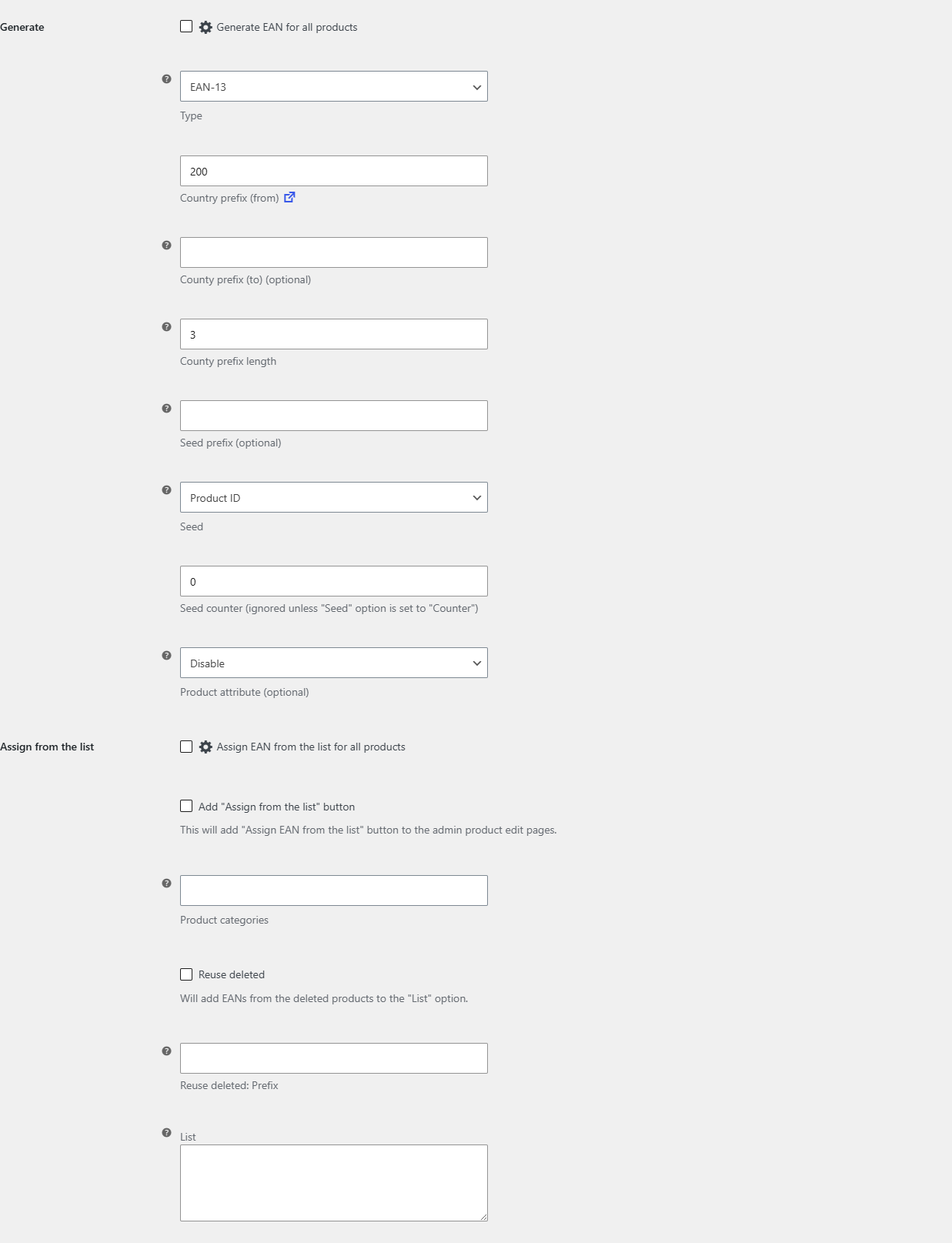
The Generate tool builds each code from three parts, then adds the check digit: the Country prefix (3 digits for EAN-13 and UPC-A), an optional Seed prefix, and the Seed (the product ID or a counter). The result always has the right length and a correct check digit, so it passes the plugin’s Check if valid test. That test does not, and cannot, check whether GS1 has issued the number to your company. Google does check this, which is where the “restricted” or “GS1 hasn’t released the current value” messages come from.
Causes and fixes #
-
The codes start with 200 (the default). GS1 reserves the 200 to 299 range for restricted, in-store numbering, such as items priced and labeled inside one shop. These codes are fine for your own shelf labels and stock counting, but not for Google Shopping or marketplaces.
Fix: replace them with codes issued to you by GS1 (see step 3), and keep generated 2xx codes for internal use only.
-
The codes start with a real country prefix you picked. A country prefix only names the national GS1 office. Combining it with your product IDs produces numbers that are well formed but belong to other companies or to nobody, so Google still rejects them.
Fix: same as above. Only numbers inside the range GS1 issued to your company are valid for retail listings.
-
How to put your GS1 codes on your products. Choose one of these free tools at WPFactory > EAN (also reachable at WooCommerce > Settings > EAN), Tools section:
- Assign from the list: paste the GS1 codes you bought into List, one per line, tick Assign EAN from the list for all products and click Save changes. Each assigned code is removed from the list, so it is never used twice. You can limit the run to certain Product categories.
- Generate with your GS1 Company Prefix: set Country prefix (from) to the first 3 digits of your GS1 Company Prefix, Seed prefix to the remaining digits, Seed to Counter, and Seed counter to your first unused item number. Stay within the number of items your GS1 license covers.
Generate, Copy and Assign never overwrite an existing EAN. To replace the rejected codes, first run Delete (Delete all EANs for all products), which has no undo, or clear the EAN on the affected products by hand. Back up your database before you run the tools.
How to confirm it is fixed #
- Open a few products and check that their EAN now starts with your GS1 Company Prefix.
- Look one code up in GS1’s public barcode lookup (Verified by GS1). It should show your company as the owner.
- Regenerate or resync your product feed, then check the item’s diagnostics in Google Merchant Center after it has processed the feed again.
See also how to generate EANs for all products and how to avoid duplicate EANs.
Still stuck? #
Need a hand? Our team answers every ticket on the EAN for WooCommerce support forum. Include one example code and your Generate settings.