To set up EAN, UPC and GTIN codes in WooCommerce, install EAN for WooCommerce and go to WPFactory > EAN (also reachable at WooCommerce > Settings > EAN). In the General section, pick the Type, such as EAN-13, UPC-A or Automatic, then set the field title, position and validation options. The plugin is enabled by default.
Step 1: Install and open the settings #
Install and activate the plugin (see Installing the EAN for WooCommerce plugin). Then go to WPFactory > EAN (also reachable at WooCommerce > Settings > EAN).
Step 2: General options #
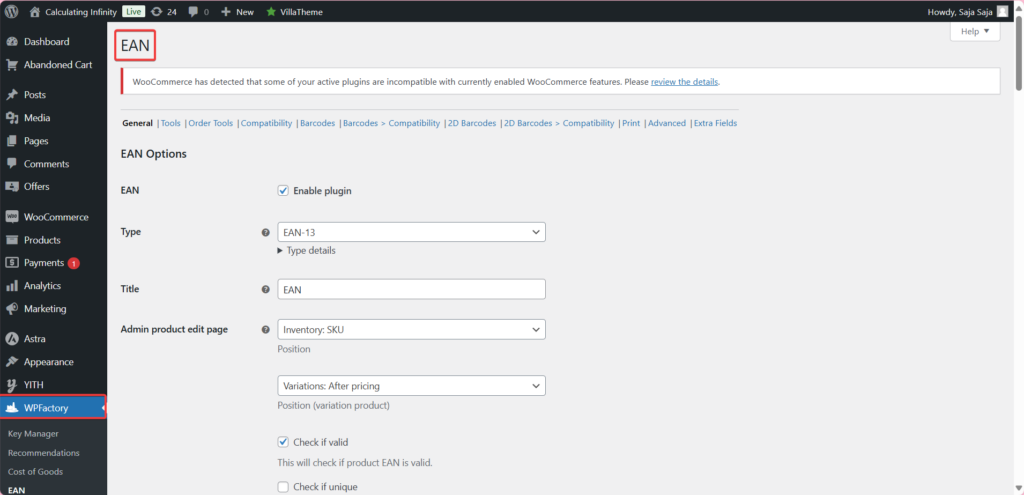
The plugin is enabled by default. The Enable plugin checkbox (option alg_wc_ean_plugin_enabled, default Yes) at the top of the General section is the master switch.

Type #
Set the identifier standard used for validation, input pattern, structured data, and 1D barcodes (option alg_wc_ean_type, default EAN-13). Choose Automatic to detect the type from the code length, or pick a specific one:
- EAN-8: 8 digits, for small items.
- UPC-A: 12 digits, common in the United States.
- EAN-13: 13 digits, the most common global standard.
- ISBN-13: 13 digits, for books (prefixed 978 or 979).
- JAN: a 13-digit EAN-13 subset used in Japan (prefixed 45 or 49).
- EAN-14: 14 digits, for trade item packaging levels.
- Custom: any of the 128 ASCII characters.

Title and field position #
Title (option alg_wc_ean_title, default EAN) is the label used for the field on the product edit screen and in the products list column. Admin product edit page > Position (option alg_wc_ean_backend_position, default Inventory: SKU) sets which product data tab the field appears under: General, Inventory, Inventory: SKU, or Advanced. A separate option sets the position for variations.

Validation, search and column #
- Check if valid (
alg_wc_ean_backend_is_valid, default Yes) verifies the check digit as you edit a product. - Check if unique (
alg_wc_ean_backend_is_unique, default No) warns if the EAN already exists on another product. - Require (
alg_wc_ean_required, default No) makes the EAN field mandatory. - Admin product search (
alg_wc_ean_backend_search, default Yes) lets you find products by EAN in the admin. - Admin products list column (
alg_wc_ean_backend_column, default Yes) adds an EAN column to the products list.

Frontend display #
Single product page (alg_wc_ean_frontend, default Yes) shows the EAN on product pages, with a customizable template and positions. Separate toggles let you show the EAN on Shop pages, Cart, and Checkout, and enable Search by EAN on the frontend.

Product structured data #
Product structured data (alg_wc_ean_frontend_product_structured_data, default Yes) adds the EAN to your product schema, for example the gtin13 property, so search engines like Google can read it. See Add GTIN to product structured data for Google.

Orders, emails and REST API #
Further down the General section you can add the EAN to new order item meta, show it in the order items table on pages and emails, and expose it through the WooCommerce REST API for products and orders. See Show EAN in orders and emails and Add EAN to the WooCommerce REST API.

Step 3: Product tools #
The Tools section runs bulk actions across all products: Generate, Copy from SKU, ID, meta, or attribute, Assign from the list, Delete, Copy to SKU, meta, or attribute, and Get stats. Check a tool’s box and click Save changes to run it. There is no undo, so back up first.
Note: the Generate, Copy, and Assign tools will not overwrite existing EANs. Use the Delete tool first if you want to replace them.

Step 4: Order tools #
The Order Tools section adds or deletes EANs on all existing order items, and searches orders by the EAN stored in item meta.

Step 5: Barcodes (Pro) #
Enable the Barcodes section (Pro) to render scannable 1D barcode images from each product’s EAN on the product edit page, products list column, single product page, shop pages, cart, orders, and emails. The 2D Barcodes section (Pro) does the same with QR codes, Datamatrix, or PDF417.

Step 6: Compatibility #
The Compatibility section adds the EAN to other plugins you already use, such as Google Listings & Ads, Google Product Feed, Point of Sale, Dokan, WCFM, and the major PDF invoice plugins.

Step 7: Print barcodes to PDF (Pro) #
The Print section (Pro) generates PDF sheets of barcode labels with full control over page size, orientation, columns, cell size, margins, font, and template. See How to use the Print Barcodes (PDF) tool.

Step 8: Advanced and extra fields #
The Advanced section holds the Meta key (option alg_wc_ean_meta_key, default _alg_ean), the force-remote-image toggle, JavaScript variation selectors, and settings export, import, and reset. The Extra Fields section (Pro) lets you add more identifier fields per product, such as MPN, alongside the main EAN.

Get more from EAN for WooCommerce #
Saving, searching, and displaying EANs is free. EAN for WooCommerce Pro adds 1D and 2D barcode images, PDF label printing, and multiple extra fields per product. See what Pro unlocks.