To assign, copy or generate EANs automatically when products are created or updated, use EAN for WooCommerce. Go to WPFactory > EAN > Tools, scroll to Product Actions, choose an action for New product, Update product or Periodic action, and save. These are free features.
Product actions can also add EAN actions to the Products bulk-actions menu, so you can generate or delete EANs for a selection of products in one click.
Where to find it #
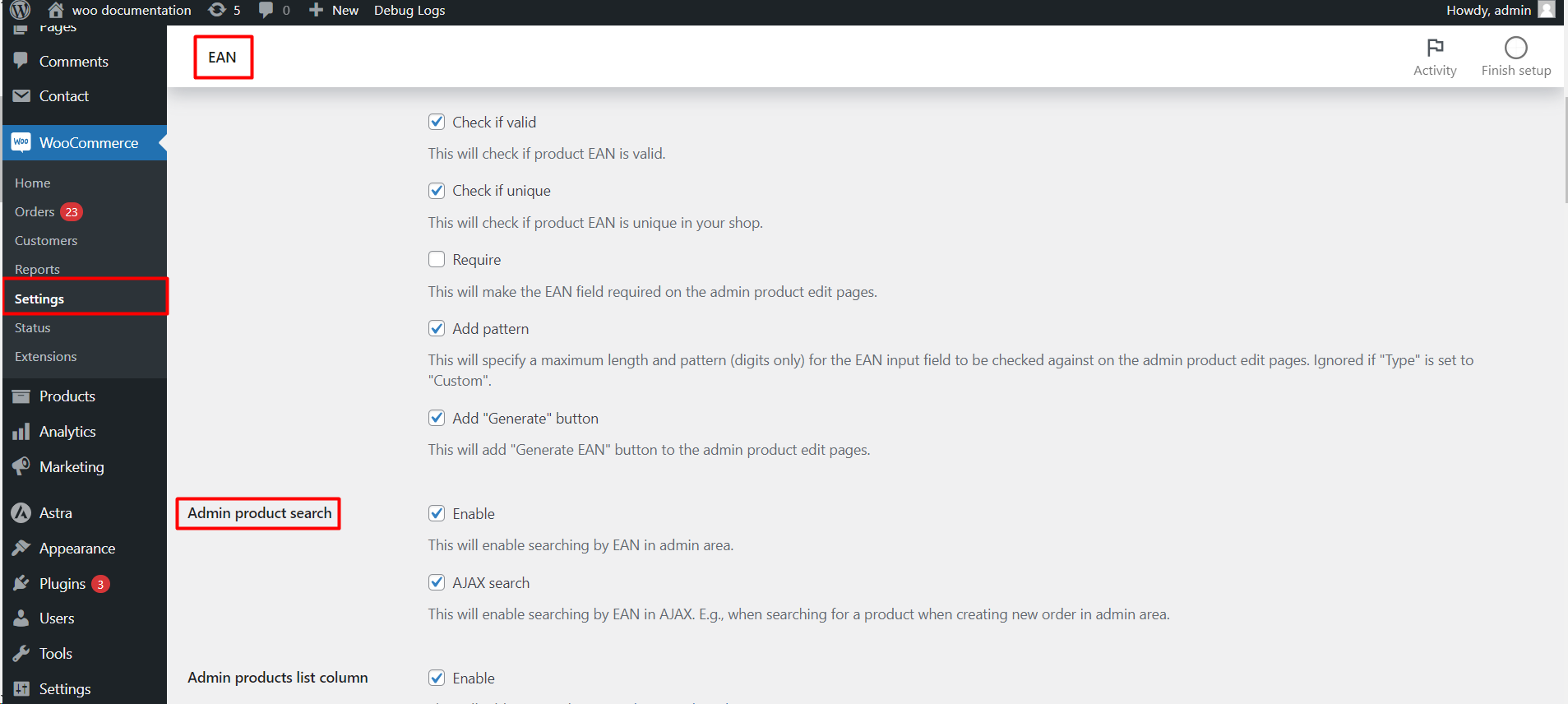
Go to WPFactory > EAN (also reachable at WooCommerce > Settings > EAN), open the Tools section, and scroll to Product Actions.
Set up an automatic action #
- Higher up in the same Tools section, configure the tool the action depends on. Automatic actions reuse those settings: for example Generate uses the Generate options, Copy from product meta uses its Meta key, and Assign from the list takes codes from its List box.
- Under Product Actions > Automatic actions, pick an action for New product, Update product, or both.
- Optionally pick a Periodic action and set the interval in seconds.
- Click Save changes. Nothing runs at save time: the action runs the next time a product is added or updated, or on the next scheduled run.
Automatic actions #
Each action can run automatically. The available actions are: Generate, Copy from product SKU, Copy from product ID, Copy from product meta, Copy from product attribute, Assign from the list, Copy to product SKU, Copy to product meta, and Copy to product attribute.
| Setting | Option ID | When it runs |
|---|---|---|
| New product | alg_wc_ean_tool_product_action_on_new |
Each time a product is created (also offers “Copy to variations”) |
| Update product | alg_wc_ean_tool_product_action_on_update |
Each time a product is updated (also offers “Copy to variations”) |
| Periodic action | alg_wc_ean_products_periodic_action |
On a schedule, for all products |
| Periodic action interval | alg_wc_ean_products_periodic_action_interval |
Interval in seconds (default 3600) |
All three default to Disabled.
How the actions treat existing EANs #
- Generate, Copy from, and Assign from the list only fill products that have no EAN yet. An existing EAN is never overwritten.
- Copy to product SKU, meta or attribute only run on products that already have an EAN, and write that EAN out to the chosen field.
- Variable product: Copy to variations copies the parent product’s EAN to every variation, replacing their current values. It runs only for variable products.
- The Variable products option in the Tools section (All, Variations only, Variable only) also applies to automatic actions, except Copy to variations.
- Assign from the list removes each code from the list as it is used, and respects the list’s Product categories filter.
Bulk actions on the Products list #
Products > Bulk actions (option alg_wc_ean_product_bulk_actions) adds two entries you can turn on: Generate EAN and Delete EAN. Both are enabled by default. Select products in the WooCommerce products list, choose the action, and click Apply.
The Require confirmation? option (alg_wc_ean_product_bulk_actions_confirm, default confirms Delete EAN) asks you to confirm before a bulk action runs, which prevents accidental deletions.
Bulk Generate EAN skips products that already have an EAN. For variable products, both bulk actions follow the Variable products option, so with the default All they apply to the parent and all its variations.
Order tools #
The separate Order Tools section adds or deletes EANs on all existing order items. Tick Add or Delete and save to run it. There is no undo.
If it does not work #
- The product already has an EAN. Fill actions never overwrite. Delete the EAN first, then save the product again.
- The source is empty. Copy from SKU, meta or attribute writes nothing when the product has no value there, and Copy from product meta needs its Meta key set.
- The list ran out. Assign from the list stops once the List box is empty. Add more codes.
- The periodic action never runs. It is scheduled with WooCommerce’s Action Scheduler. Check WooCommerce > Status > Scheduled Actions for the
alg_wc_ean_products_periodic_actionhook, and make sure WP-Cron is not disabled on your site. - Generated codes clash. See ensure unique EAN/GTIN codes.
FAQ #
Do automatic actions update products I already have? #
Not by themselves. New product and Update product run only when a product is saved. To fill existing products in one go, use the tools in bulk EAN management with the product tools, or set a Periodic action.
How do I give every new product an EAN automatically? #
Set New product to Generate and configure the Generate options first. See how to generate EANs for all products.
Can variations inherit the parent product’s EAN? #
Yes. Set New product or Update product to Variable product: Copy to variations. For why variations can lose or share EANs, see product variations losing or sharing their EAN.
Get more from EAN for WooCommerce #
Automatic actions and bulk actions are free. EAN for WooCommerce Pro turns your codes into scannable barcodes and PDF labels. See what Pro unlocks.
Need a hand? Our team answers every ticket on the EAN for WooCommerce support forum.