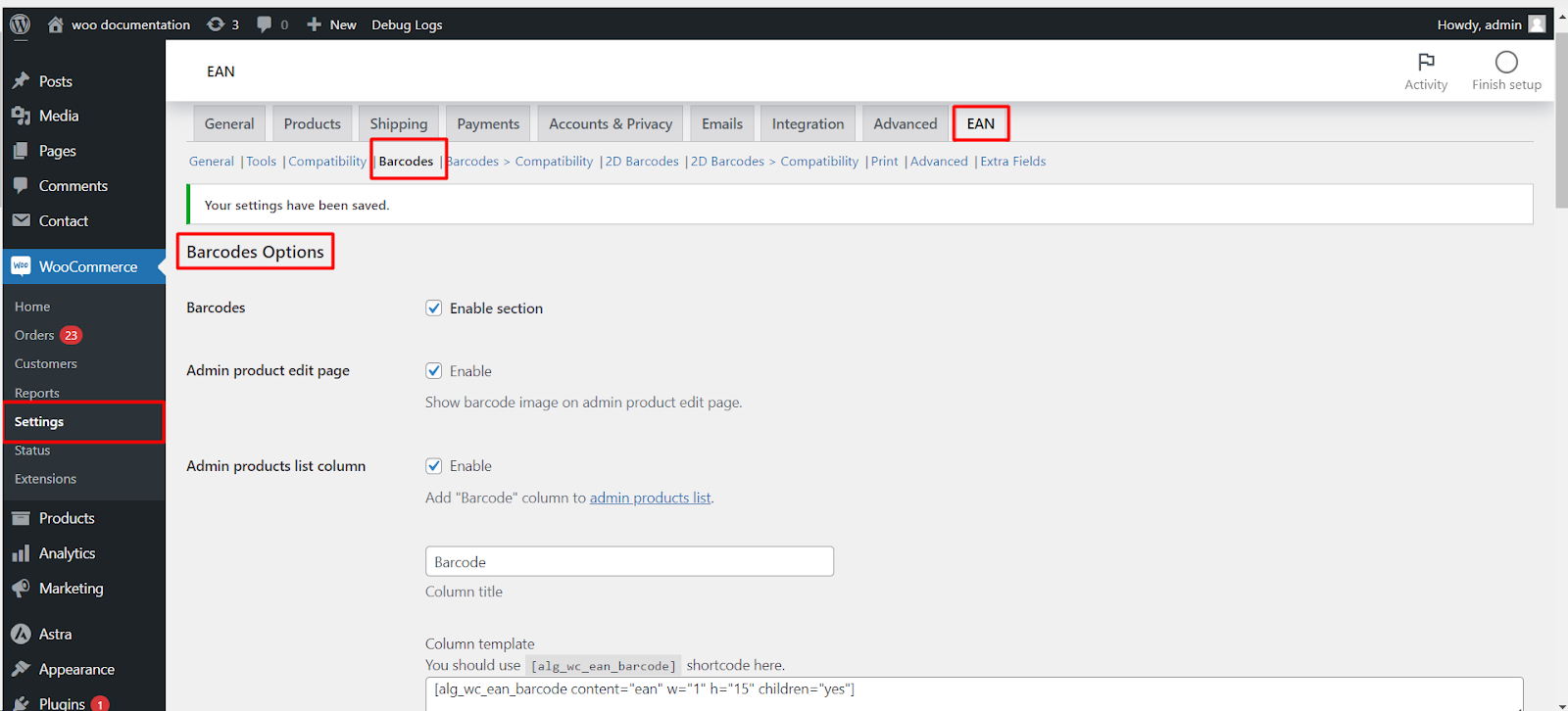
To display scannable barcode images from your product EANs, use EAN for WooCommerce Pro. Go to WPFactory > EAN > Barcodes, tick Enable section, then enable each place you want a barcode: product edit page, products list, single product page, shop, cart, orders or emails. Save changes.
The Barcodes section turns each product’s EAN into a 1D barcode you can show across the store. Displaying barcode images is a Pro feature.
Before you start #
- EAN for WooCommerce Pro (barcodes are a Pro feature). In the free version, the Enable section checkbox is disabled.
- Products need an EAN. For variable products, the parent product’s EAN must be set.
- The EAN must be valid for the Type set in the General section (default EAN-13). See managing product EANs and choosing a type.
Enable the section #
- Go to WPFactory > EAN (also reachable at WooCommerce > Settings > EAN) and open the Barcodes section.
- Tick Enable section (option
alg_wc_ean_barcode, default No). - Tick Enable next to each placement you need (see the table below). All are off by default.
- Click Save changes, then open a product with an EAN to check the result.
Where barcodes can appear #
| Placement | Option ID | Default |
|---|---|---|
| Admin product edit page | alg_wc_ean_backend_barcode |
No |
| Admin products list column | alg_wc_ean_backend_column_barcode |
No |
| Single product page | alg_wc_ean_frontend_barcode |
No |
| Shop pages | alg_wc_ean_frontend_loop_barcode |
No |
| Cart | alg_wc_ean_frontend_cart_barcode |
No |
| Admin order edit page (Orders) | alg_wc_ean_order_barcode |
No |
| Order items table: Pages | alg_wc_ean_order_items_table_barcode |
No |
| Order items table: Emails | alg_wc_ean_order_items_table_emails_barcode |
No |
Note: barcode images in emails do not render on a localhost environment. The Emails list option limits which WooCommerce emails include the barcode; leave it empty to include all of them.
What customers see #
- Single product page: the barcode appears in the product meta area (with SKU and categories). For variations, Variable products: Position in variation places it in the product meta (default) or in the variation description.
- Shop pages: under the product title in category and shop listings.
- Cart: under each item name.
- Order items table: under each item on the “order received” and “view order” pages (Pages) and in order emails (Emails).
Several placements have a Template box that uses the [alg_wc_ean_barcode] shortcode, so you can change the bar size there. The product edit page default is [alg_wc_ean_barcode content="ean" w="2" h="30"].
Barcode type #
Under Advanced Barcodes Options, the Barcode type (option alg_wc_ean_barcode_barcode_type, default Automatic) picks the symbology. Automatic uses EAN-8, UPC-A, or EAN-13 based on your EAN type and falls back to CODE 128 for others. Suppress errors (default Yes) is recommended.
Output a barcode with a shortcode #
You can place a barcode anywhere with [alg_wc_ean_barcode]. Useful attributes include product_id, w (bar width, default 2), h (height, default 30), color (default #000000), add_text="yes" to print the number under the bars, and children="yes" to include variations. For every attribute, see the EAN placeholders and shortcodes reference. For QR codes and other 2D symbologies, see how to display 2D barcodes and QR codes.
If the barcode does not appear #
- The EAN is not valid for your Type. 1D barcodes are only drawn for a valid code: digits only, the right length for the Type, and a correct check digit. Otherwise nothing is shown. Fix the code, or set Type to Custom for codes that are not EAN or UPC.
- The section is off. Placement checkboxes do nothing until Enable section is ticked.
- Your theme or page builder skips product meta. The single product placement hooks into the product meta area. If your template does not output it, place
[alg_wc_ean_barcode]in the layout instead. - Variable product on shop pages. Set the parent product’s EAN.
- Missing in emails. Email barcodes load as an image from your site URL, so they fail on
localhostand stay hidden in email clients that block remote images until the reader allows them. - A fixed Barcode type is ignored. In version 5.5.9, the 1D generator reads a different option key than the one Barcode type saves, so 1D barcodes use automatic detection. To force CODE 128, set the General Type to Custom, or contact support.
FAQ #
Can I show barcodes without the Pro version? #
No. Saving, searching and displaying the EAN number is free, but barcode images are Pro. See EAN Barcode Generator: Free vs Pro.
Can I print barcode labels? #
Yes, with Pro. See how to use Print Barcodes (PDF).
Can barcodes appear in PDF invoices and packing slips? #
Yes. The Barcodes > Compatibility section adds them to supported PDF and export plugins. See show barcodes in invoices and exports.
Ready to set this up? #
Barcodes are part of EAN for WooCommerce Pro. If you are on the free version, upgrading unlocks 1D and 2D barcodes plus PDF label printing. Get EAN for WooCommerce Pro.
Need a hand? Our team answers every ticket on the EAN for WooCommerce support forum.