To print barcode labels in WooCommerce, use the Print section of WooCommerce EAN Barcode Generator: UPC, ISBN & GTIN Inventory Pro. Turn it on at WPFactory > EAN > Print (also reachable at WooCommerce > Settings > EAN > Print), set your label layout, then select products and choose Print barcodes from the bulk actions.

What it does #
The Print section of EAN for WooCommerce turns your products’ EANs into a PDF sheet of labels. Each label follows a template, by default the barcode image with the EAN number below it, and the page layout (paper size, columns, cell size and margins) is set to match your label stock. Printing is a Pro feature. Storing and showing EANs is free.
Before you start #
- EAN for WooCommerce Pro installed and active (free plugin name on WordPress.org: EAN Barcode Generator for WooCommerce: UPC, ISBN & GTIN Inventory). See installing the EAN for WooCommerce plugin.
- EANs saved on the products you want to print. See how to set up EAN, UPC and GTIN codes or how to generate EANs for all products.
First setup: print your first labels #
- Go to WPFactory > EAN and open the Print section.
- Under Print Barcodes (PDF), check Enable section (default: off) and click Save changes.
- In General Options, match the layout to your labels. The defaults are a Portrait LETTER page in inches, Max barcodes per page 12, Columns 2 and a cell of 4 x 1.5. Save changes.
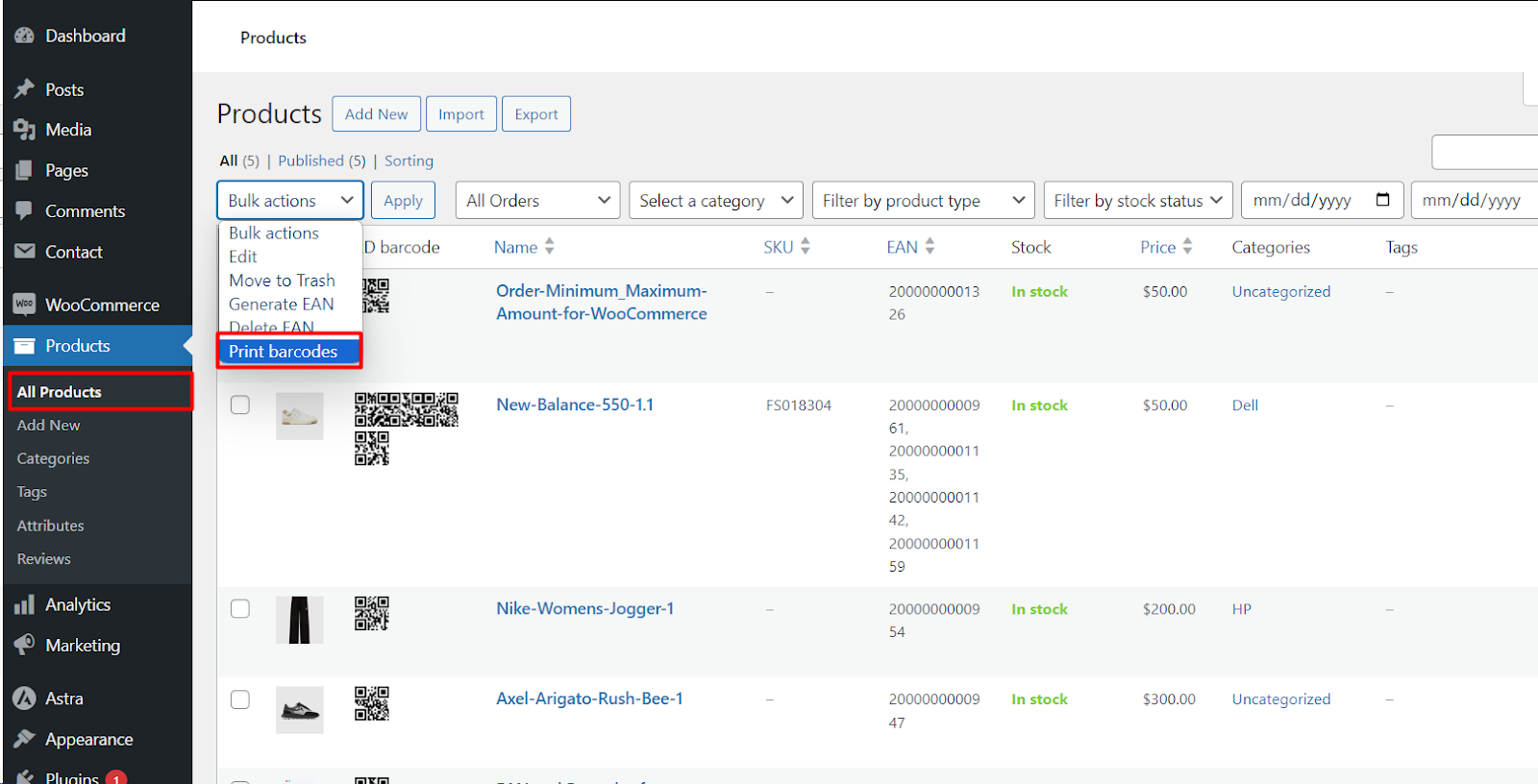
- Go to Products > All Products, tick the products you want, choose Print barcodes in the Bulk actions dropdown and click Apply.
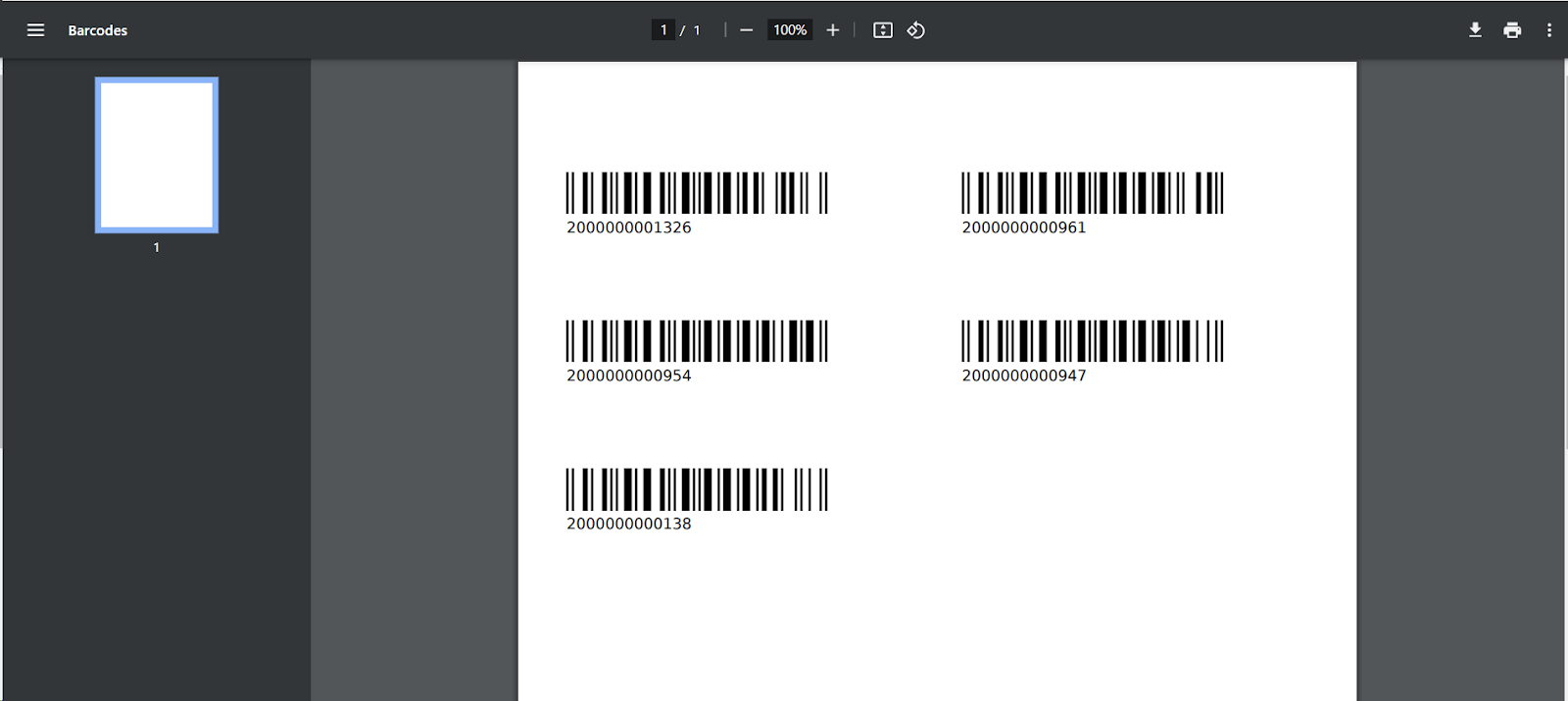
- The plugin returns a
barcodes.pdffile that opens in your browser. Print it on your label sheet.
Main options #
Page and label layout #
| Setting | Default | What it controls |
|---|---|---|
| Page orientation | Portrait | Portrait or Landscape |
| Unit | inches | Unit for every size and margin: millimeters, centimeters, inches or points |
| Page format | LETTER | A standard paper size, or Custom with your own width and height |
| Max barcodes per page | 12 | Labels on each page before a new page starts |
| Columns | 2 | Labels per row |
| Cell width / Cell height | 4 / 1.5 | Size of one label |
| Cell border | No | Draws a border around each label (useful for test prints) |
| Cell margins and Cell content alignment | 0 / Default | Space and alignment inside each label |
| Page margins | Top 1.13, Left 0.46, Right 0.31, Page break (bottom) 0.79 | Space around the label grid |
| Font / Font size | DejaVu Sans (Unicode) / 11 | Text on the label |
Label template #
Template sets what each label shows. The default is [alg_wc_ean_barcode]<br>[alg_wc_ean]. You can add shortcodes such as [alg_wc_ean_product_name], [alg_wc_ean_product_price], [alg_wc_ean_product_sku], [alg_wc_ean_product_image] or [alg_wc_ean_barcode_2d] for a QR code, and style them with the Style (CSS) field. The barcode shortcodes work in labels even when the Barcodes section itself is off. All attributes are in the EAN template placeholders and shortcodes reference.
Variations and quantities #
Variations decides what happens when you print a variable product: Do not include (default), Add (print the variations too) or Replace (print only the variations). Use stock quantity (default: off) prints one label for each item in stock.
Where the print buttons appear #
Print buttons in Admin Options shows Products > Bulk actions by default. Add Single product for a Print barcode box on the product edit page, or Single order for a Print barcodes box on the order page. Quantity input adds a quantity field to the bulk action, or a Print quantity column for each product.
Print Tools #
To print without the products list, pick Product(s) and a Quantity (default: 1) under Print Tools, check Print and click Save changes. Checking Products List adds a Print Products section to WPFactory > EAN with a table for setting quantities per product. See how to use the Print Products tool.
Advanced Print Options #
Skip products without EAN (default: on) leaves out products with no EAN. Use Print.js (default: on) makes the single product and single order print buttons open the print dialog directly. Suppress errors (default: on, recommended) hides PHP notices that can break the PDF. Define K_PATH_CACHE (default: off) sets a cache folder for the PDF library; turn it on if barcode images come out empty.
Free vs Pro #
The entire Print section, including the Print Products tool, is Pro. In the free version the Enable section box is disabled.
| Feature | Free | Pro |
|---|---|---|
| Save, search and show EANs | Yes | Yes |
| Print Barcodes (PDF) section and Print Tools | No | Yes |
| Print Products section | No | Yes |
| Barcode images on the storefront (Barcodes, 2D Barcodes) | No | Yes |
For the full list, see EAN Barcode Generator: Free vs Pro.
FAQ #
Why is “Print barcodes” missing from the bulk actions? #
The Print section is off, or Products > Bulk actions was removed from Print buttons. Check Enable section in WPFactory > EAN > Print and save.
Why are some products not in the PDF? #
Skip products without EAN is on by default, so products with no EAN are left out. Add their EANs, or turn the option off to print labels without a barcode.
How do I print several labels of the same product? #
Turn on Quantity input for the bulk action, use Use stock quantity to print one per item in stock, or set a Quantity in Print Tools.
My labels do not line up with my label sheet. What should I change? #
Set Unit to the unit your label sheet uses, then adjust Page margins, Cell width, Cell height and Columns. Turn on Cell border while testing to see each label’s edges.
Can I show barcodes in invoices instead? #
Yes, with the Barcodes compatibility options. See how to show barcodes in invoices and exports.
Ready to print labels? #
Barcode printing is a Pro feature of EAN for WooCommerce. If you are still on the free version, upgrading unlocks PDF labels along with barcode images and extra fields. Get EAN for WooCommerce Pro.
Need a hand? Our team answers every ticket on the EAN for WooCommerce support forum.