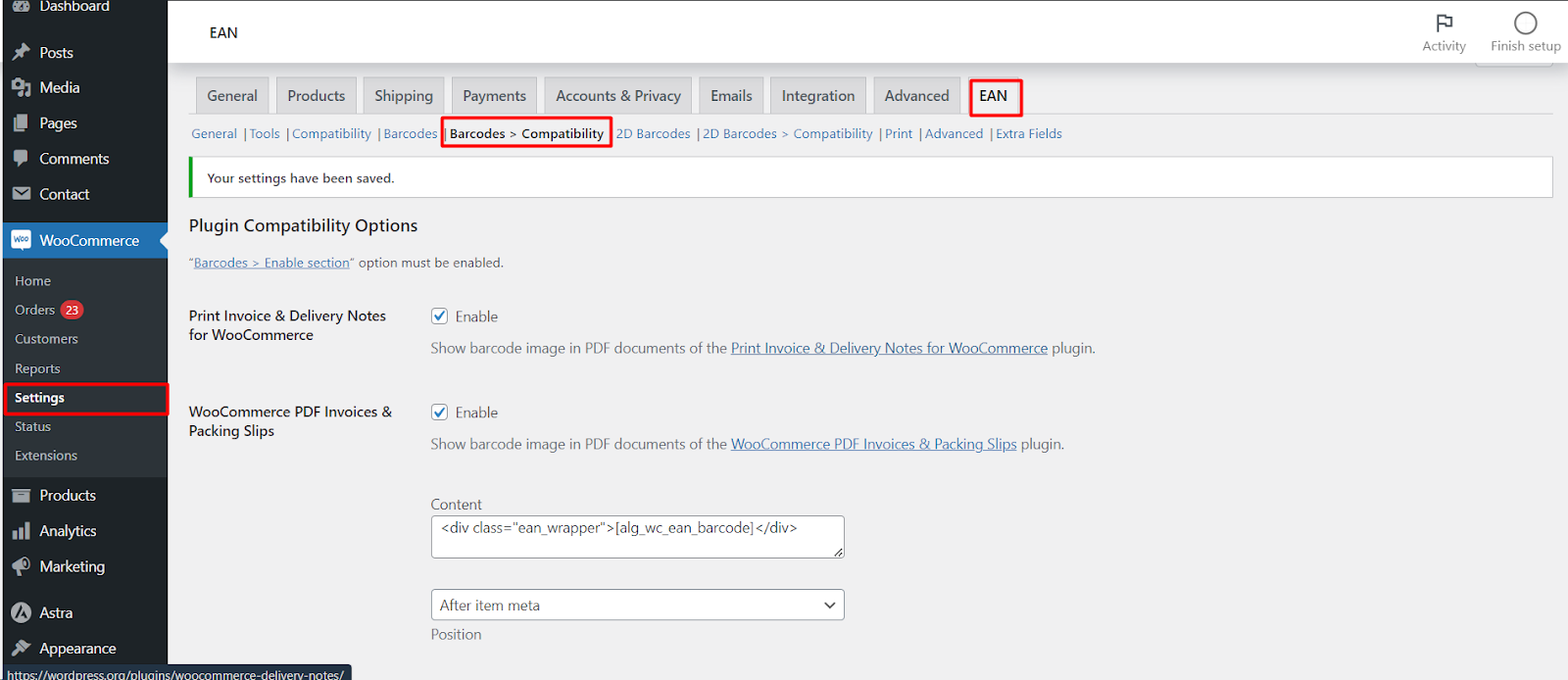
To show product barcode images in PDF invoices, packing slips, order exports and Dokan vendor forms, enable the Barcodes section of EAN for WooCommerce Pro, then open WPFactory > EAN (also reachable at WooCommerce > Settings > EAN) > Barcodes > Compatibility and switch on the plugin you use. The barcode is drawn from each order item’s EAN.
Before you start #
- EAN for WooCommerce Pro. The Barcodes sections are Pro only.
- Barcodes > Enable section must be turned on first. The Compatibility options do nothing while it is off.
- Products must have EANs. An order item with no EAN gets no barcode.
Where to find it #
Go to WPFactory > EAN (also reachable at WooCommerce > Settings > EAN) and open the Barcodes > Compatibility section. For QR codes and other 2D codes, use 2D Barcodes > Compatibility, which has the same options and needs 2D Barcodes > Enable section.
Supported integrations #
| Plugin | Option ID | Default | Placement options |
|---|---|---|---|
| Print Invoice & Delivery Notes for WooCommerce | alg_wc_ean_wcdn_barcode |
Off | Fixed: after each order item |
| WooCommerce PDF Invoices & Packing Slips | alg_wc_ean_wpo_wcpdf_barcode |
Off | Content template; Position: Before item meta or After item meta (default) |
| PDF Invoices, Packing Slips, Delivery Notes & Shipping Labels | alg_wc_ean_wt_pklist_barcode |
Off | Content; Position (Before/After item name, Before/After item meta, As a separate column); Documents; column title, class and style |
| WooCommerce Customer / Order / Coupon Export | alg_wc_ean_wc_customer_order_export_barcode |
Off | Content (base64 image by default) |
| Dokan | alg_wc_ean_dokan_barcode |
Off | Title (default “Barcode”) and Content |
Set it up #
- Go to WPFactory > EAN (also reachable at WooCommerce > Settings > EAN) > Barcodes, tick Enable section and click Save changes.
- Open Barcodes > Compatibility.
- Tick Enable next to the plugin you use.
- Adjust the content and position fields if needed, then click Save changes.
- Open a test order that contains a product with an EAN, and generate its invoice or export.
PDF placement #
For each invoice plugin you can set the barcode content template and its position, such as before or after item meta, or as a separate column. The default content is the [alg_wc_ean_barcode] shortcode wrapped in a div or p, so you can add text around it, for example <p>EAN: [alg_wc_ean] [alg_wc_ean_barcode]</p>.
For PDF Invoices, Packing Slips, Delivery Notes & Shipping Labels, Documents limits the barcode to certain documents. Leave it empty for all, or enter a comma-separated list such as invoice,packinglist,deliverynote,dispatchlabel. Column title, class and style apply only when Position is As a separate column.
The export integration adds an item_barcode column to order item exports (item_barcode_2d for 2D codes).
Dokan #
The Dokan integration is active: enabling it shows a barcode in the vendor product form, with its own title and content template.
If it does not work #
- The Enable section box is greyed out: you are on the free version. Barcodes require Pro.
- No barcode on the invoice: check that Barcodes > Enable section is on, and that the product or variation in the order has an EAN.
- You want the number only, not an image: use the main Compatibility section instead. It adds the EAN as text to the same invoice plugins and is free. See EAN for WooCommerce Compatibility Options.
FAQ #
Can I show a QR code instead of a linear barcode? #
Yes. Enable 2D Barcodes and use 2D Barcodes > Compatibility. The options mirror the 1D ones with a _2d suffix.
Where does the barcode value come from? #
From the EAN saved on the order item, or, if there is none, from the ordered product or variation.
Can I print barcode labels instead? #
Yes. See How to Use the Print Barcodes (PDF), also a Pro feature. To display barcodes on product pages, see How to Display Product Barcodes.
Ready to set this up? #
Barcode compatibility is part of EAN for WooCommerce Pro. Get EAN for WooCommerce Pro.
Need a hand? Our team answers every ticket on the EAN for WooCommerce support forum.