To send product EANs to Google feeds, point of sale, PDF invoices, order exports or multivendor plugins, use EAN for WooCommerce. Go to WPFactory > EAN > Compatibility, tick Enable next to each plugin you run, adjust its extra options, and click Save changes. All of these options are free.
The compatibility options push your product EANs into other plugins you already run, so you do not have to copy codes by hand.
Where to find it #
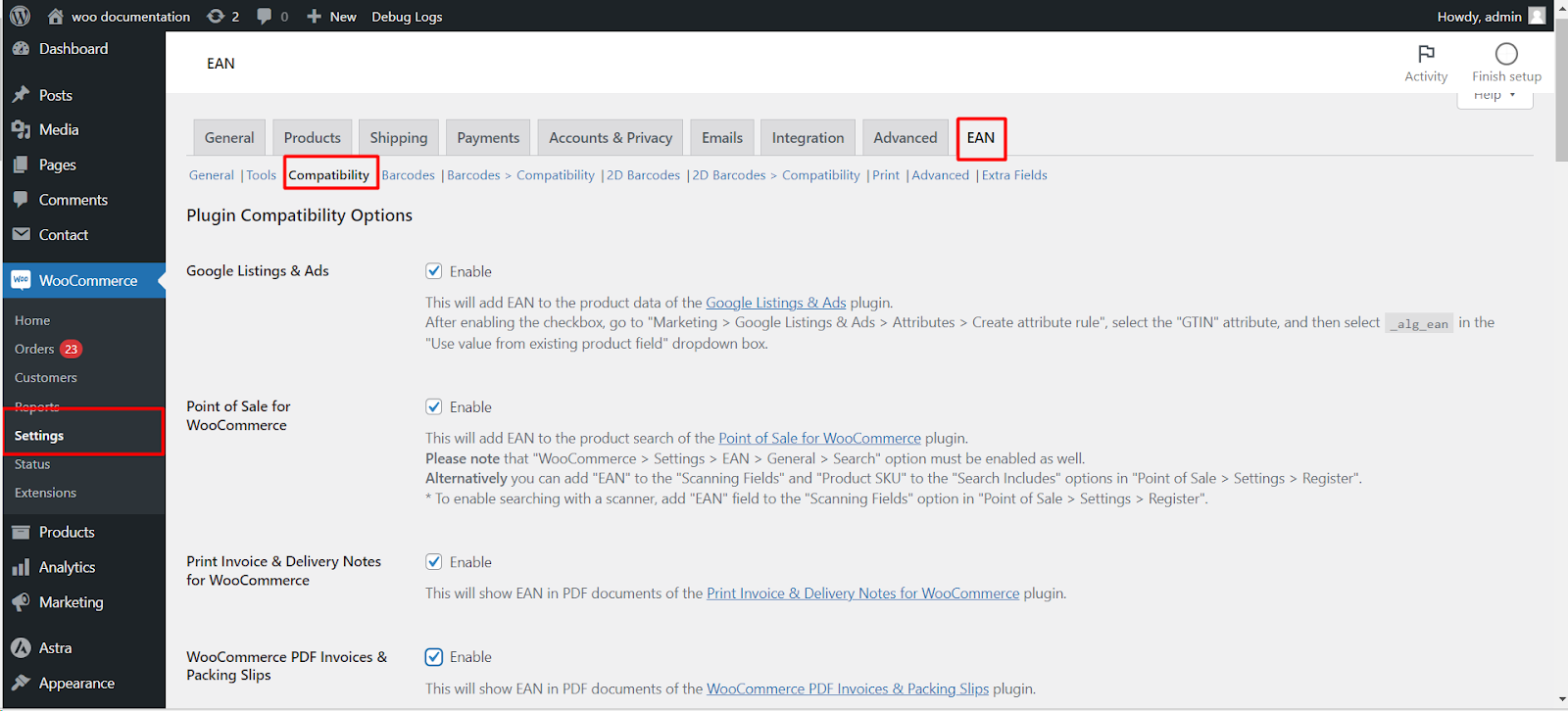
Go to WPFactory > EAN (also reachable at WooCommerce > Settings > EAN) and open the Compatibility section. The options are listed under Plugin Compatibility Options.
Supported integrations #
| Plugin | Option ID | Default | What it does |
|---|---|---|---|
| Google Listings & Ads | alg_wc_ean_gla |
No | Adds the EAN to the product data used for GTIN |
| Google Product Feed | alg_wc_ean_gpf |
Yes | Makes the EAN selectable as a source field in the feed settings |
| Point of Sale for WooCommerce | alg_wc_ean_wc_pos_search |
No | Adds the EAN to product search |
| WooCommerce OpenPos | alg_wc_ean_op |
Yes | Offers the EAN as the barcode meta key |
| Print Invoice & Delivery Notes | alg_wc_ean_wcdn |
No | Shows the EAN in its PDF documents |
| WooCommerce PDF Invoices & Packing Slips | alg_wc_ean_wpo_wcpdf |
No | Shows the EAN in its PDF documents |
| PDF Invoices, Packing Slips, Delivery Notes & Shipping Labels | alg_wc_ean_wt_pklist |
No | Shows the EAN in its documents |
| WooCommerce Customer / Order / Coupon Export | alg_wc_ean_wc_customer_order_export |
No | Adds an item_ean column to order items exports |
| Dokan | alg_wc_ean_dokan |
No | Adds an EAN field to the vendor product form |
| WCFM and WCFM Marketplace | alg_wc_ean_wcfm |
No | Adds an EAN field to the vendor product forms |
| MultiVendorX | alg_wc_ean_mvx |
No | Adds an EAN field to the vendor product form |
| WC Vendors | alg_wc_ean_wc_vendors |
Yes | Fixes its “Products” tab when EAN frontend search is on |
Google Listings & Ads #
Enable the option, then go to Marketing > Google Listings & Ads > Attributes > Create attribute rule, select the GTIN attribute, and choose _alg_ean from “Use value from existing product field”. If you changed Meta key in the Advanced section, choose that key instead. You can then sync products to Google Merchant Center from the Google Listings & Ads connection testing page.
Google Product Feed #
This option is on by default. It adds the EAN to the list of fields you can pick at WooCommerce > Settings > Product Feeds > Global Trade Item Number (GTIN). Select it there to fill GTIN in your feed.
Point of Sale for WooCommerce #
Enable the option, and make sure General > Search is on in EAN for WooCommerce so products can be found by EAN. To scan, add the EAN field to your point of sale scanning fields as described in the option’s tooltip: WooCommerce > Settings > Point of Sale > Scanning > Scanning Fields.
WooCommerce OpenPos #
This option is on by default. It makes the EAN available in OpenPos at POS > Setting > Barcode Label > Barcode Meta Key. Select it there so OpenPos reads your EANs.
PDF invoices and packing slips #
- WooCommerce PDF Invoices & Packing Slips: set the Content (use the
%ean%placeholder) and the Position: Before item meta or After item meta (default). - PDF Invoices, Packing Slips, Delivery Notes & Shipping Labels: set the Content (default
<p>EAN: [alg_wc_ean]</p>), the Position (before or after item name, before or after item meta, or As a separate column with its own title), and Documents, a comma-separated list such asinvoice,packinglist. Leave Documents empty to include all documents.
Multivendor marketplaces #
For Dokan, WCFM, WCFM Marketplace, and MultiVendorX, enabling the matching option adds an EAN field to the vendor product form. Each integration exposes a title and placeholder you can customize, and WCFM can add a Generate button for vendors. Dokan also has a Required option that marks the field as required in the vendor form.
If it does not work #
- The other plugin still shows no EAN. Most integrations only make the EAN available. You still need to select it in that plugin’s own settings, as described above.
- Google feeds show an empty GTIN. Check that products actually have an EAN and that the selected field matches your meta key. See EAN/GTIN empty in feeds after mapping.
- POS search finds nothing. General > Search must be enabled as well.
FAQ #
Are the compatibility options free? #
Yes. Every option in the Compatibility section is free.
Can barcode images appear in invoices, not just the number? #
Yes, with Pro. Use Barcodes > Compatibility (see show barcodes in invoices and exports) or 2D Barcodes > Compatibility (see 2D barcode compatibility options).
Where is the EAN stored, for plugins that ask for a field name? #
In the product meta key _alg_ean by default. You can change it at WPFactory > EAN > Advanced > Meta key; if you do, use the new key everywhere another plugin asks for the EAN field.
Get more from EAN for WooCommerce #
These integrations are free. EAN for WooCommerce Pro adds a separate set of barcode-image integrations for the same PDF and export plugins. See what Pro unlocks.
Need a hand? Our team answers every ticket on the EAN for WooCommerce support forum.