To add extra product code fields such as MPN in WooCommerce, use the Pro Extra Fields section of EAN for WooCommerce at WPFactory > EAN > Extra Fields (also reachable at WooCommerce > Settings > EAN > Extra Fields). Set how many fields you need, then configure each one on its own tab.
What extra fields do #
The main EAN field stores one code per product. Extra fields let you keep more codes side by side, for example EAN and MPN at the same time. Each extra field is saved as product meta under its own meta key and supports a smaller feature set than the main field: title, meta key, admin product search, display on the single product page (including variations), frontend search and product structured data. Features outside that list, such as barcodes, apply to the main EAN field only.
Before you start #
- WooCommerce, active.
- EAN for WooCommerce Pro. In the free version the Enable field checkbox is disabled.
Step 1: Set the number of extra fields #
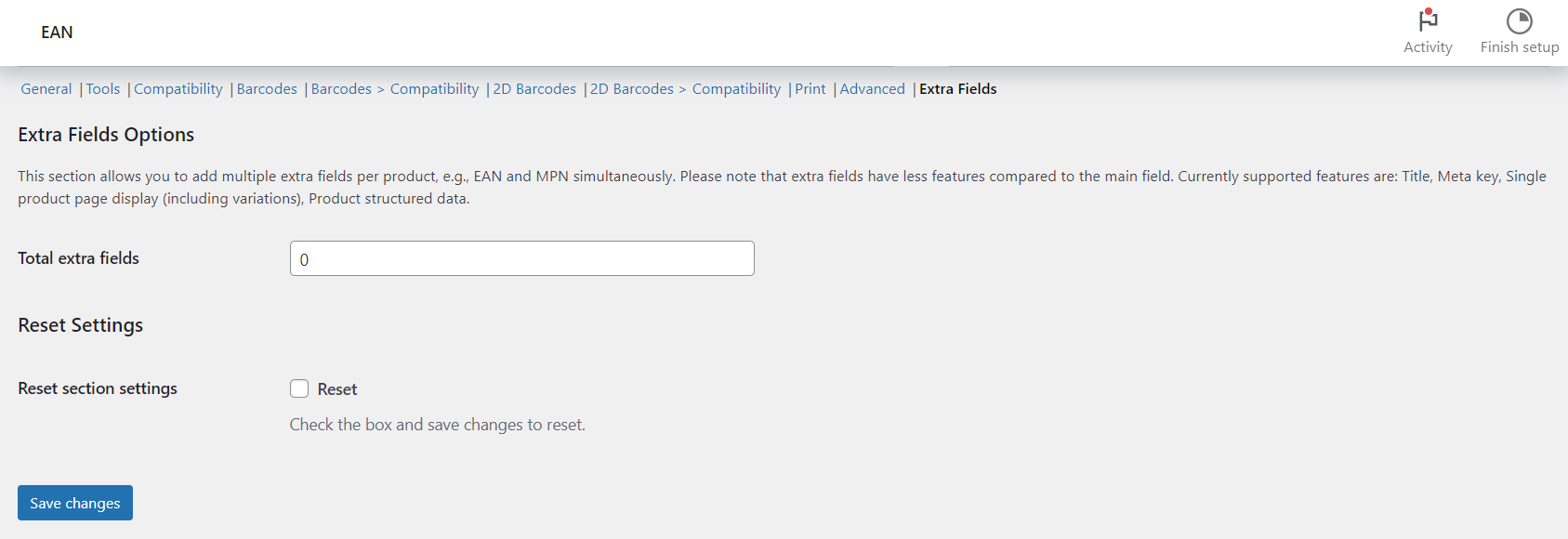
- Go to WPFactory > EAN and open the Extra Fields tab.
- Enter a number in Total extra fields (default 0) and click Save changes.
- After saving, a name box appears for each field (Extra field #1, Extra field #2 and so on), and a new tab is added for each field.
Step 2: Configure each field #
Open the tab for a field (it is named after the field title, for example Extra field #1 or MPN) and set its options.
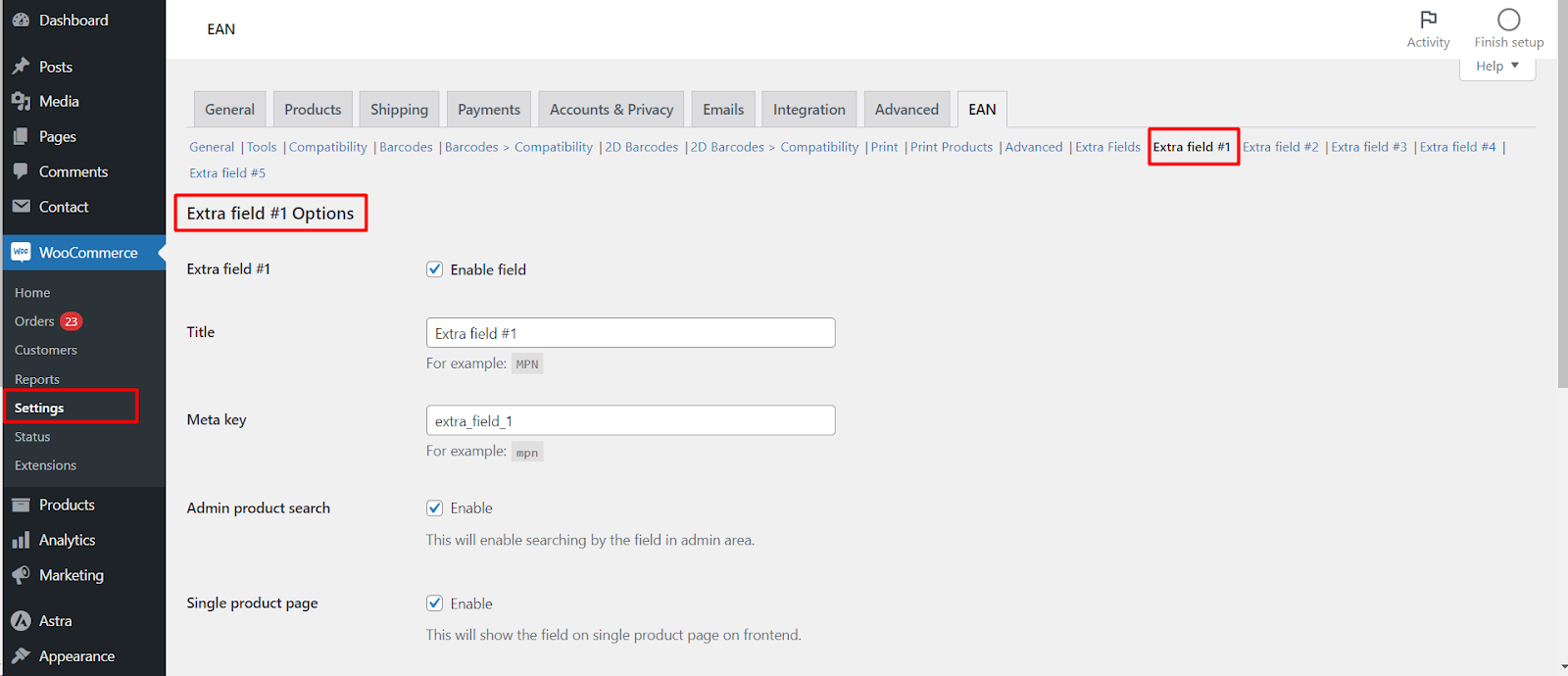
| Label | Option ID | Default | What it does |
|---|---|---|---|
| Enable field | alg_wc_ean_extra_field_enabled[N] |
No | Turns the field on. A field that is not enabled does nothing, even if its other options are set. |
| Title | alg_wc_ean_extra_field_name[N] |
Extra field #N | The label shown on the product edit page and on the storefront, for example MPN. Required. |
| Meta key | alg_wc_ean_extra_field_key[N] |
extra_field_N |
The product meta key the value is saved under, for example mpn. Required. |
| Admin product search | alg_wc_ean_extra_field_backend_search[N] |
No | Lets you find products by this field in the admin products list. |
| Single product page | alg_wc_ean_extra_field_frontend[N] |
Yes | Shows the field in the product meta area (as Title: value), and in the variation details when a variation is selected. |
| Search | alg_wc_ean_extra_field_frontend_search[N] |
No | Lets customers find products by this field in the storefront search. |
| Product structured data | alg_wc_ean_extra_field_structured_data_product[N] |
Yes | Adds the value to the product structured data, using the meta key as the property name. |
N is the field number (1, 2, 3 and so on). Each tab also has a Reset section settings checkbox: tick it and save to return that field’s options to their defaults.
Tip: because the meta key becomes the structured data property name, use mpn as the meta key for a Manufacturer Part Number so the value is output under the mpn property that Google reads. For the main EAN in structured data, see Add EAN to Product Structured Data (GTIN for Google).
Step 3: Enter values on your products #
- Edit a product in Products.
- Find the new input, labeled with the field title. It appears in the same product data tab as the main EAN field (by default Inventory, after SKU, set by Admin product edit page > Position on the EAN General tab).
- For variable products, each variation has its own input (by default after the variation pricing). The parent product’s value is shown as the placeholder.
- Click Update, then view the product to check the display.
Use cases #
- Store an MPN next to the EAN so Google Shopping and marketplaces get both identifiers.
- Keep a supplier or internal reference code that staff can search for in the admin.
- Hold a UPC for one market and an EAN for another on the same product.
Troubleshooting #
- The Enable field box is greyed out: Extra Fields is a Pro feature. Install and activate EAN for WooCommerce Pro.
- No tab for my field: set Total extra fields to 1 or more and save first.
- The field does not show on the product page: check that Enable field and Single product page are ticked and the product has a value. Themes that remove the WooCommerce product meta area also hide the field.
- Values disappeared after I changed the meta key: values are stored under the meta key, so changing it points the field at a different, empty key. Change it back to see the old values.
Ready to set this up? #
This is a Pro feature of EAN for WooCommerce. If you are still on the free version, upgrading takes a couple of minutes and unlocks this along with barcodes, 2D barcodes and PDF printing. Get EAN for WooCommerce Pro.
Need a hand? Our team answers every ticket on the EAN for WooCommerce support forum.